

Design a Certificate of Completion
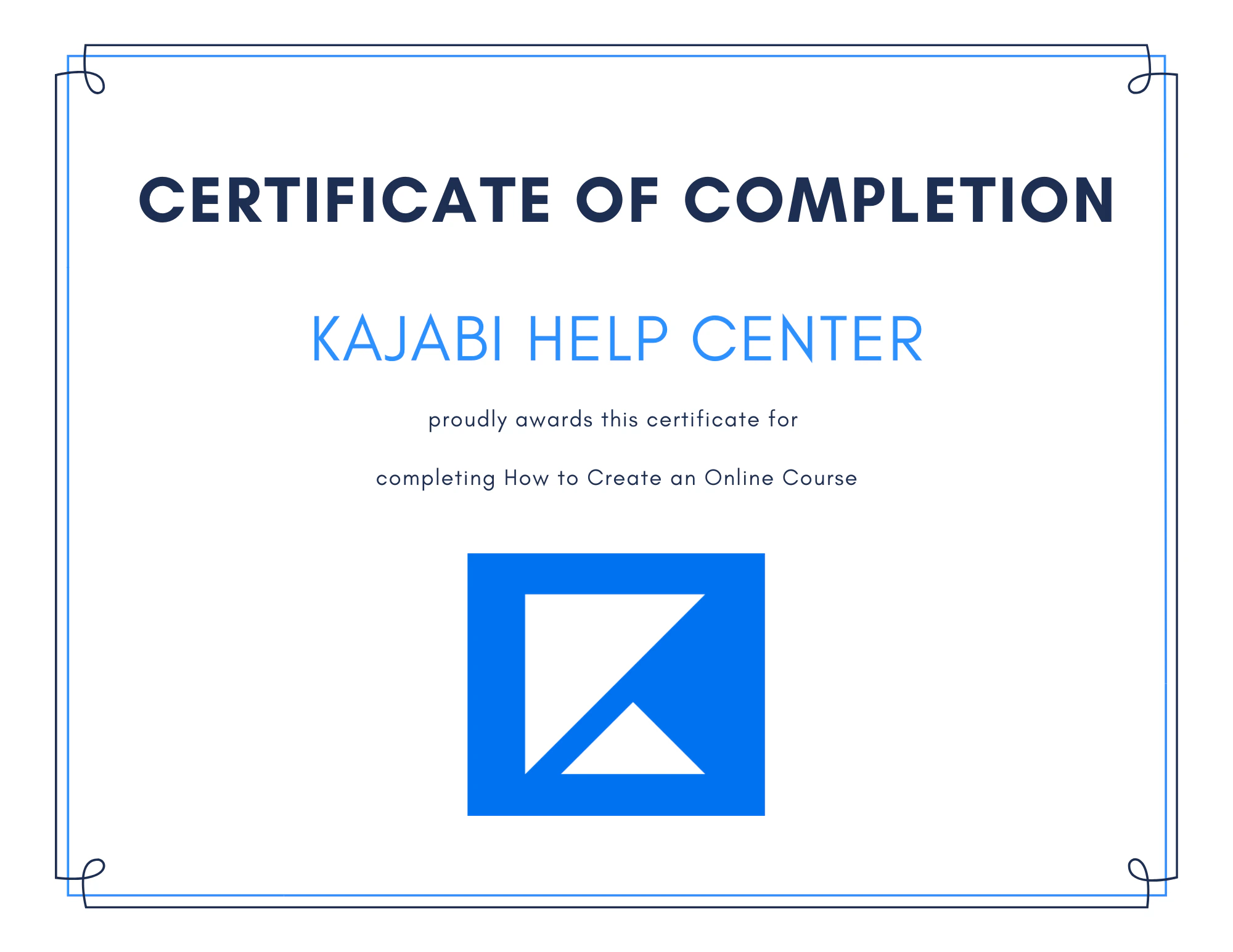
In order to send a Certificate of Completion, first design your certificate to fit your brand and business. Design your Certificate of Completion using image editing tools like Canva to create branded certificates for your customers. For a general Certificate that applies to all customers completing your Course, design a general Certificate. If you wish to create and send personalized Certificates, refer to create a Certificate with Google Slides or send Certificates of Completion with Accredible. Then, download your designed Certificate of Completion to your local hard drive.Example certificate designed with Canva
Create an Automation in the final Course Lesson
After designing your certificate, set up your Automation in Kajabi to send the certificate as an email attachment to customers who complete your Course.Create the Automation
- Open the Products tab from the Dashboard.
- Select the Course you wish to edit, or create a new one.
- Select your final Course Lesson.
- Navigate to the bottom of the Lesson Editor and click + Add Automation.
- Open the Then action triggered by the completion of the Lesson.
- Select Send an email.
- Select To the person.
- Customize your email and click the paper clip icon to add an attachment.
- Use the File Uploader to upload your Certificate of Completion.
- Click Ok and Save to keep your changes.
If you have a Kajabi Basic Plan
Your Automation adds a tag when a customer completes the Lesson. Click Save to keep your changes.If you have a Growth or Pro Plan
You have additional options:Automatically add a Tag when a customer completes the Lesson
Note: The Lesson is considered complete when your customer selects the Mark as Complete button located at the bottom of the Lesson.
Automatically add a Tag when a customer passes or completes an Assessment
- Click Add Condition.
- Open the Select filter dropdown menu.
- Select your desired conditional filter: Completed any of these assessment(s) or Passed any of these assessment(s).
- In the next field, select your Assessment.
- Click Apply and Save to keep your changes.
Note: The Assessment feature inside of Courses has been sunset. This feature may still appear in older accounts. The Quizzes feature is available inside of Courses and offers advanced functionality. Assessments can still be added to Web Pages. Customize your Quiz Settings to add an Automation when a Quiz is passed or completed.