

Note: This feature is available only if you have:
- Upgraded to the visual Automation Builder
- A Growth plan or higher (Advanced Automations)
What the Wait Node does
The Wait Node pauses your Automation for an amount of time. You can place it before or after any action and choose a set amount of time, calendar date, specific day of the week, or time of day: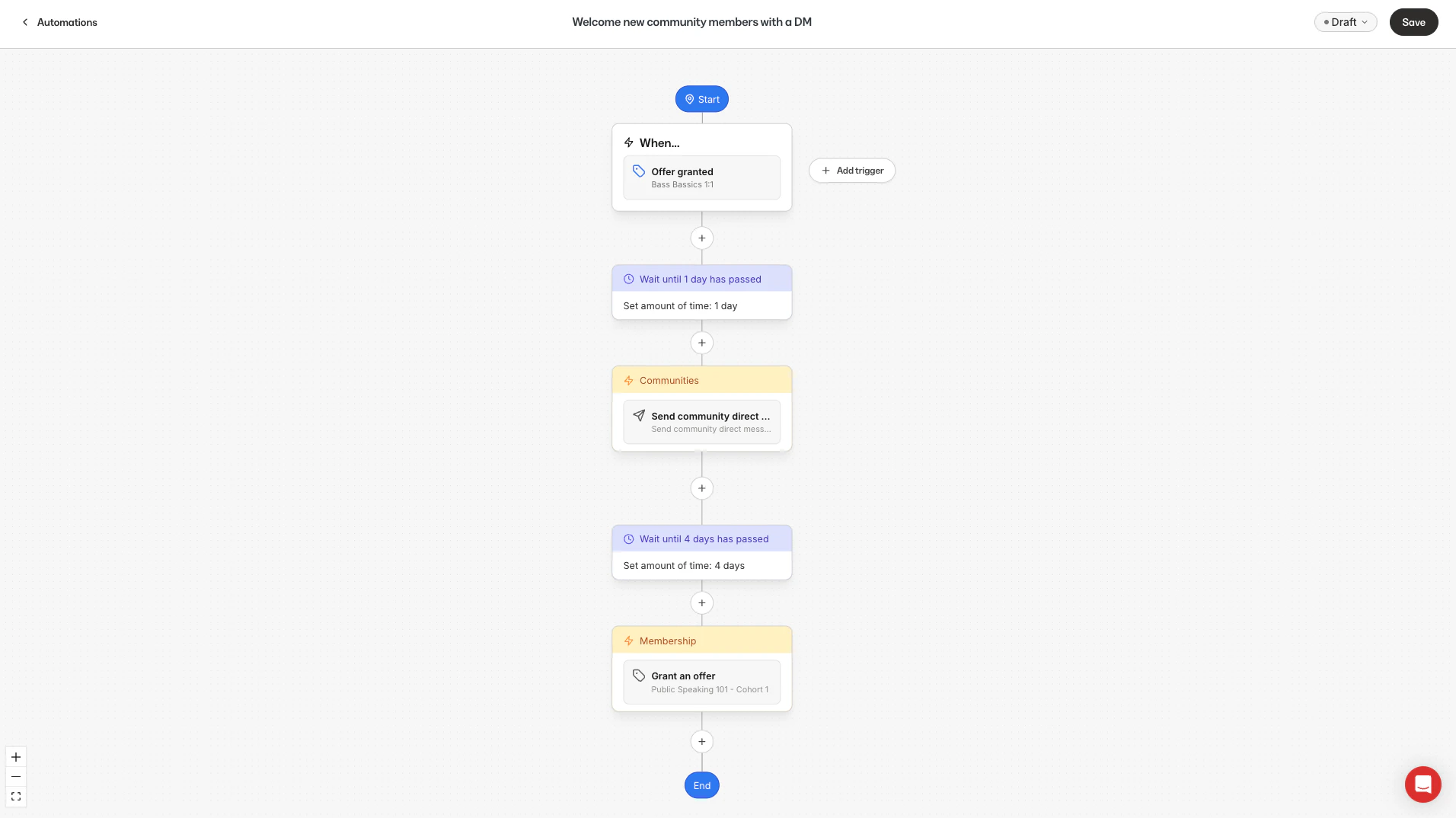
Add a Wait Node
You can add a Wait Node either before choosing an action or after the action is already in place.Add a Wait Node before selecting an action
- From your Kajabi Dashboard, click Marketing > Automations.
- Choose a preexisting Automation or create a new one.
- Open your Automation and confirm a trigger is already added.
- Click the + beneath the trigger.
- Select Wait.
- Configure the Wait Node:
- Name (optional)
- Wait until:
Note: Wait Nodes with a specific time are always based on your account’s time zone.
- The Wait Node appears in the workflow:

Add a Wait Node after selecting an action
- Add an action to your Automation.
- Click the + between the trigger and the action.
- Select Wait.
- Choose a Wait until option (set amount of time, calendar date, day of week, time of day).
- Save your changes. The Wait Node is added between the trigger and the action.
