

Note: This feature is available only if you have upgraded to the visual Automation Builder.
Add and use filters
You can filter Automations by Trigger or Action type.Add a trigger or action filter
- From the Kajabi Dashboard, select Marketing > Automations.
- On the Automations index page, choose Trigger or Action at the top of the dropdown.
- Select a Trigger or Action.
- (Optional) Select an Operator and/or Value.
Use multi-select
- Any dropdown (Trigger or Action) supports multi-select
- When multiple items are chosen, the dropdown displays “Multiple selected.”
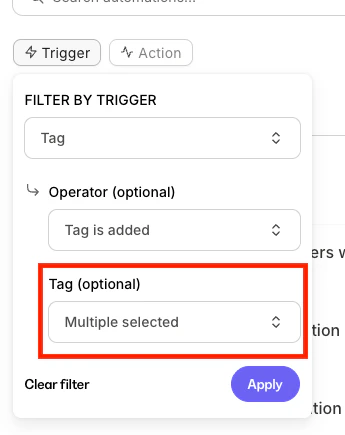
Edit and remove filters
- Click an active filter to edit its selections
- Click Clear Filter to remove it
- Use Clear All to remove every applied filter
Trigger type column
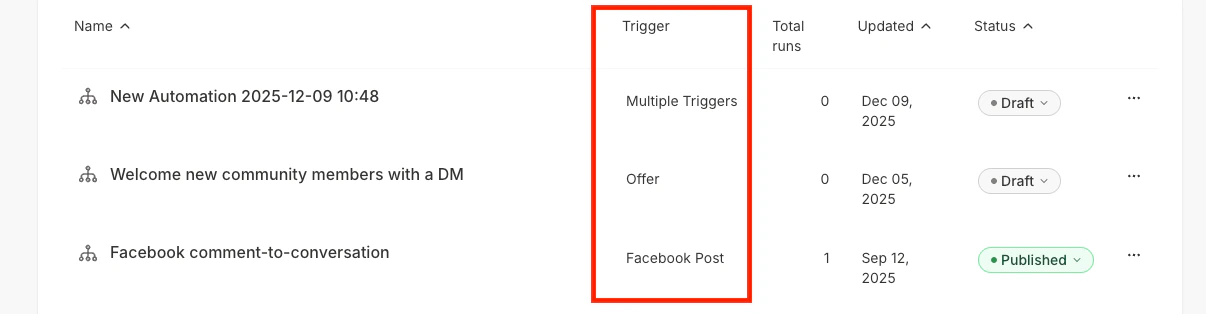
The Trigger Type column displays an at-a-glance view of the Automation’s triggers from the main Automations page.How it displays
- If the Automation has multiple triggers, the column displays: “Multiple Triggers”
- If the Automation has one trigger, it displays the specific Trigger Type
Automations panel: Offers, Forms, and more
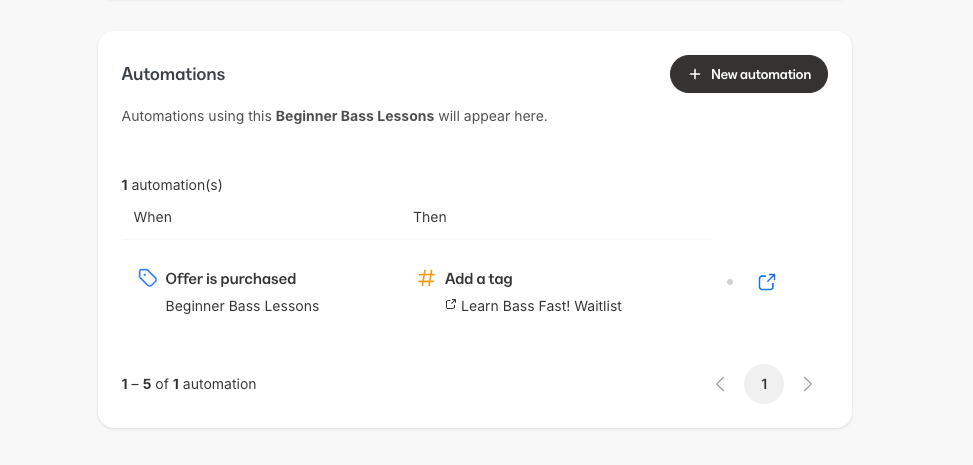
The Automations Panel shows every Automation in which a specific item (such as an Offer or Form) appears as either a Trigger or an Action.How items display
If the item appears as a Trigger:- It is shown under When
- The immediately following node appears under Then
- It is shown under Then
- The node immediately before it appears under When
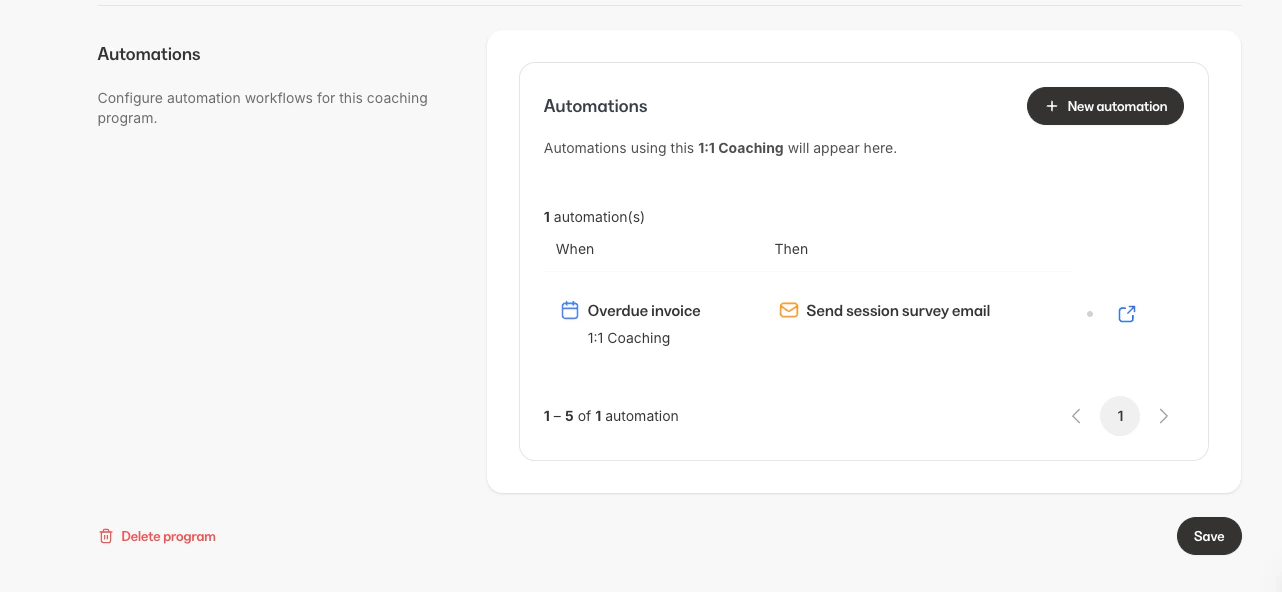
- Each trigger displays as its own When item