Note:
This guide requires an upgraded Zapier account to build a Multi-Step Zap. If you wish to send a certificate directly from Kajabi read How to Send a Certificate of Completion with Automations.
Prepare the site
First, set up your site in Kajabi by creating an Automation to add a Tag. When your custom Tag is added to a customer’s Profile, Kajabi will notify Zapier that your customer has completed a course and Zapier will send a personalized Certificate of Completion to your customer’s email inbox. Create an Automation to add a Tag when your customer clicks Mark as Complete in the Lesson or Passes an Assessment:- Open the Product tab from the Dashboard.
- Select the Course your Certificate of Completion will be connected to.
- Click the Lesson that will trigger the sending of your certificate.
- Navigate to the bottom of the Editor.
- Click + Add Automation.
- Select Add a tag in the Then dropdown.
- Enter your Tag name. We recommend naming your Tag with keywords to help you easily identify the meaning of your Tag.
- Click Save to apply your changes:
Note:
The Lesson is considered complete when your customer selects the Mark as Complete button located at the bottom of the Lesson.
Note:
The Assessment feature inside of Courses has been sunset. This feature may still appear in older accounts. The Quizzes feature is now available inside of Courses and offers advanced functionality. Assessments can still be added to Web Pages. Customize your Quiz Settings to add an automation when a Quiz is passed or completed.
If you have a Kajabi Basic Plan
Your Automation will add a Tag when a customer completes the Lesson. Click Save to keep your changes and skip to create the certificate.If you have a Growth or Pro Plan
You have the option to automatically add a Tag when your customer completes the Lesson:- Click Save to keep your changes and skip to create the certificate.
- Click Add Condition.
- Open the Select filter dropdown menu.
- Select your desired conditional filter: Completed or Passed any of these assessments(s).
- In the next field, select your Assessment and click Apply.
- Click Save to keep your changes:
Create a certificate of completion template in Google Slides
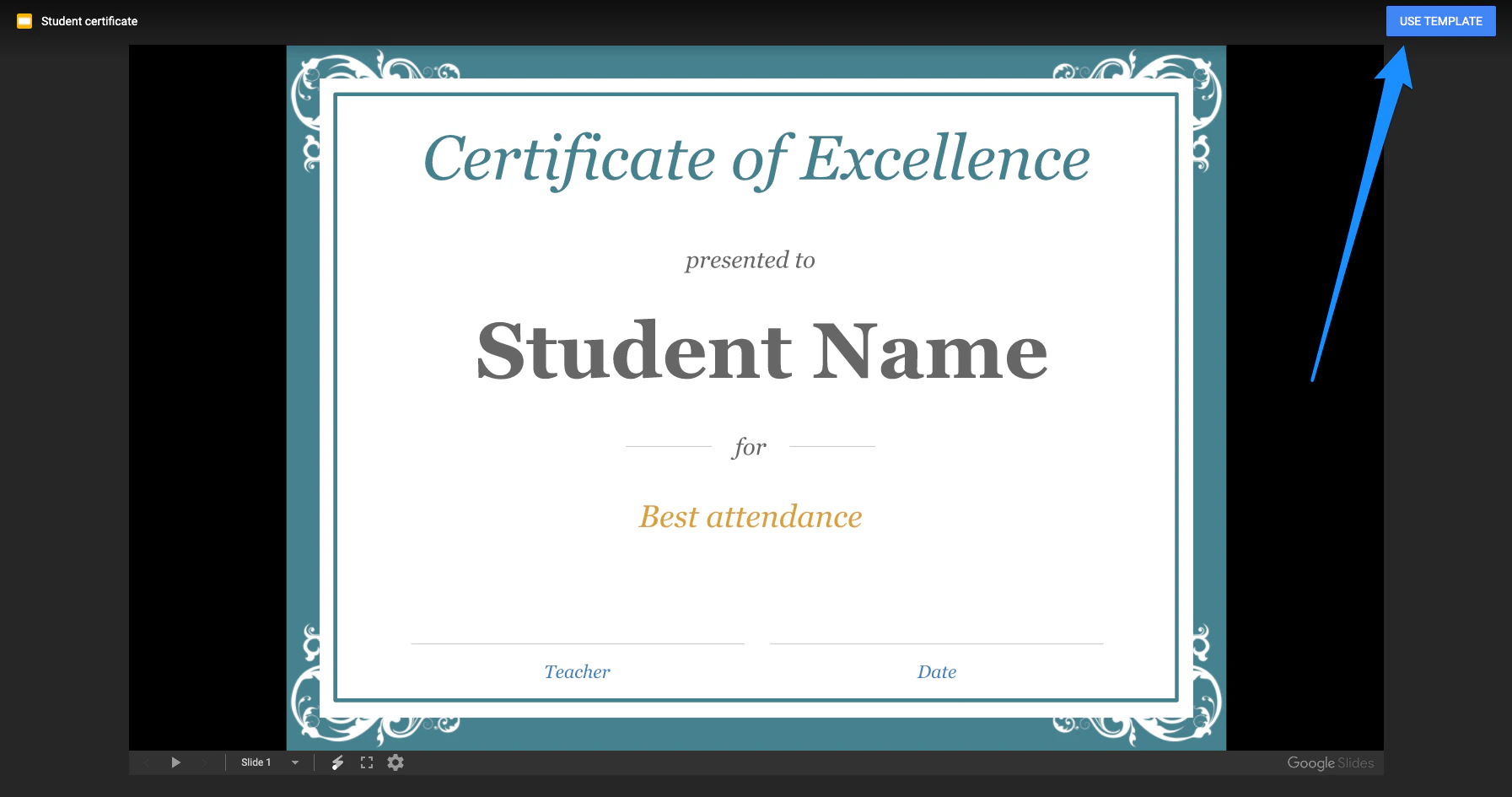
The first step to creating a Certificate of Completion with Google Slides is to create and design your Certificate Template. For the purpose of this Guide, we will use a standard template:- Open the standard template from Google Slides here.
- Follow along with this template by clicking USE TEMPLATE in the top right corner of the screen:
Edit the template
Next, customize the design of the certificate template to fit your brand and language. Then, specify the information you want added to your certificate. Typically, certificates include:- Student name
- Course name
- Issuing date
{{name}}.
Note:
The variable name specified in your Google Slide Template has nothing to do with the variable name in Kajabi. For example, using
{{name}} or {{student_name}} or {{user_name}} will not make a difference.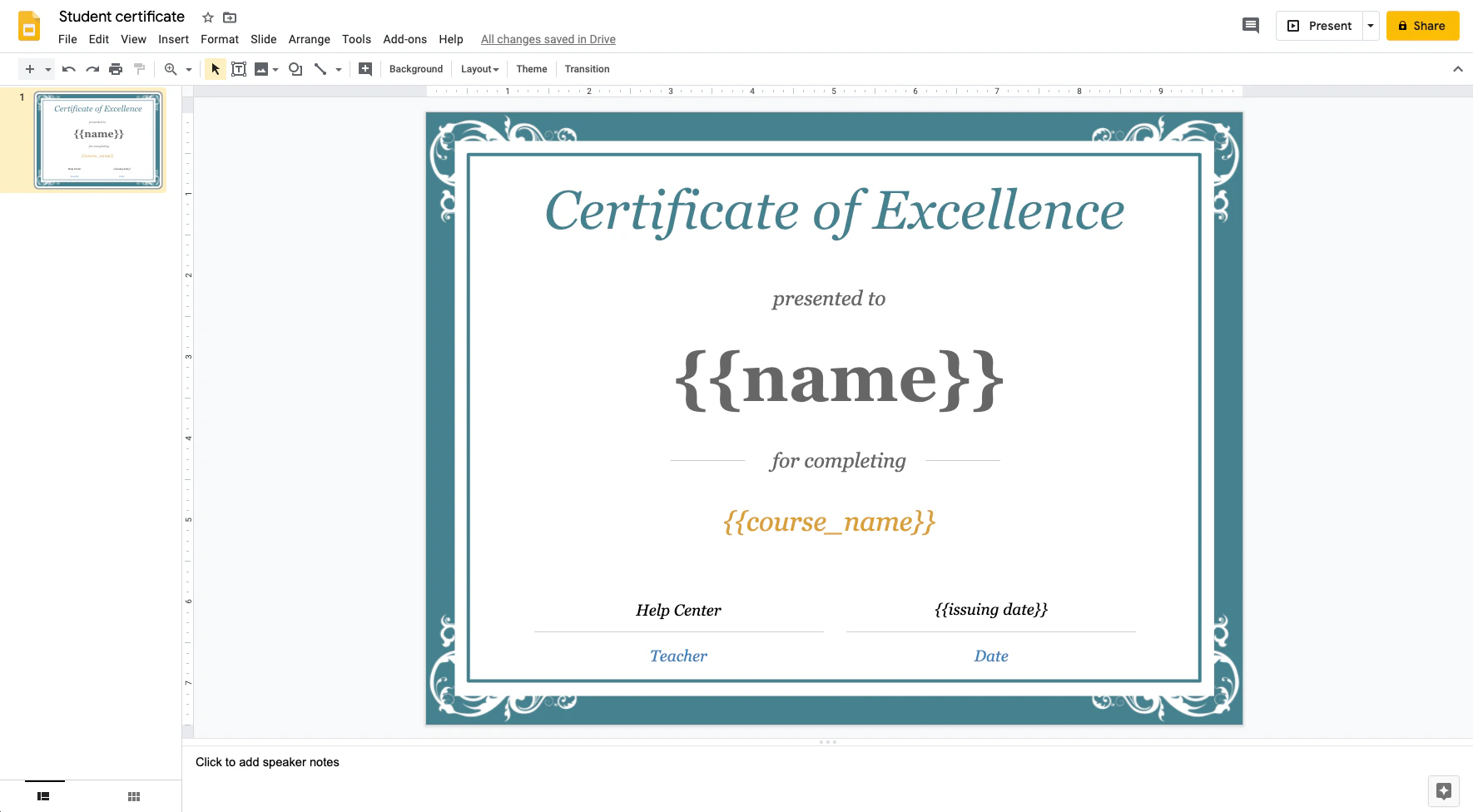
Set up a Zap to automatically create certificates
Make a Zap with Zapier to automatically create and send certificates of completion based on your students’ actions on your site. Read How to Use Zapier with Kajabi for details.- Create a new Zap by clicking Make a Zap:
- Select Kajabi for the App.
- Then, select Tag Added for the Trigger Event.
- Click Continue:
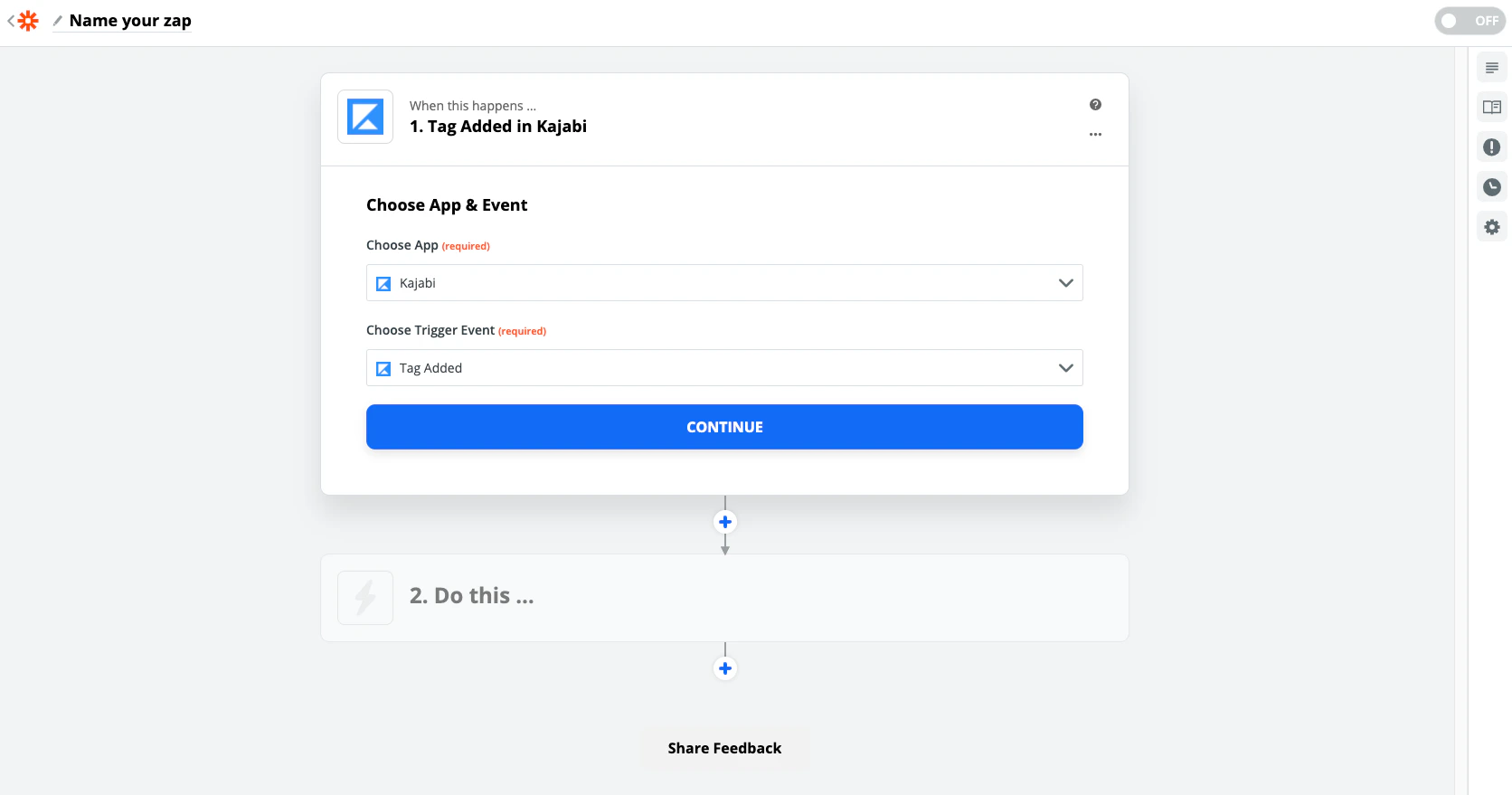
- First, select your Site in the second dropdown menu or you will receive an error that your Tags are not available.
- Then, select the Tag created with your Automation.
- Click Continue.
- Then, click Test & Continue:
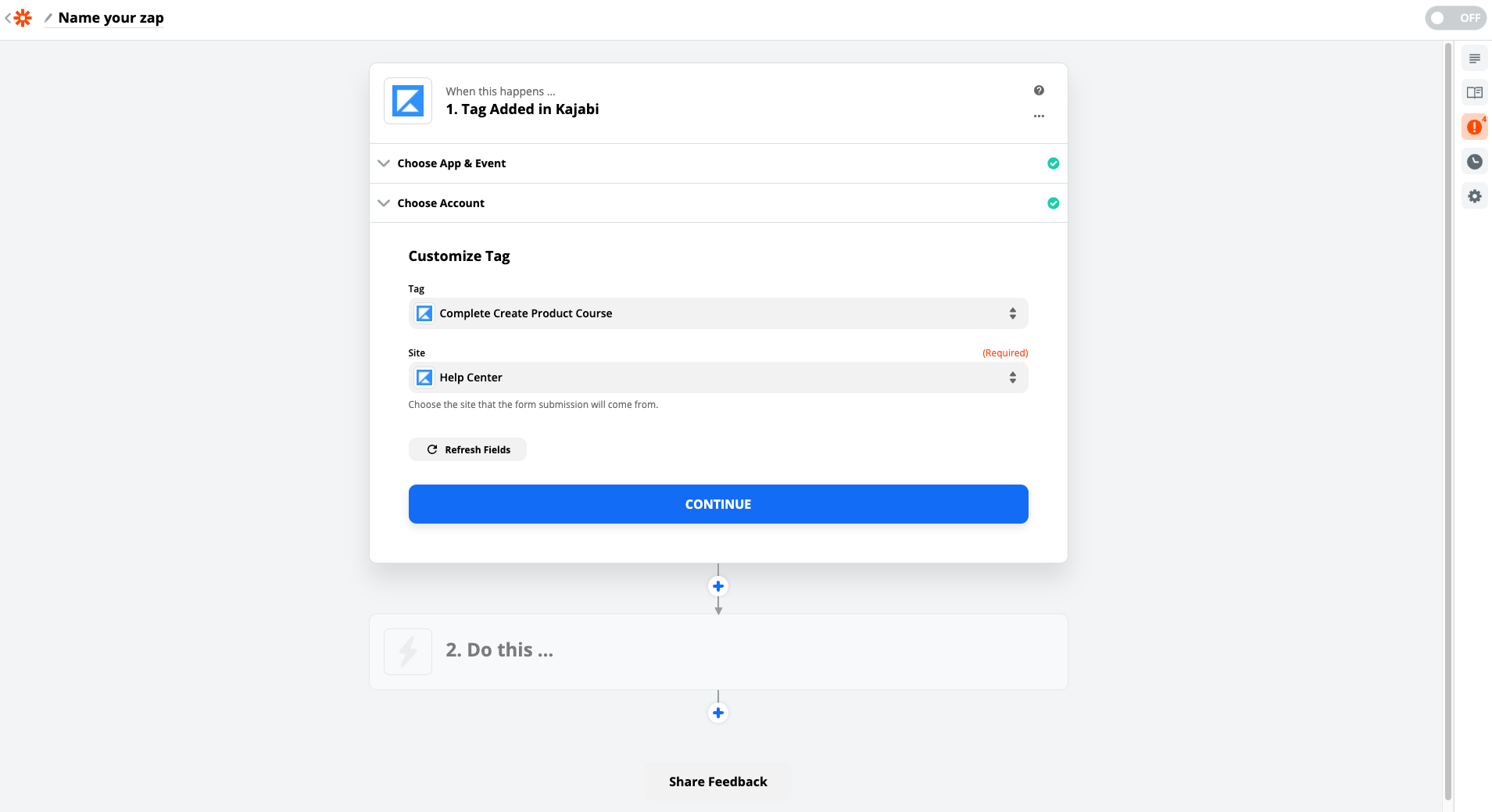
Note:
The Test & Continue step requires data to successfully perform the test. Therefore, there must be a Tag in your site. If you haven’t created a Tag, refer back to the Setting up your Site step. Read Zapier’s Guide if you wish to change the sample data.
- Select Google Slides for the App.
- Select Create Presentation From Template for the Action Event.
- Click Continue:
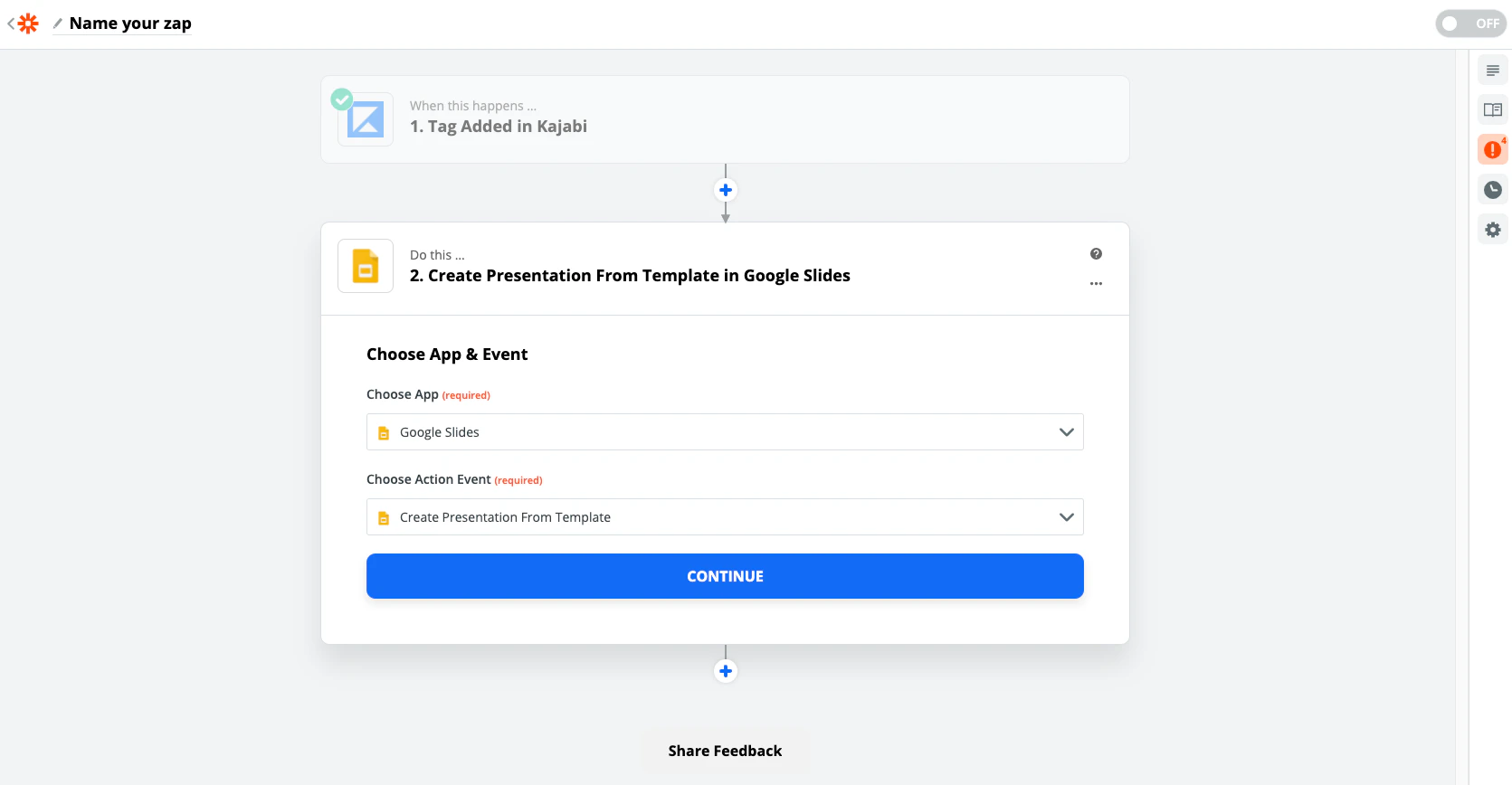
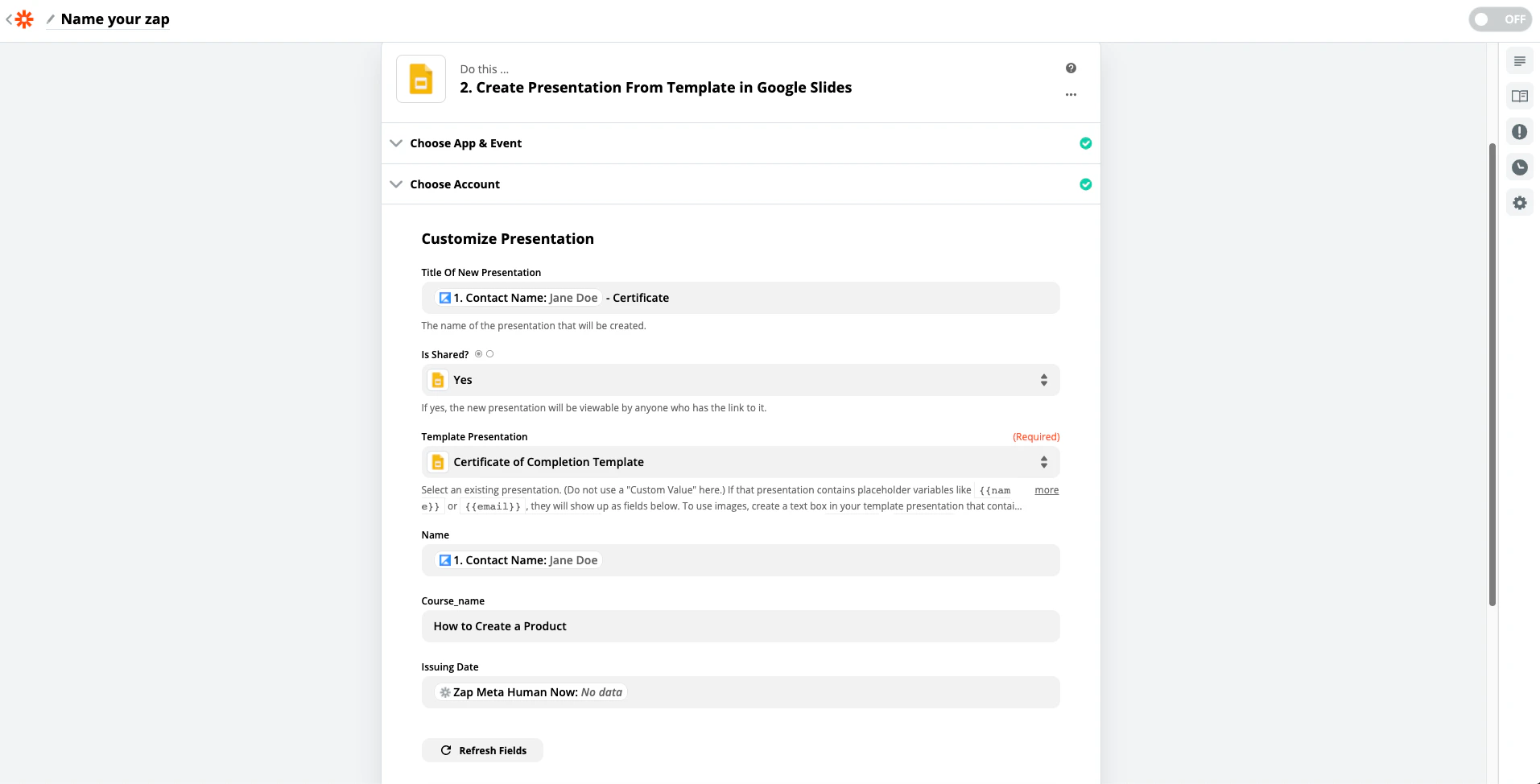
- Give your certificate a unique name in the Title of New Presentation field. This title will display for your customer. Personalize the title with a combination of the Contact Name variable and custom text for the title. To do so, click the field and select Contact Name. Then, enter your remaining title text.
- If you wish to allow your customers to download the Certificate, select yes in the Is Shared? field.
- In the Template Presentation dropdown, select your Certificate of Completion title.
- In the Name field, select Contact Name.
- In the Course_name or custom variable created in the Google Slide, enter your Product Title.
- In the Issuing date field, enter
{{zap_meta_human_now}}into the field to pass the date to your certificate. If you wish to modify it, check out Zapier’s Guide. - After matching each variable, click Continue.
- Once you have completed the setup, click Continue.
Modify the Zap to send to customers
After creating your certificate in Google Slides and setting up your Zap with Zapier, modify the Zap to automatically send to your students upon completion of the Course. In the same Zap you created, add another Action App, Email by Zapier: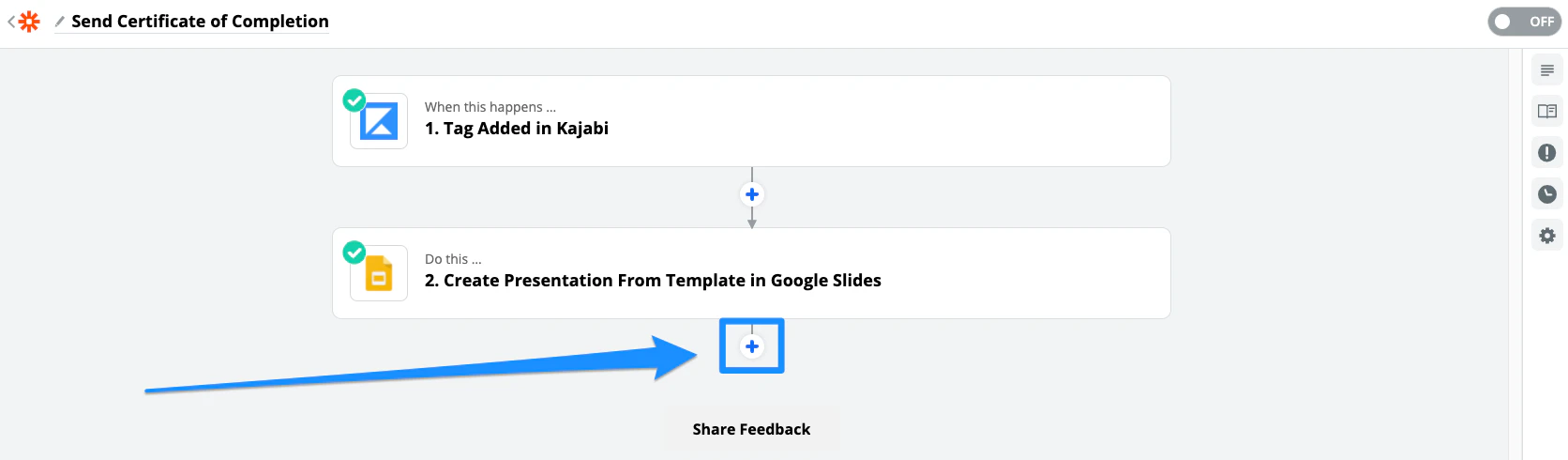
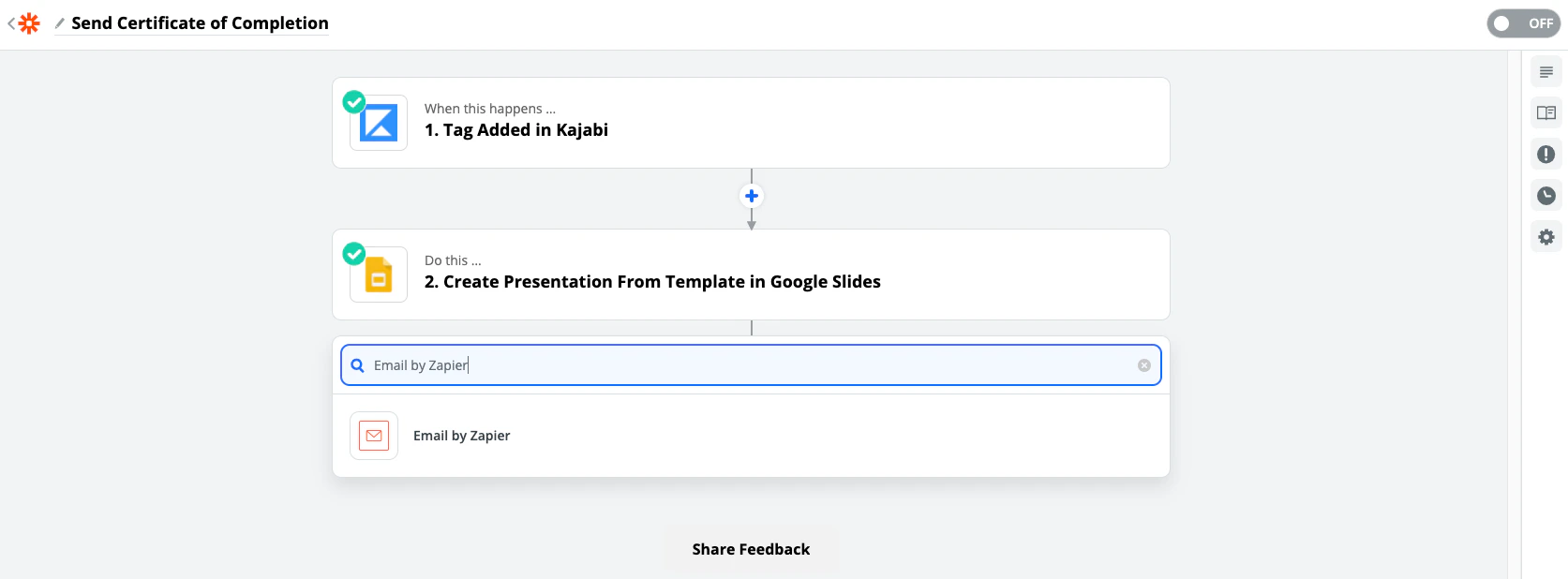
- Select Email by Zapier for the App:
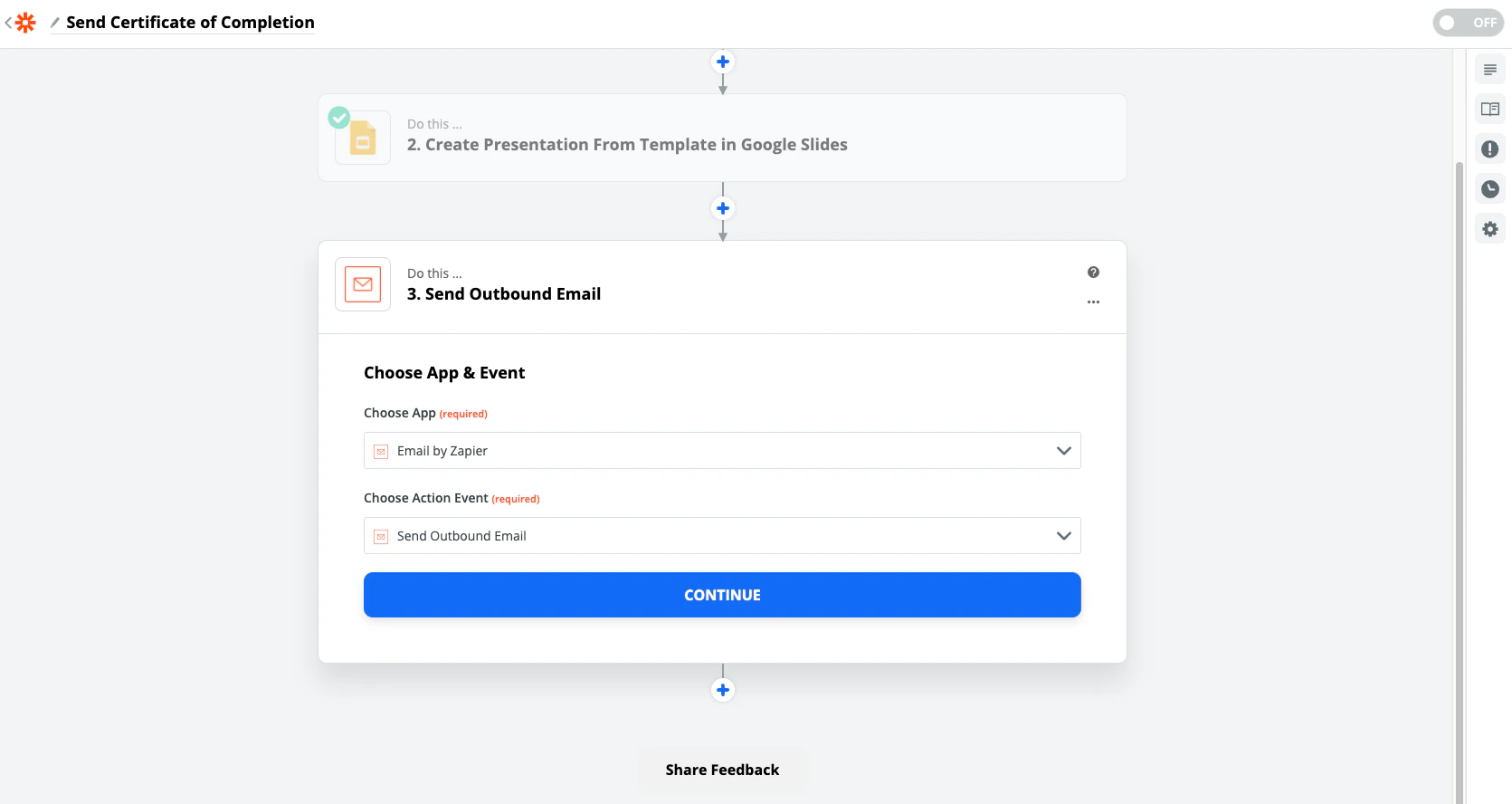
- Keep the default setup Send Outbound Email as the Action Event.
- Click Continue:
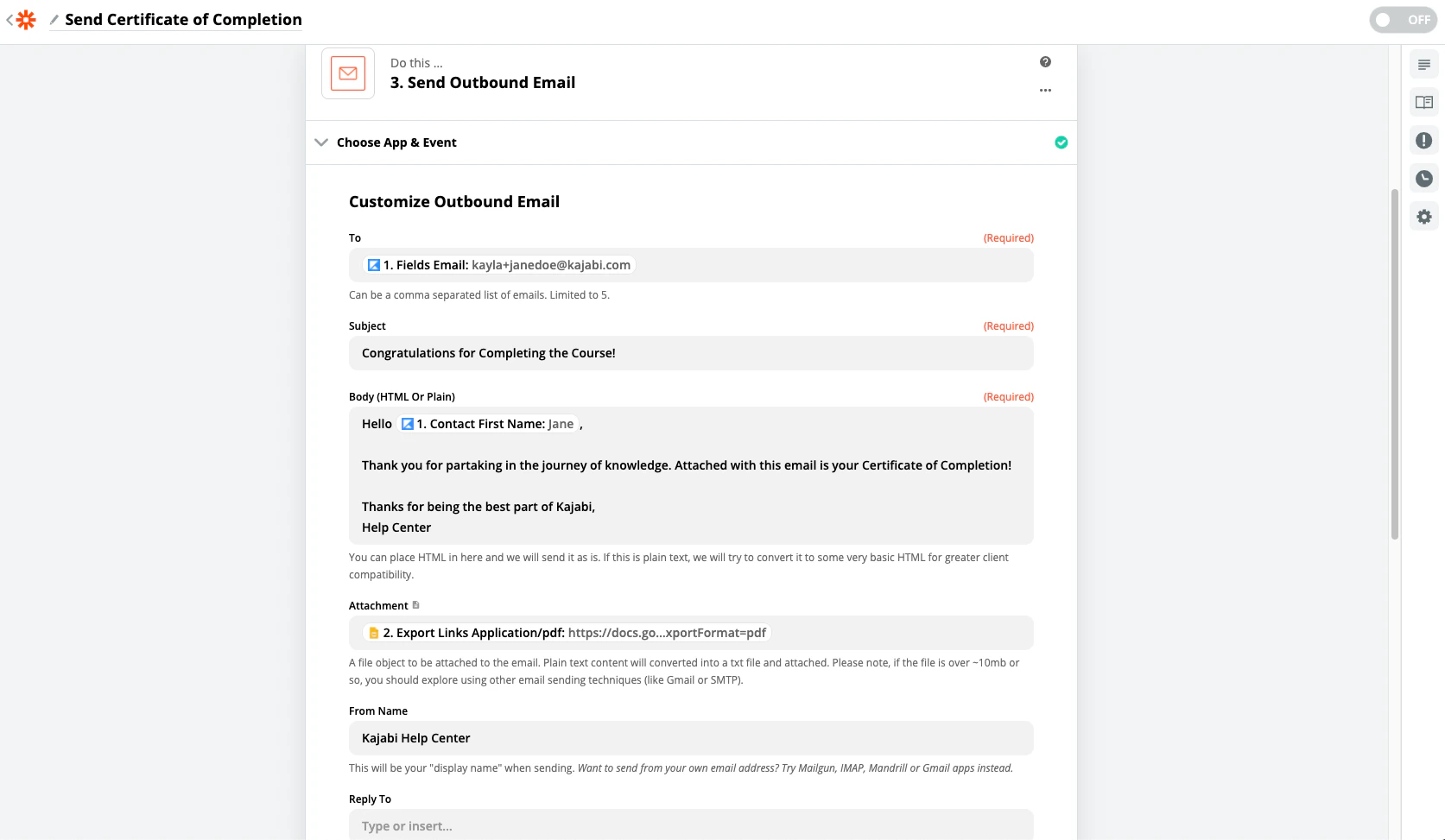
- Pass the customer’s email address from your Trigger App into the To field.
- Enter your desired Subject Line in the Subject field.
- Complete the Body of your Email Template. Use variables to personalize your email.
- Then, copy and paste
Export Links Application/pdfinto the Attachment field. - Select the matching file object: Export Links Application/pdf. This will provide a PDF copy of the certificate to your customer.
Customer experience
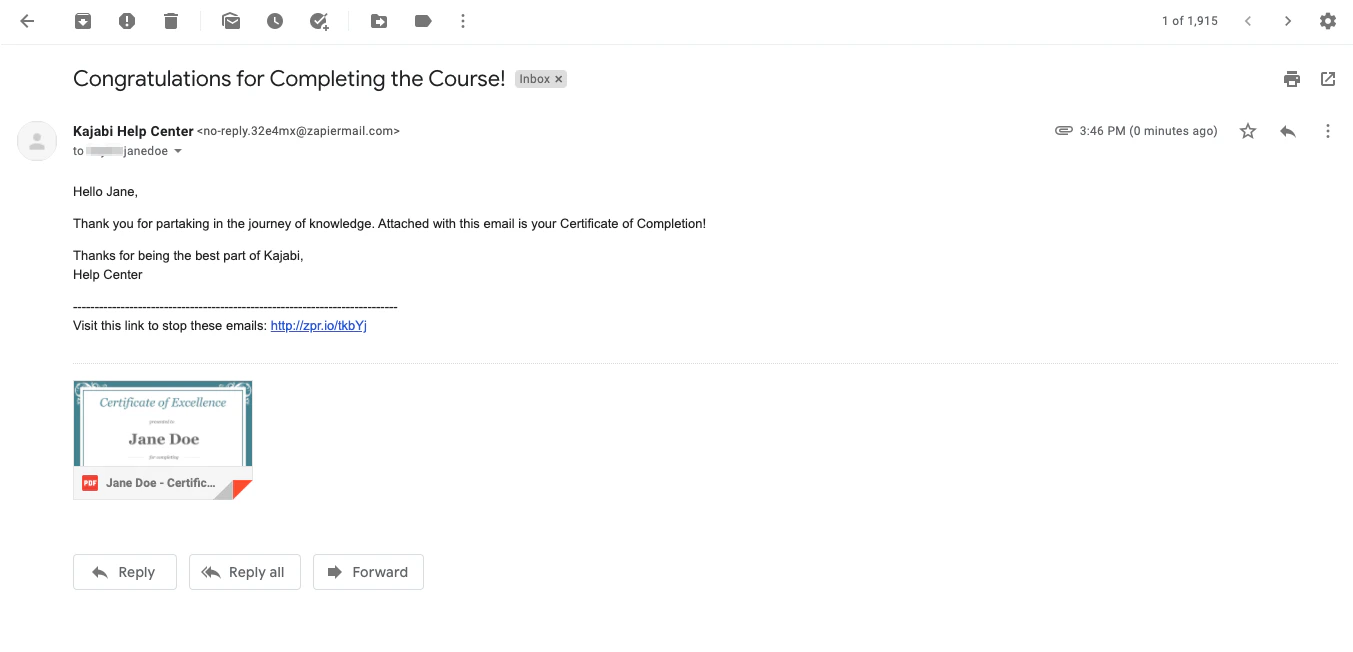
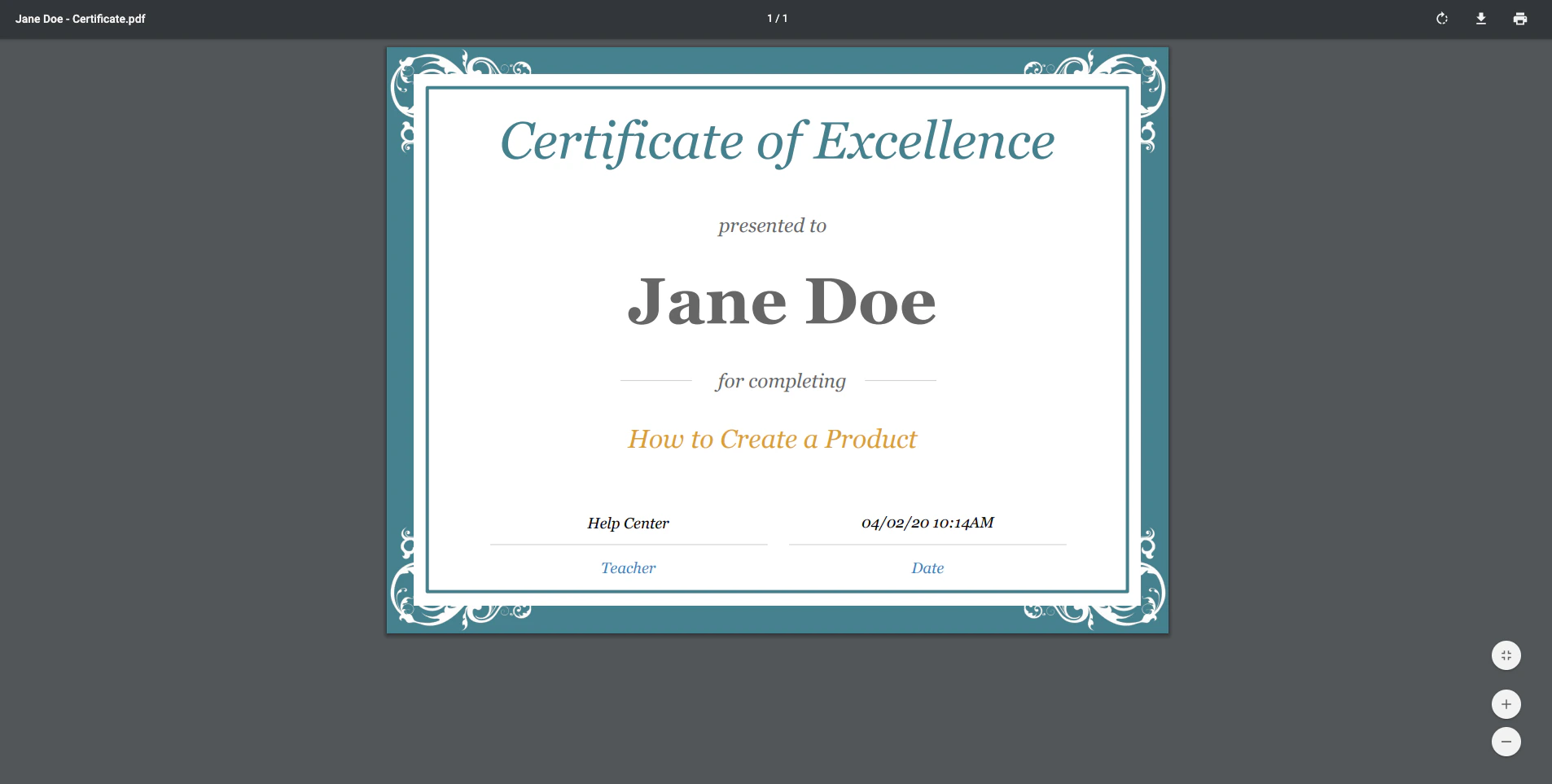
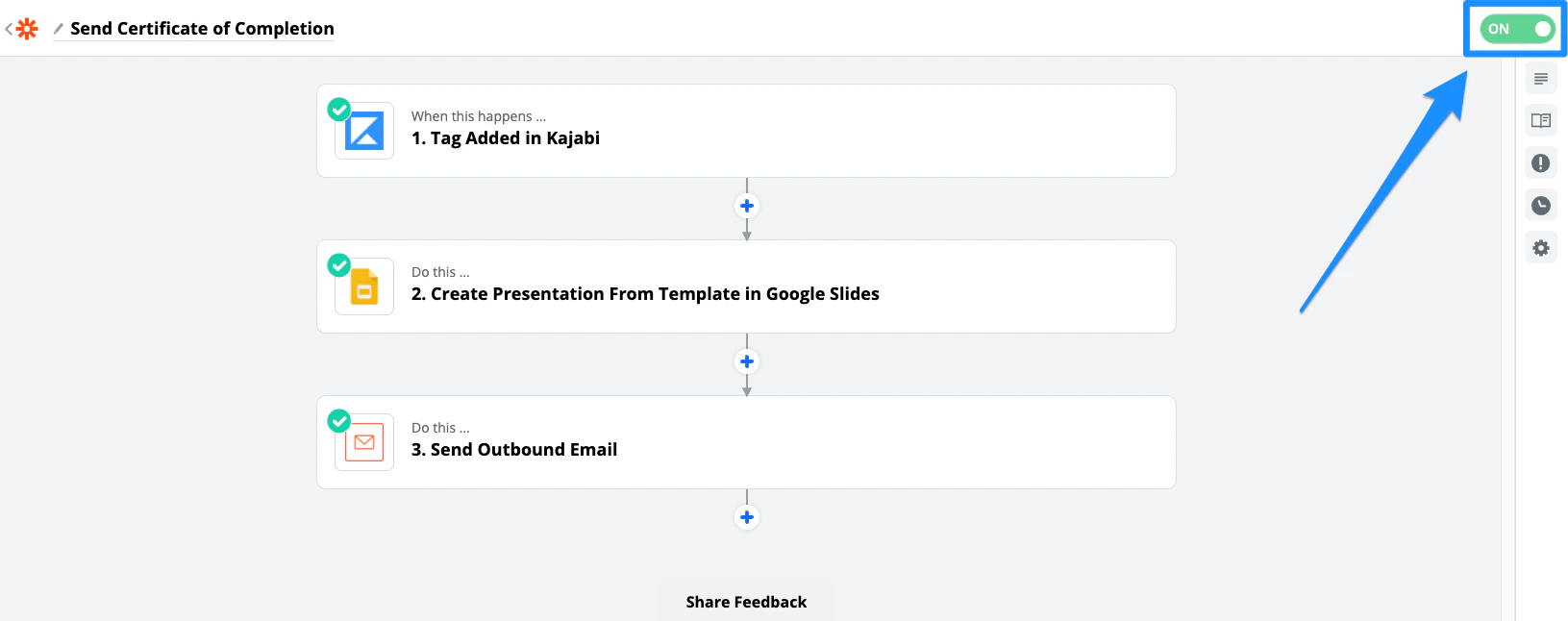
With your Zap turned on, Zapier will create and send an automated certificate to your customers upon completion of your Course. Now, when your customer clicks Mark as Complete in the Course Lesson you specify or passes the Assessment you set, the Tag you created will be added to your customer’s profile on your site. Once added, Kajabi will notify Zapier to trigger your Zap and send your Google Slide Certificate of Completion to your customer’s email inbox: