Overview
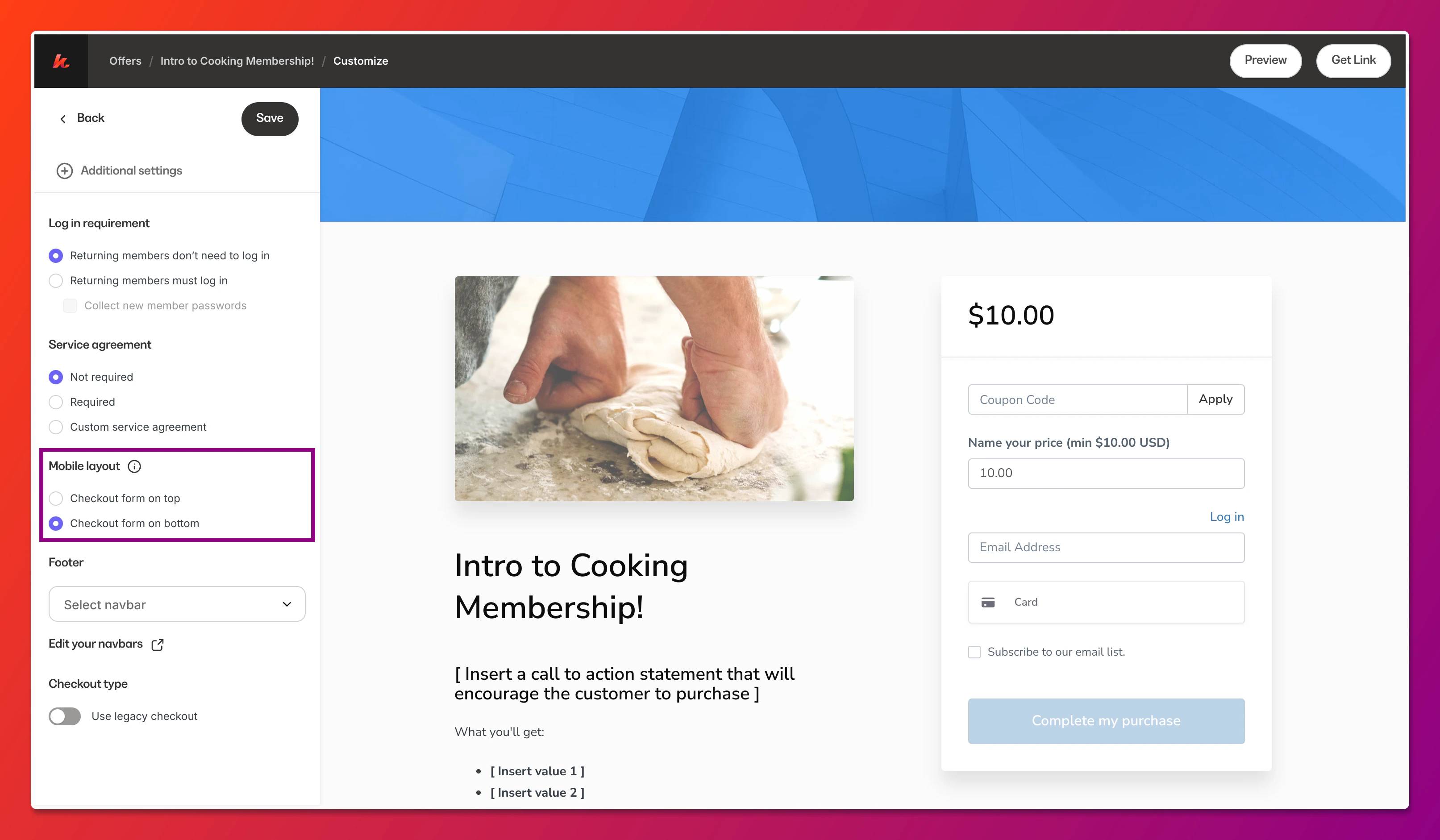
More customers are completing purchases on their mobile devices than ever before. You can optimize their experience by choosing where the checkout form appears on mobile screens. Positioning the form at the top makes it immediately visible, while placing it below your content lets customers see your offer details first.Change mobile checkout form position for a new offer
Set up your preferred mobile layout when creating a new offer.- Go to Sales > Offers
- Click New Offer to create a new offer
- Click Checkout in the left sidebar
- Scroll to the Mobile layout section
- Select your preferred form position:
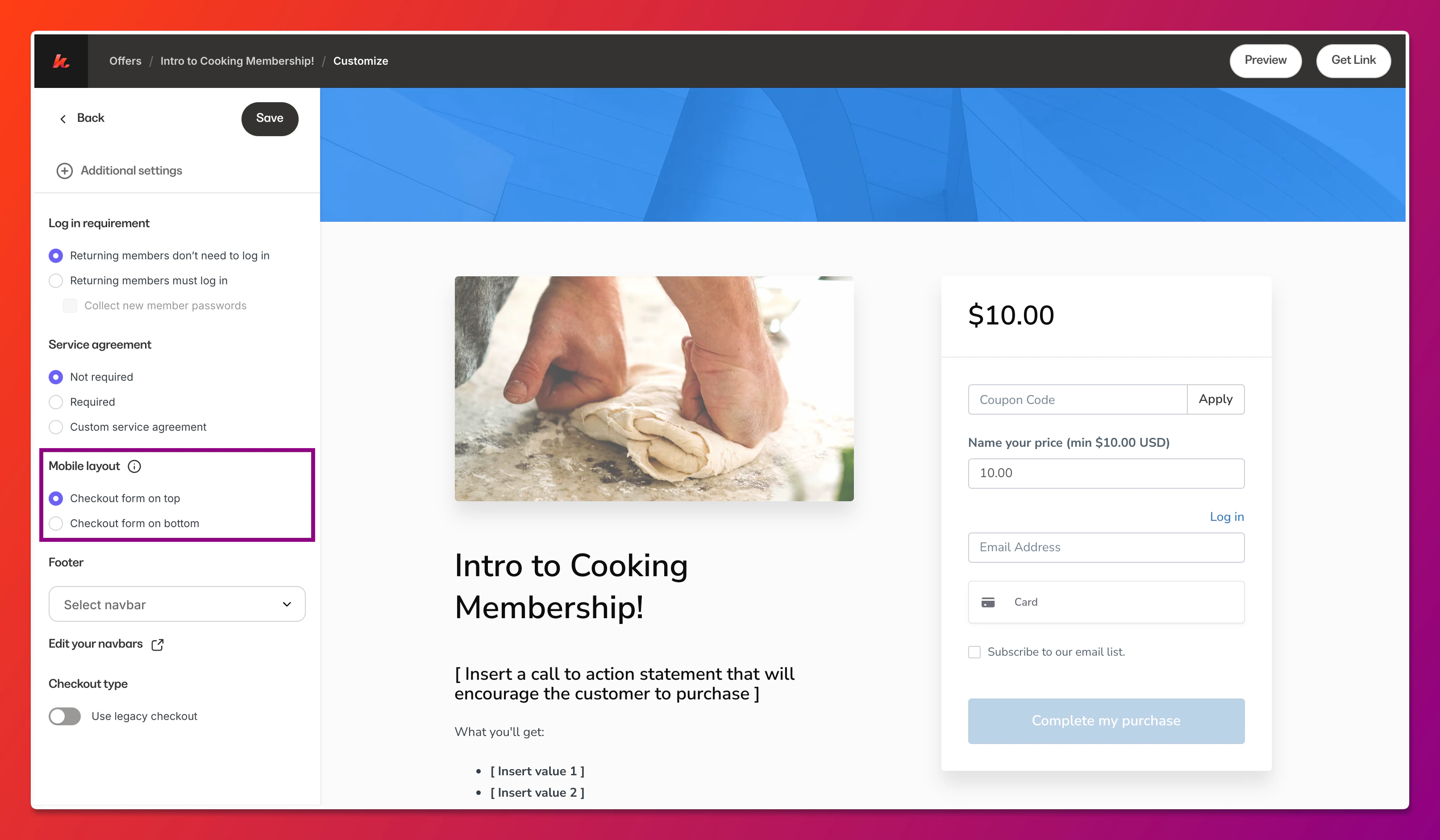
- Form on top - The checkout form appears at the top of the screen
- Form below content - Your offer content appears first, with the form below
- Click Save
Change mobile checkout form position for an existing offer
Update the mobile layout on checkout pages you’ve already created.- Go to Sales > Offers
- Select the offer with the checkout page you want to modify
- Click Checkout in the left sidebar
- Scroll to the Mobile layout section
- Select your preferred form position
- Click Save