Overview
Review the Subscriptions page to view a record of all customer subscription purchases. The table is automatically filtered to Active subscriptions for easy access to manage. On the table, you can view statuses and click directly on the amount, customer name, or offer title to view more information about the purchase. You can view the subscription in more detail and pause/resume or cancel payments from the overflow menu on the table.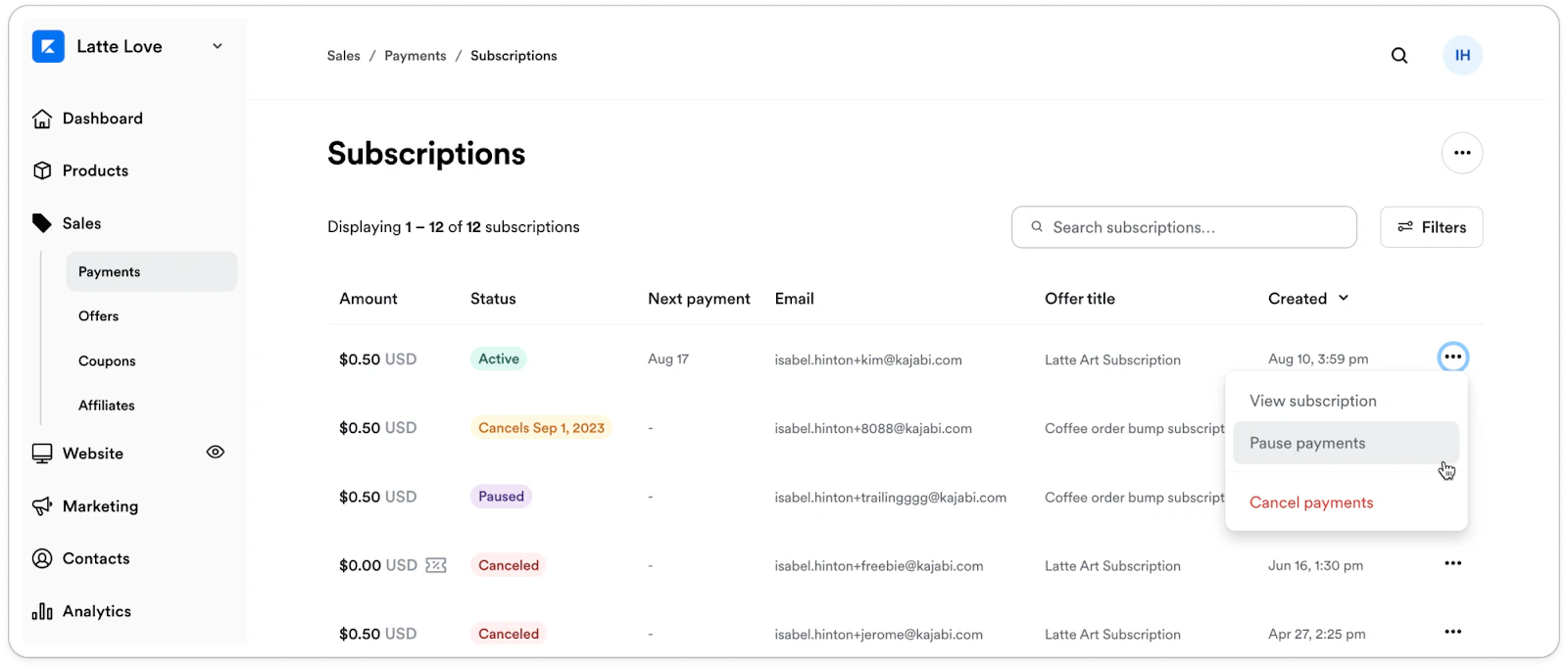
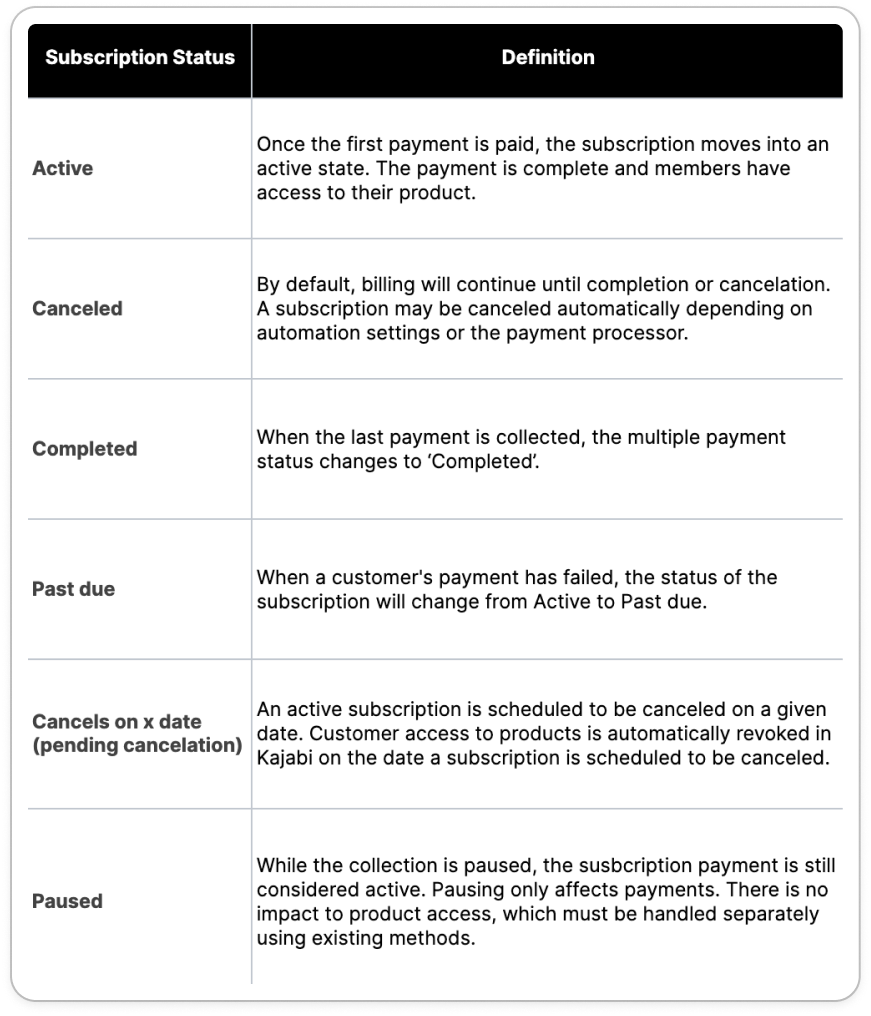
Understand statuses
Export data and customize columns
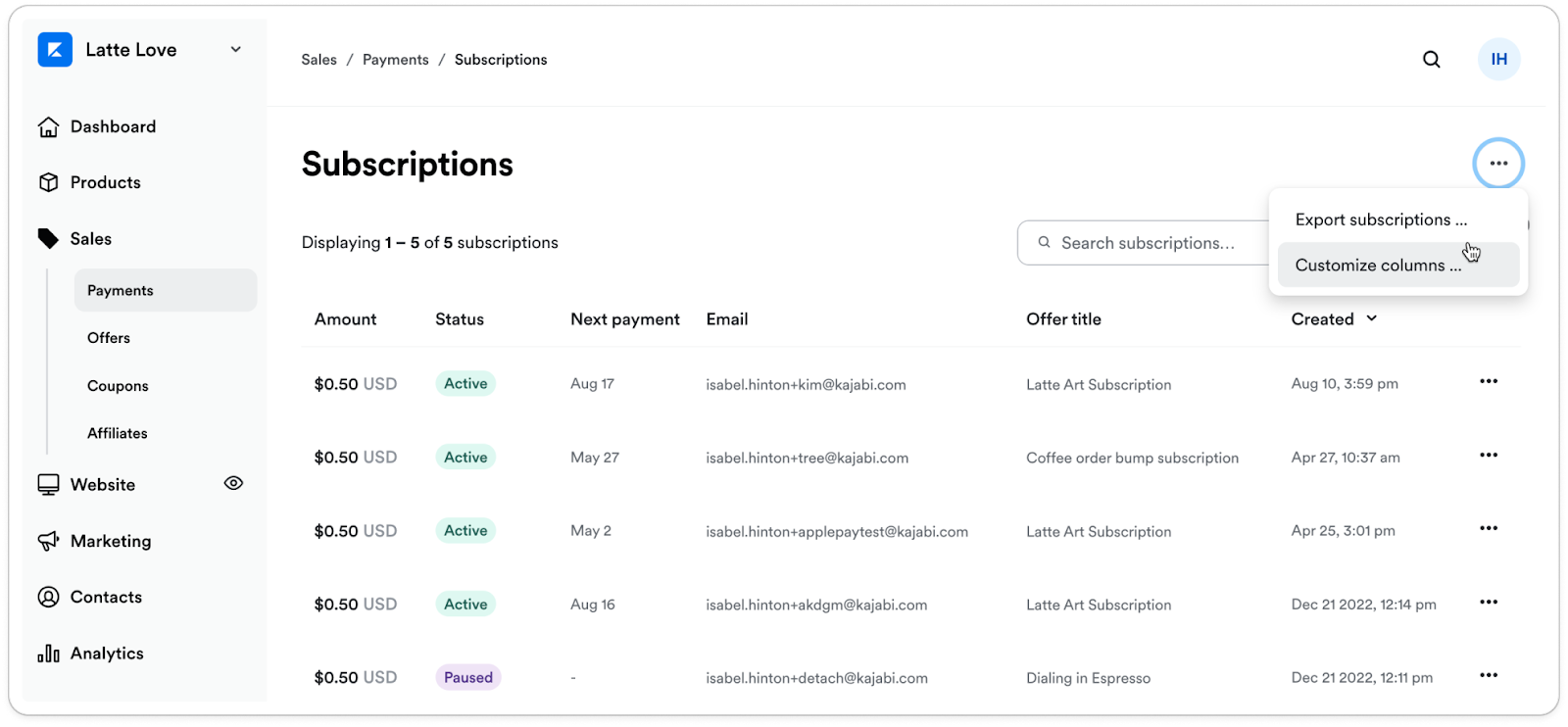
Click the overflow menu to export subscription data as well as customize the order of the columns and data that will display on the table.Export subscription records as a CSV file
- Navigate to Sales.
- Click Subscriptions.
- Select the … button for More Actions.
- Click Export Subscriptions.
Download the exported report
Download the CSV from the email inbox:- Log into the email associated with the Kajabi account.
- The exported list will be attached to an email from our support team with the Subject Line (e.g., Subscription export process completed).
- Open the email to access and download the CSV file.
- Subscription ID
- Setup Up Fee
- Amount
- Currency
- Interval (weekly, monthly)
- Type
- Status
- Trial Ends Date
- Canceled On Date
- Next Payment Date
- Customer ID
- Customer Name
- Customer Email
- Offer ID
- Offer Title
- Provider
- Provider ID
- Created At
- Coupon Used
Note: Exporting this report will notify the owner of the Kajabi account if the owner has selected to receive notifications data is exported from their account. Learn to update email notification settings.
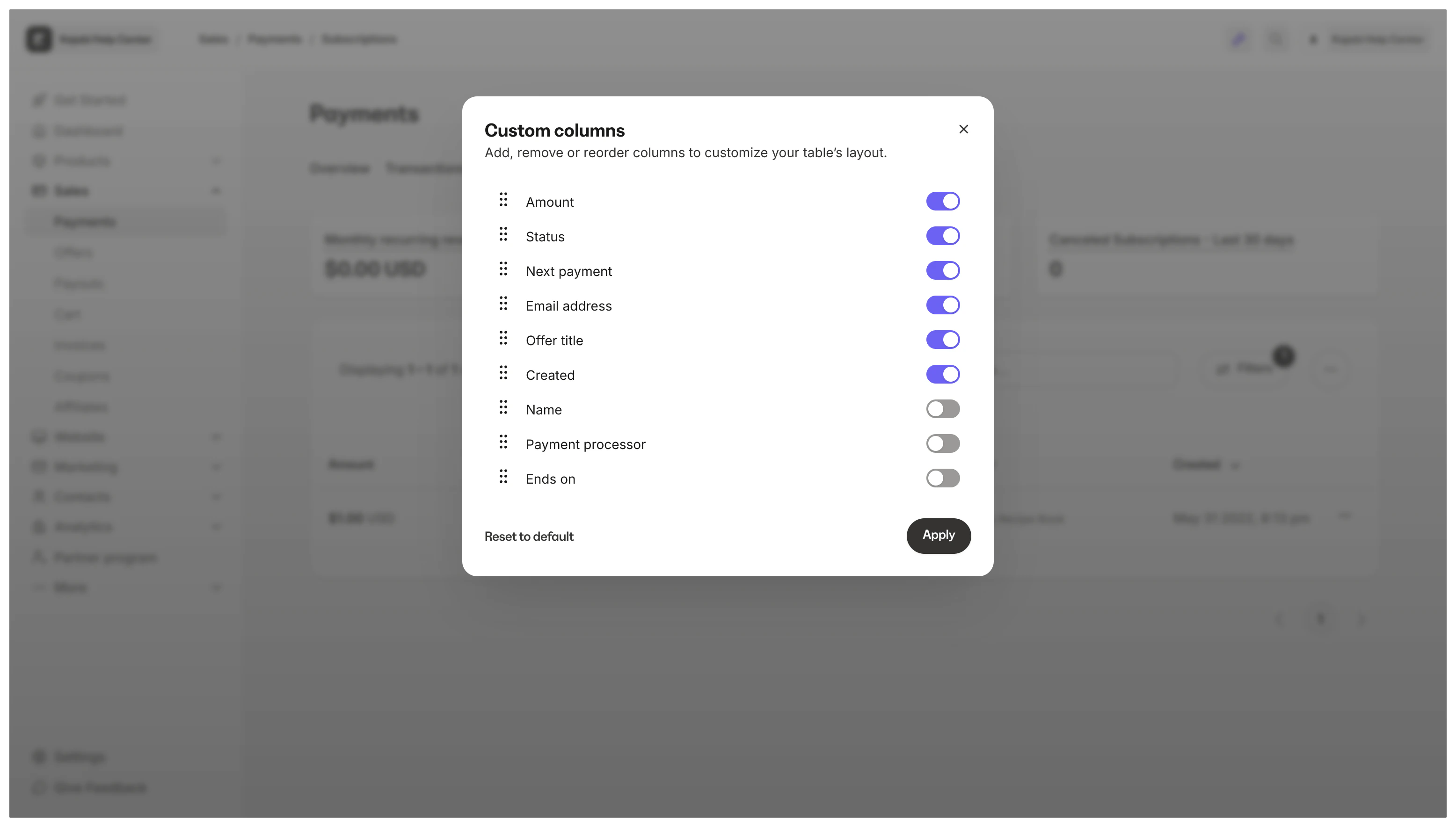
Customize table columns and layout
- Select the … button for More Actions.
- Click Table Properties.
- Reorder or toggle relevant data you want to see.
- Press Apply to finish:
Filter search results
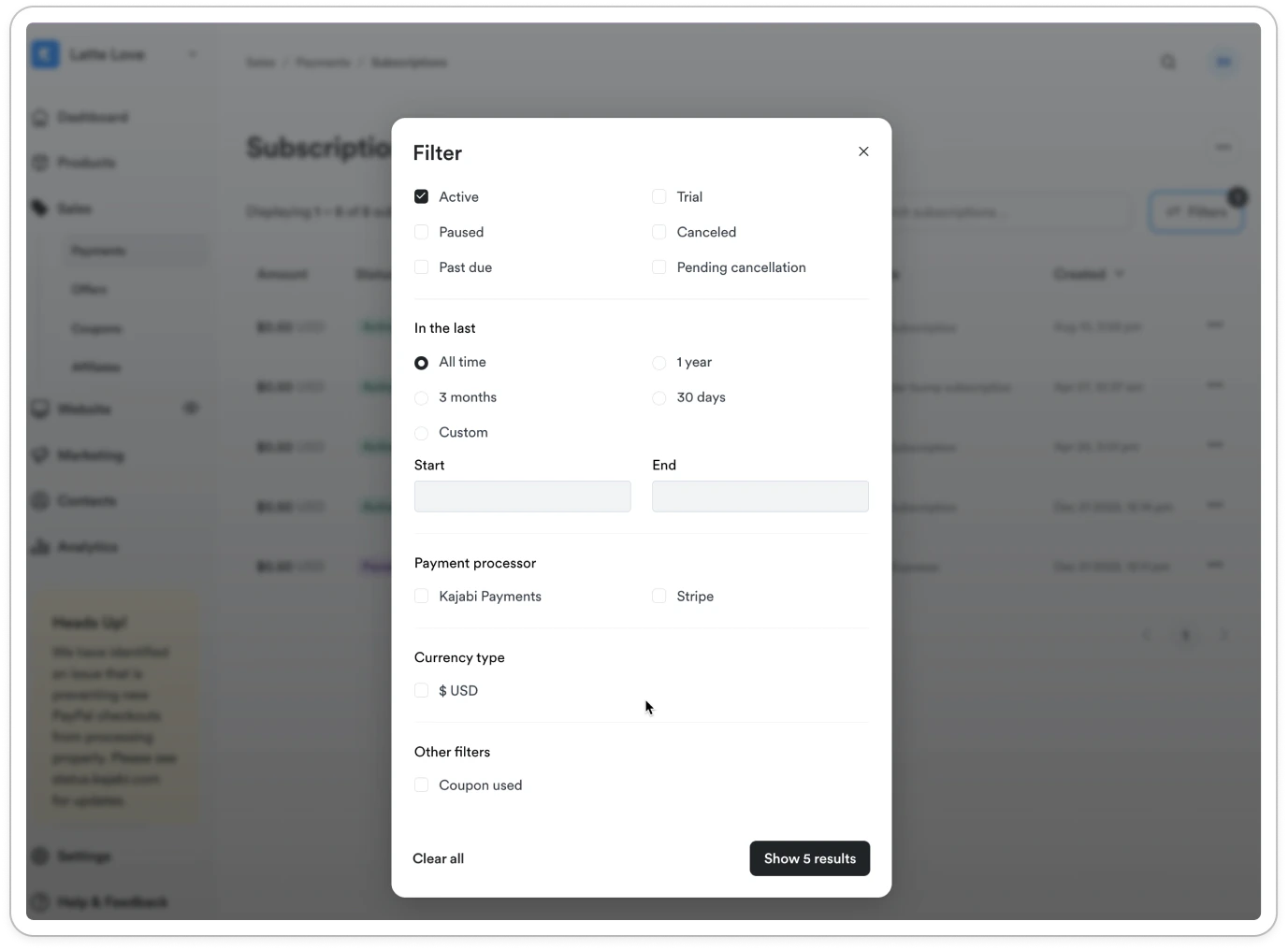
Looking to filter the search further? Use the Filters button to narrow the search down by specifics. You can filter by offer title, coupon used, payment type, status, date, and more.