Note: At this time, ACH payments are supported only for invoices.
Eligibility and requirements
To use ACH Direct Debit for invoicing, your account and invoices will need to meet a couple of requirements:- You must be a U.S.-based Hero using Kajabi Payments.
- Your invoice must be $2 USD or more.
How ACH Direct Debit works
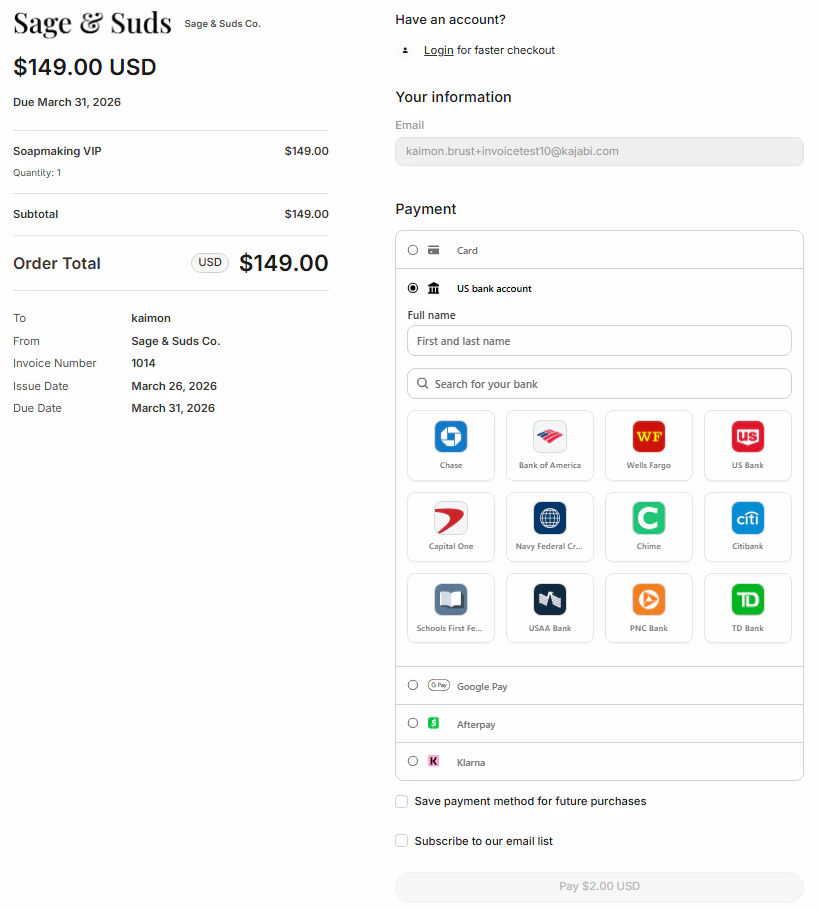
When a customer pays an invoice using ACH Direct Debit, checkout completes and the payment begins processing. Unlike card payments, ACH payments take time to settle. You can track the progress through your invoice and transaction statuses. ACH payments typically settle in approximately 4 business days. At checkout, the customer selects ACH Direct Debit:- If the customer doesn’t have a previously stored bank account, verification will be required. The customer will be prompted to choose their bank, login and other authorization specific to their bank to complete verification.
- If the bank account is successfully verified, checkout completes. If the customer selects “Save payment method for future purchases,” future purchases with this bank account will not require re-verification.
- If the bank account cannot be verified or an error occurs, checkout does not complete. The customer will be prompted to try again or use another payment method.
ACH Direct Debit settings
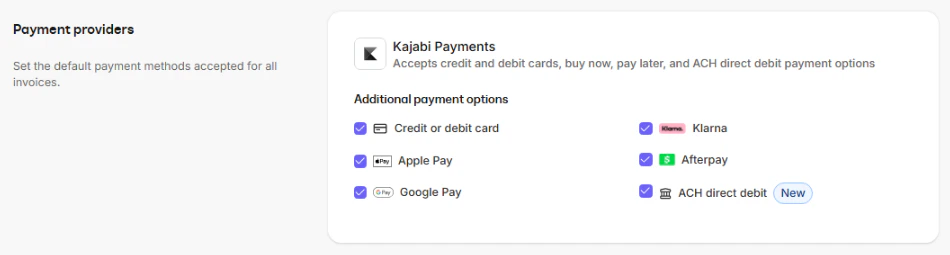
Enable ACH Direct Debit
To enable ACH Direct Debit for invoices:- Go to Sales > Invoices.
- Select Settings.
- Scroll to the Payment providers section.
- Under Additional payment options, enable ACH direct debit.
- Click Save.
Offer access for ACH payments
ACH payments remain Pending while the bank transfer processes. You can choose whether access is granted immediately after checkout or after the payment settles successfully using the **offer access setting **in invoice settings.
- Customers receive offer access **immediately after checkout **while the ACH transaction is Pending
- If the payment fails, Offer access will be automatically revoked
- Offer access is granted only after the transaction settles successfully
Understanding your transaction details
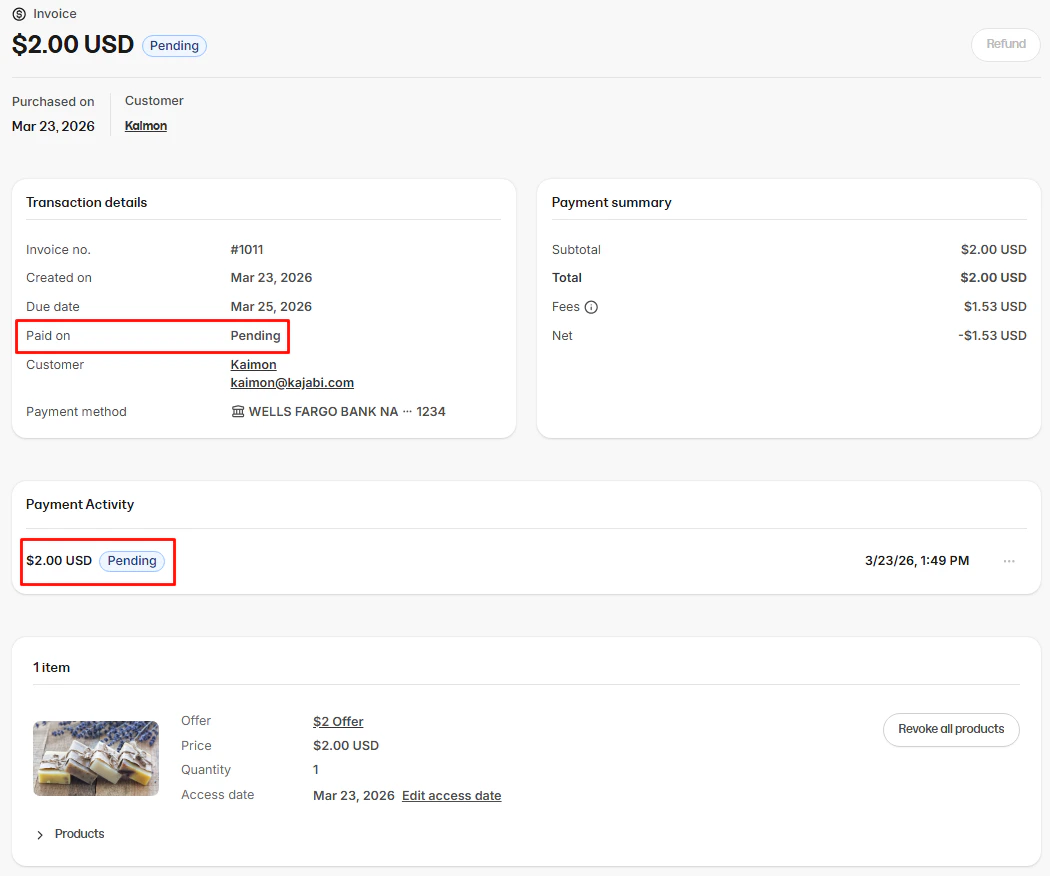
When a customer pays an invoice using ACH Direct Debit, the transaction details page reflects the current state of the payment as it moves through processing. Here’s what to expect at each stage:While the payment is Pending
- Purchased on date: Displays the original date and time the customer completed checkout
- Paid on: Displays as Pending while the payment is still processing
- Payment activity: Displays the pending transaction with the date checkout was completed
- Invoice Status: Set to pending.
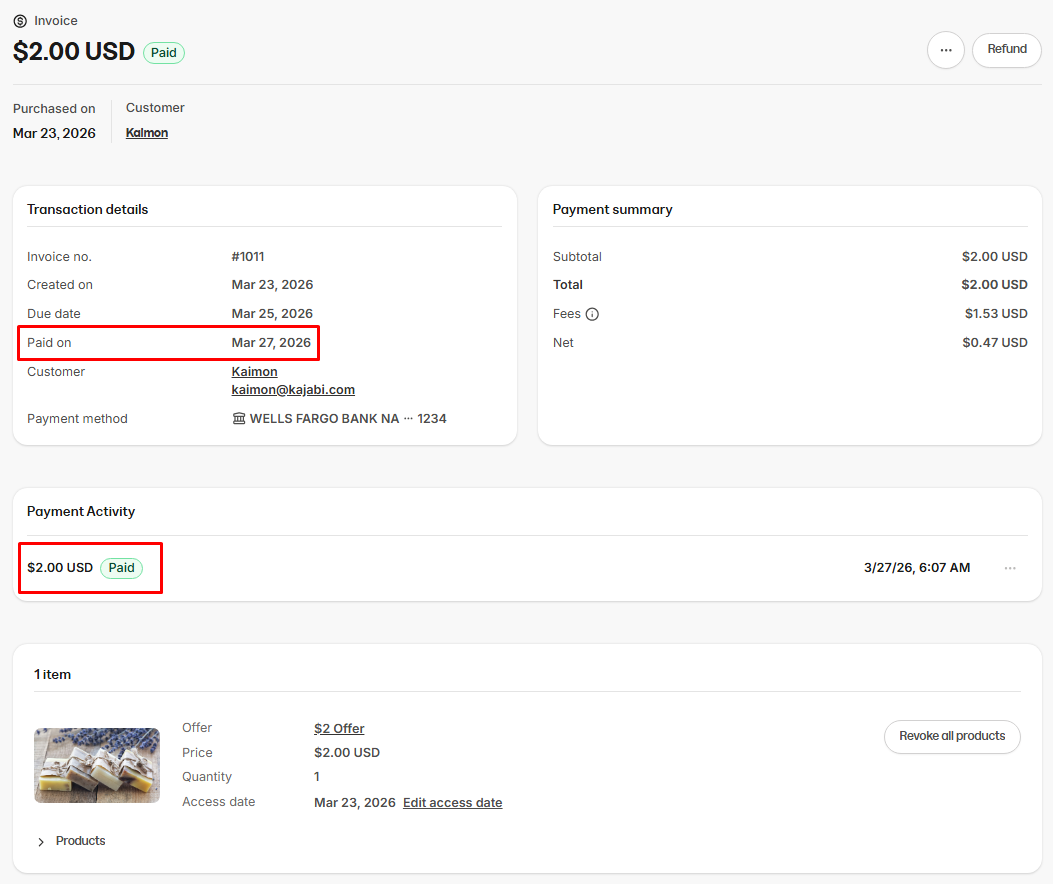
If the payment settles successfully
If the ACH payment settles successfully, the transaction details page will update to reflect the completed payment:- Purchased on date: Displays the original date and time the customer completed checkout
- Paid on: Displays the date the payment settled
- Payment activity: Displays the transaction with the date the payment settled and a paid status
- Invoice Status: Updates to Paid
If the payment fails
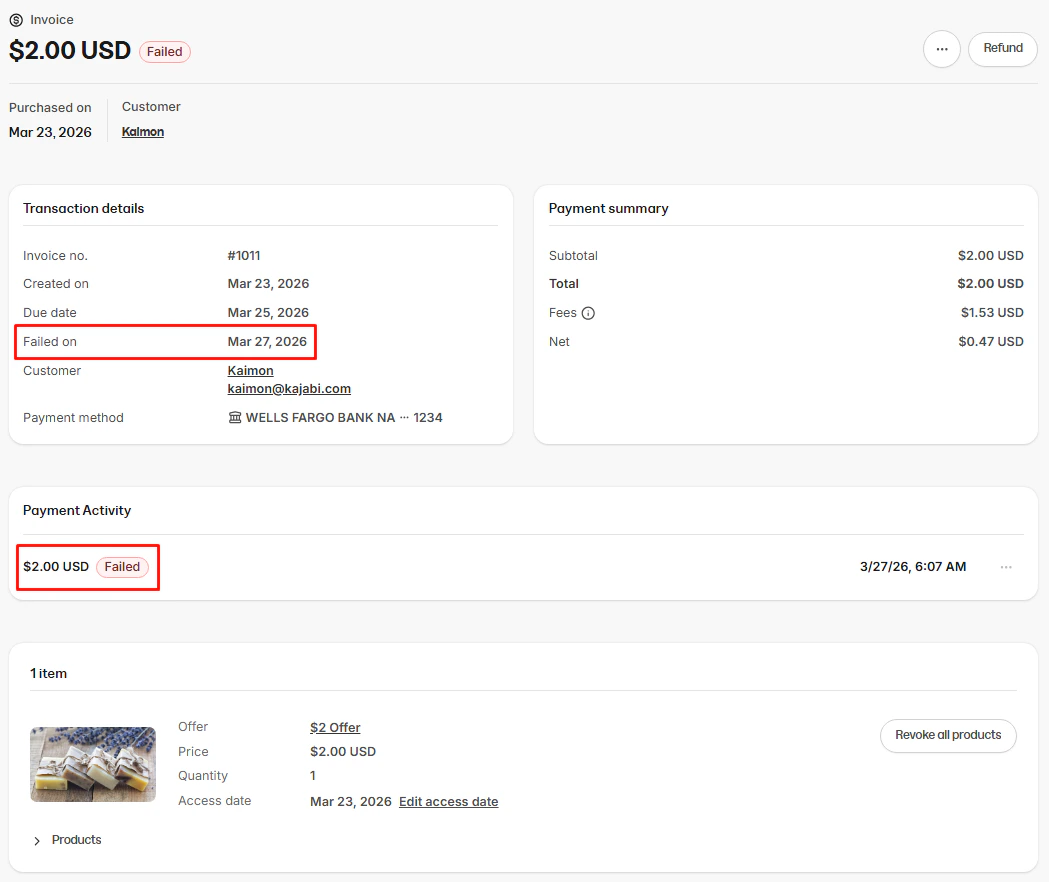
If the ACH payment fails, the transaction details page will update to reflect the failed payment:- Purchased on date: Displays the original date and time the customer completed checkout
- Payment activity: Displays the transaction with the date the payment failed and a failed status
- Paid on: Will updated to “Failed on” with date it failed
- **Invoice Status: **Will move back to Open. Your customer will be able to visit the same invoice link to try again, or use a different payment method.
ACH email notifications
Throughout the ACH payment process, Kajabi automatically sends emails to both you and your customer at key stages. These are separate from the standard Invoicing, Receipt, and Payment notifications – for those see Invoicing with Kajabi Payments.Bank account authorization - Customer notification
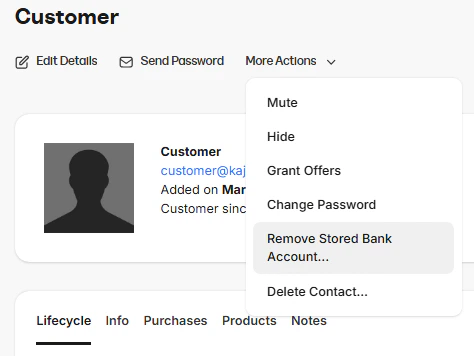
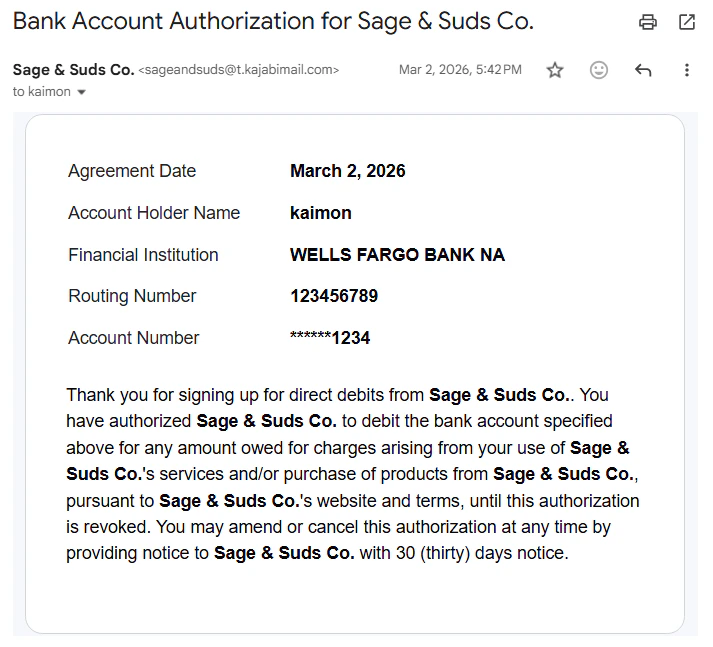
After a customer successfully completes checkout using ACH Direct Debit with a bank account that isn’t already saved to their account, they will receive an email confirming their bank account authorization for future debits. If a customer requests to revoke that authorization:- Remove the stored bank account on your customer’s behalf. For more information, see How to manage your Contacts profiles.
- Alternatively, advise the customer to remove their saved bank account from their profile as soon as possible. For more information, see How your customers can manage their billing and payment methods.
ACH payment failed - Customer notification
Your customer receives a notification if their ACH payment fails. This email informs them that their bank payment was unsuccessful, that their product access has been revoked (if applicable), and that they may need to contact their bank for more information. The email includes the invoice details including the invoice number, offer name(s), and amount due, along with instructions to reach out to your support email with any questions.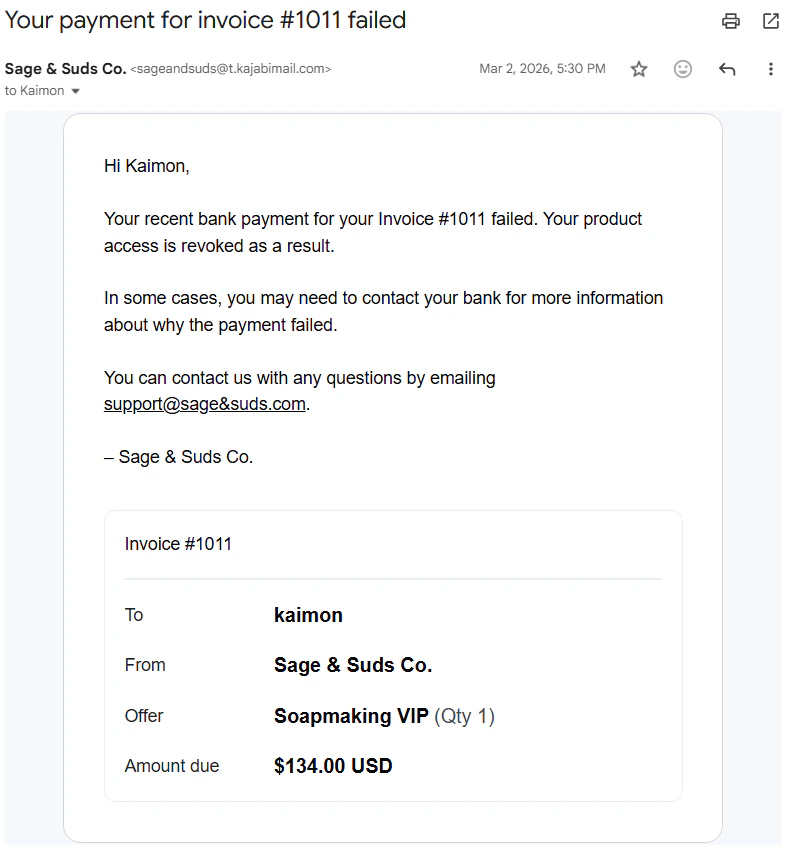
ACH payment failed - Hero email notification
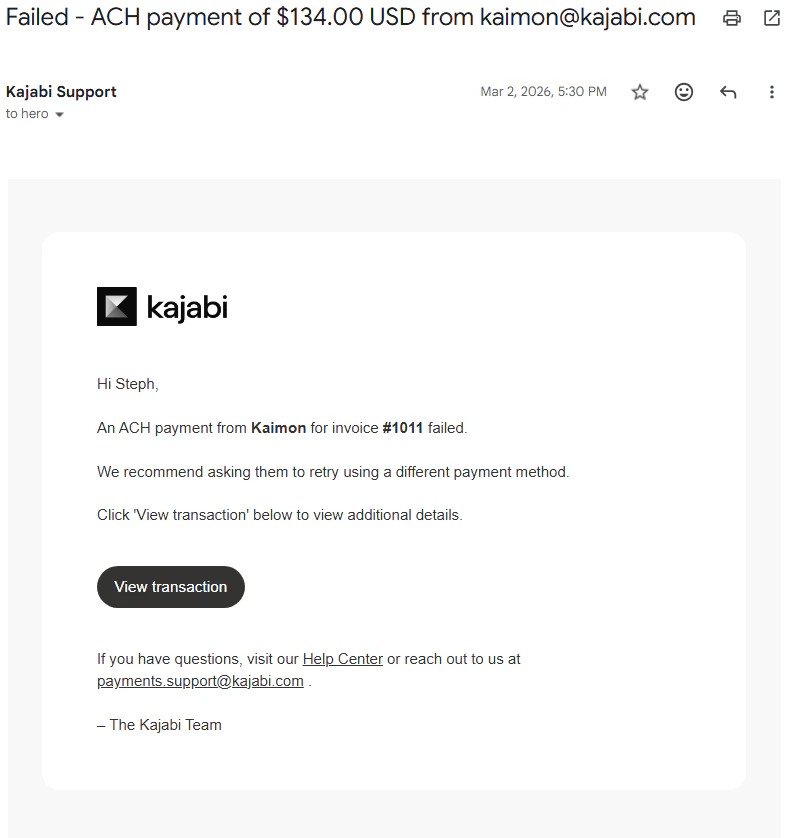
If an ACH payment fails, Kajabi will notify you via email. This notification includes the customer’s name, the offer(s) associated with the failed payment, and a link to view the transaction directly in your Kajabi dashboard.