

Overview
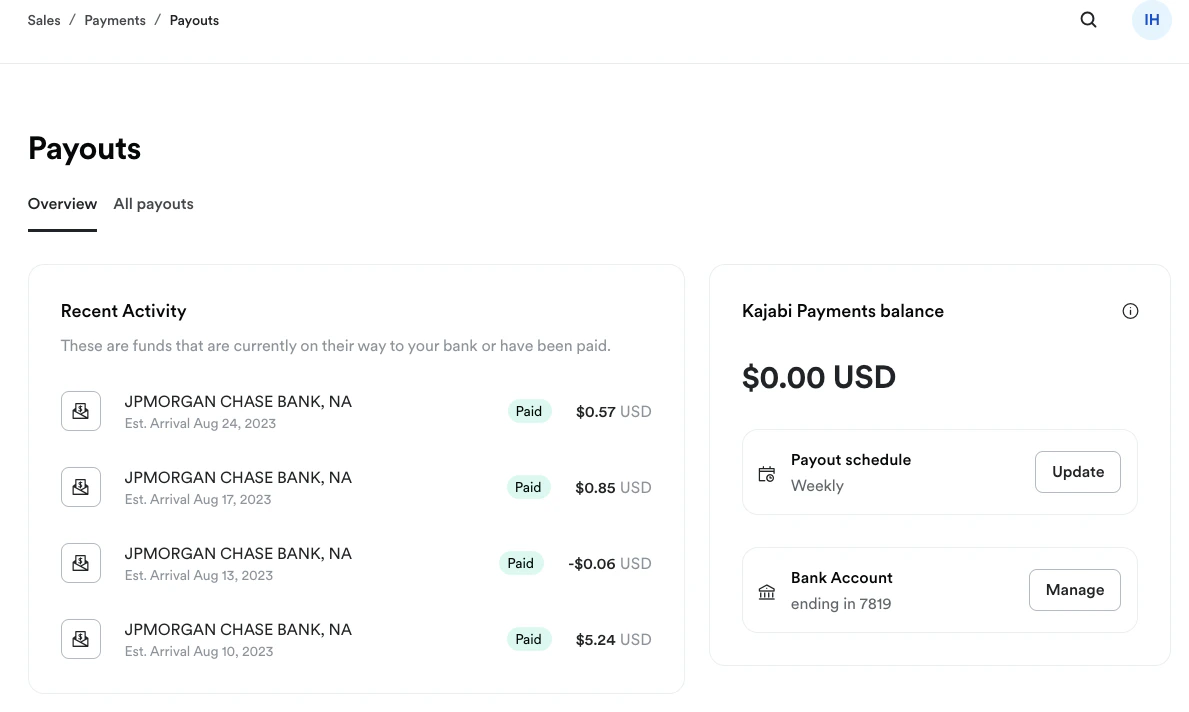
To receive funds from Kajabi Payments, payouts are made directly to your bank account. You can view your current balance, the status and date that you expect to receive your next payout, and more on the Kajabi Payments Payouts Page.Note:
Kajabi Payments is currently available to Heroes whose businesses are registered in the United States, Canada, Australia, the United Arab Emirates, the United Kingdom, and select European countries.
View payouts
View Kajabi Payments payouts
- From the Kajabi Dashboard, select Sales > Payouts
- Click View payouts to access your Payouts page
- You can see recent payouts in the Overview and access a complete list of all your payout records by toggling to All payouts in the top navigation menu
Payout status
With Kajabi Payments your payouts can have the following statuses:- Paid - The payout has landed in your bank account
- In Transit - The payout is on its way to your bank account
- Failed - The payout was unsuccessful, and you might need to connect to a different bank account to receive your balance
Note:
Your initial payout may take up to 7 business days to become available for disbursement regardless of your selected payout schedule. In addition, payouts may experience delays due to bank holidays. In the event of a bank holiday, your payout is expected to be processed on the next business day. Learn more.
View payout details
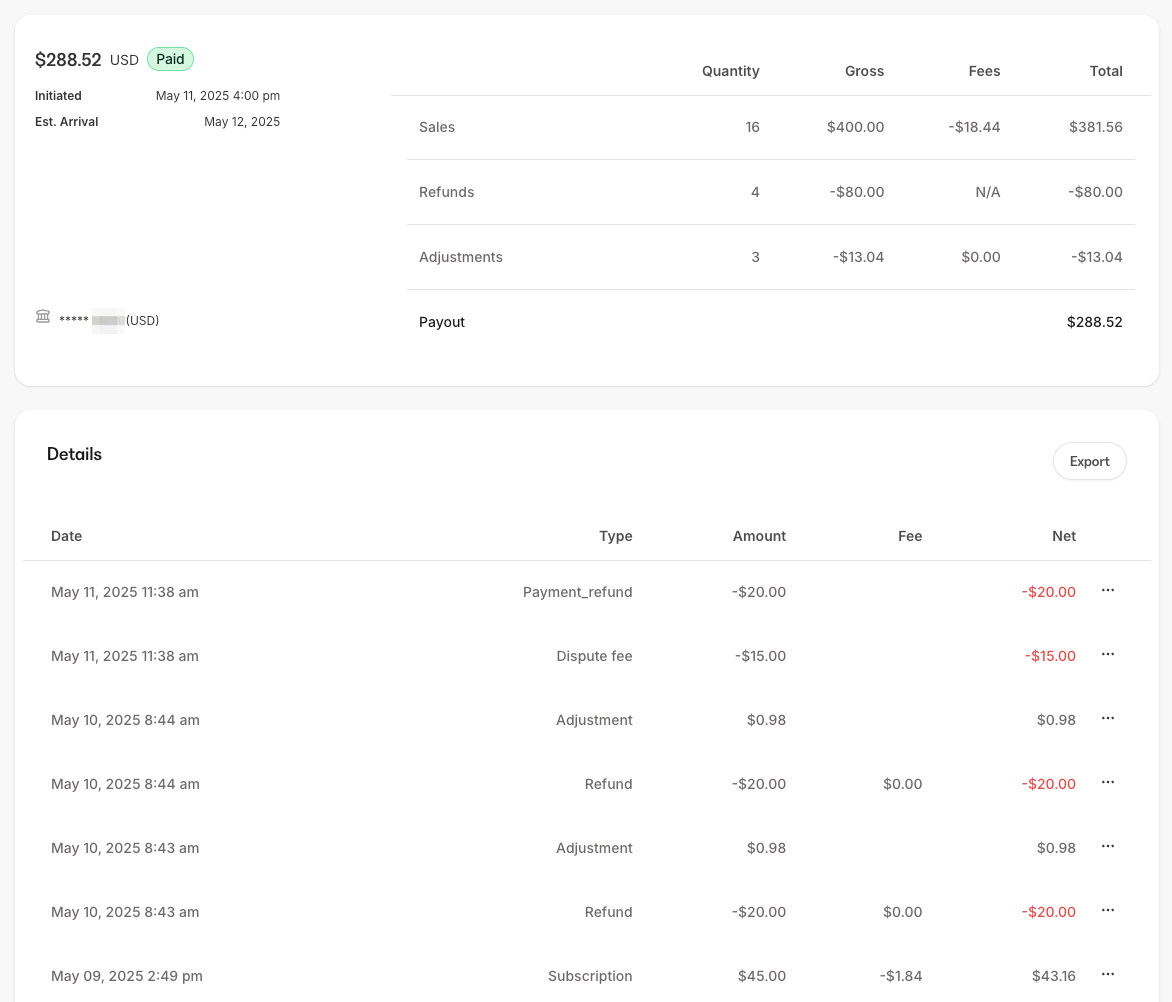
You can view a breakdown of each payout by clicking on the Payout Details Page for records with a Paid status. This page provides an itemized view of all transactions included in the specific payout, including fees, refunds, and any adjustments made. Hover over each fee under the Payout Details to see the exact charges applied to a transaction.Payout types and adjustments
A payout consists of multiple factors that contribute to the total amount you receive, including Sales, Refunds, and Adjustments.- Sales: Successful transactions from your customers, including:
- Subscriptions
- Payment Plans
- One-time purchases
- Refund: Amounts refunded to your customers
- Adjustment: Additions or deductions to your Kajabi balance that occur outside the standard charge/refund process
- Dispute Fee: A withdrawal of the dispute fee when a payment is disputed by your customer. Learn more about how Kajabi Payments handles disputes.
- Payment_refund: A withdrawal of the total disputed transaction amount when a payment is disputed by your customer. Learn more about how Kajabi Payments handles disputes.
- Payment: A returned amount if a dispute is resolved in your favor.
Export payout details
You have the option to either individually export a single payout or bulk export your payouts within a specified timeline. You can choose between exporting a summary of these payouts or an itemized report that includes individual fee breakdowns for each transaction.Export transaction details
- Navigate to the Payments page in your Kajabi Account
- Click View payouts to access your Payouts page
- Click on the Export button
- Choose whether you’d like to export a summary of all your payouts within the specified date range or select an itemized report that includes all payouts and transactions within the specified date range
- Payout ID
- Initiated date
- Estimated arrival
- Gross
- Fees
- Refunds
- Adjustments
- Net
- Currency
- Payout ID
- Initiated date
- Estimated arrival
- Amount
- Currency
- Fee
- Net
- Customer ID
- Customer Name
- Customer Email
- Offer ID
- Offer Title
- Provider
- Payment Method
- Created At
- Coupon Used
- Presented Amount
- Presented Currency
- Exchange Rate
Update a payout schedule
You can find your current Payout schedule on the Payouts Page.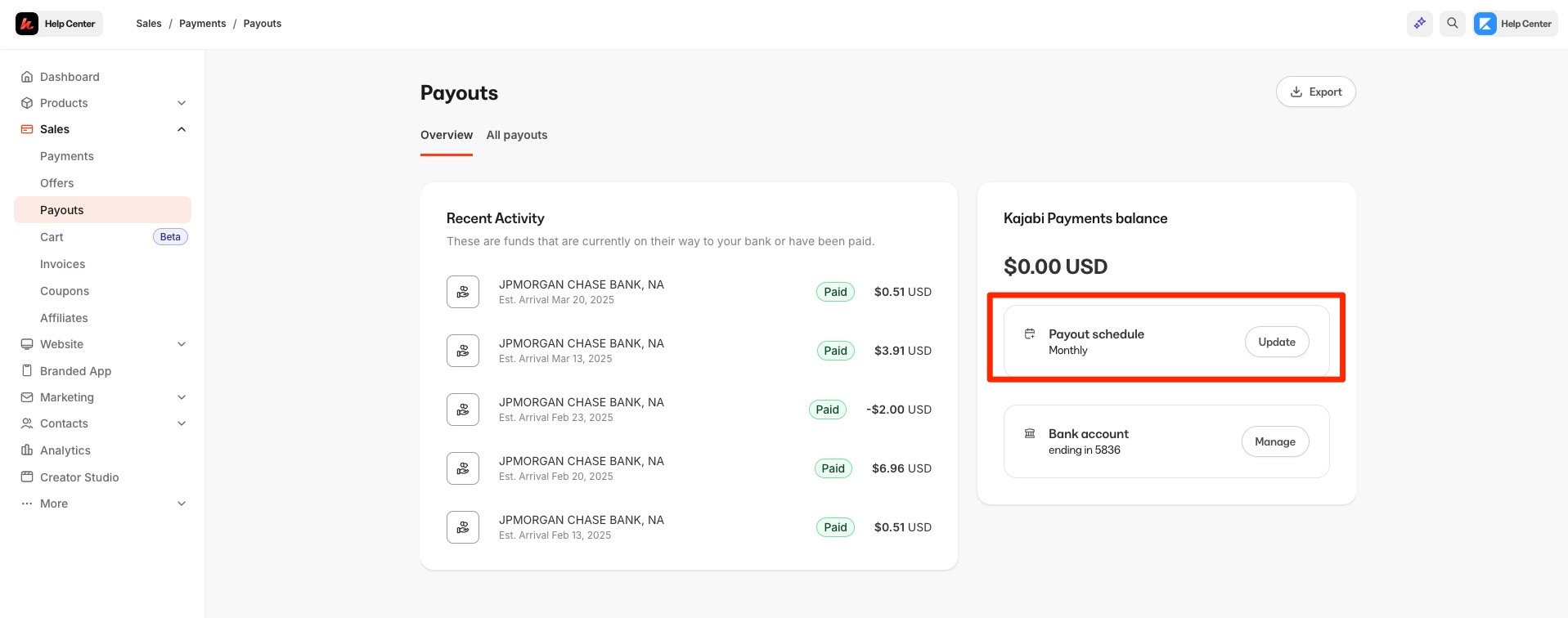
- From the Kajabi Dashboard, select Sales > Payouts
- Select Update next to the Payout schedule
- Choose the Frequency you’d like to receive payouts (e.g., weekly or monthly)
- For weekly or monthly schedules, select the desired day for payouts
Note:
Depending on your business, you may not see all the options for additional payout scheduling. Payout scheduling options can vary based on a variety of factors such as the industry you’re operating in, etc. Learn more.
Update or add a bank account for payouts
Add multiple bank accounts
Heroes in Canada, the United Kingdom, and Europe can connect multiple bank accounts to receive payouts in different currencies. At this time, Heroes in the United States and Australia can only connect one bank account.Update a bank account
To update bank account(s):- From the Kajabi Dashboard, navigate to the Sales tab and then select Payouts
- Select Change next to your current bank account
- Update your bank account details as needed
Handle a negative Kajabi Payments balance
Occasionally, you may need to process refunds or you may receive a chargeback after a payout has been initiated, causing your Kajabi Payments balance to drop below zero. Any incoming sales will go towards bringing your Kajabi Payments balance back up, but if it is still negative when your next payout is scheduled to transfer, Kajabi may initiate a balance adjustment from your connected bank account to cover the deficit.Note:
To view your Stripe or PayPal payouts, you will need to sign into your Stripe or PayPal account.