Net revenue calculation
Net Revenue is a combination of the Gross Revenue (recurring and non-recurring sales) subtracted by your refunds. Gross Revenue (Recurring and Non-recurring) - Refunds = Net RevenueView net revenue
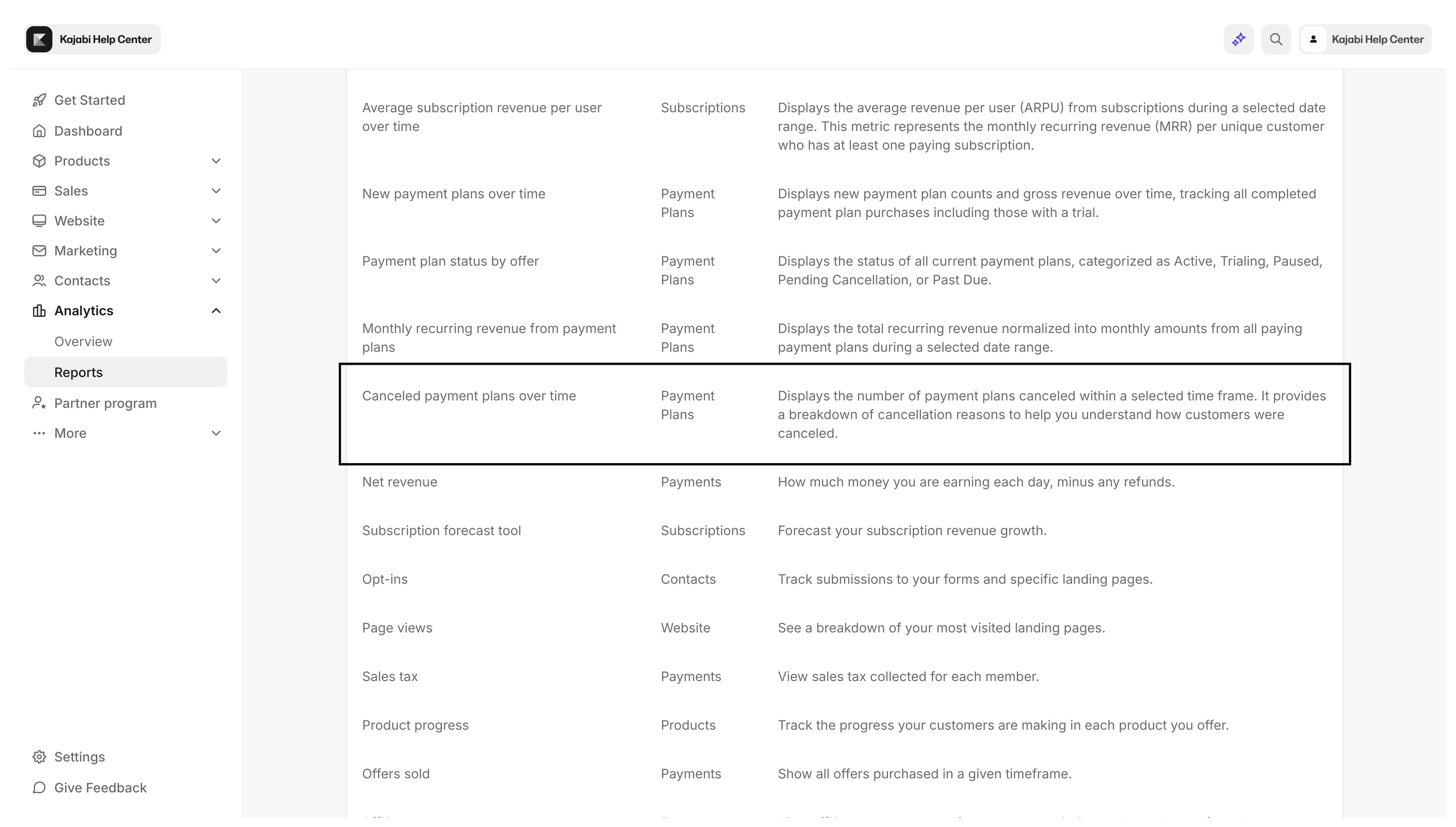
Access the Net Revenue report
- Open the Analytics tab from your Dashboard
- Click Net Revenue
Note:
You can also view Net Revenue attributed to your Email Broadcasts, Email Sequences, Event Emails, and individual emails within your Sequences. Learn more.
Understand the net revenue report
Line graph
View your Gross revenue as well as your refunds, giving you your total Net Revenue. Hover over your Line Graph to view more detailed information about your Gross Revenue, Refunds, Net Revenue, and Purchases.Compare offers
Click Compare Offers to compare the Net Revenue of your Offers during your specified time frame: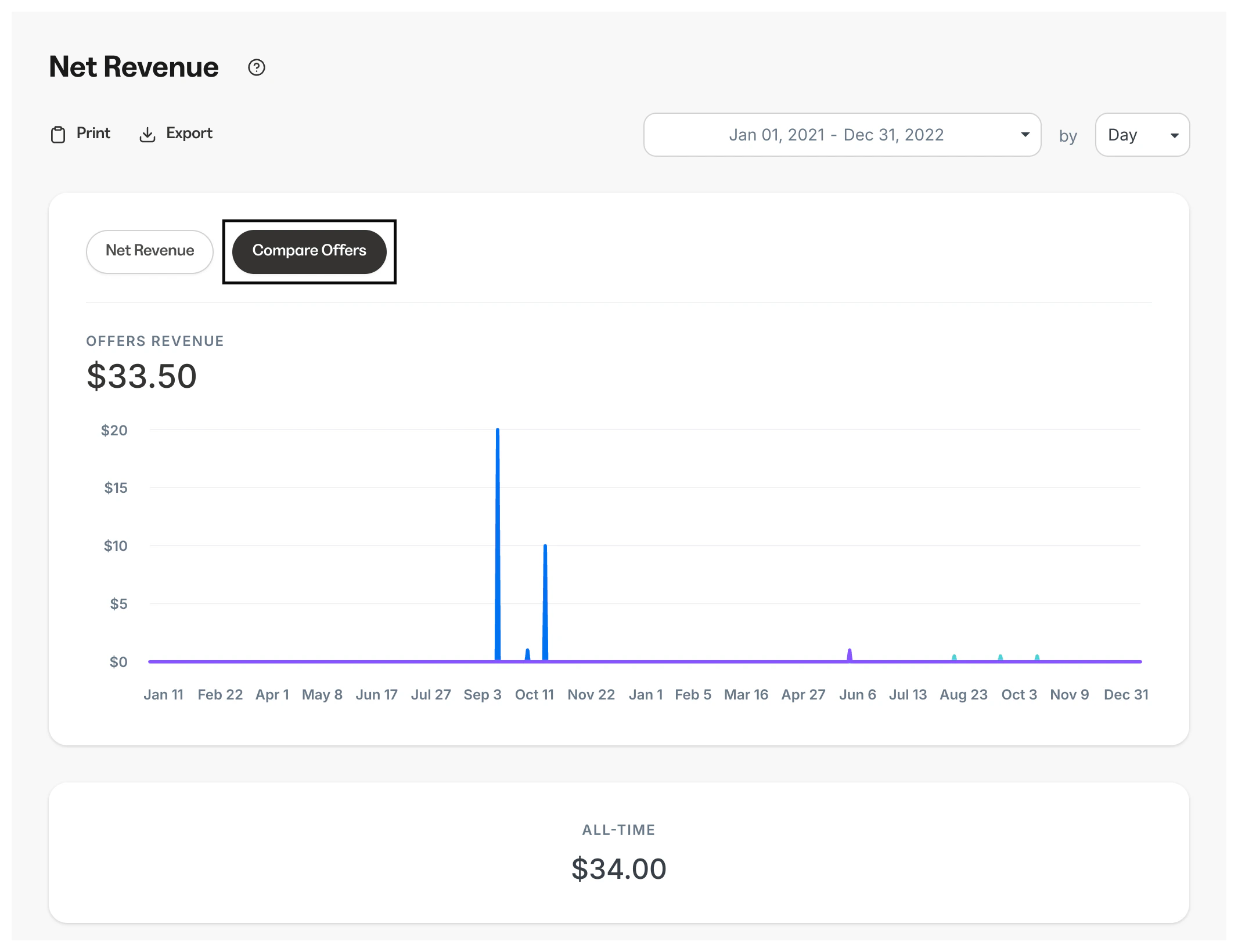
Timeframe
Choose the timeframe of the data set you would like to view from the top dropdown. Select from our presets or choose a custom date range. Then, choose if you want to view the sales Daily, Weekly, Monthly, or Annually:Revenue by offer
Net Revenue and Top Selling Offers
This donut chart displays the total net revenue and ranks your top 5 Offers by the amount of revenue generated: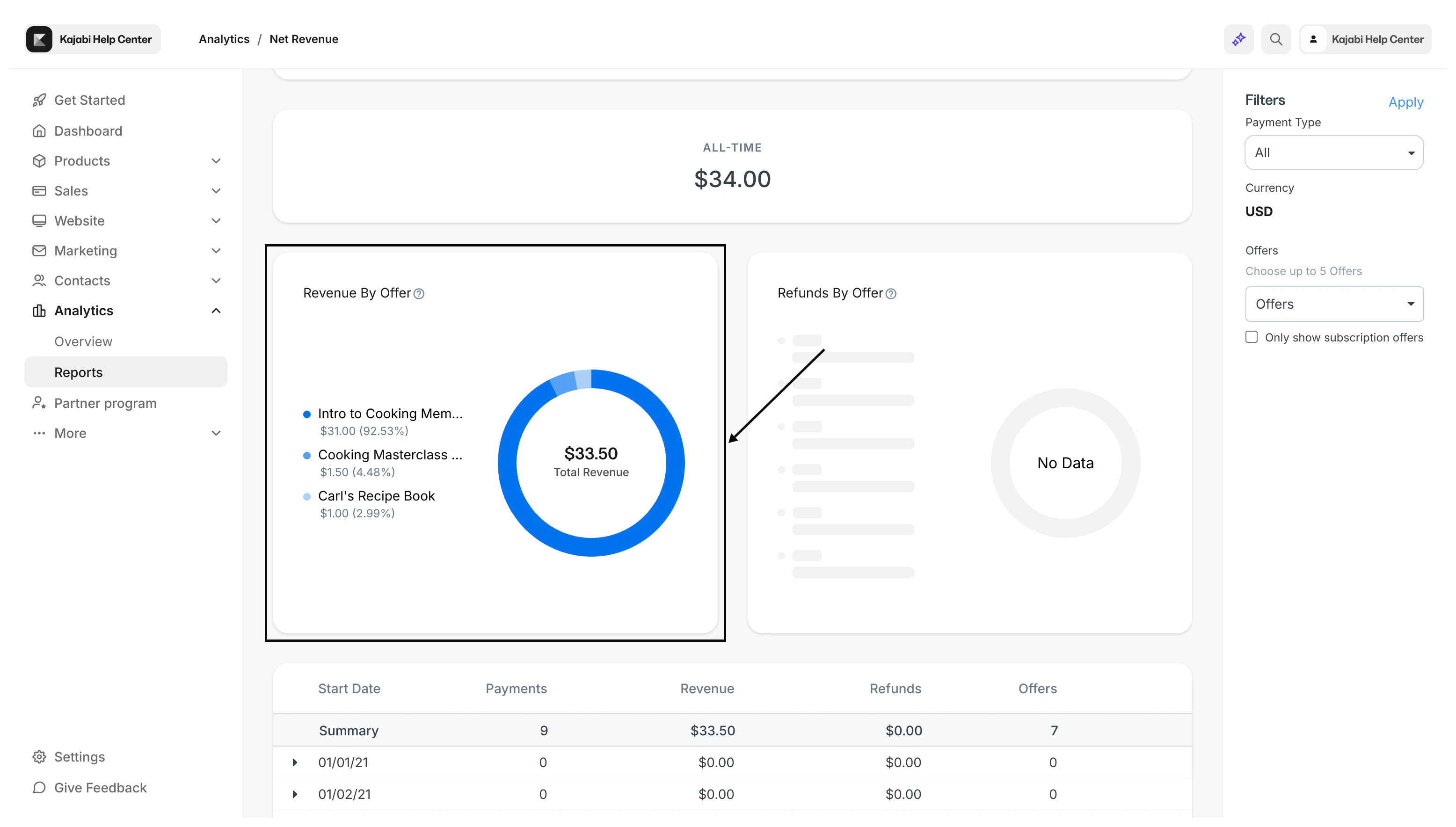
Refunds and Top Refunded Offers
This donut chart displays your total refunds and ranks the top 5 Offers refunded: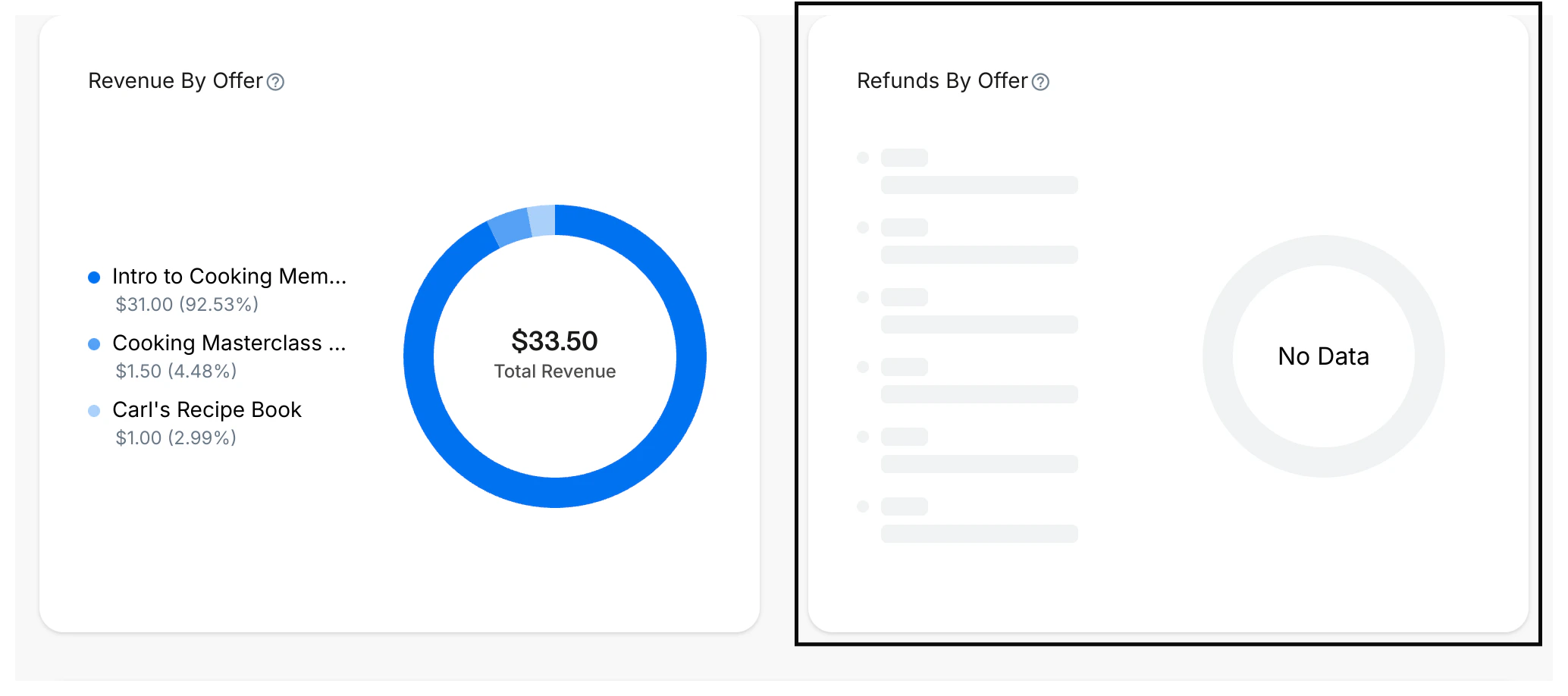
Summary
The Summary breaks down your Net Revenue in much greater detail by displaying the Payments collected, Revenue made, Refunds given, and Offers purchased by day. Filter the Time Frame displayed with the dropdown menu at the top of the Report: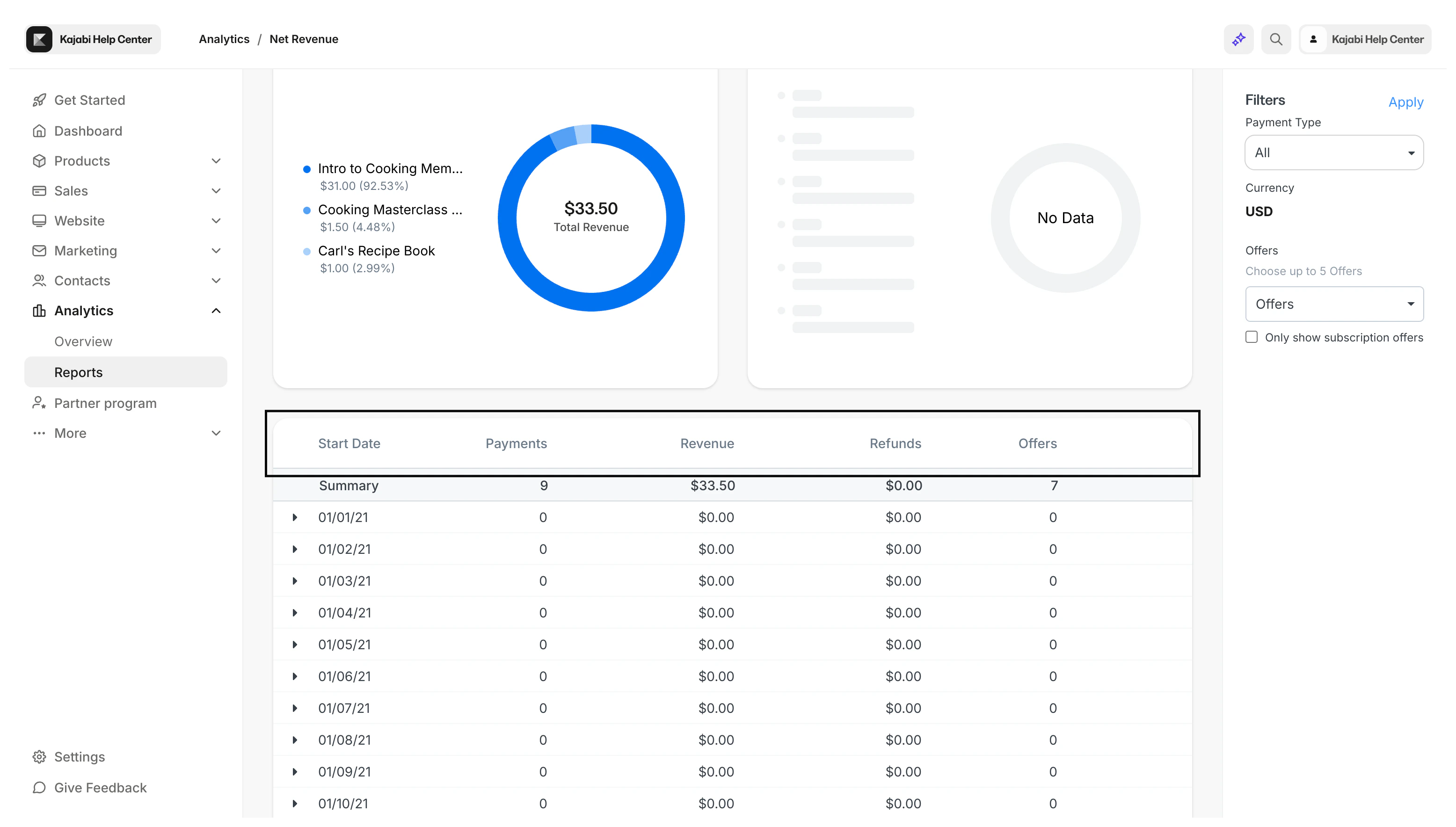
Using filters
Using the filter bar on the right of the page, you can alter your entire data set by payment type, currency, and by choosing up to 5 Offers. Remember to click Apply to display your filtered data:Export the net revenue report
Export your Net Revenue Report to share, file, and record your net revenue. Your Net Revenue Report can be exported as “Revenue by Date” or “Offers by Date”:- Revenue by date: Displays the cumulative revenue amount by date within your specified date applied before exporting
- Offers by date: Displays every Offer sold for each date within your specified date filtered applied exporting
Export Net Revenue
- Open the Analytics tab from your Dashboard
- Click Net Revenue
- Located toward the top of the page, click Export
- Select Revenue By Date or Offers by Date
Note:
Exporting this report will notify the owner of the Kajabi account if the owner has selected to receive notifications data is exported from their account. Learn to update email notification settings.
Exported data
The following data is exported with the Net Revenue report, depending on if Revenue by Date or Offers by Date is chosen:Revenue by Date
- Start Date
- Revenue
- Refunds
- Payment Types
- Currency
Offer by Date
- Start Date
- Offer Token
- Title
- Price
- Recurring
- Gross Revenue
- Revenue Count
- Refunds
- Refund Count
- Currency
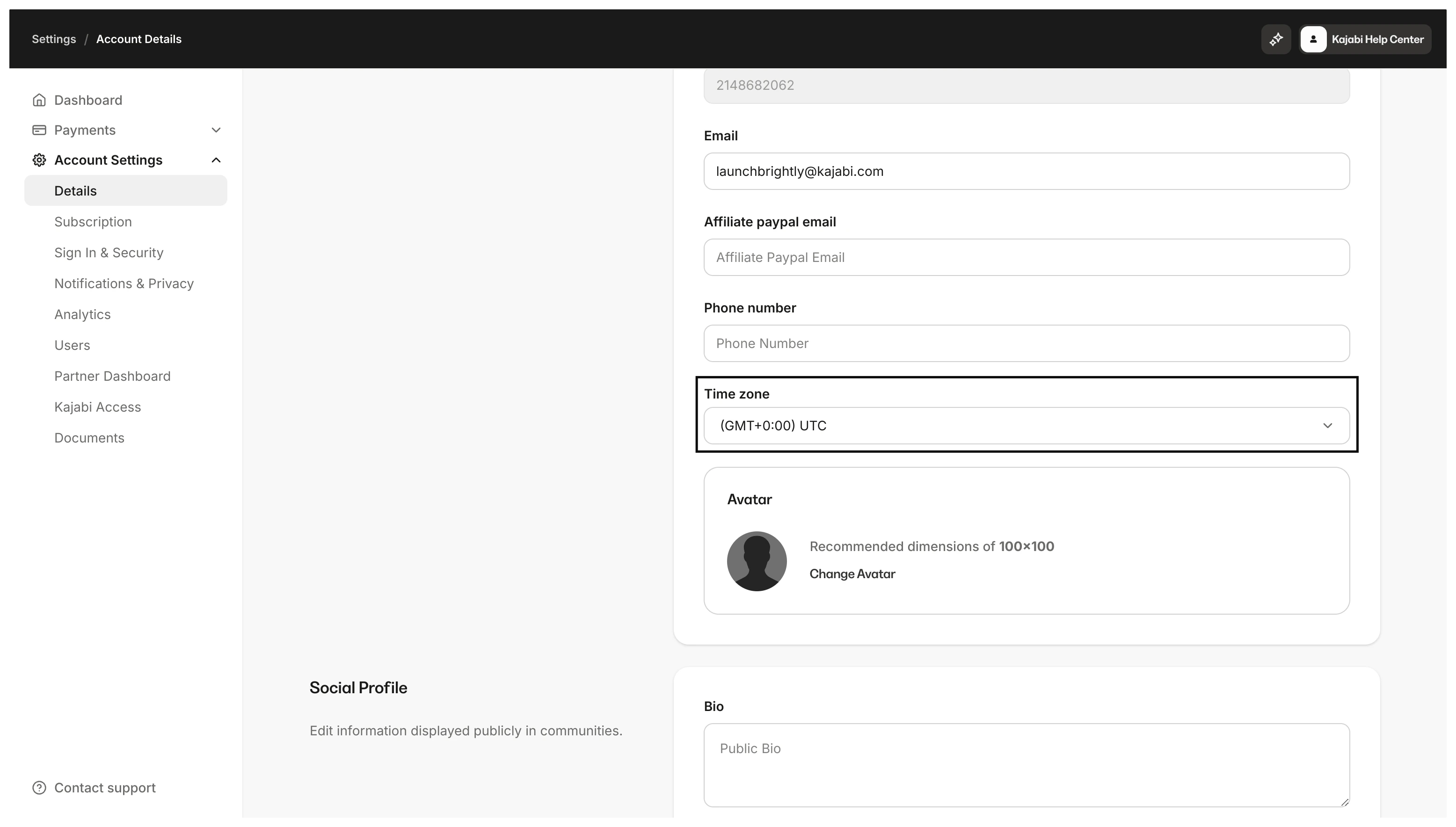
Net revenue analytics vs. Stripe
Stripe does not take refunds into account. In addition, the Net Revenue report uses the timezone you selected for your site which can be found in your Account Details, whereas your Stripe dashboard may be localized to your own timezone.