

- Getting a snapshot of current subscription counts by status
- Drilling down into key statuses such as Past Due by clicking counts to view the list of individual subscriptions
Data presented in this report
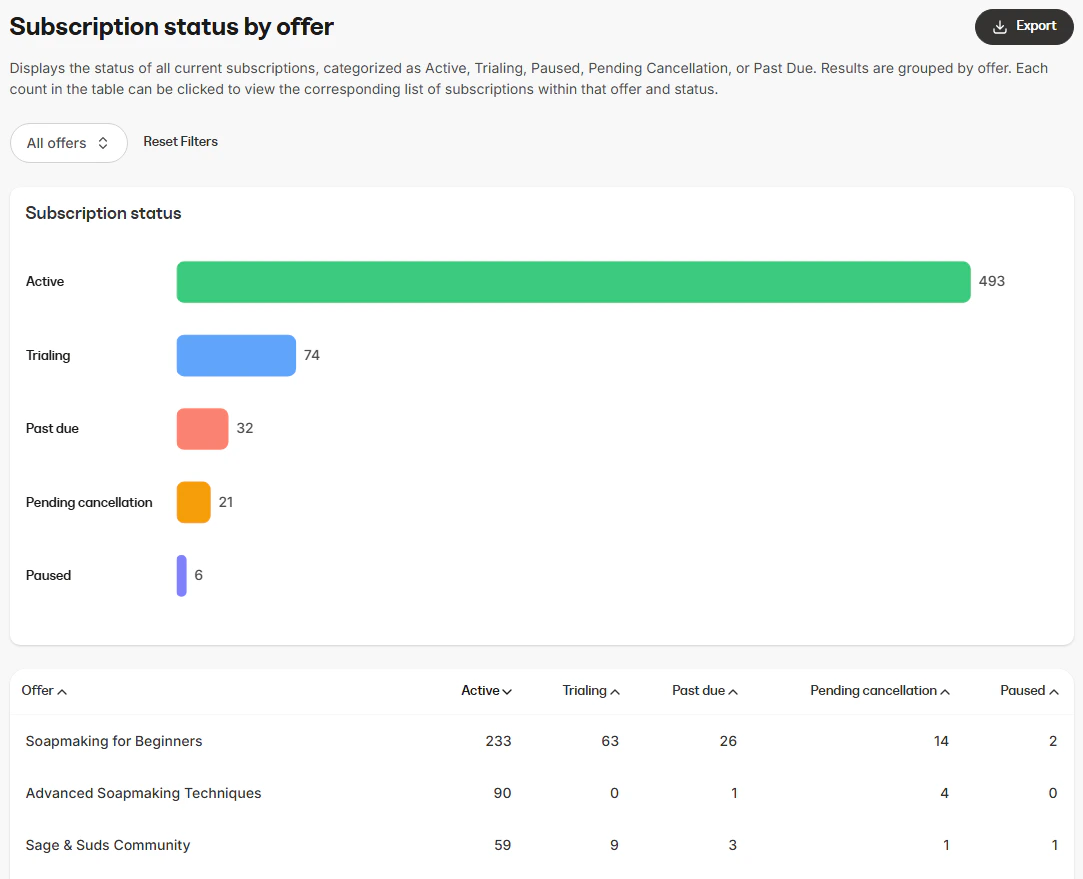
Visual charts
- Subscription status (bar chart): Displays the total number of current subscriptions in each status category across all offers
Data table
The data table provides a detailed breakdown of subscription counts by offer, including:- Offer name: The name of the subscription offer
- Active: The number of currently active subscriptions
- Trialing: The number of subscriptions currently in a trial period
- Past due: The number of subscriptions currently past due
- Pending cancellation: The number of subscriptions scheduled for cancellation
- Paused: The number of subscriptions that are currently paused
How to use the report
Controls
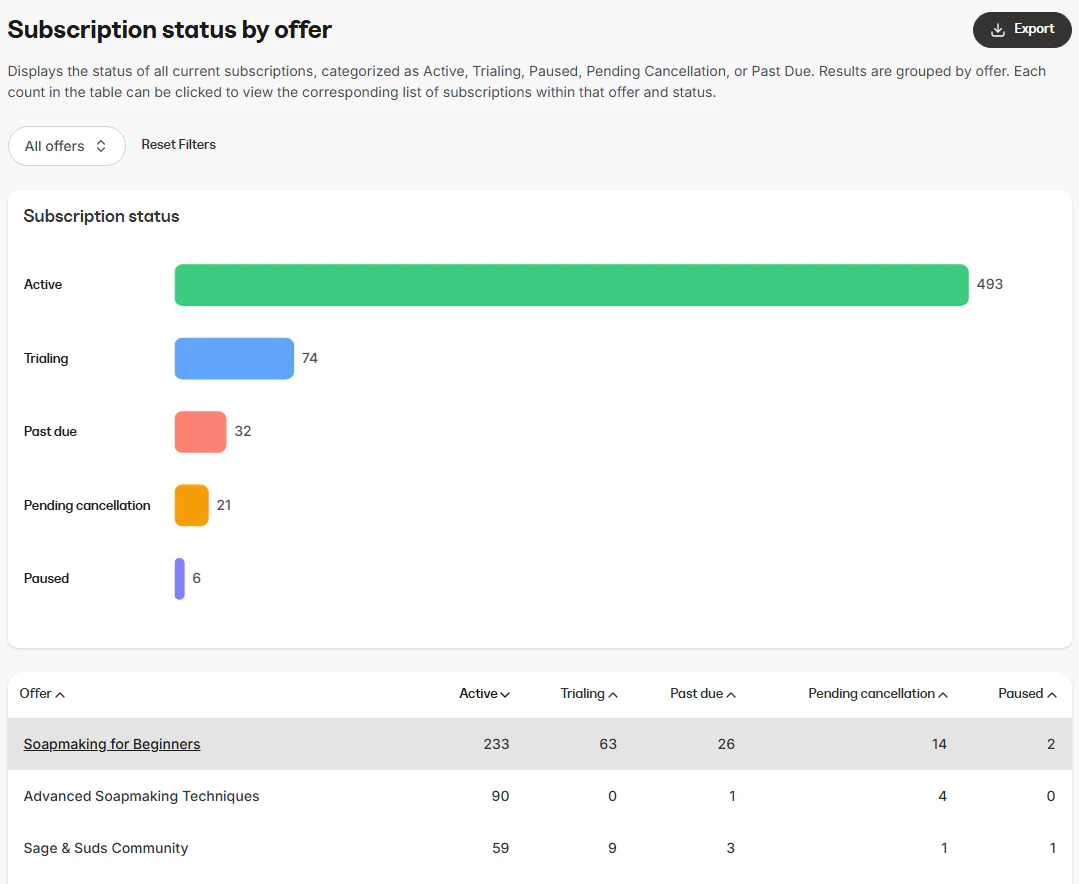
- Offer selection: Choose whether to view all offers or limit the results to a specific offer
- Offer click through: Each count in the table can be clicked to view the corresponding list of subscriptions within that offer and status
Export information
When you export the Subscription status by offer report, the resulting file will include the same columns and reflect any filters you have applied. This ensures the data in the export matches what is displayed in the report:- Offer name
- Active
- Trial
- Past due
- Pending cancellation
- Paused