

Projects and video clips
What are projects?
You create a project by selecting New project from the Creator Studio homepage. Then, select the video you want to repurpose and the marketing content you want to create from it (e.g., landing page copy, video clips, email copy, transcripts, etc.)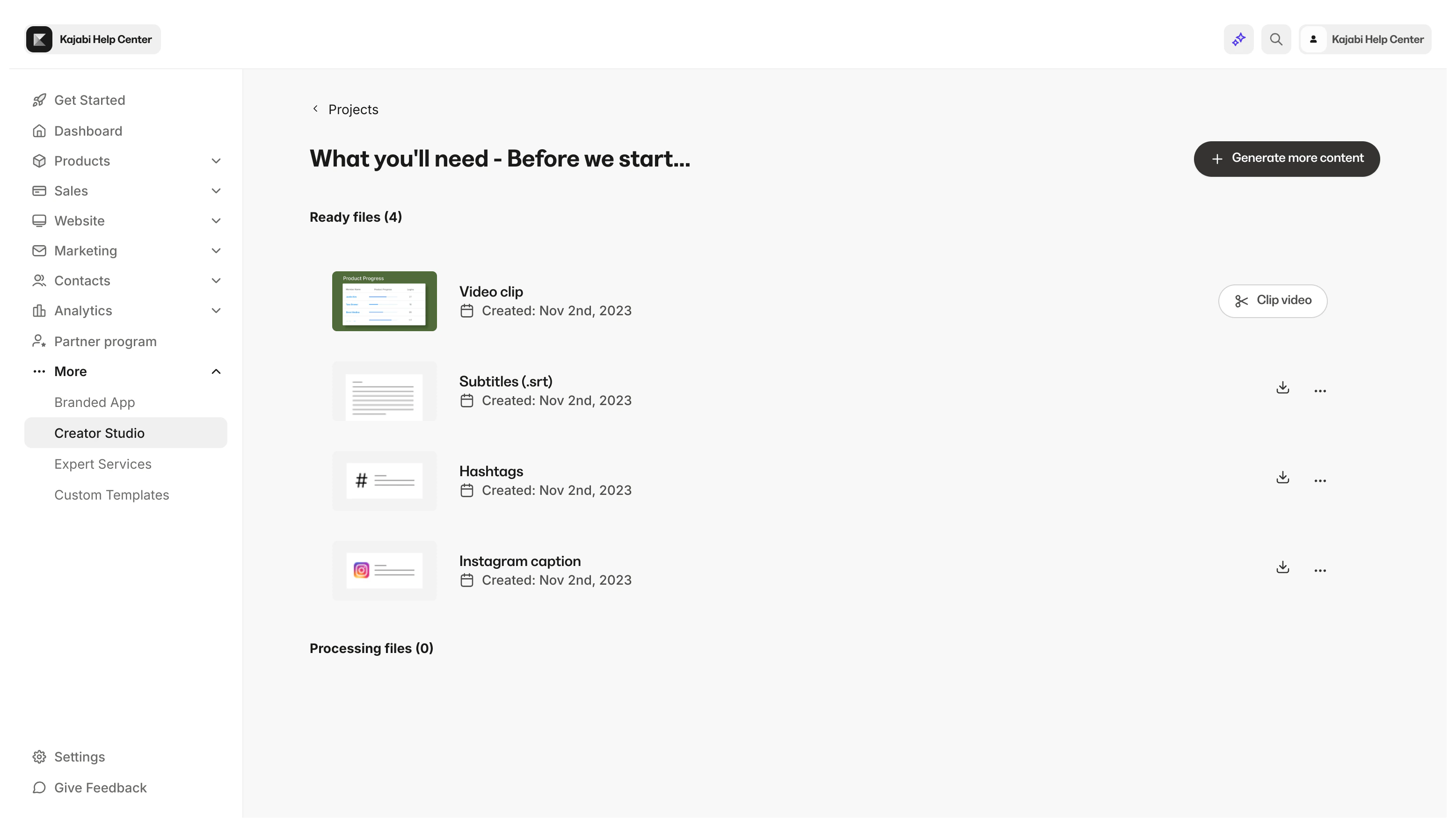
What are video clips?
Video clips are the video files that you make from a project to use for social media, website pages, landing pages, blogs, mini-courses, and more. There are two types of video clips: highlight video clips and customized clips.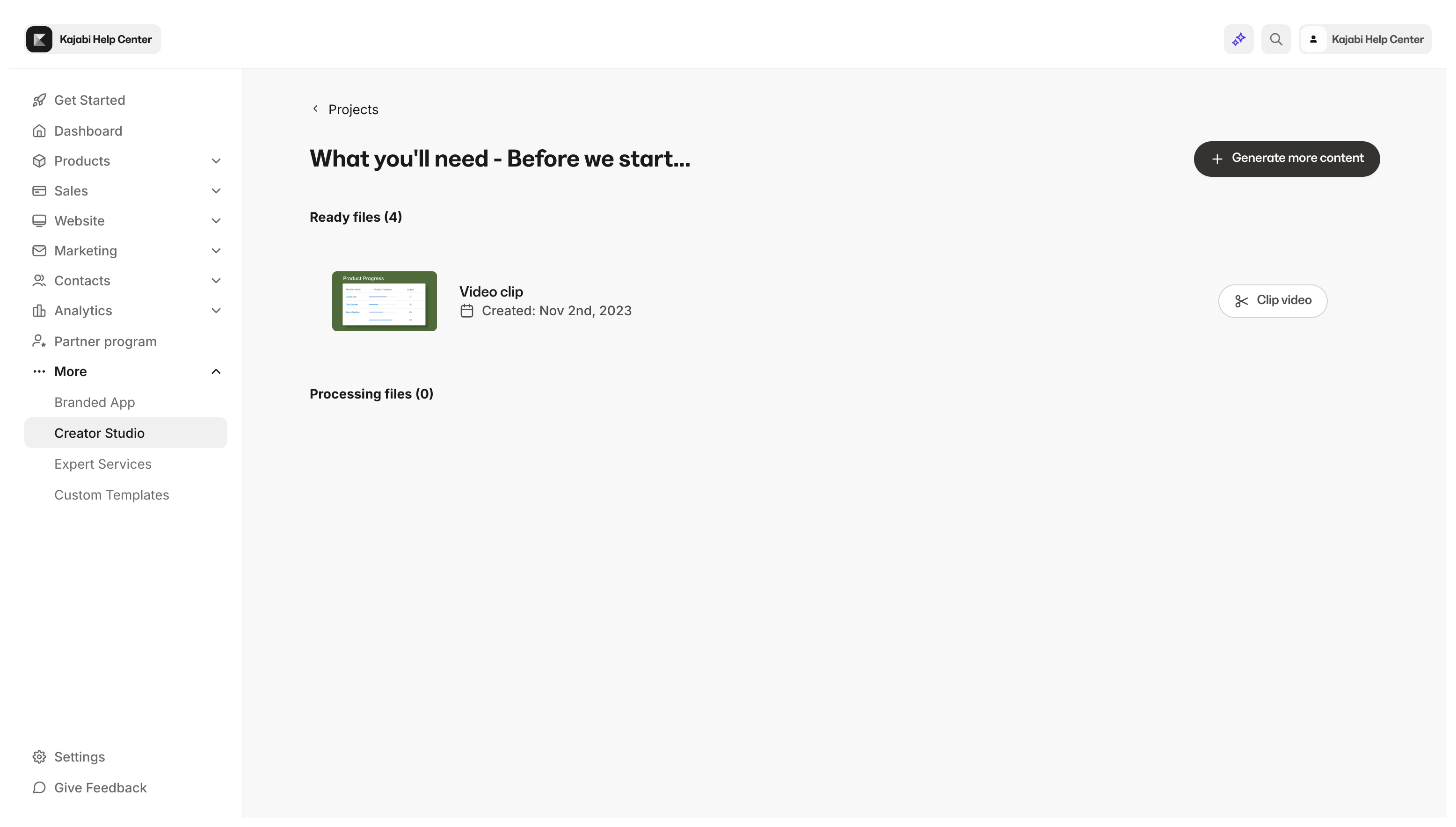
Create a highlight video clip
- Select Clip video to launch the Script Editor and select which sentences to include in your highlight video clip
- Select Save and close to generate your highlight video clip
Create a customized clip
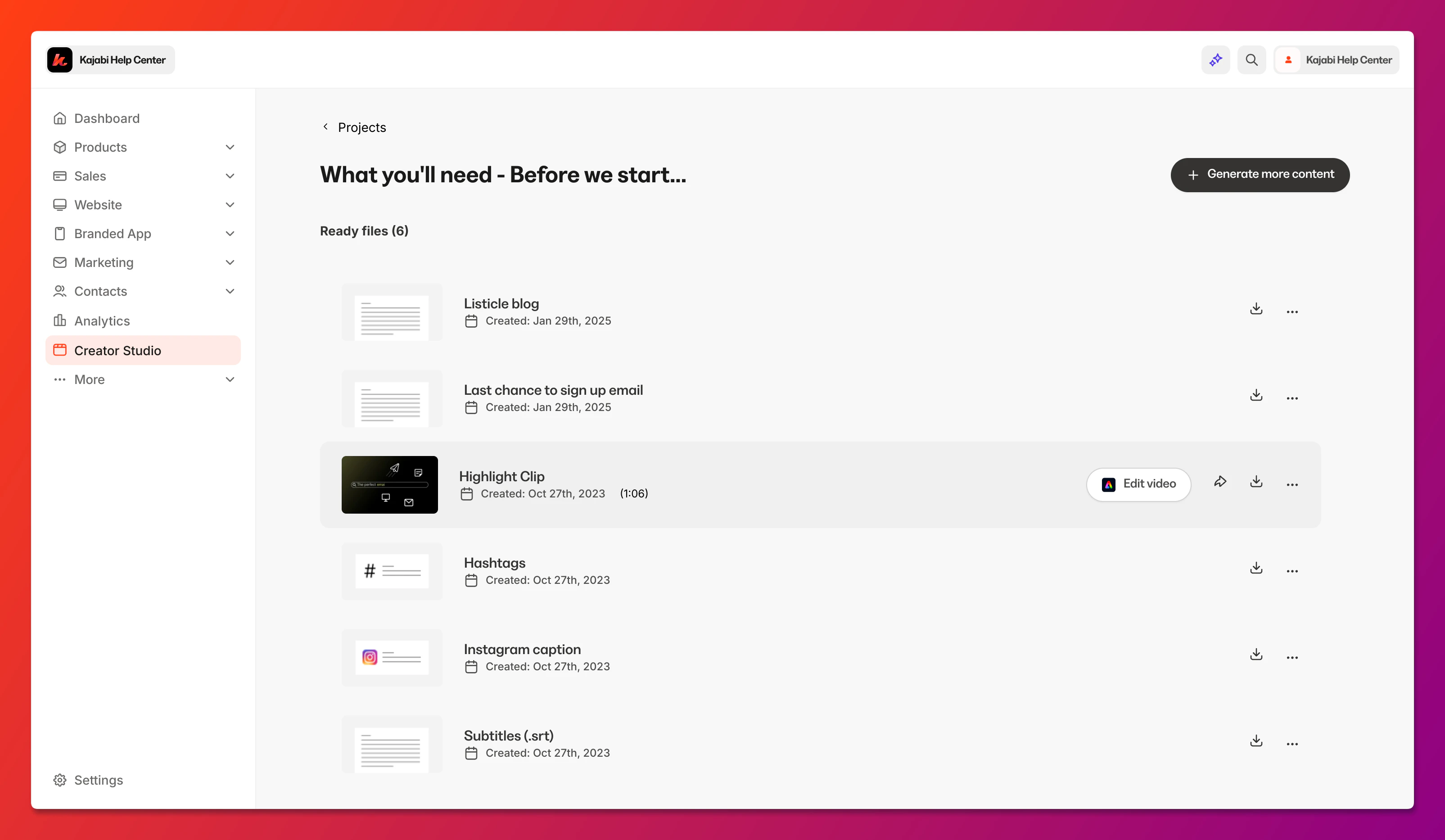
- Select Edit video to launch the integrated Adobe Express editor
- Select the dimensions of your video and customize your video
- Click Save to close and generate your customized video clip
Manage projects
All of your projects for your site are accessible from the main Creator Studio homepage. By default, the project has the same name as the original content.Manage video clips
All of your clips are organized by the project from which they were made. Viewing your video clips within a project will allow you to see when the clip was created and its duration. You can also:- Rename a clip — By default, your clip will be named based on when it was created
- Preview the clip
- Download the clip
- Download the transcript and subtitle files of a highlight clip
- Customize the highlight clip using Adobe Express
- Share the clip to social media
- Schedule the clip to social media using Adobe Express
Create more content from the same video
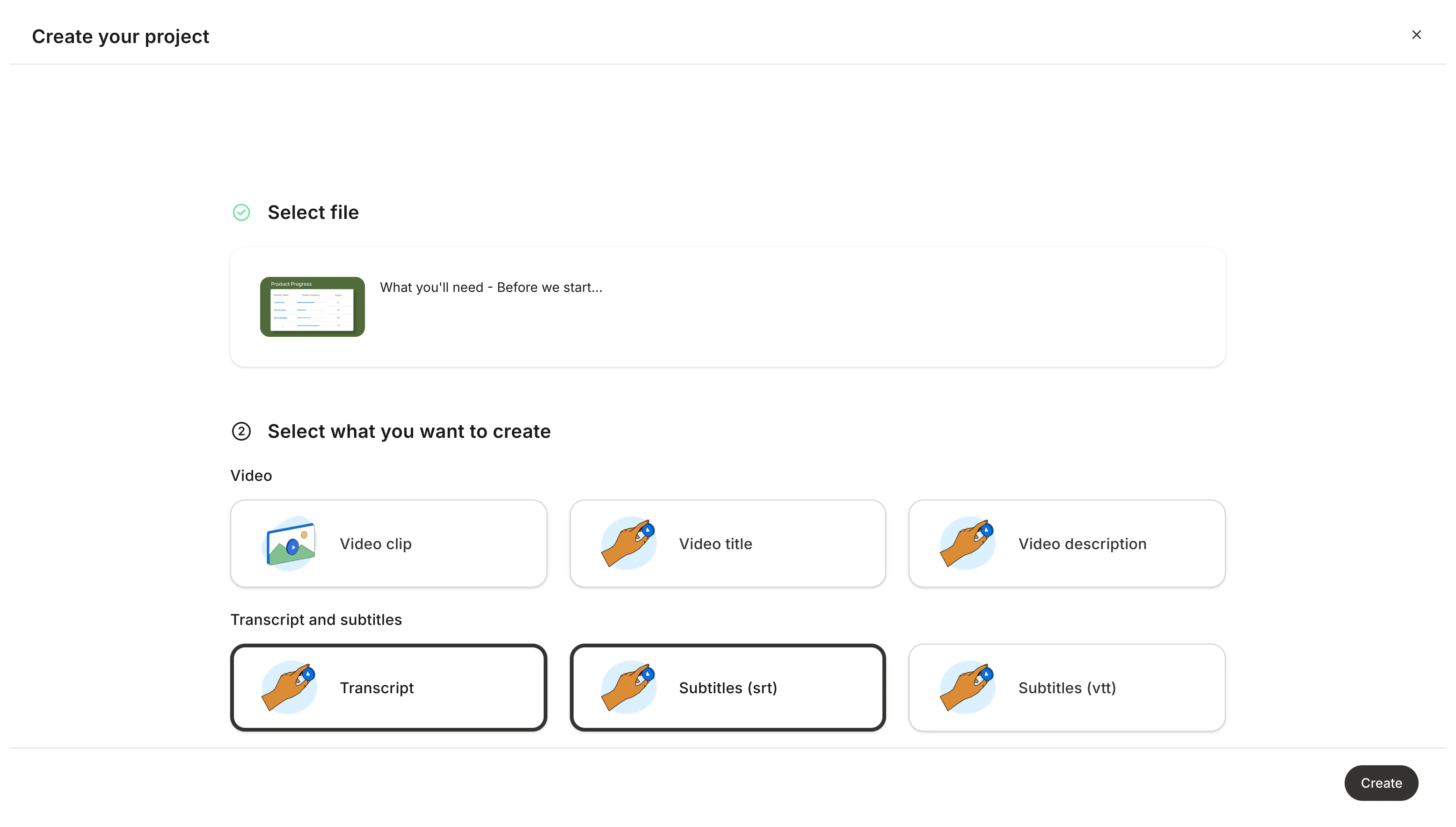
To create more content based on the same original video:- Open the project for that original video
- Click New media
- Select what content you want to create based on that original video
Note:
You do not need to create a project to generate more marketing content from the same video. You can navigate to that project and select New media.