

Customize clips
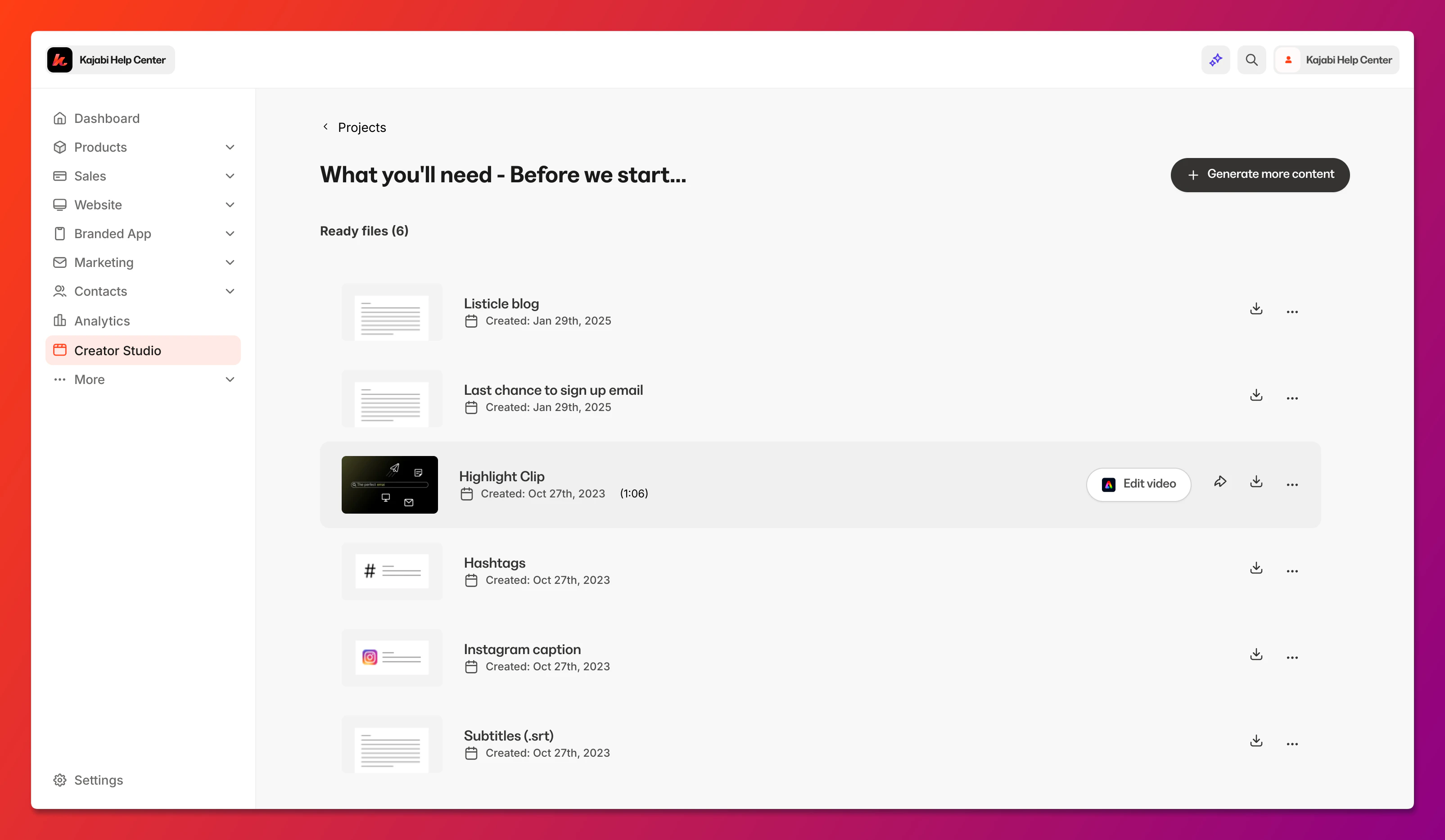
- First, create a highlight clip. Learn more
- Select Edit video
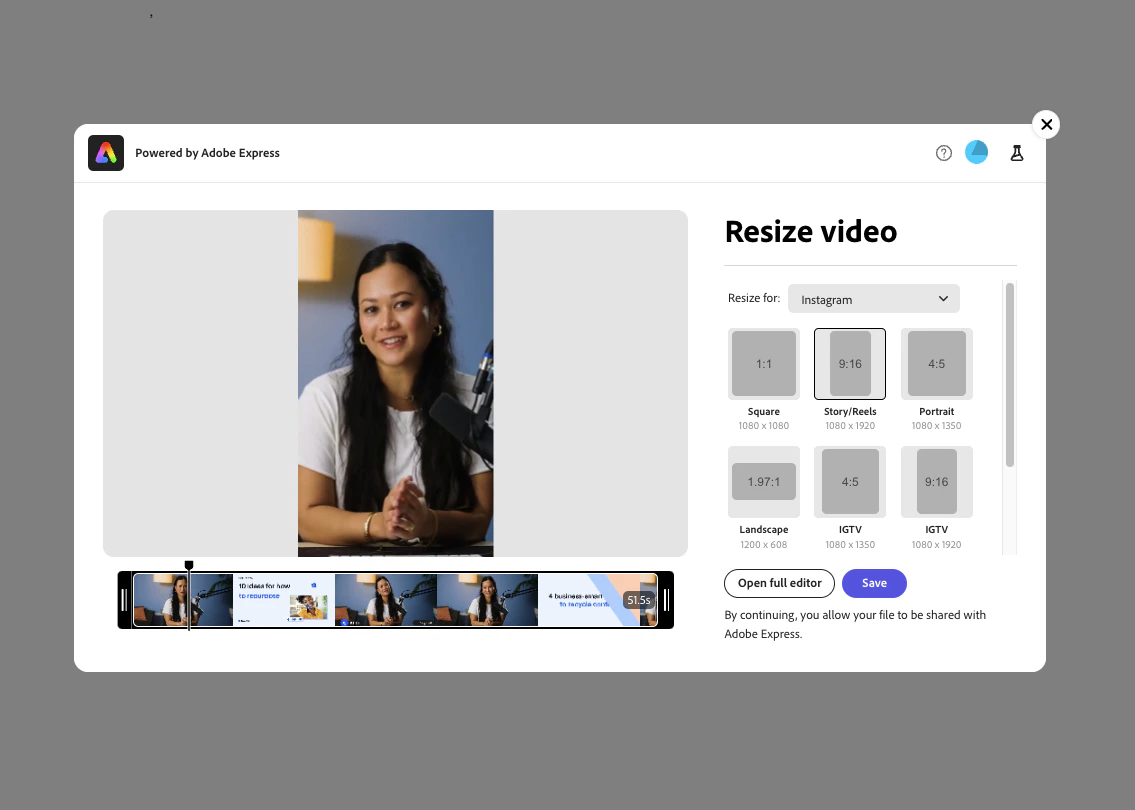
- An Adobe Express pop-up will appear. Log in to an existing Adobe Express account, or create an account
- Resize your video to your desired dimension. You may also trim the video and adjust the video scale
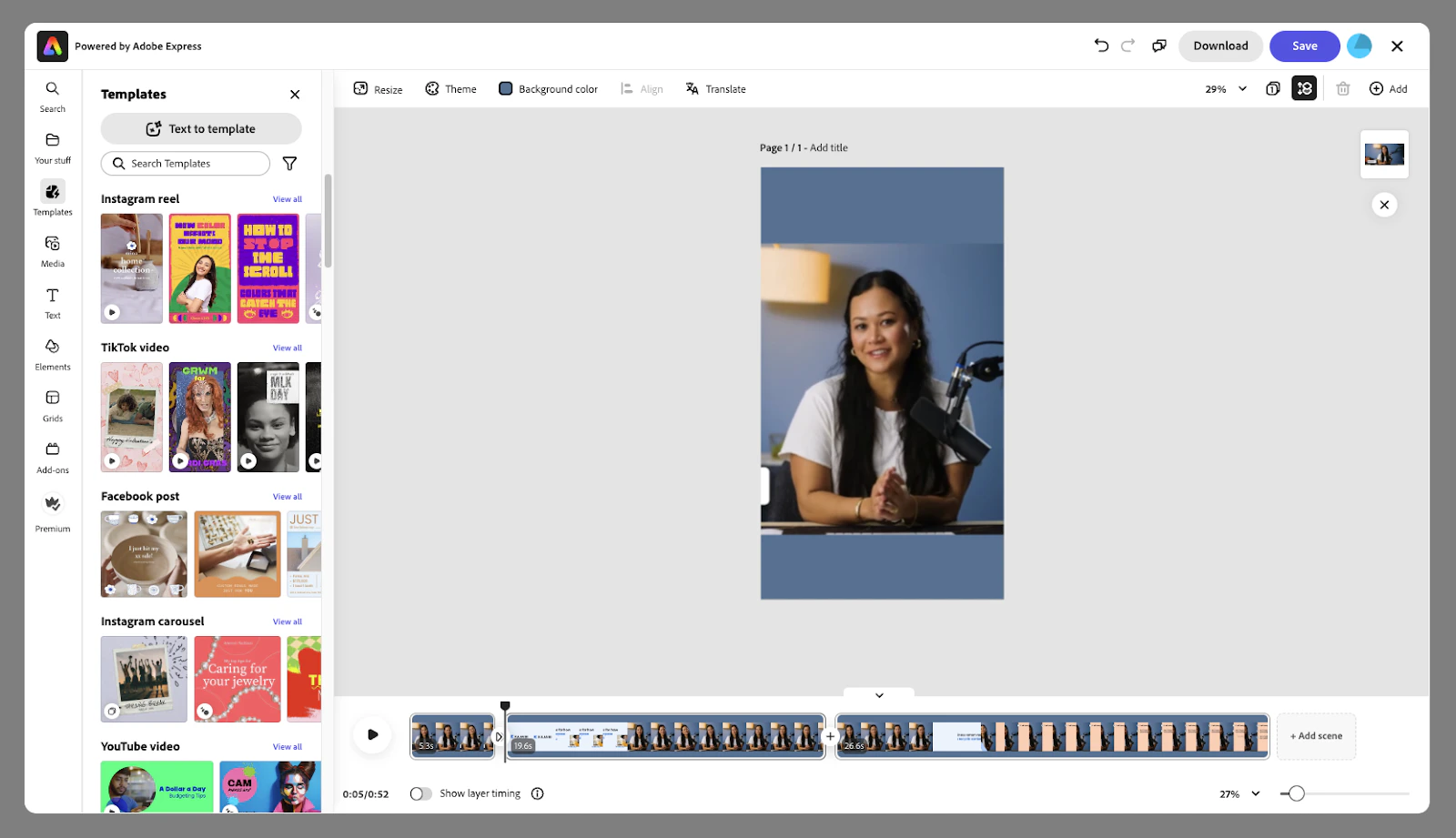
- Templates
- Stock images and videos
- Video editing tools
Schedule clips for social media
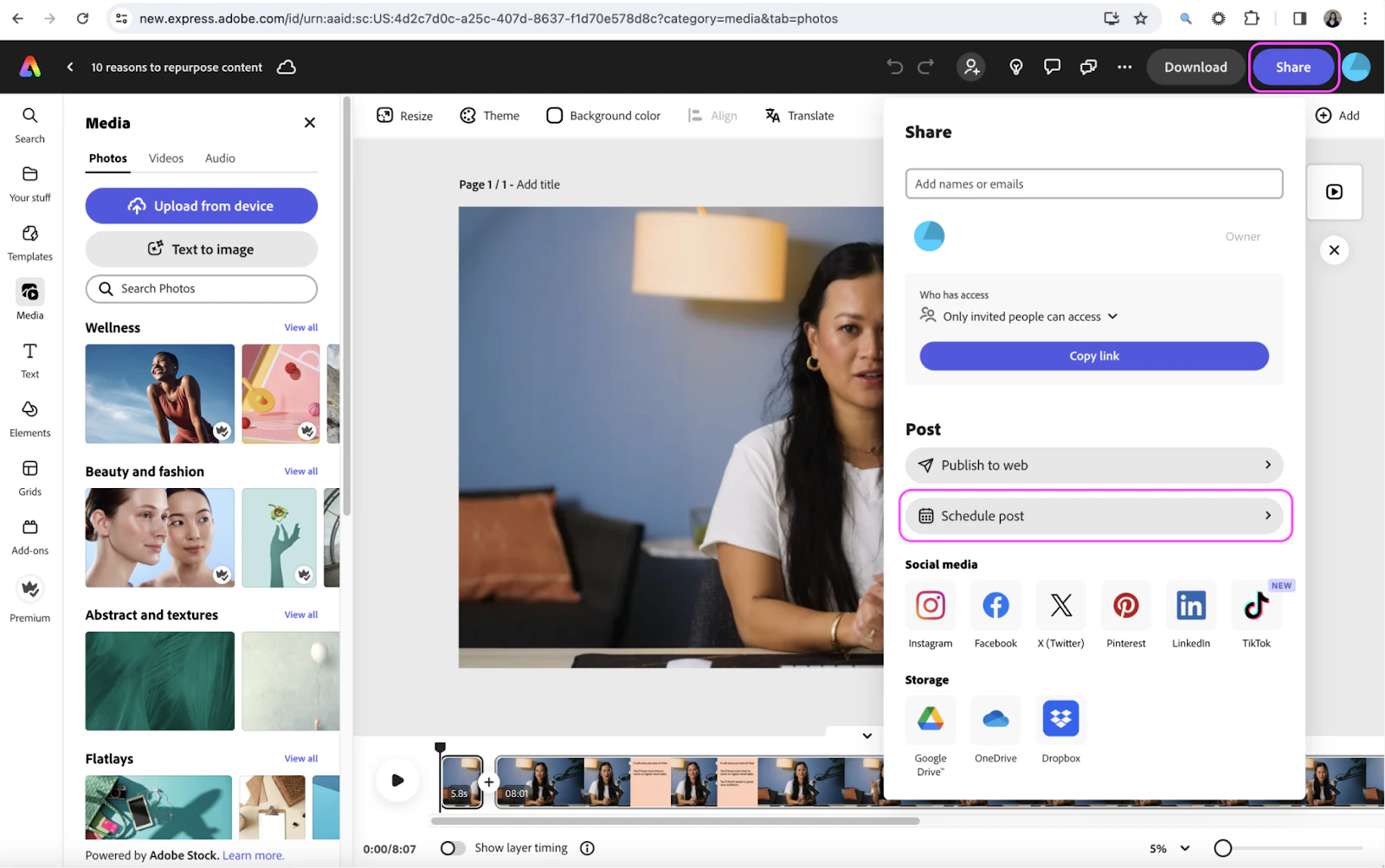
After you edit a video using Adobe Express, you can schedule your video to be posted on social media.- Go to https://new.express.adobe.com/your-stuff/files
- Log in to your Adobe Express account
- Open the file you wish to schedule
- Select Share
- Click Schedule post
Troubleshooting
Edit with Adobe button is not visible
The Edit with Adobe button is only visible for highlight clips (i.e., videos that you have clipped). In order to edit a video with Adobe, you must first select the sentences you want in your highlight video and then save that highlight video. Then, you can edit that highlight video as many times as you’d like using Adobe Express.An error occurred while initializing Adobe Express
If this error occurs, try creating the highlight clip again. To recreate the same highlight clip:- Select New media
- Click Video clip
- Select Clip video to select the sentences you want to include in your highlight clip. Creator Studio remembers the most recent set of sentences you selected
- Click Save and close and wait for the highlight clip to finish processing