

Highlighting
When you open a Creator Studio project, you will have direct access to the transcript from your Course video. With Creator Studio, you are in full control of what you want to use for your video clip by highlighting the parts of the script you want to include in your final clip.Manual highlighting
Select specific sentences in your transcript to control the highlights used in your final video clip.- To manually highlight: Click a sentence in the transcript to add a highlight
- To remove a highlight: Click the highlighted sentence in the transcript
Capture key moments
Creator Studio offers an AI key moments feature if you need inspiration on what parts of your video you should use. Kajabi’s AI can make up to 3 recommendations based on the length of your video:- Short: Great for Instagram Reels and TikTok videos
- Medium: Ideal for Facebook and LinkedIn posts
- Long: Recommended for posting to a YouTube channel
Note:
Click on any highlight in the right panel to see where the highlighted sentence was said in context in the Transcript. If you have manually selected any highlights before using a key moment, all existing highlights will be cleared before applying the key moment to avoid any conflict.
- The AI is trained to use only complete sentences from the transcript and to cover most (if not all) the topics in the video
- This can lead to the AI making a suggested key moment longer than the targeted duration. You may have to remove highlights to achieve your desired duration
- The AI can only make 3 suggestions based on the duration selected for each Course video. If you reapply a set of highlights, you will see the same sentences highlighted for each selected duration
Reset highlights
Need to start over? Click Clear all to remove all of your highlights in a single action: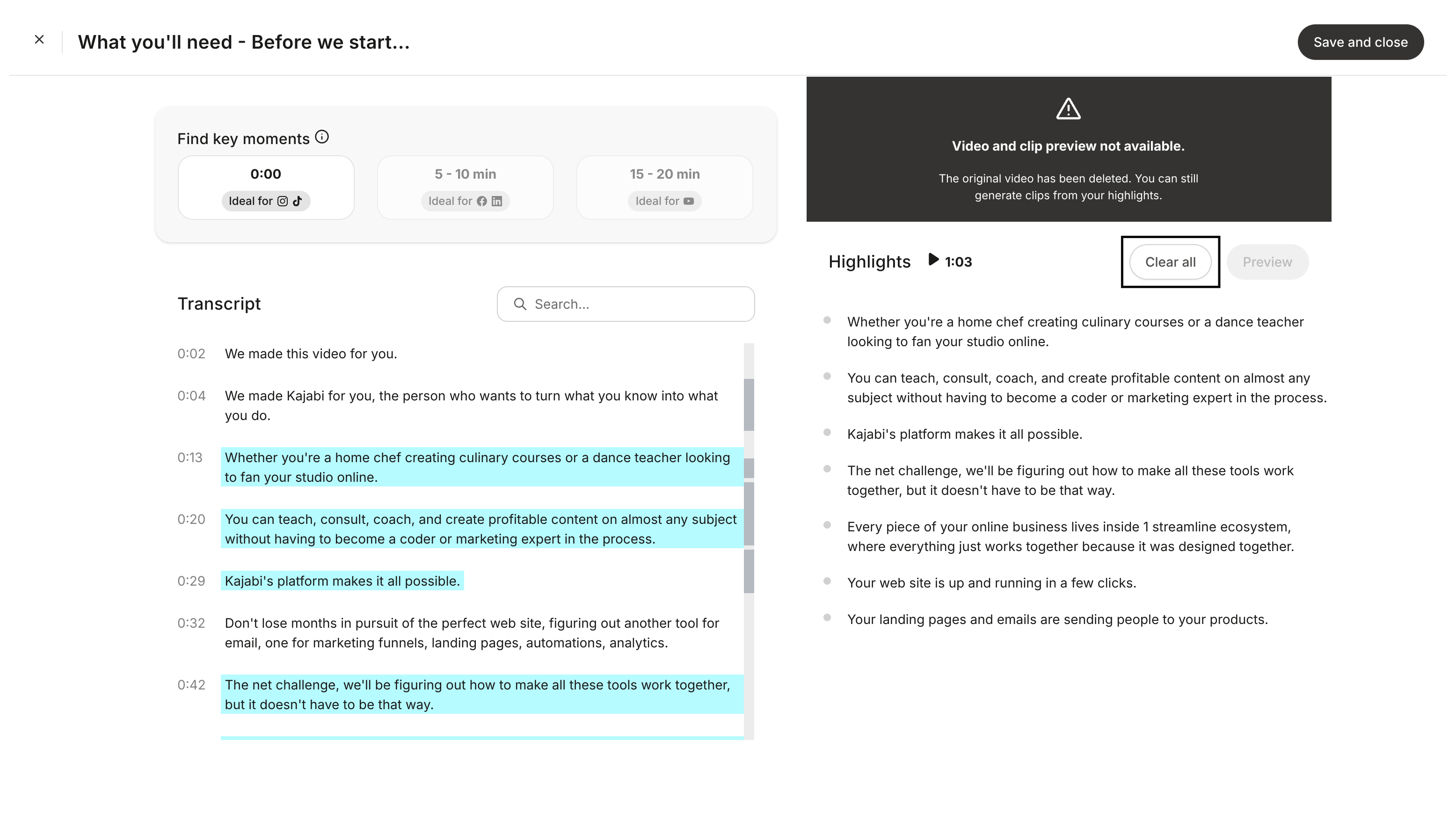
Generate a video clip
When you are satisfied with your highlights, click Save and close: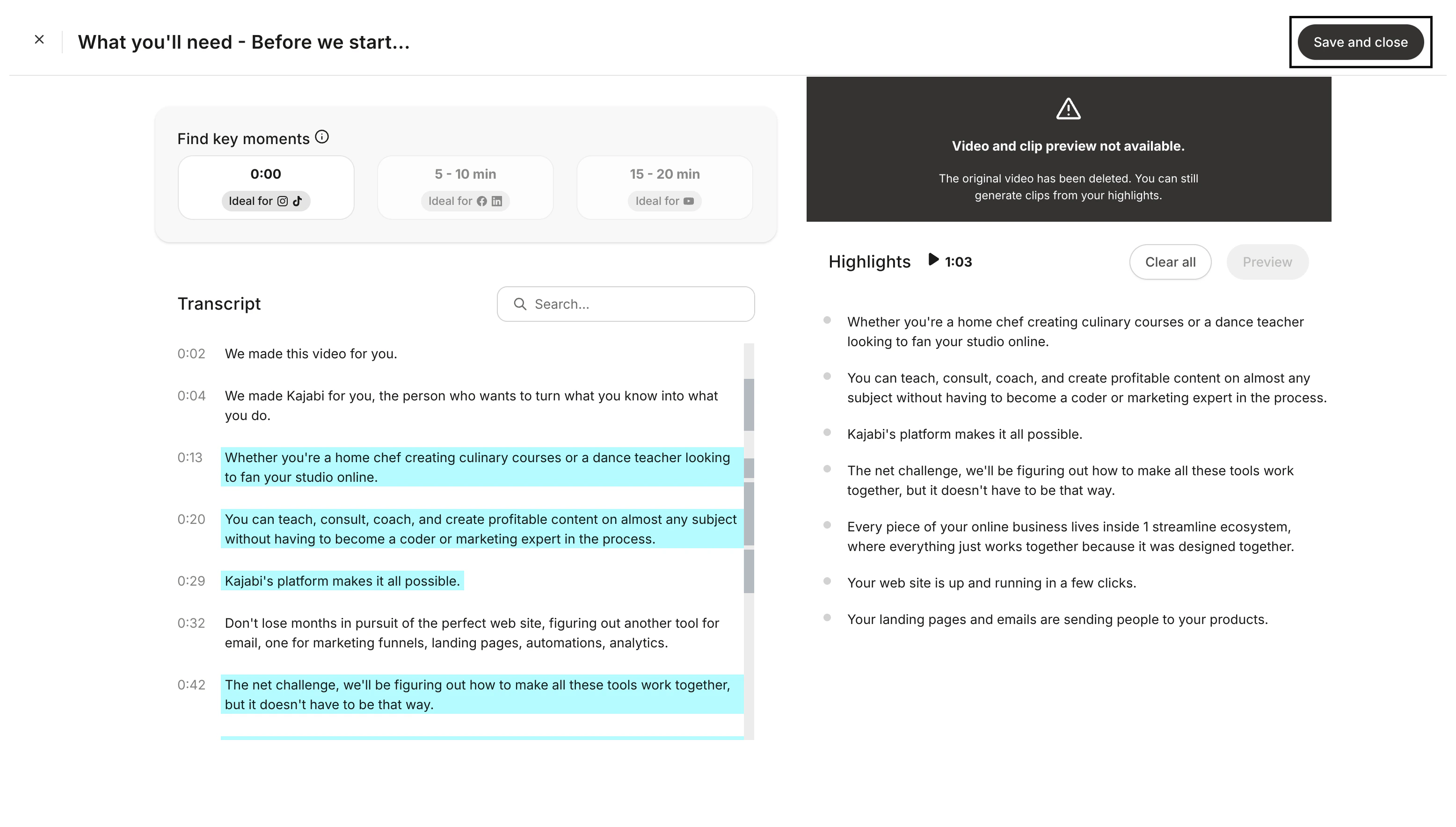
Preview a video clip
Watch the video
Preview your video clip by following along with the transcript. You can view the video in the upper right corner if you need a reminder of what was on screen during each section. As you watch the video, the bolded timestamp on the transcript will follow along with your progress in the video. Click on the transcript’s timestamp if you want to quickly jump to a specific part of the video.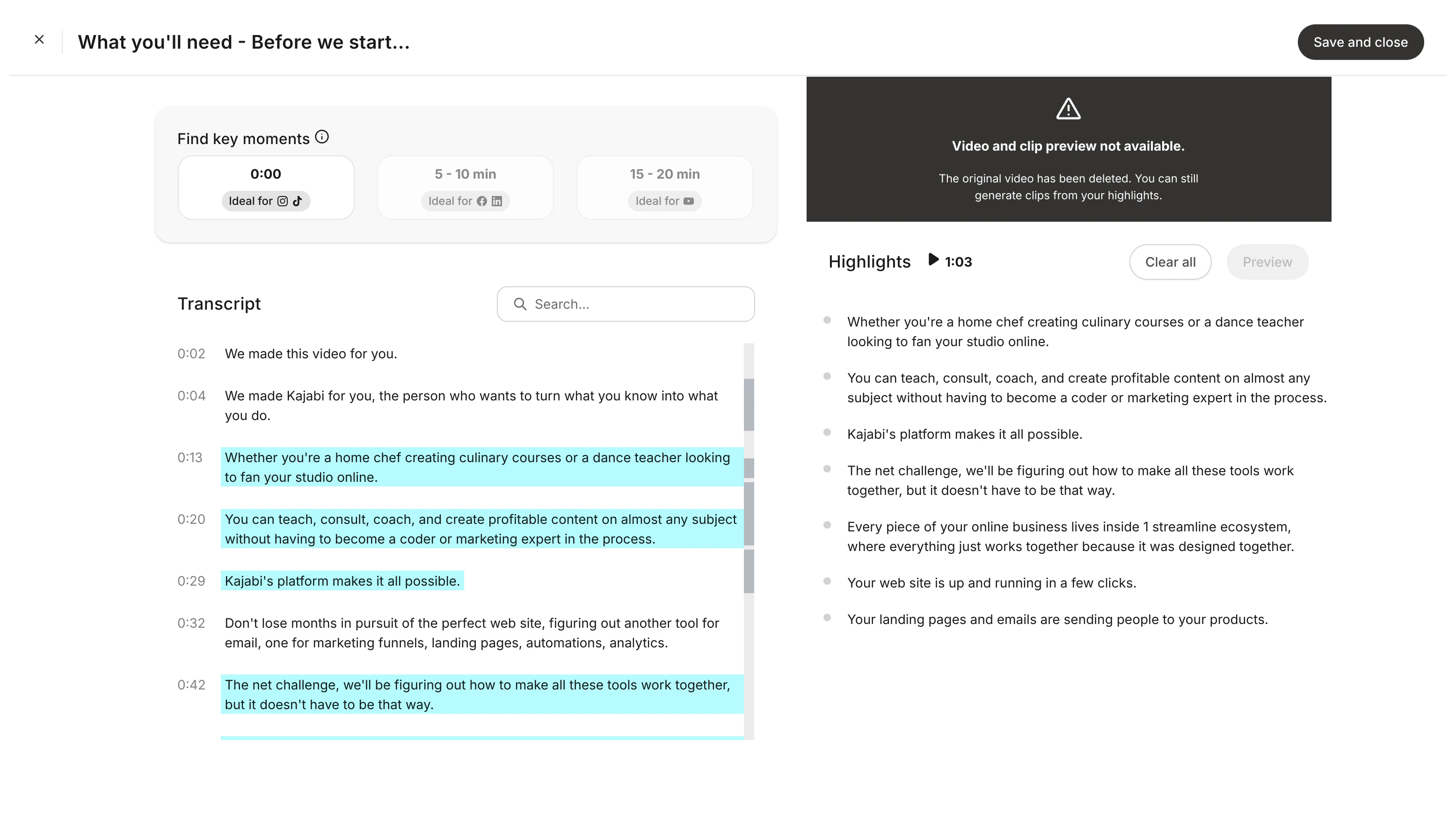
Highlights
With Highlights, you can see how much of your video you have highlighted from the transcript panel’s scrollbar. As you select more highlights, the scrollbar will fill in based on the part of the video where the highlight came from. This is a quick way to see if you’re highlighting from the beginning or end part of your video.Preview highlights
View a rough draft preview of your Creator Studio clip before committing to generating it. To preview, click the Preview button to open a modal with your rough draft clip ready to view. Here you can play or pause and skip forward to the next highlight or skip backward to the previous highlight. Additionally, you can restart your video from the beginning to review your entire video.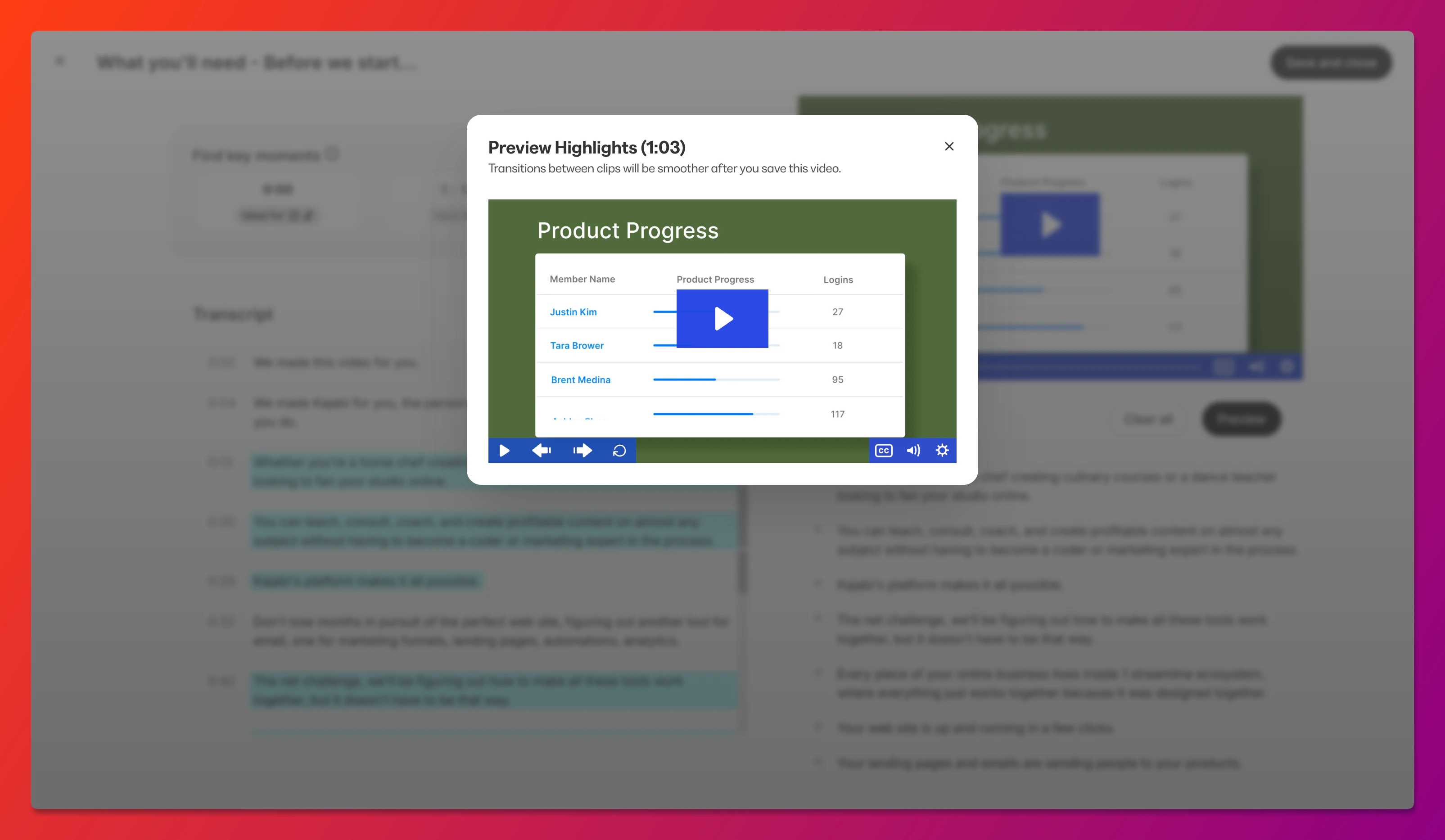
Common errors
Some accounts may see the error screen pictured below when viewing a Creator Studio project where the project’s original Course video was deleted.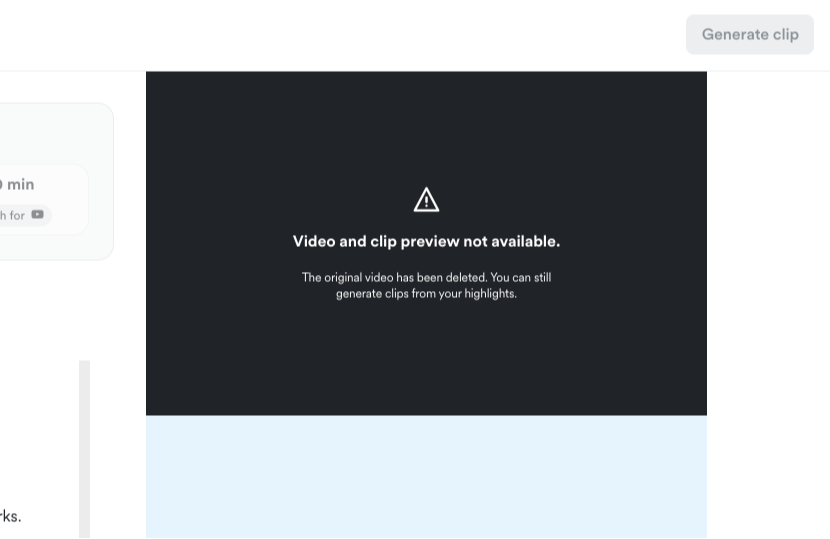
- Make sure the video you want to work with is uploaded to a Course module
- Create a project using your intended video