

- Add closed captions to Course videos — Download the .srt file from Creator Studio, then upload it to your Course video
- Add closed captions to blog videos — Download the .srt file from Creator Studio, then upload it to your blog video
- Add closed captions to YouTube videos — Download the .srt file from Creator Studio, then upload it to YouTube Studio
- Create a mini-course — Use Creator Studio to turn long Course videos into short Course videos, then upload them to a Course
- Add videos to a Kajabi blog — Select your highlight video from Recent Files
- Create marketing assets — Use your video script to help draft emails, blogs, website content, landing page copy, and more
- Create YouTube chapter markers — Upload your Creator Studio video to YouTube, and use the corresponding .srt file to create chapter markers in the YouTube description box
View, edit, and download the full transcript and subtitles
- When creating a project, select Transcript and Subtitle to generate them for your video
- After the project finishes processing, open the project
- Select the transcript or subtitle thumbnail to view and edit
- Click the download icon to download the file
Note:
The option to download the full transcript and subtitles is only available for projects created after July 17th, 2023. To download the full transcript and subtitles of videos you created before July 17th, 2023, create a project using that video.
Download transcript and subtitles from a highlight clip
To download your transcript and subtitle files from a Creator Studio clip, you will first need to create a Creator Studio clip.Open the Script Editor and select highlights
If you have not created a Creator Studio clip, you will first need to create a clip. Learn more.- Open the Script Editor to select sentences for your highlight video
- Click Generate clip. Your video will start processing on the project exports page. Learn more
Download the transcript and subtitles
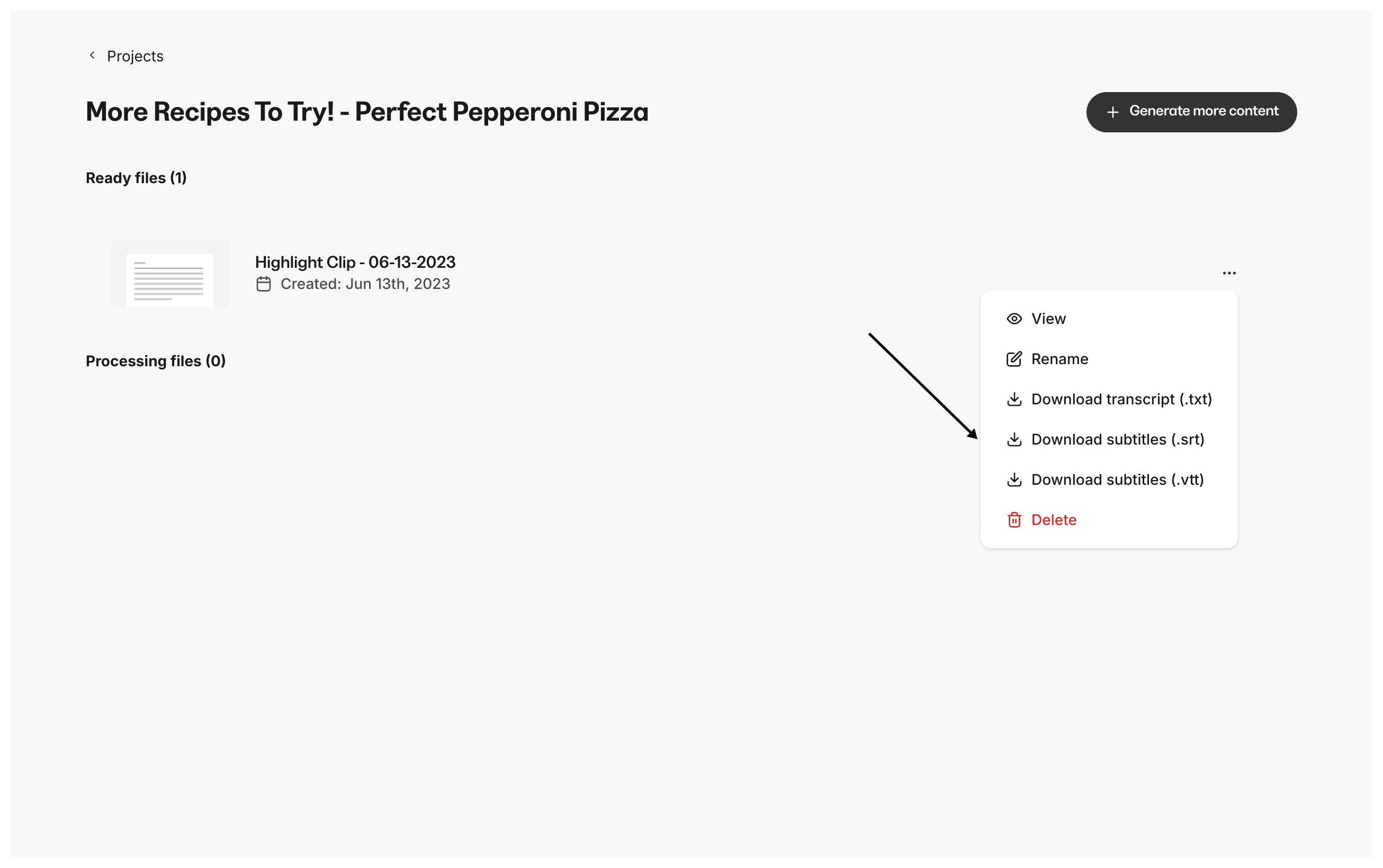
- After your video finishes processing, you will see the … menu
- Click the … menu. You will see three options to download your transcript and subtitle files
Note:
The option to download the transcript and subtitles is only available for auto-highlighted videos created after June 1st, 2023, not customized videos or previously created highlight videos.