

Newsletter vs. Newsletter posts
With Kajabi, a Newsletter is like a magazine brand, and Newsletter Posts are individual issues released on your publishing schedule (weekly, monthly, etc.). Your Newsletter contains all of your Newsletter Posts: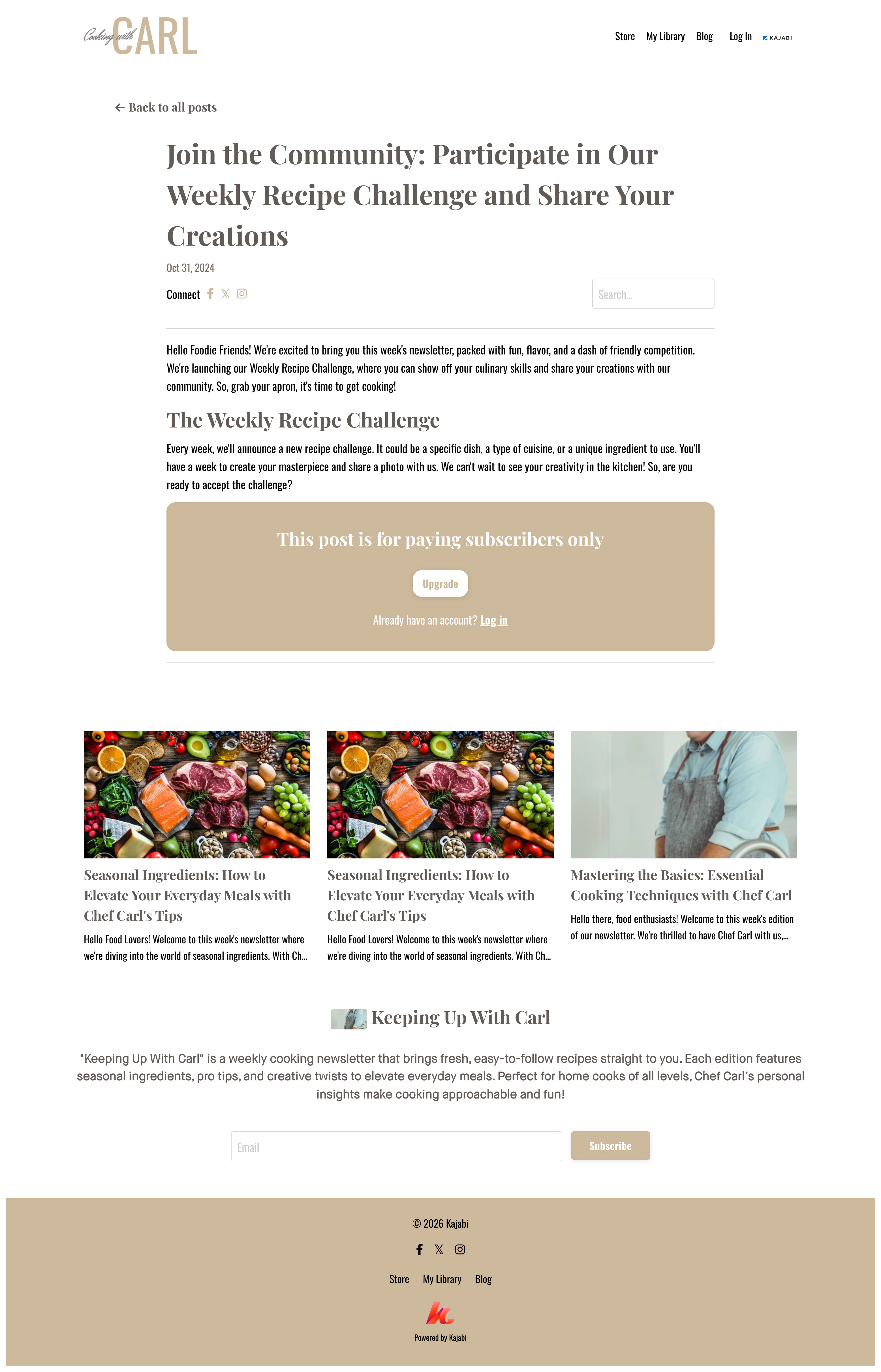
What Newsletter readers see
Use your Newsletter as a tool to build your list and kickstart your business by making it your website homepage. Learn to change your homepage. This brings visitors directly to your Newsletter for a frictionless experience. Visitors can consume your content and subscribe directly from your Newsletter page: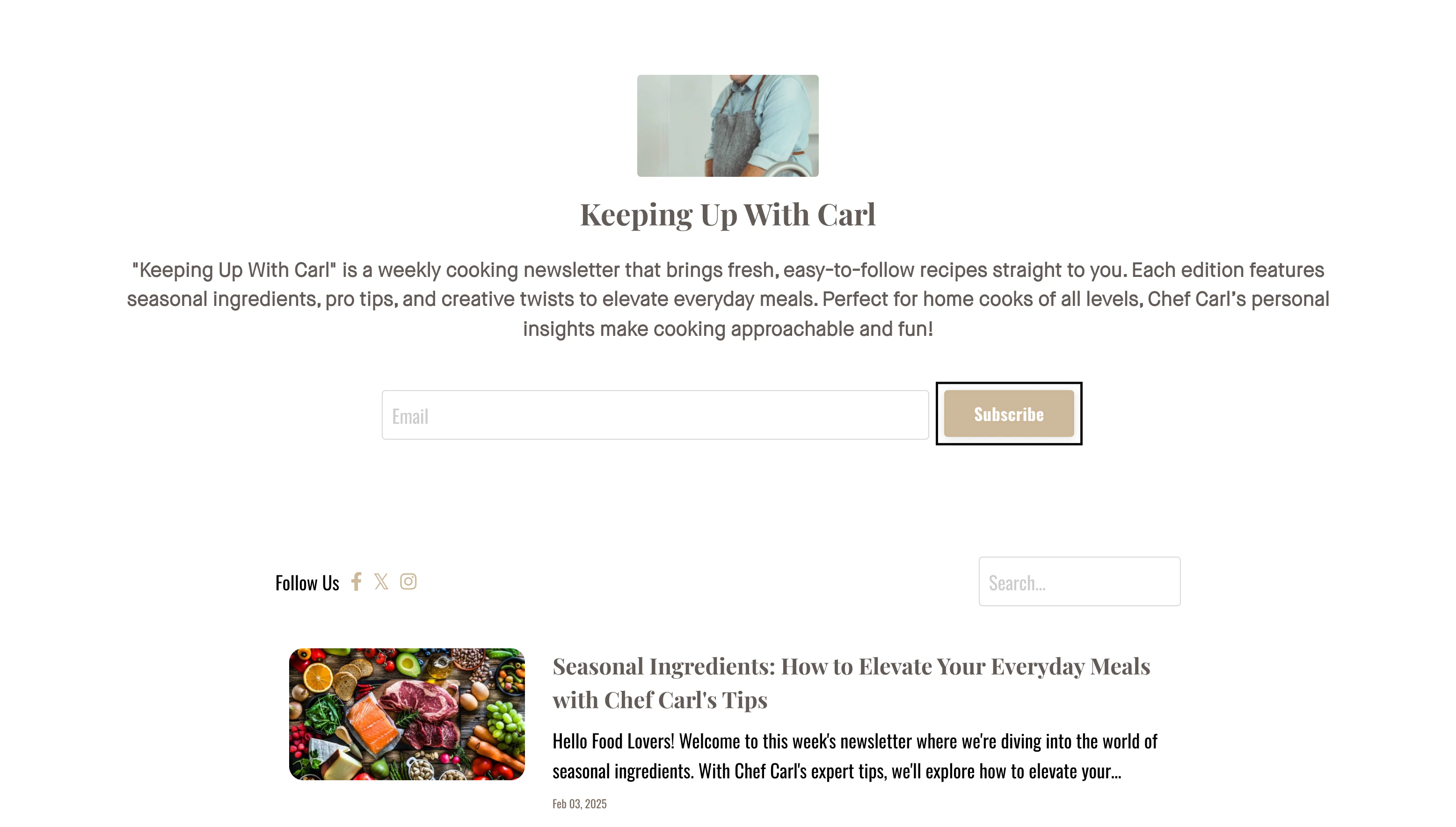
Newsletter forms
What happens when a visitor clicks Subscribe on your Newsletter? The subscribe button opens your Newsletter Form: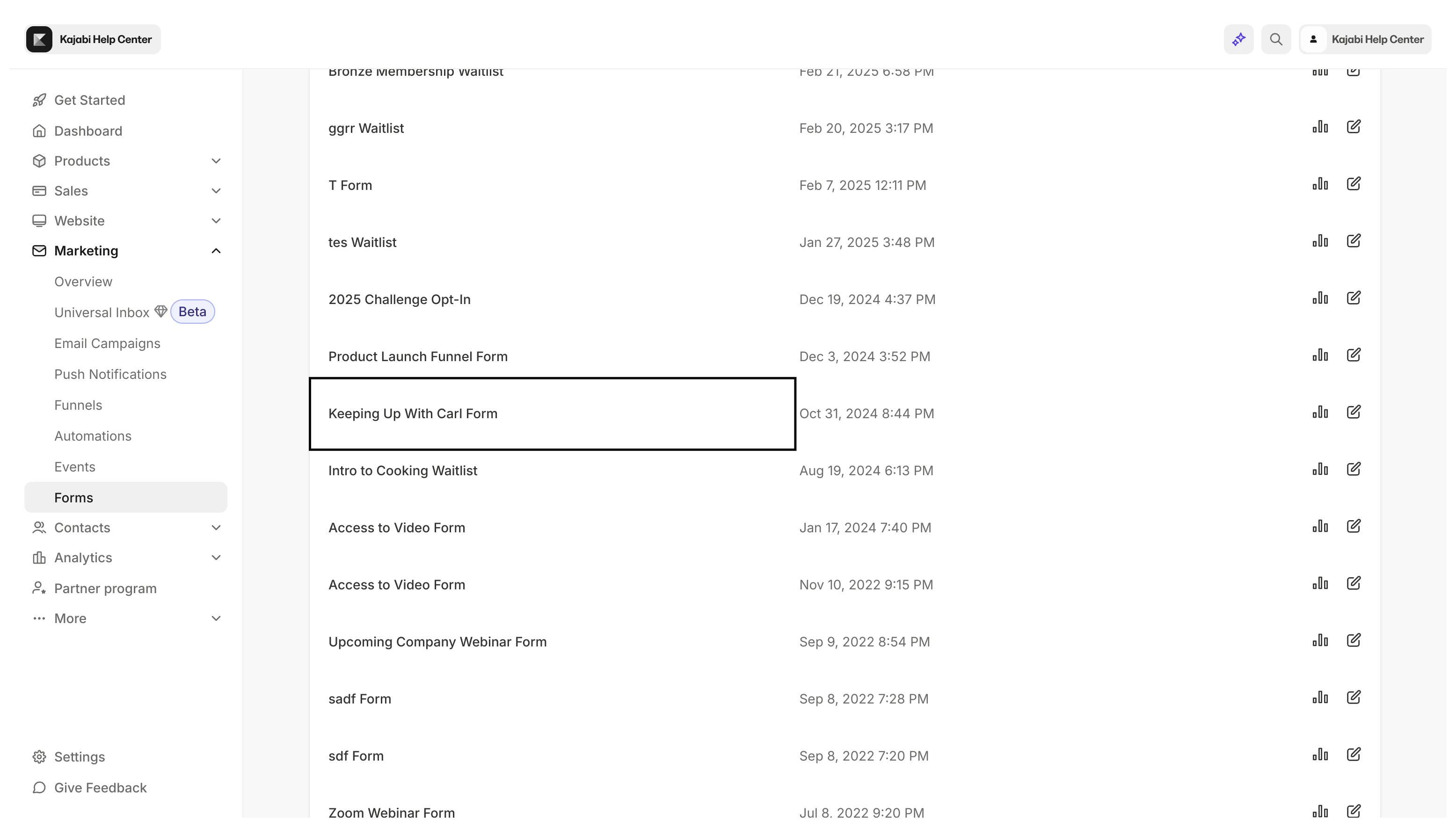
Capture subscribers
After a visitor clicks Subscribe, they receive a verification email (Double Opt-in confirmation) to confirm their subscription. After confirming, they are redirected back to the Newsletter Post they were viewing. After subscribers verify their email address, Kajabi captures their email and adds your subscriber to your Contacts tab.Note:
Double Opt-in is set up by default to ensure that your subscribers receive your Newsletter and strengthen your sender reputation. Learn more about Double Opt-in.
Create a Newsletter
Create a Newsletter Product
- Open the Products tab from your Dashboard
- Select All products or Newsletters
- Click + New Product or New newsletter
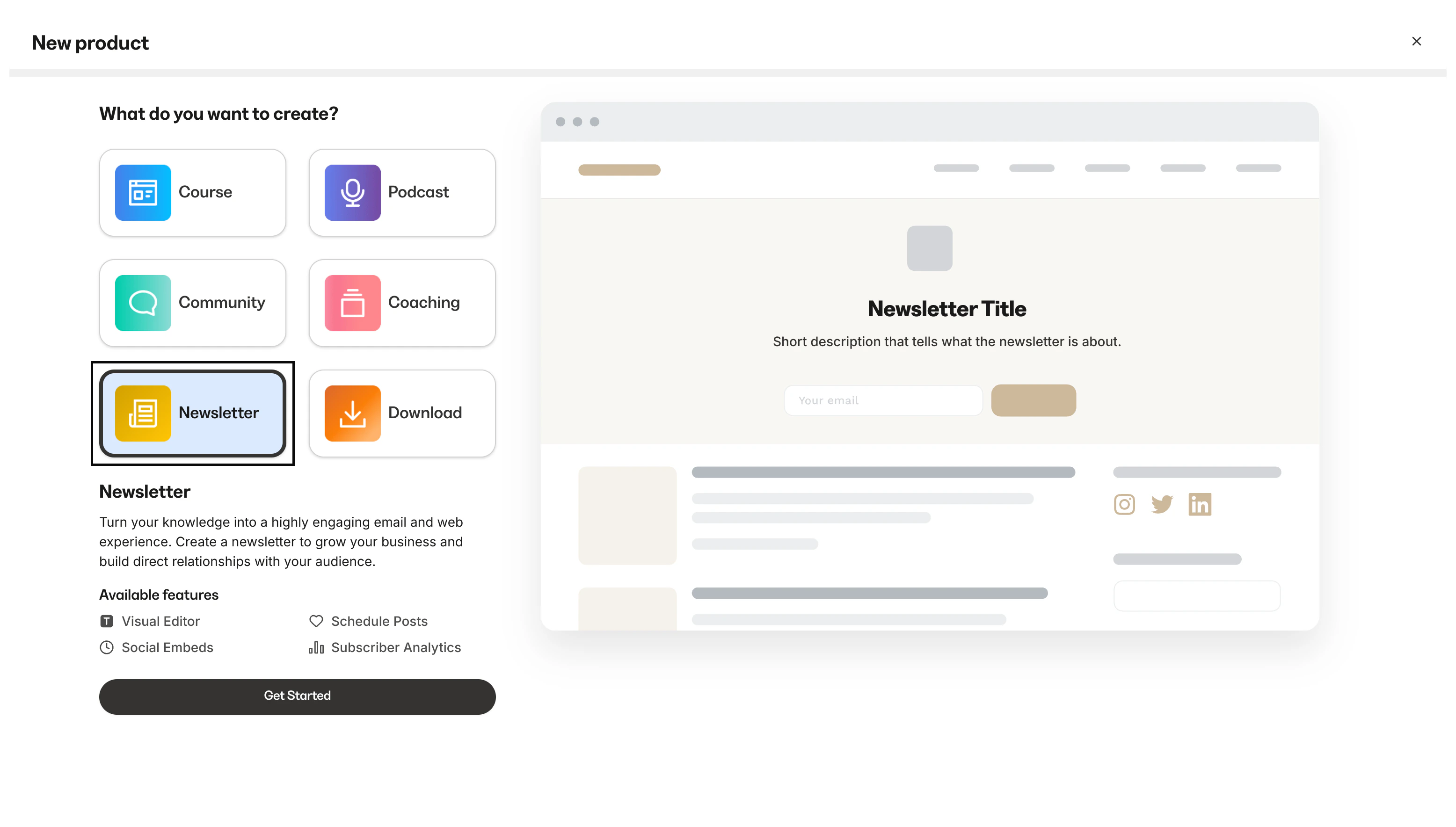
- After clicking + New Product, select the Newsletter product
- Click Get Started
- Complete the on-screen instructions to create your Newsletter
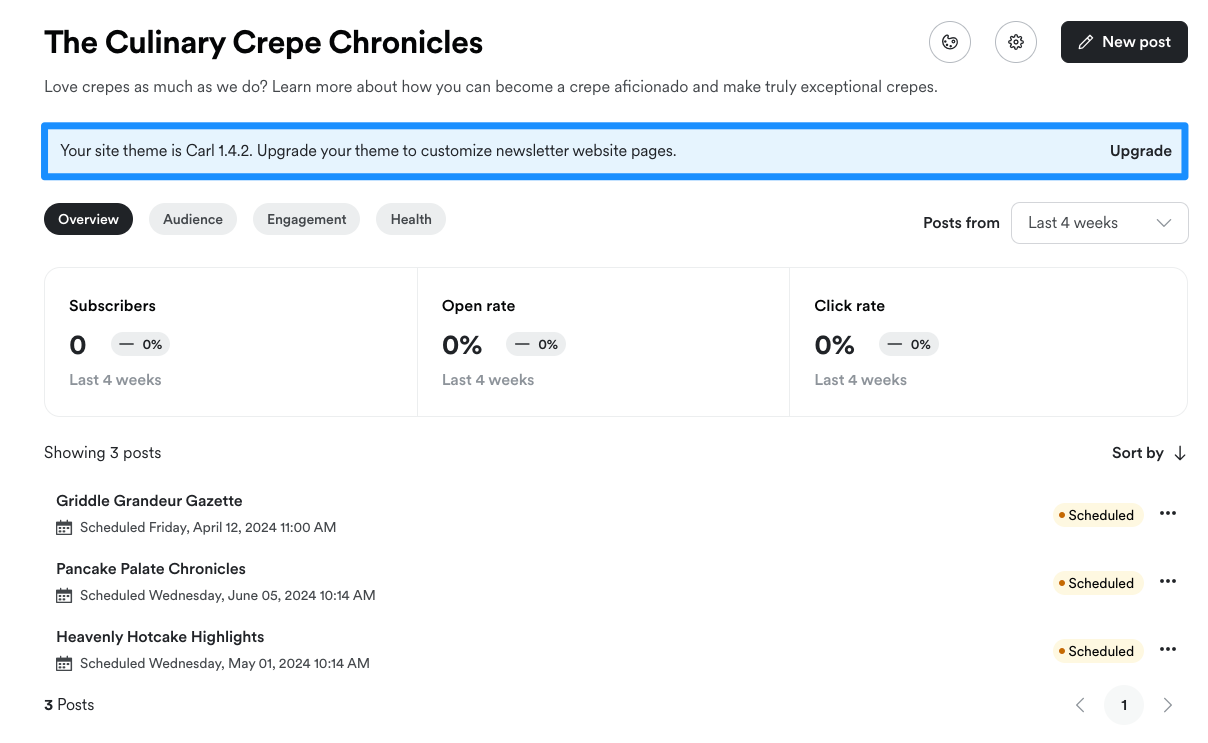
Create a Newsletter Post
- Open the Products tab from your Dashboard
- Open the Newsletters tab
- Click New post
Publish a Newsletter
Share your Newsletter and make it publicly visible by publishing your Newsletter and Newsletter Post(s).Note:
Adjust your Newsletter Post Settings before publishing to choose which subscribers receive your Newsletter email and whether to hide your Newsletter Post from your webpage. Learn more about customizing your Newsletter.
Publish a Newsletter Post
- Open the Products tab from your Dashboard
- Click Newsletters
- Open the Newsletter Post you wish to publish
- Navigate to the top corner of your Newsletter editor
- Click Publish
- Select when to publish (Right now or Schedule for Later)
- Click Continue and Review
- Review your selections and click Publish and send, right now or Schedule for (date) after confirming your publishing selections
View Newsletter subscribers
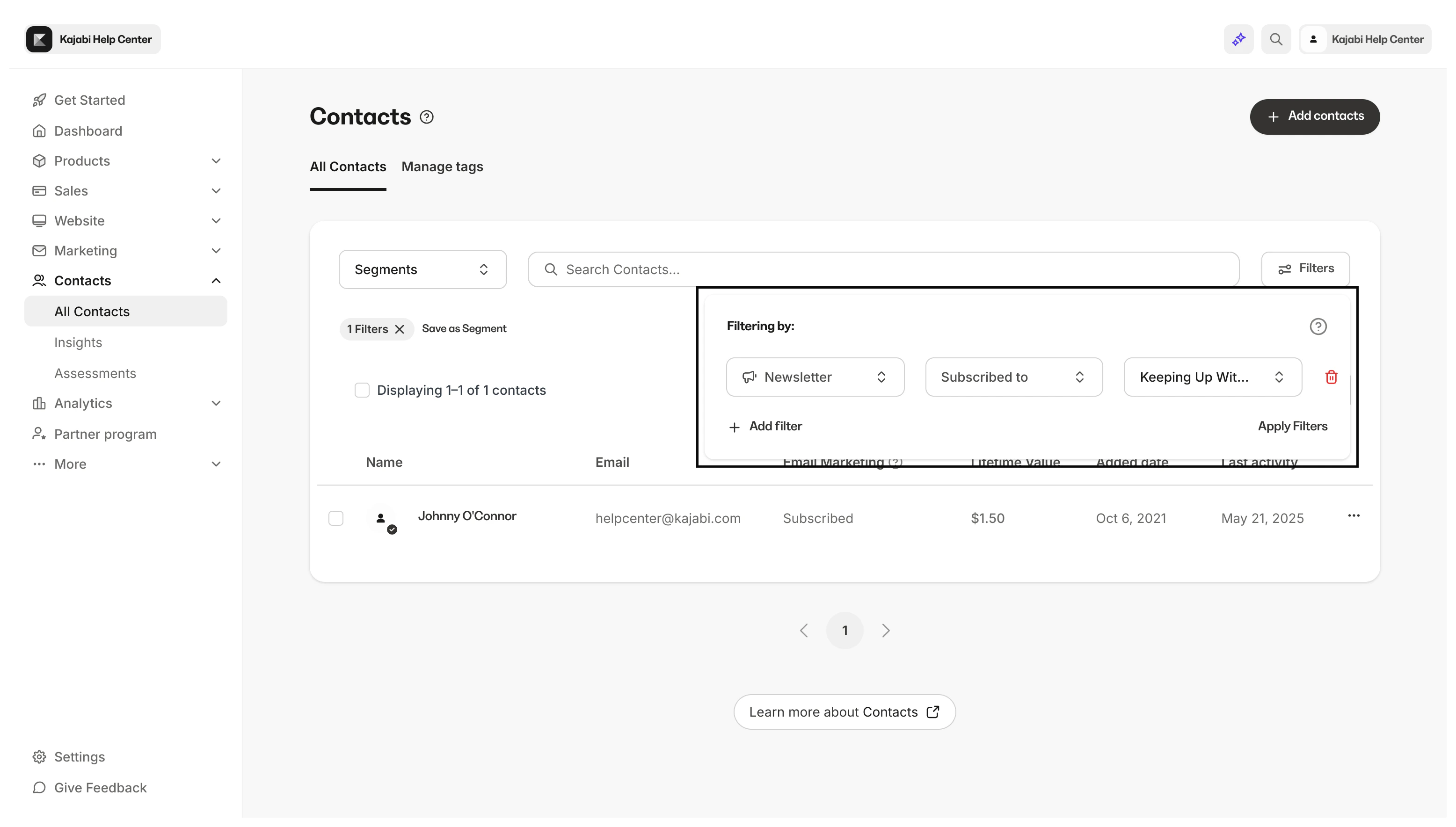
Locate your Newsletter subscribers in your Contacts tab. When a visitor subscribes to your Newsletter, they are subscribed to receive any of your Marketing emails. You can filter your Contacts tab to view contacts specifically subscribed to your Newsletter.Filter Newsletter subscribers
- Open the Contacts tab from your Kajabi Dashboard
- Click Filters
- Select your Category, Conditional, and Value:
- Category: Newsletter
- Conditional: Subscribed to
- Value: Newsletter title
Note:
If you perform a bulk action in the Contacts tab to subscribe contacts to the Newsletter, you have the option to exclude contacts not subscribed to marketing emails.