Enable or disable comments
With Newsletters, you can enable or disable comments across all of your Newsletter Posts by configuring the comments setting within your Newsletter Settings.Set Newsletter comment settings
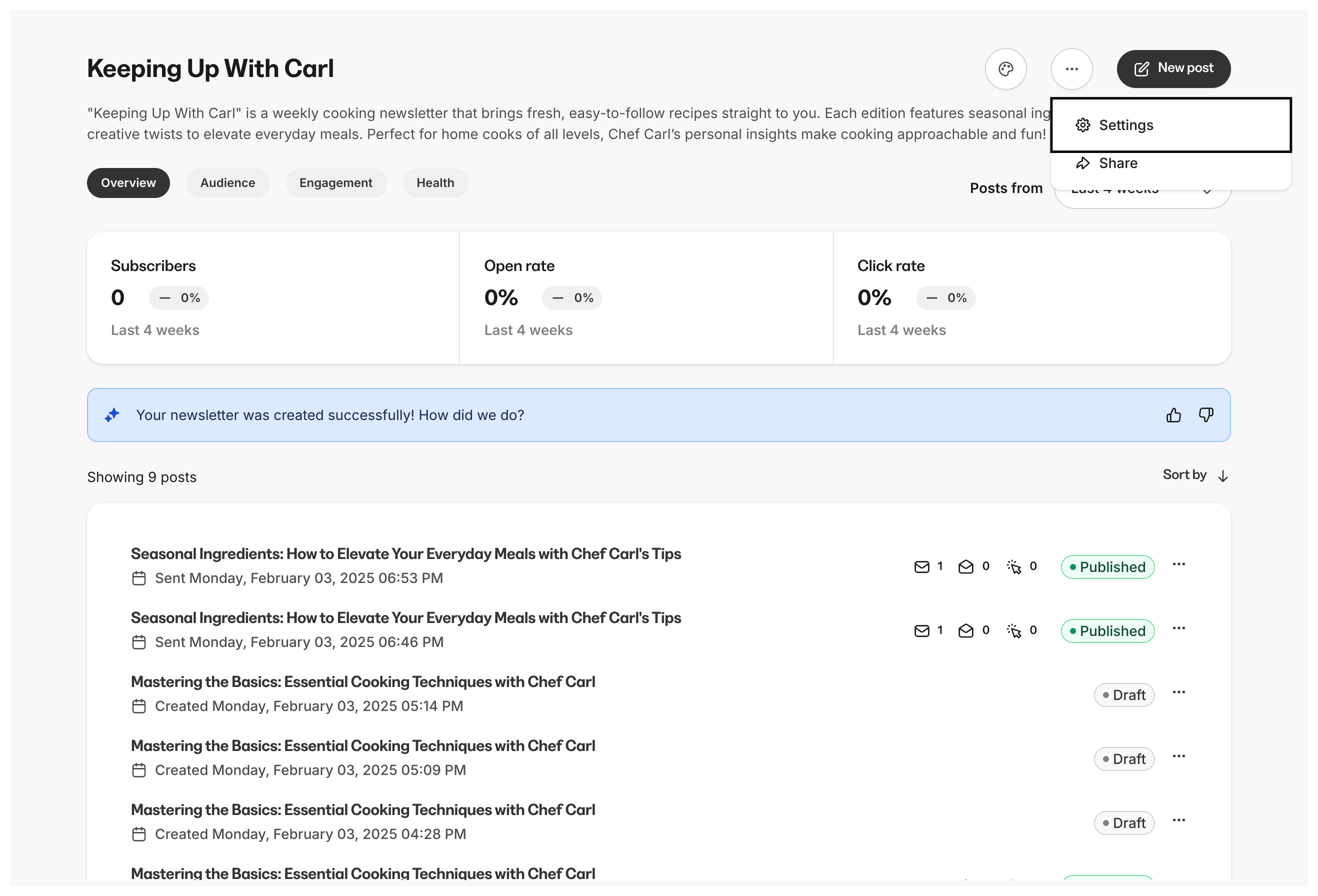
- Navigate to the Products tab
- Select the Newsletter Product you wish to update
- Open Settings
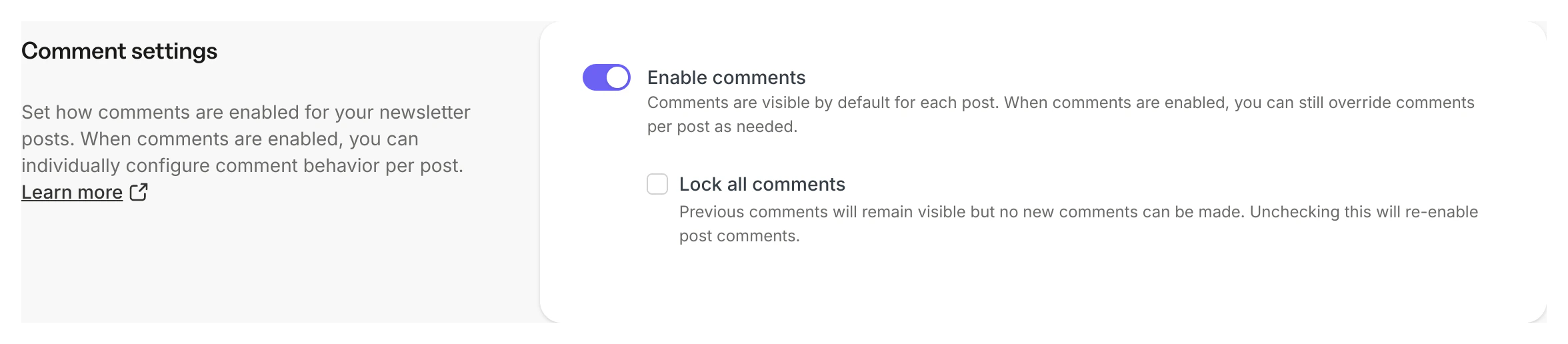
- Scroll to the bottom of the page to Comment Settings
- Select Enable comments to enable or disable your comments
- Enabled: Toggle is dark black
- Disabled: Toggle is a light grey
- Click Save to keep and apply your changes
Change comment visibility: visible, hidden, locked
Change the visibility of comments for each Newsletter Post:- Open the Products tab in the Dashboard
- Select the Newsletter Product you wish to update
- Click an existing Newsletter Post or create one
- Open your Newsletter Post Settings
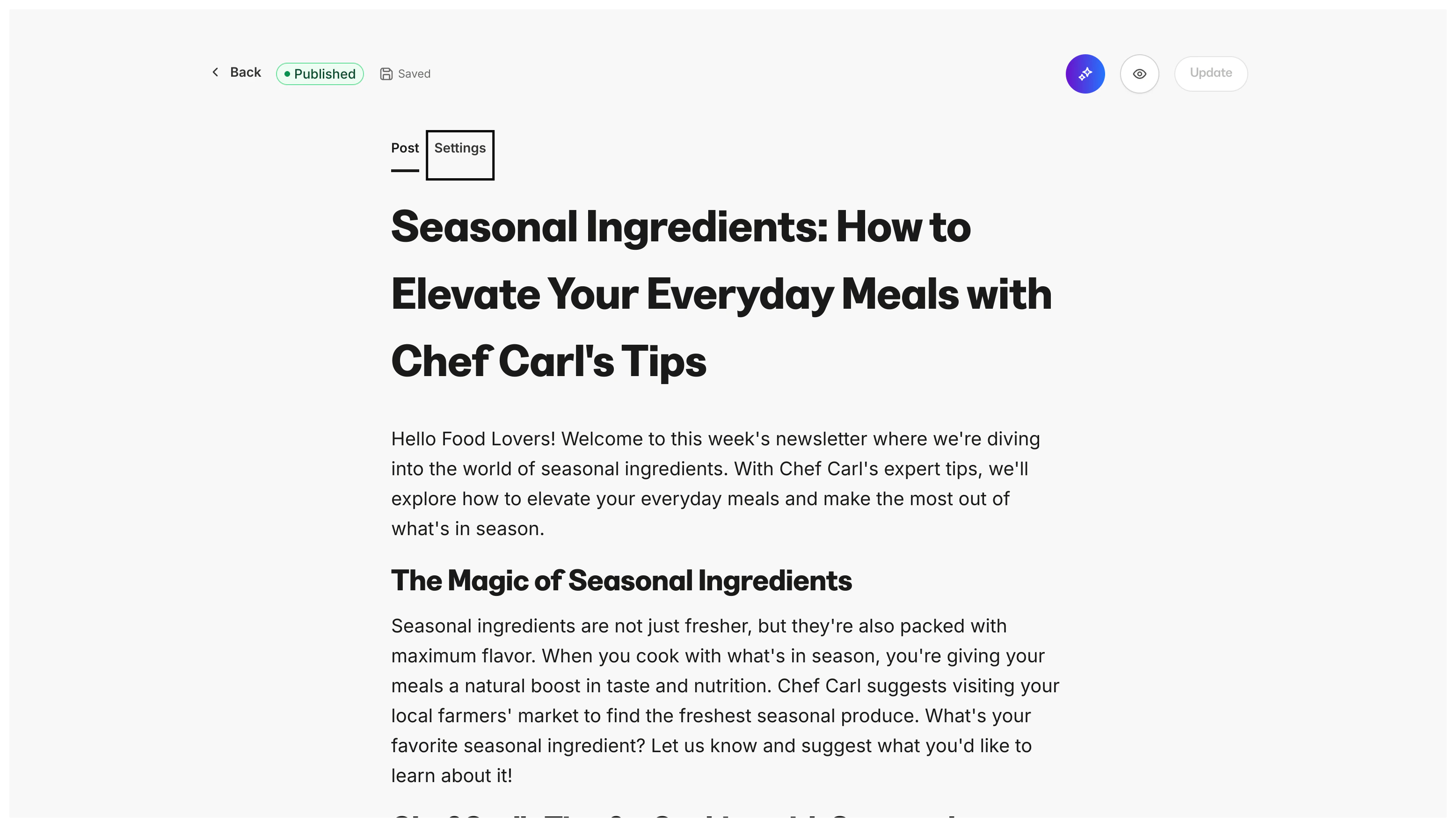
- Navigate to the Post Comments section
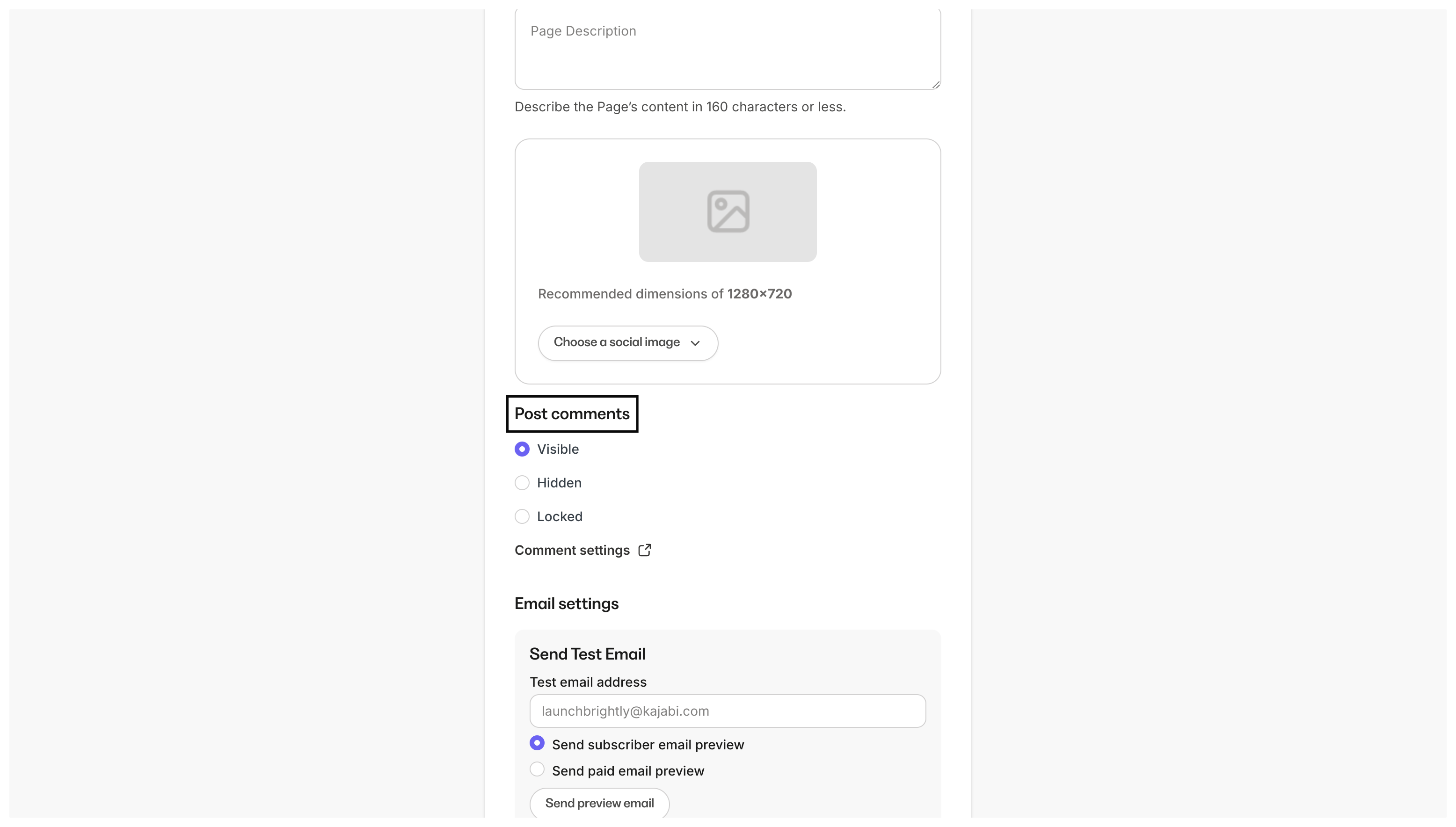
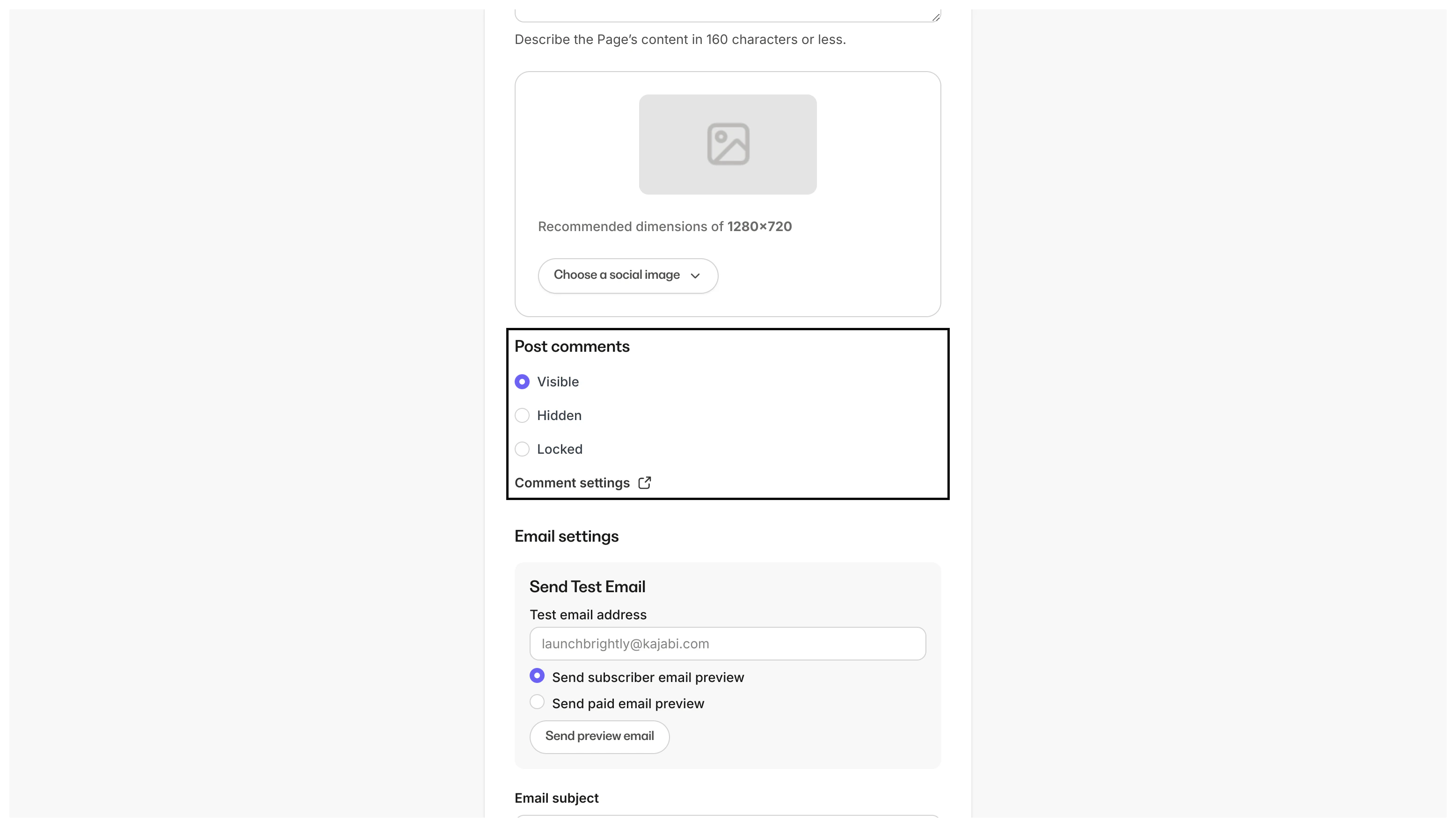
- Select your desired Comment visibility
User experience
To encourage conversion and help build your list, commenting or replying requires the user to be logged in as a Newsletter subscriber or to join your Newsletter. If a visitor is not logged in when they attempt to reply to a comment or create one, they are required to join the conversation. Clicking the link to join displays a pop-up modal prompting them to enter the email address associated with their account: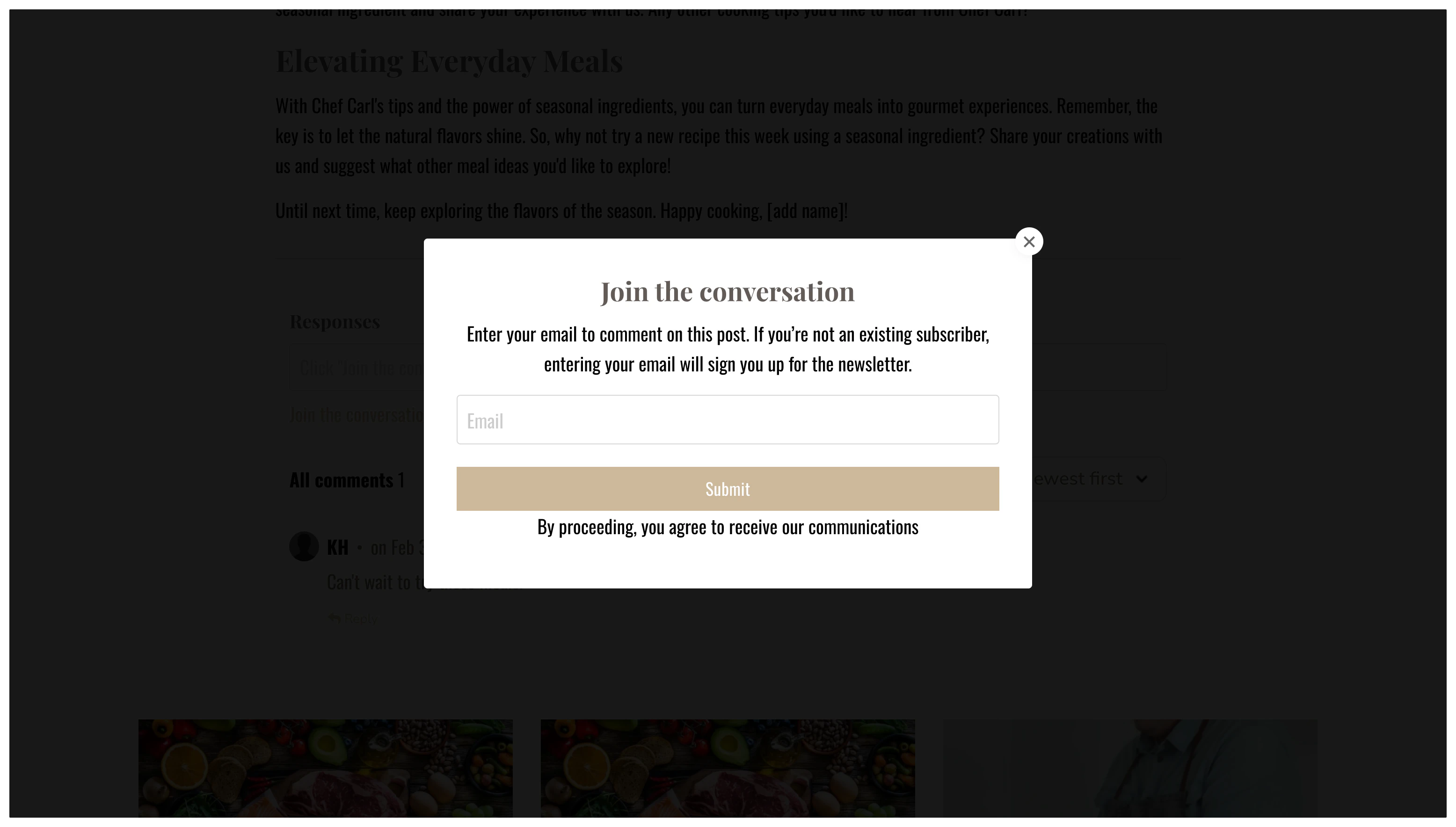
Visible
A visible comment box is visible on the page, shows existing comments in the thread, and gives users the ability to add comments: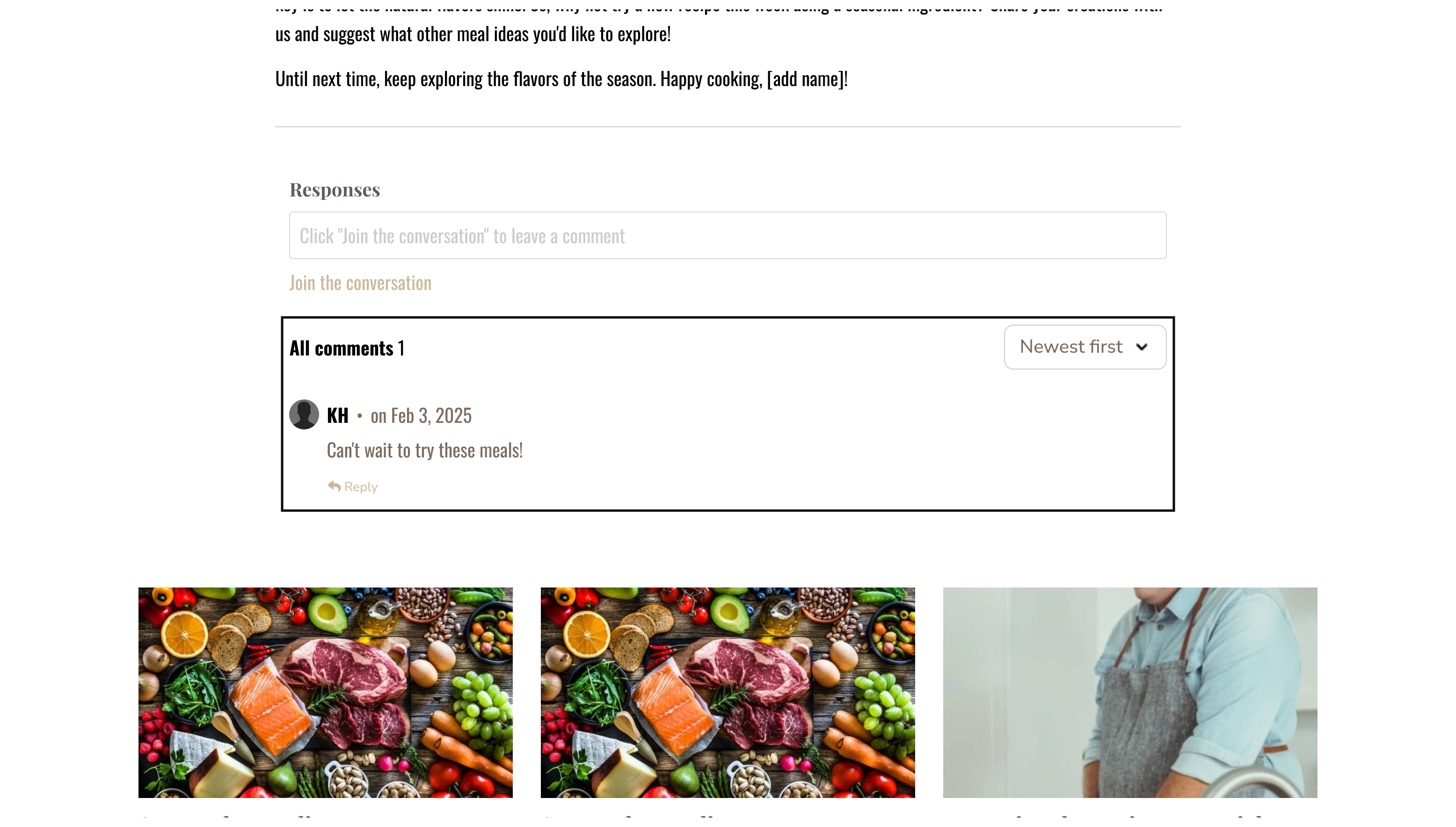
Hidden
A hidden comment box is not visible on the page and does not show existing comments in the thread: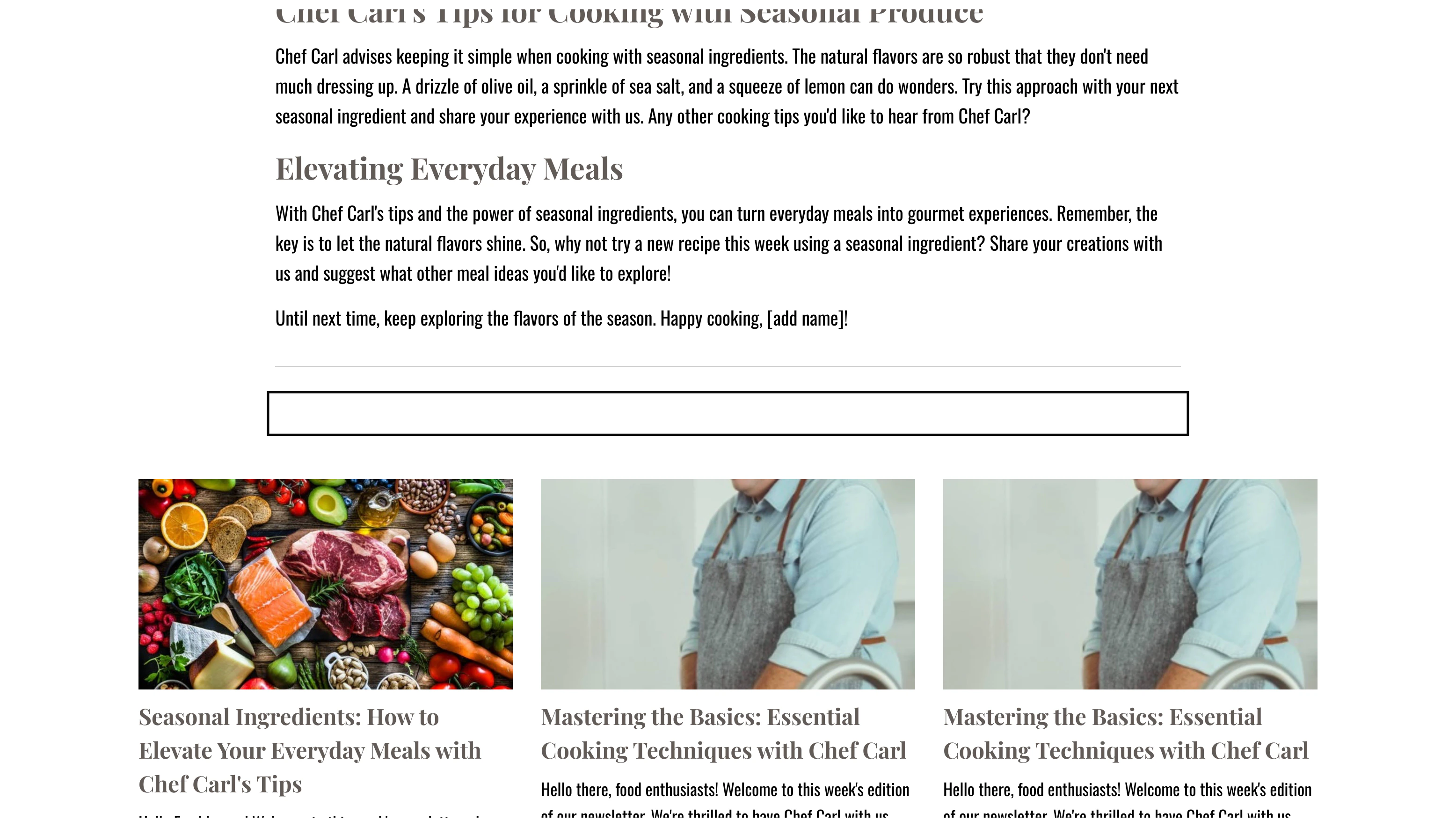
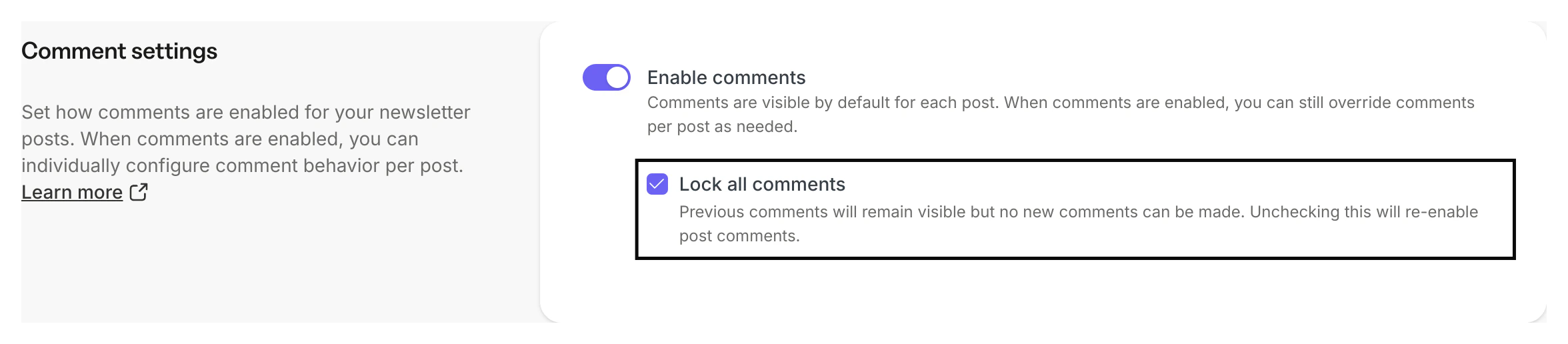
Locked
A locked comment box removes users’ ability to add comments. However, existing comments remain visible: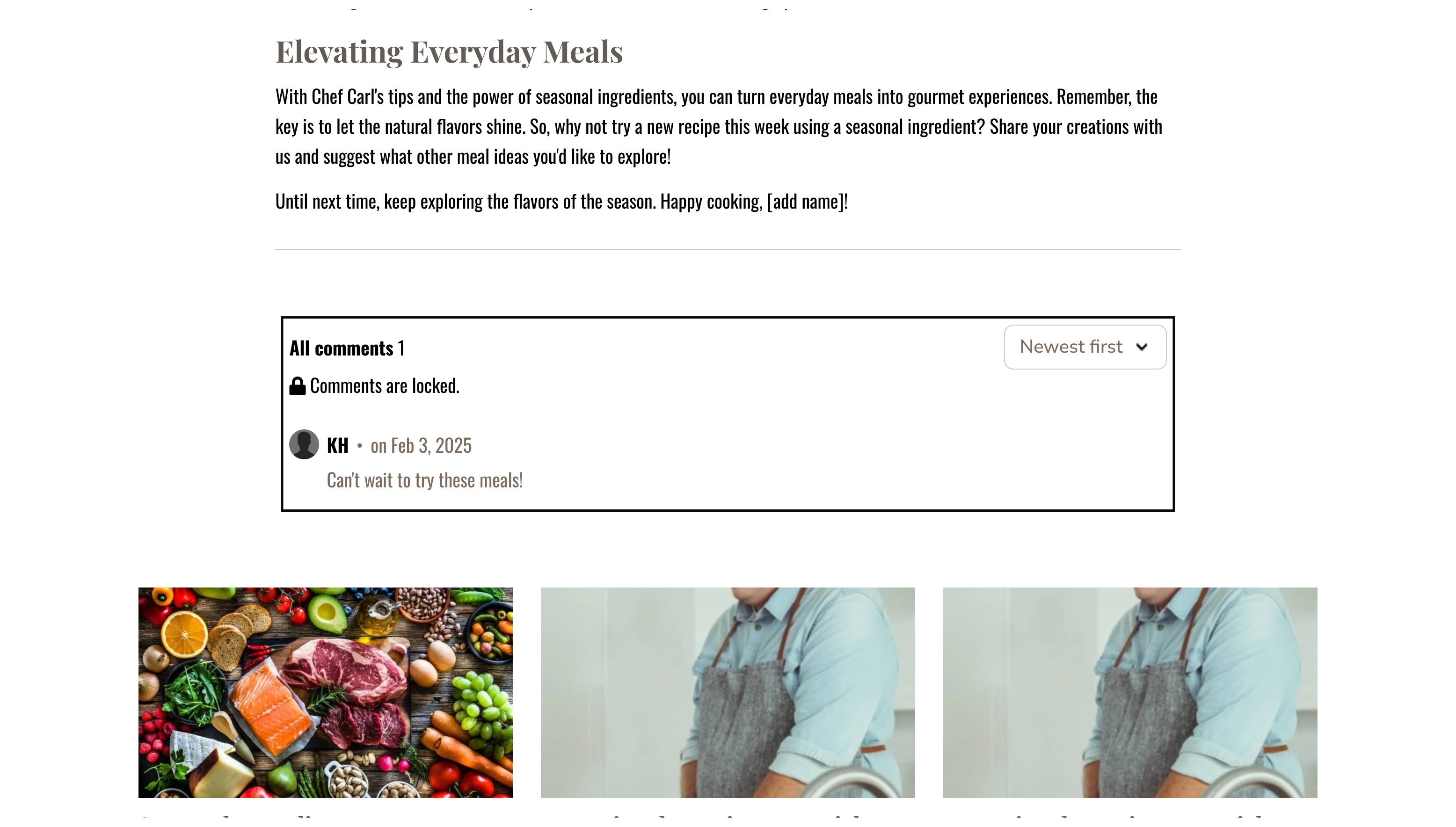
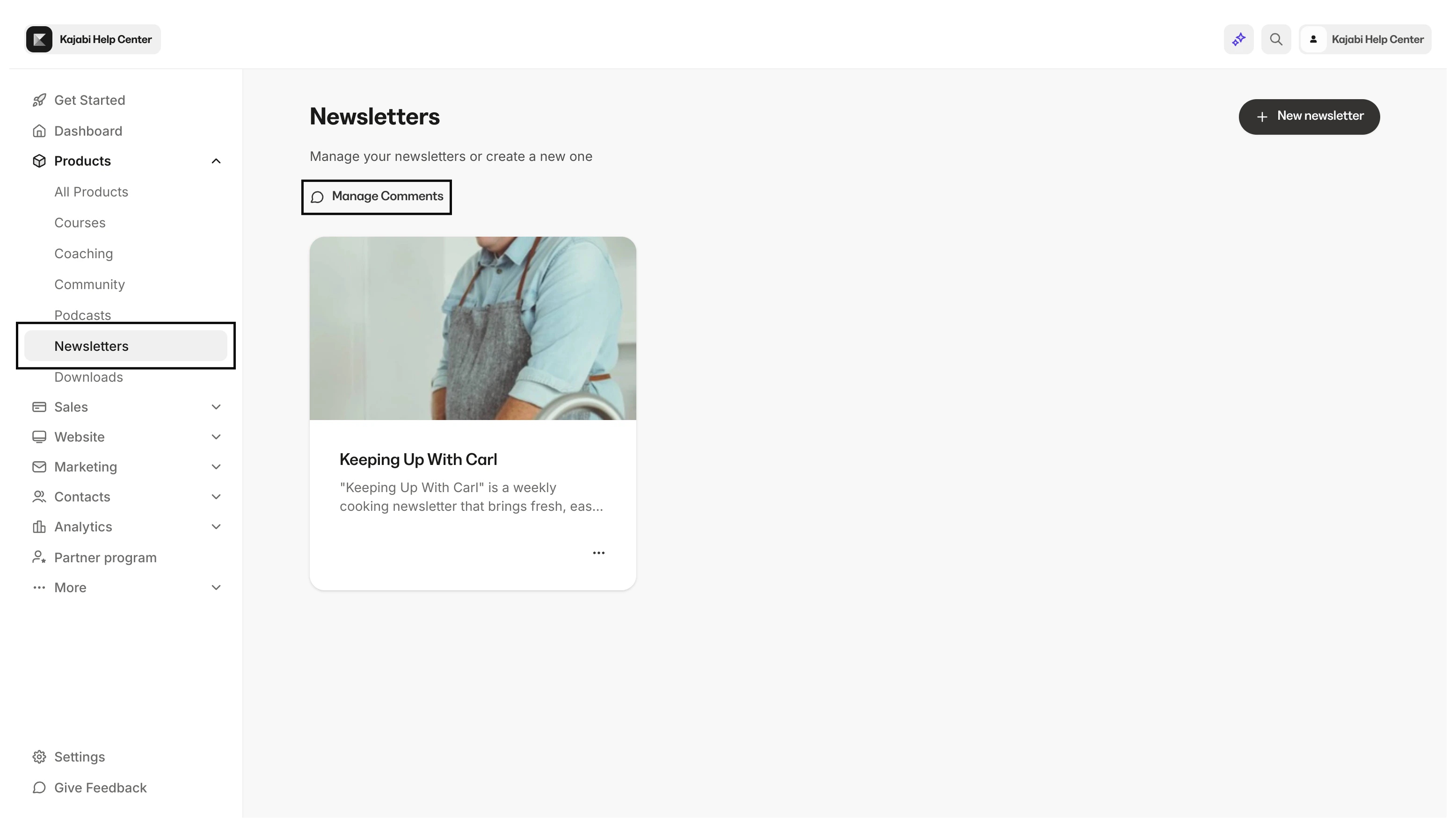
Access the Newsletter comments manager
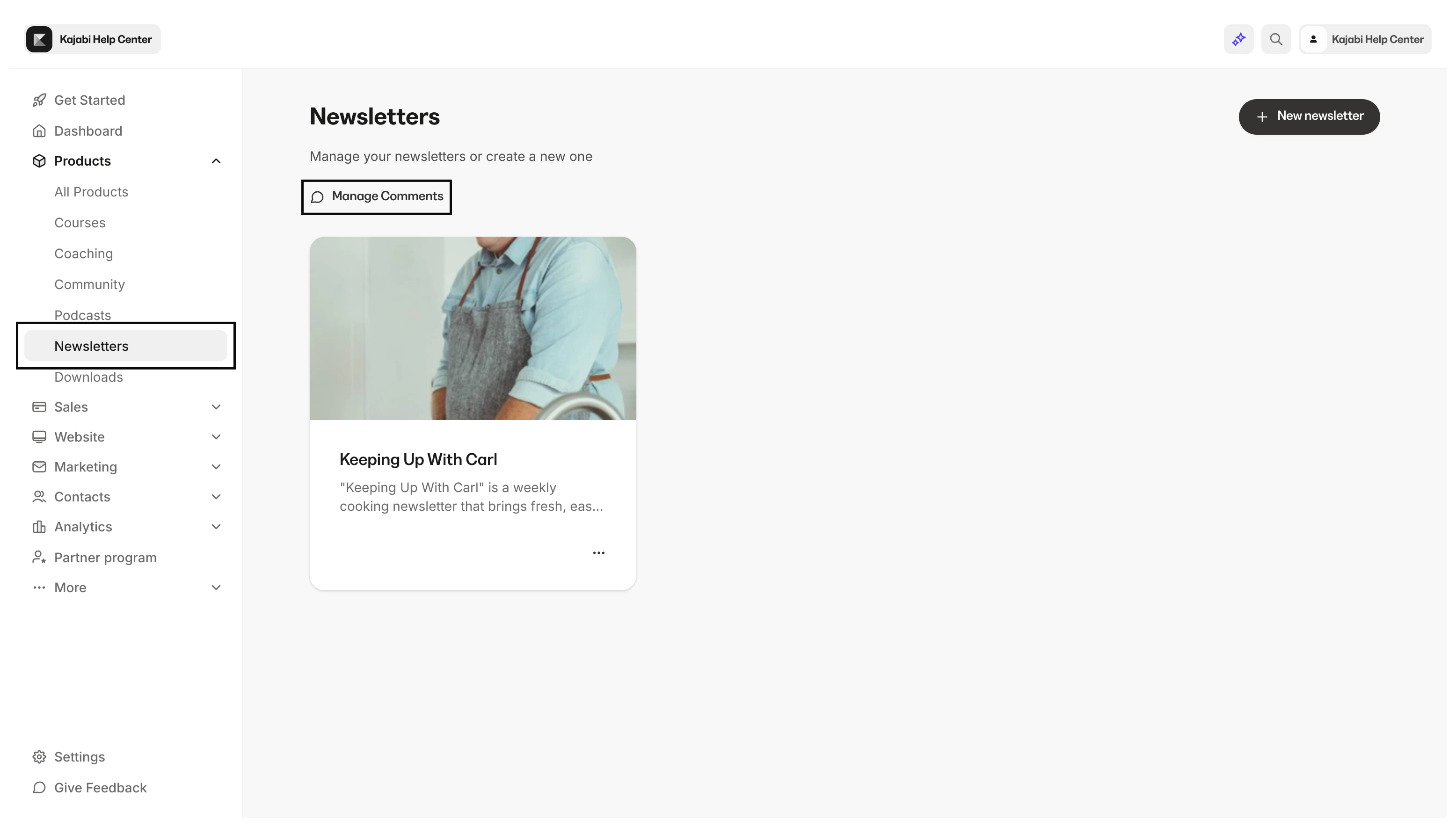
View and manage all Newsletter Comments posted to your Newsletter Products.- Open the Products tab from your Dashboard
- Select the Newsletters tab
- Click Manage Comments
Delete and restore comments
Delete and restore comments from the Newsletter comments manager.Note:
Disabling comments hides all Newsletter Comments within a Newsletter Product. You need to enable Newsletter Product Comments to display the comments posted to your Newsletter.
Delete a comment
- Open the Products tab from your Dashboard
- Select the Newsletters tab
- Click Manage Comments
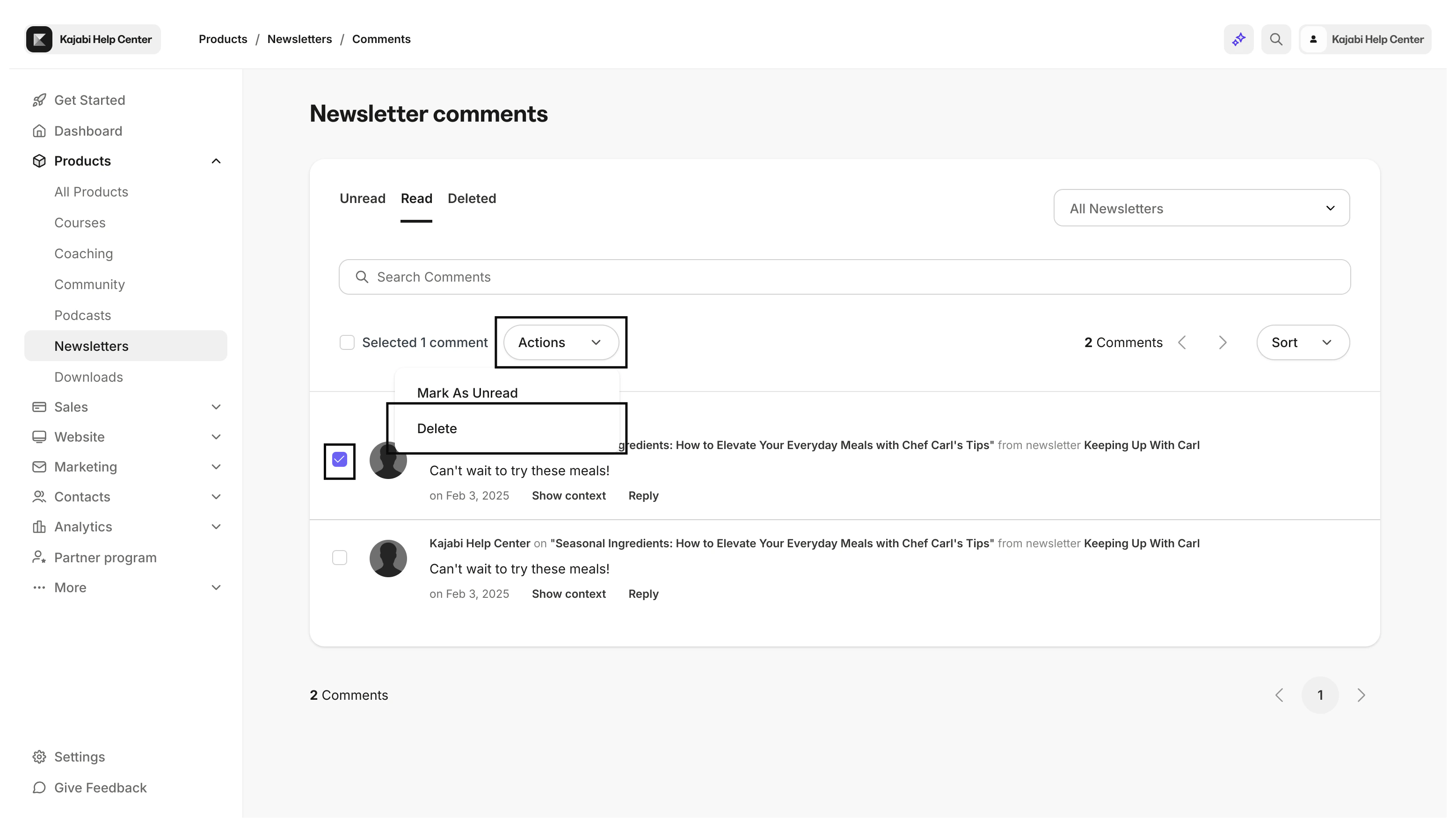
- Select the checkbox to the left of the comment you want to delete
- Open the Actions dropdown menu
- Click Delete
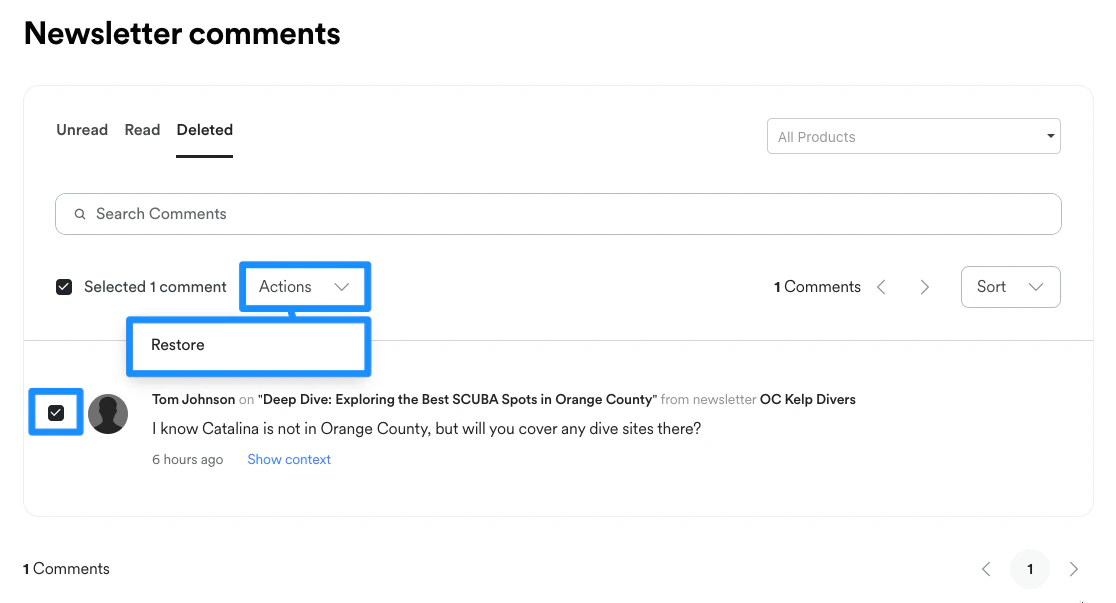
Restore a deleted comment
- Open the Products tab from your Dashboard
- Select the Newsletters tab
- Click Manage Comments
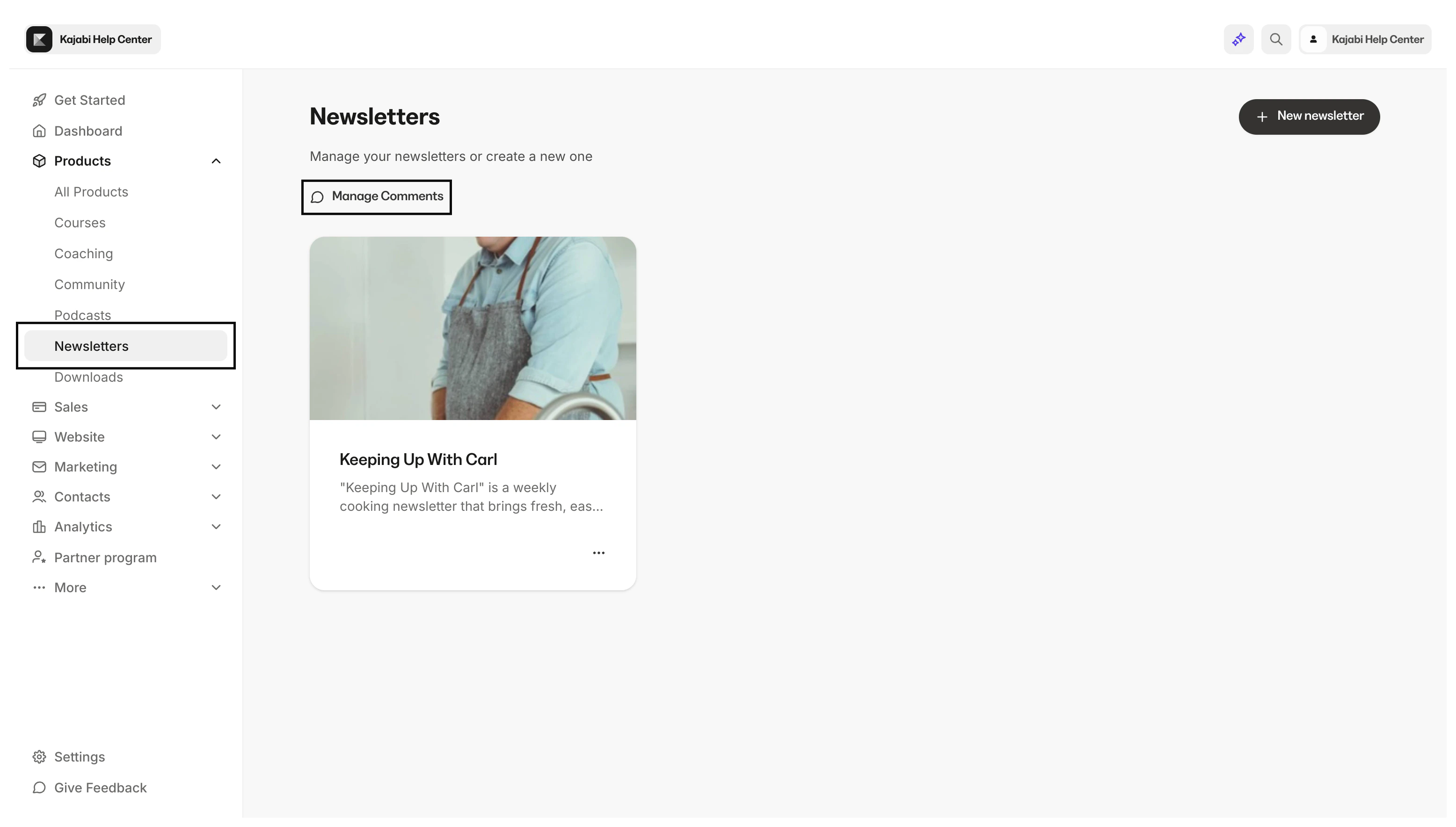
- Click the Deleted tab to view all deleted comments
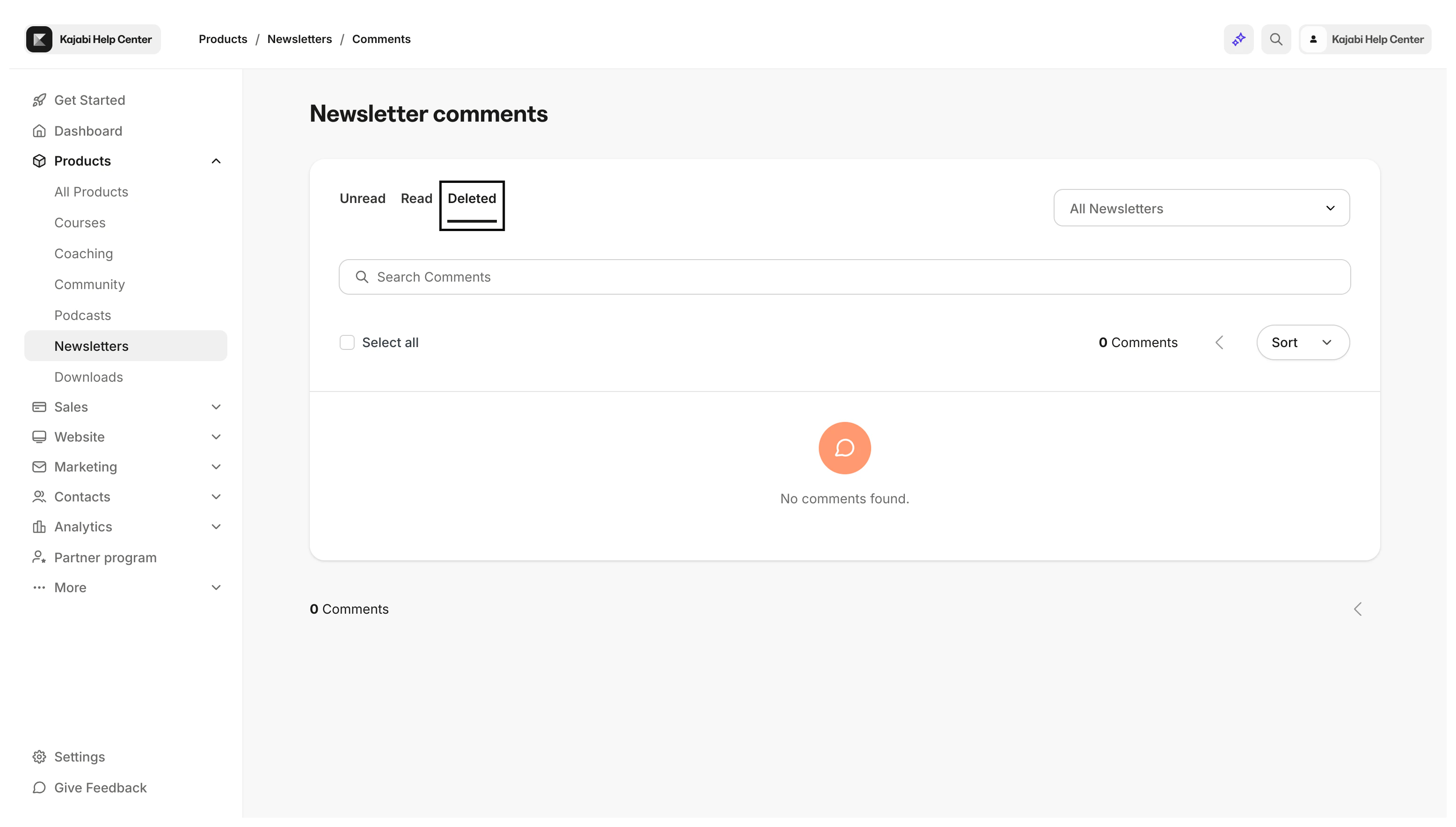
- Select the checkbox to the left of the comment you want to restore
- Click Restore