Add a question
Add up to 100 questions with Assessments on Kajabi to test or survey your site visitors. To add a question to an Assessment:- Open the Contacts tab from the Dashboard.
- Select the Assessment you wish to edit or create one.
- Click Edit Questions in the top menu.
- Select Add Question in the editor.
- Select the Question Type you wish to add:
Assessment question types
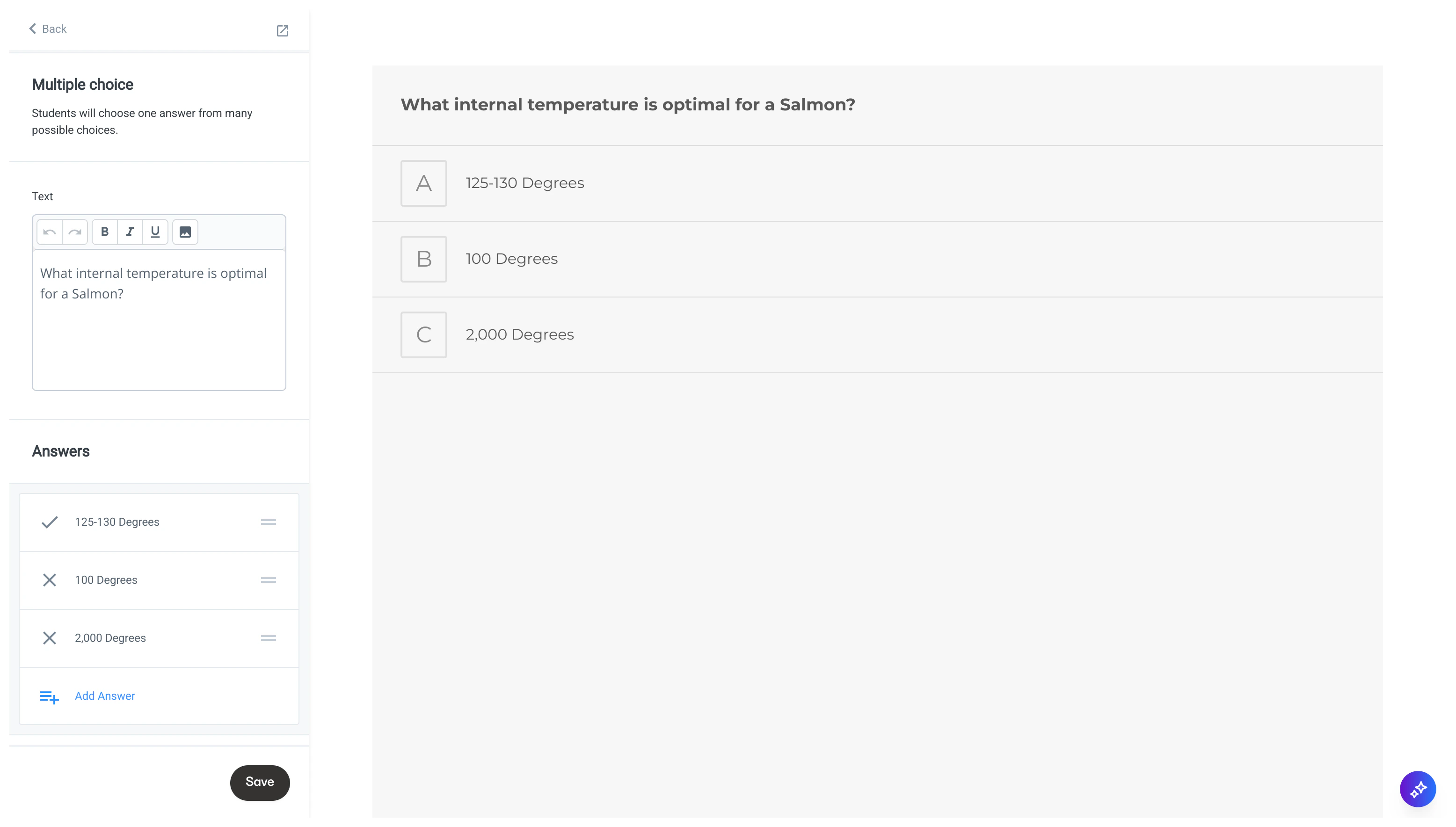
Multiple choice
Users will choose one answer from many possible choices with the Multiple Choice question type.- Customize the text with bold, italicize, or underline
- Add images to your Assessment
- Add various answers and create Tags for each answer. Keep in mind, each site has a total limit of 100 tags per site
- If automatic grading is enabled in your Assessment, select the correct multiple choice answer:
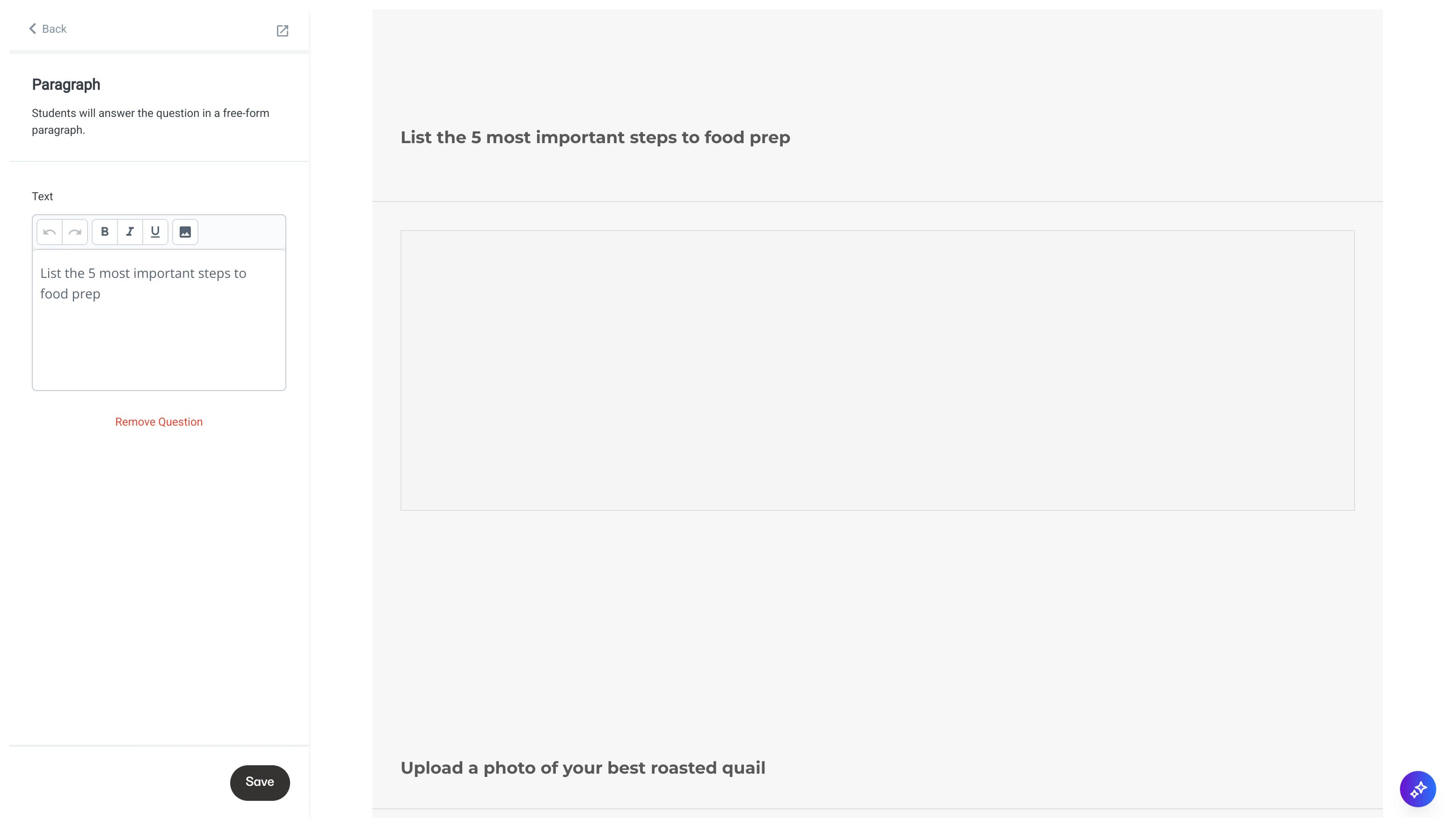
Paragraph
Create a free-form paragraph question for your users to submit. Use the text editor to:- Customize the text with bold, italicize, or underline
- Add images to your Assessment:
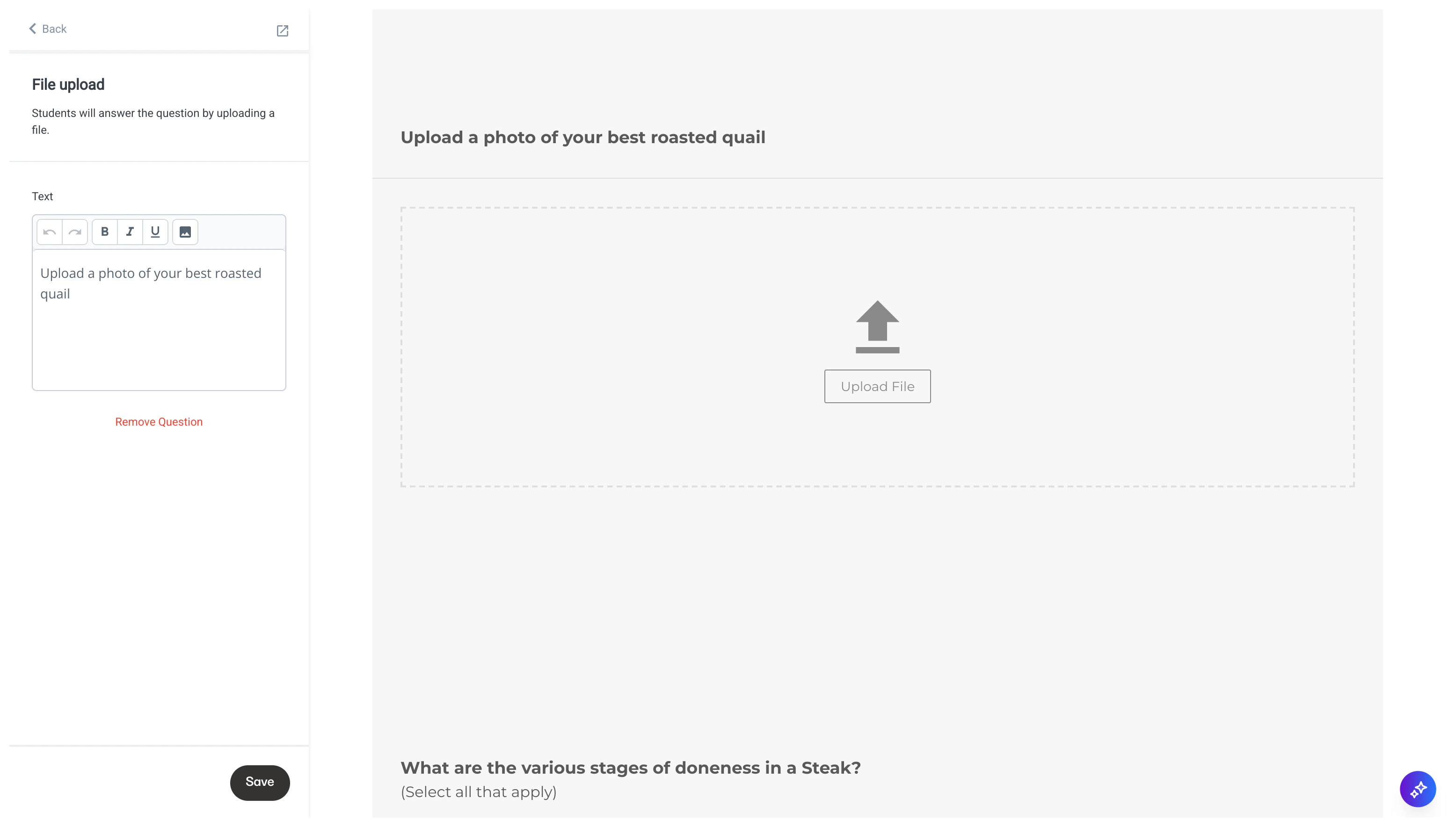
File upload
Users can answer the question with a file upload (e.g., homework assignments). File upload limit: Upload a compatible file type up to 10MB. Enter text to inform users of the file to be uploaded. Then, use the text editor to:- Customize the text with bold, italicize, or underline
- Add images to your Assessment:
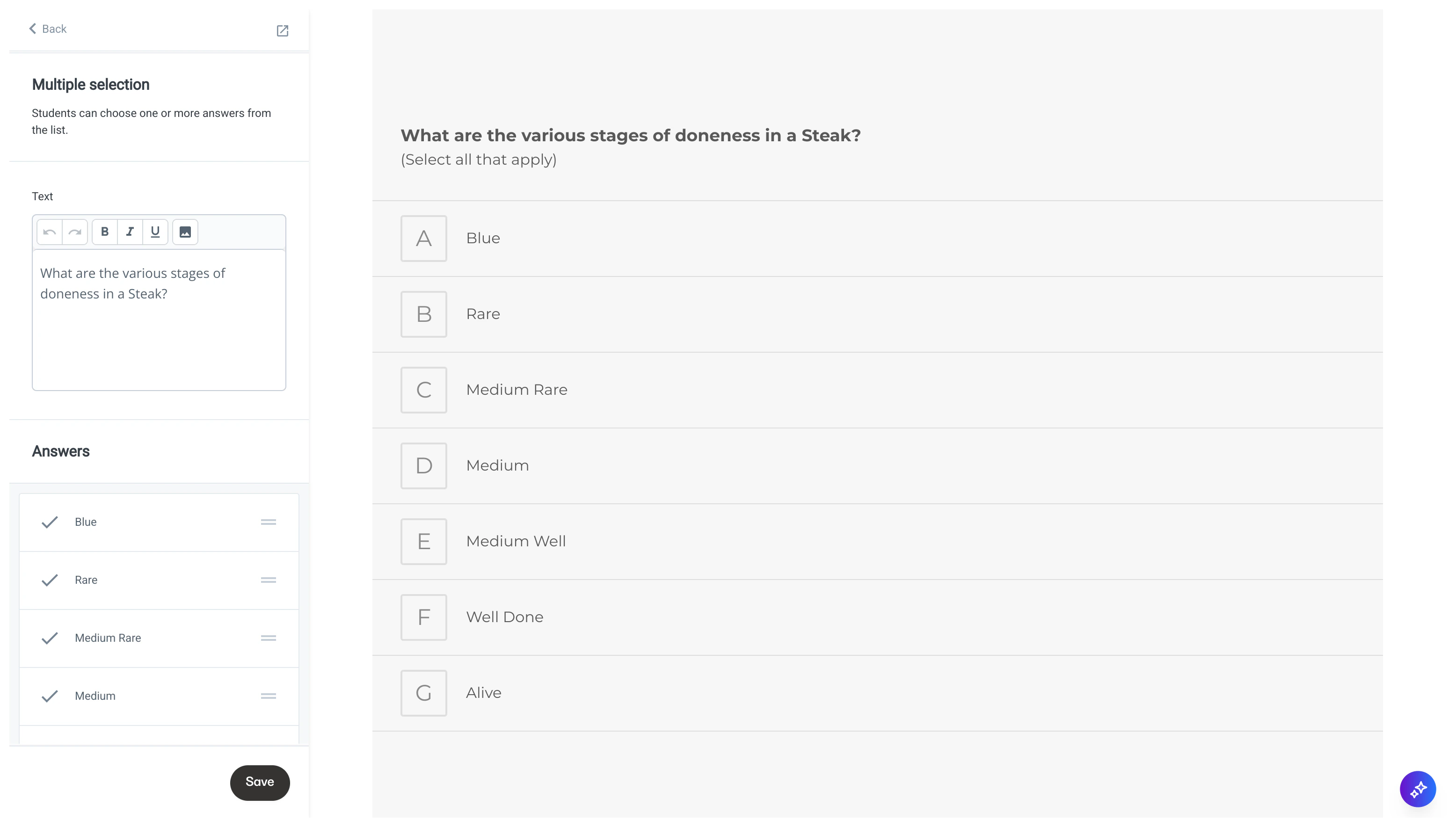
Multiple selection
Users can choose one or more answers from the Multiple selection list.- Customize the text with bold, italicize, or underline
- Add images to your Assessment
- Add various answers and create Tags for each answer. Keep in mind, each site has a total limit of 100 tags per site
- If automatic grading is enabled in your Assessment, select the correct multiple selection answer:
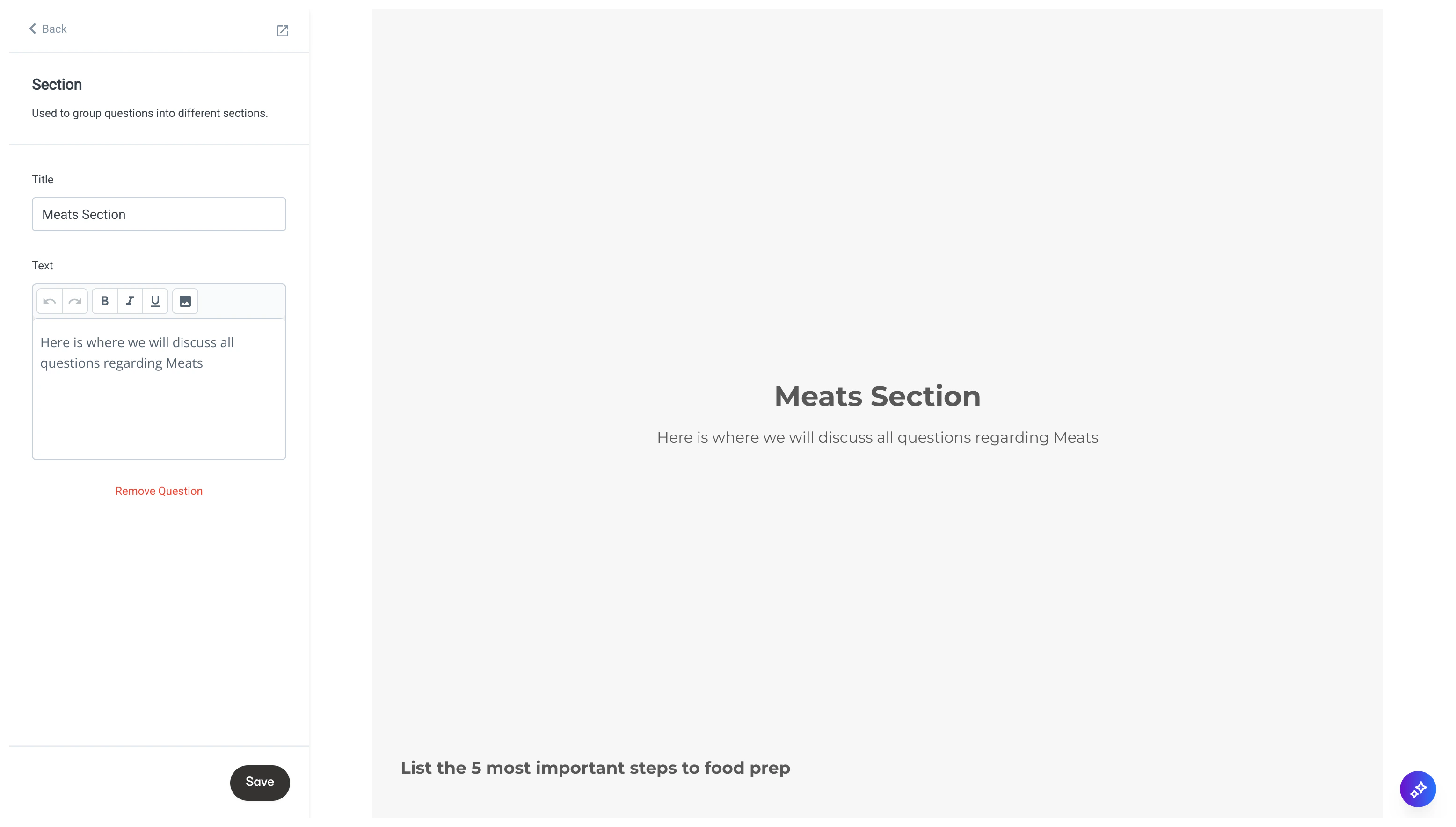
Section
Include a Section card to separate your Assessment into different sections, begin a series of questions, or provide additional information, text, content, images, and more.