

Detach Stripe
What happens when you detach Stripe from Kajabi?
- Integrate with another Stripe account. Detaching a Stripe account from Kajabi allows you to connect a different Stripe account.
- Payment records remain visible. All payment records and analytics from detached Stripe integrations stay visible in Kajabi.
- Coupons carry over. Existing coupons will function and will be recreated in the new Stripe integration.
- No new payments on the detached account. After detaching a Stripe account, the detached account will no longer accept new payments. However, Kajabi will continue to listen for updates to past payments and subscriptions.
- Refunds, cancellations, and pausing/resuming actions can still be done from Kajabi for a detached Stripe account.
- Automations continue. All automations will continue to trigger for purchases made through the detached Stripe account.
- Billing Info may become inaccessible. If your customer has an active subscription from a payment processor that you have detached from Kajabi, the Billing Info section in their customer portal will not be visible or accessible. Your customers will no longer have the ability to cancel or update their cards if their active subscription was processed through a detached payment processor (i.e., detached PayPal or Stripe). Instead, you will need to manually cancel or remove their cards from Kajabi or Stripe.
Detach a Stripe account from Kajabi
- Open the Settings tab from your Dashboard.
- Click Integrations & Webhooks in Site Settings.
- Locate the Third-party processor section.
- Select View third-party processor.
- Click View details from the Stripe card.
- Click Detach Stripe Integration.
- Confirm your desire to disconnect your Stripe account by completing the prompt and selecting Delete Stripe Integration:
Detach PayPal for upgraded accounts
You can manually disconnect your PayPal account from Kajabi if you want to move forward with detachment.Note:
The following steps are only available if you have the latest version of PayPal. Learn to upgrade your PayPal account.
Detach a PayPal account from Kajabi
- Sign into your connected PayPal account.
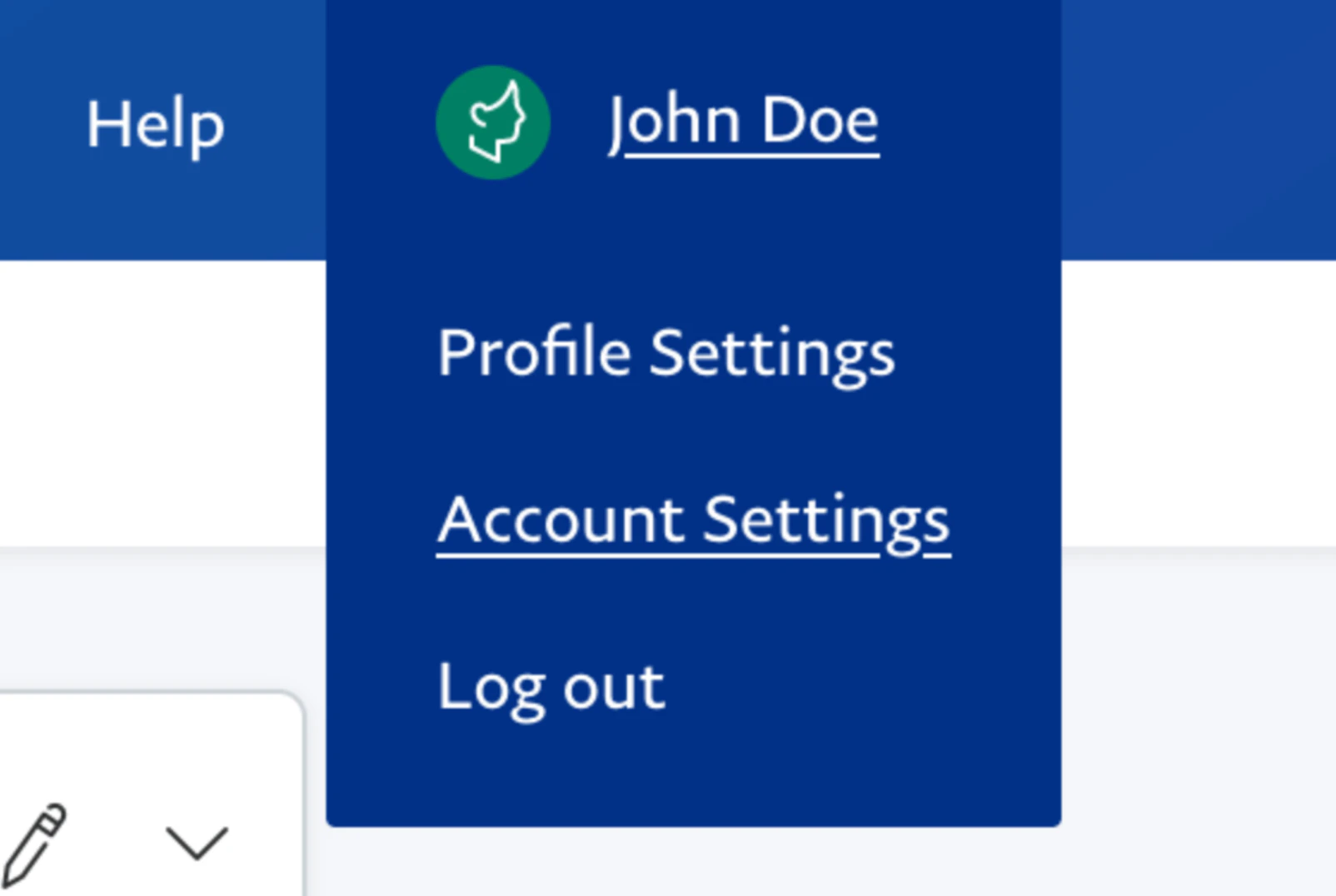
- Go to Account Settings:
- Navigate to Account Access:
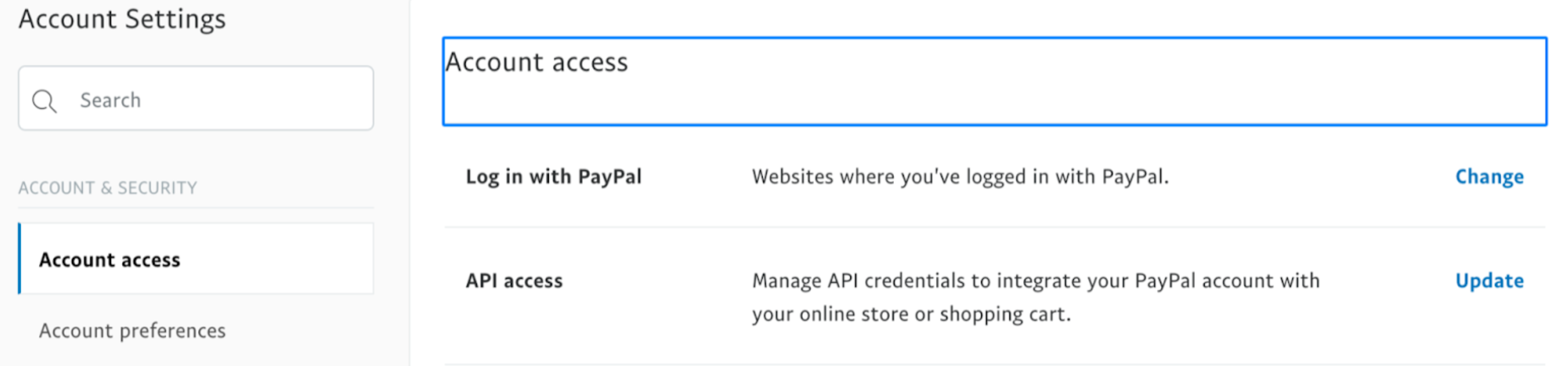
- Click Change next to “Log in with PayPal”.
- Click Delete for the option tied to Kajabi:
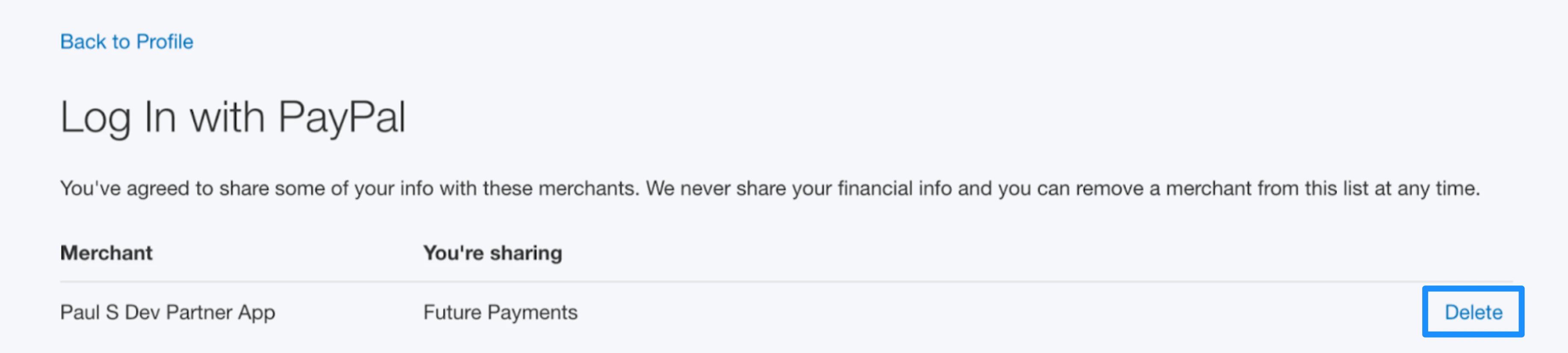
What happens when you detach a non-upgraded PayPal account from Kajabi?
Consider your detachment request carefully with the following points in mind:- Refunds stop processing. Refunds for purchases made under the current PayPal account will no longer be able to process once detached.
- Subscription-based Offers disconnect. Subscription-based Offers will disconnect from Kajabi and any updates or changes will not reflect in Kajabi. However, subscription payments will continue and be reflected in your PayPal account. Be sure to prepare your customers’ future payments before detaching PayPal from Kajabi.
- Coupons stop working. Coupons created in Kajabi will disconnect and will no longer function properly.
- Affiliate tracking ends. All purchases made through Affiliates under the current PayPal account will no longer be tracked.
- Payment records become invisible. All payment records and analytics (i.e., Sales) from detached PayPal integrations will no longer be visible in Kajabi.
- Reconnection is not possible. Once detached, the same PayPal account cannot be reconnected back to the Kajabi site.
Request a detachment for a non-upgraded PayPal account with transactions
If you want to move forward with the detachment process, reach out to our support team.Note: To request a PayPal detachment, you must be the Account Owner.
- What is your Site URL?
- What is your Site Title?
- What is your Reason for Detachment?
- Are you the Account Owner?
- What is your Contact Email?