

Overview
Adding a Facebook Like button to your blog is a great way of connecting your members to your social media. With just one click your members can like your blog page.Note: Adding a Facebook Like button requires access to the Code Editor only available with the Kajabi Pro Plan. See kajabi.com/pricing for details.
Step 1. Copy the Facebook Like button code
- Generate the “Like” button code from Facebook’s developer page: https://developers.facebook.com/docs/plugins/like-button
- Copy the URL for one of the Blog Posts.
- Paste it in the URL to Like field under the Like Button Configurator.
- Click the Get Code button:
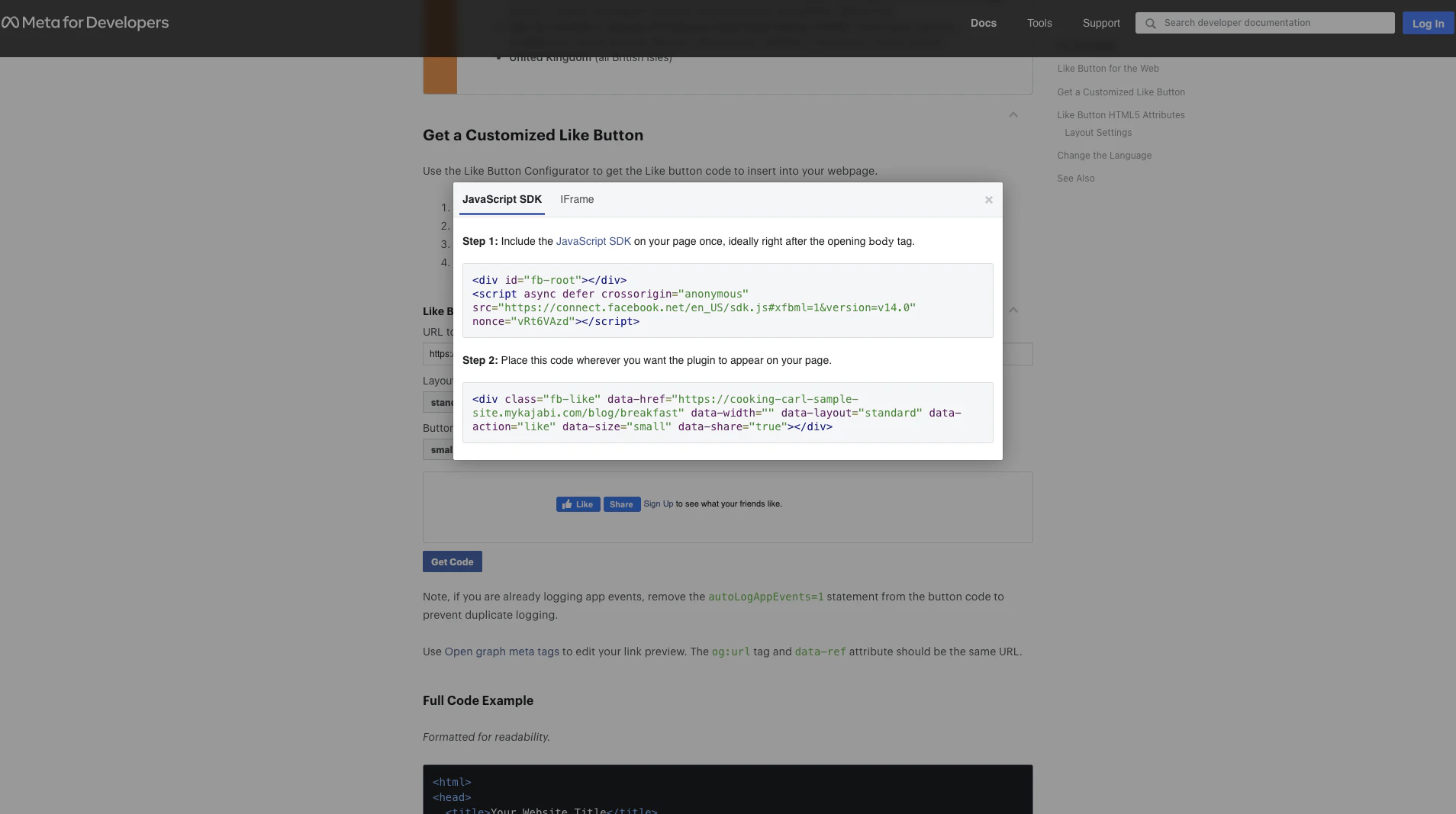
Step 2. Paste the first code snippet into the website template
Paste this code into the Website template code:- Open the Website tab from the Dashboard.
- Click the Pages tab.
- Locate the Blog Post page from the list of website pages.
- Open the
…icon. - Click Modify Code.
- Open the
Layoutsfolder. - Select the
theme.liquidfile. - Paste the code just after the opening
bodytag:
Step 3. Paste the second snippet into the website template
Lastly, paste the second code snippet:- Copy the second code snippet provided in the popup.
- Open the
Sectionsfolder. - Open the
blog_post_body.liquidfile. - Scroll to the bottom of the page and paste the code.
- Click Save: