Overview
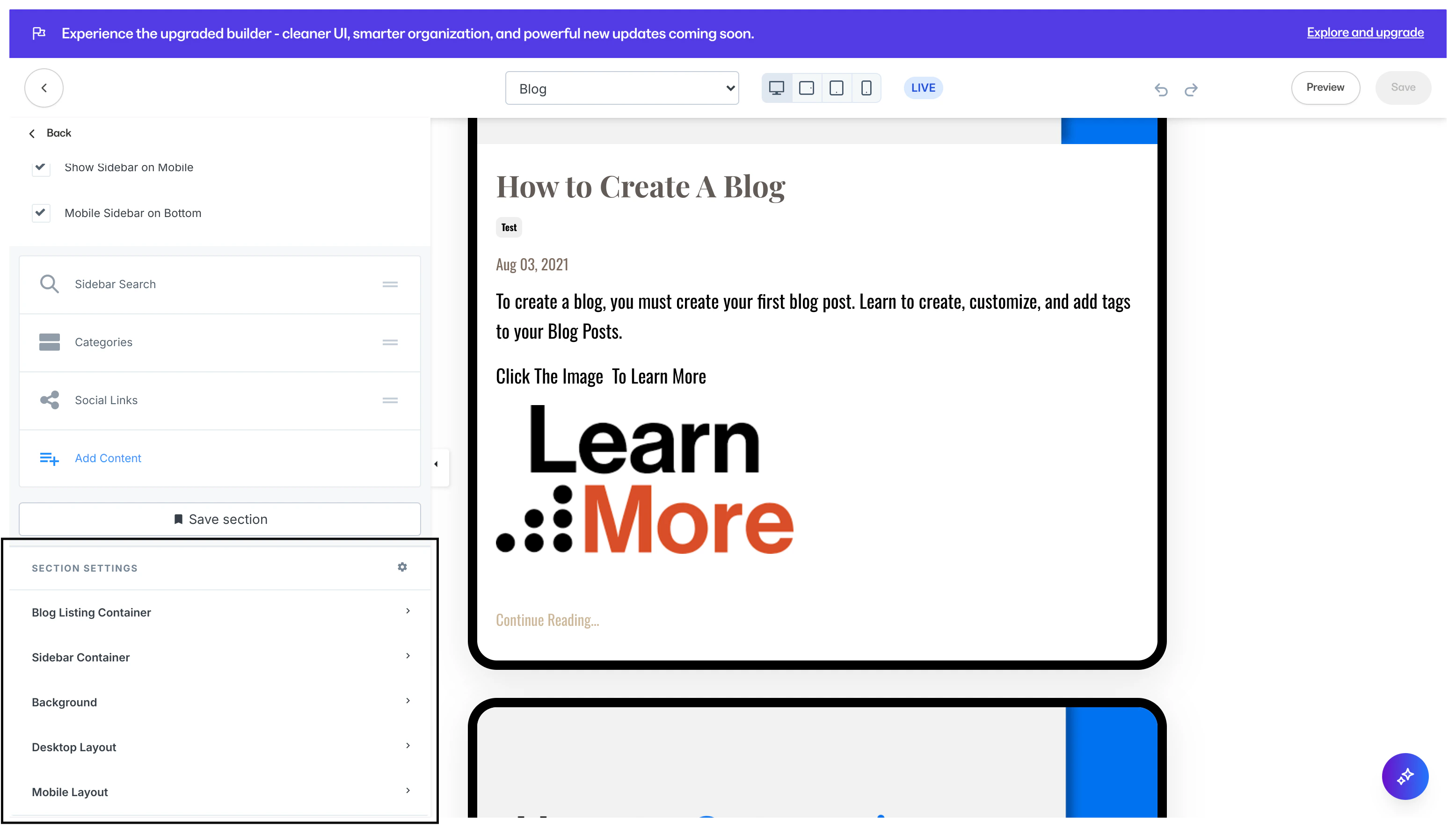
Your blog sidebar is a powerful tool for redirecting visitors to additional content with images, links, and opt-ins. You can use it to showcase recent blog posts, communicate author information, and include an All Categories link to view all of your blog categories.Customize the blog sidebar
Set up the sidebar
- Open the Website tab from the Dashboard.
- Click the Pages tab.
- Select the Blog page from the list of Website pages.
- Under Sections, select Blog Listings.
- Check Show Sidebar.
- Click Add Content and begin building the blog sidebar:
Sidebar blocks
You can add the following blocks to your blog sidebar:- Author
- Call to Action
- Categories
- Custom Block
- Image
- Recent Posts
- Sidebar Search
- Social Links
Author
Add your information as the author and customize the text displayed including Name, Title, Bio, and Image.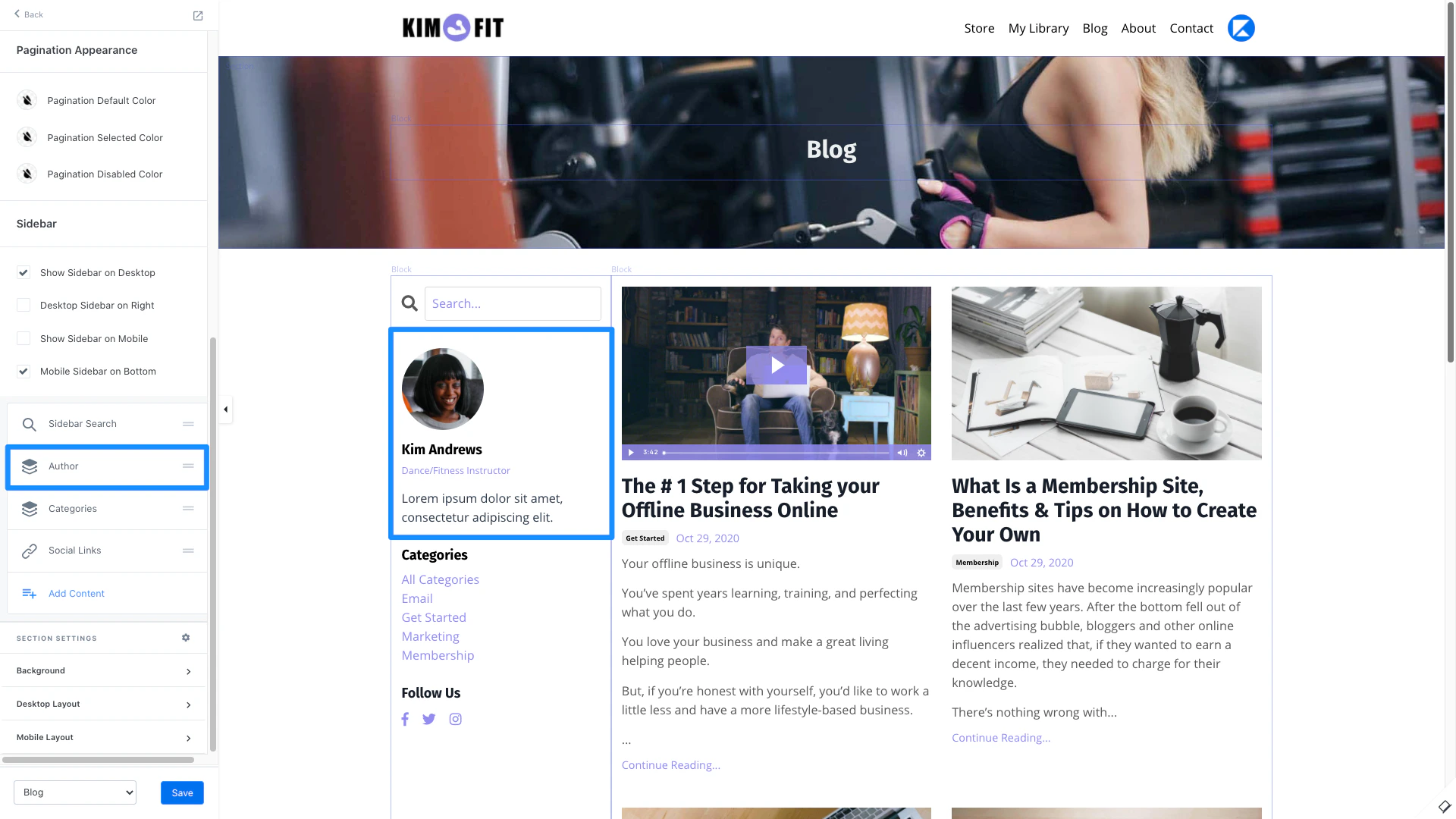
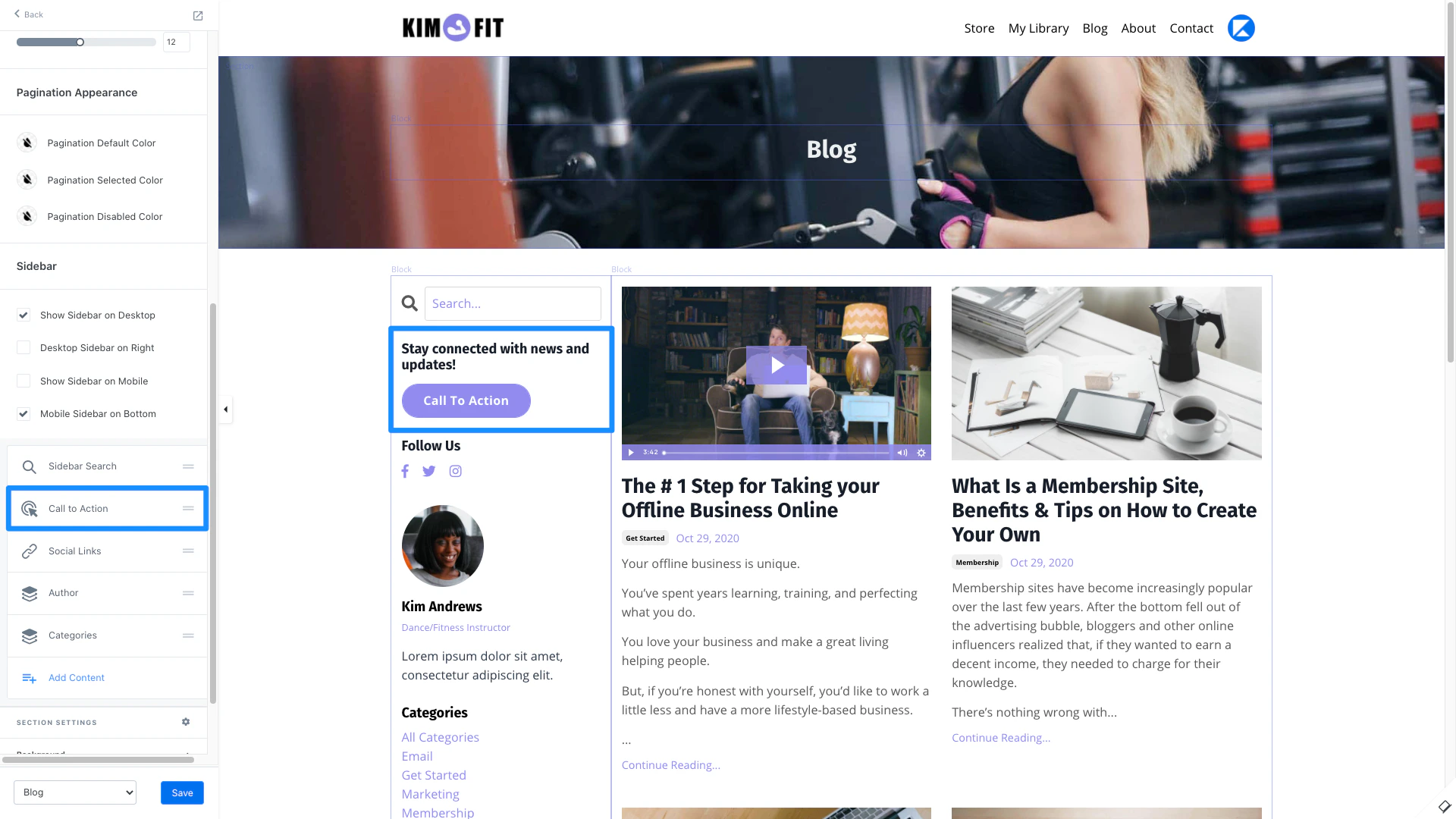
Call to Action
Use a Call to Action to encourage an immediate response from your visitors to:- Lead a visitor to a custom Landing Page
- Lead to a sale by going to a Checkout Page
- Encourage your audience to download a file
- Lead to any website page with a URL link
- Open a Two-Step Optin Popup
- Act as a link to lead to a section of the page
Categories
Use Categories to easily filter through your blog posts when visitors view your blog. Read How to Categorize your Blog Posts for details.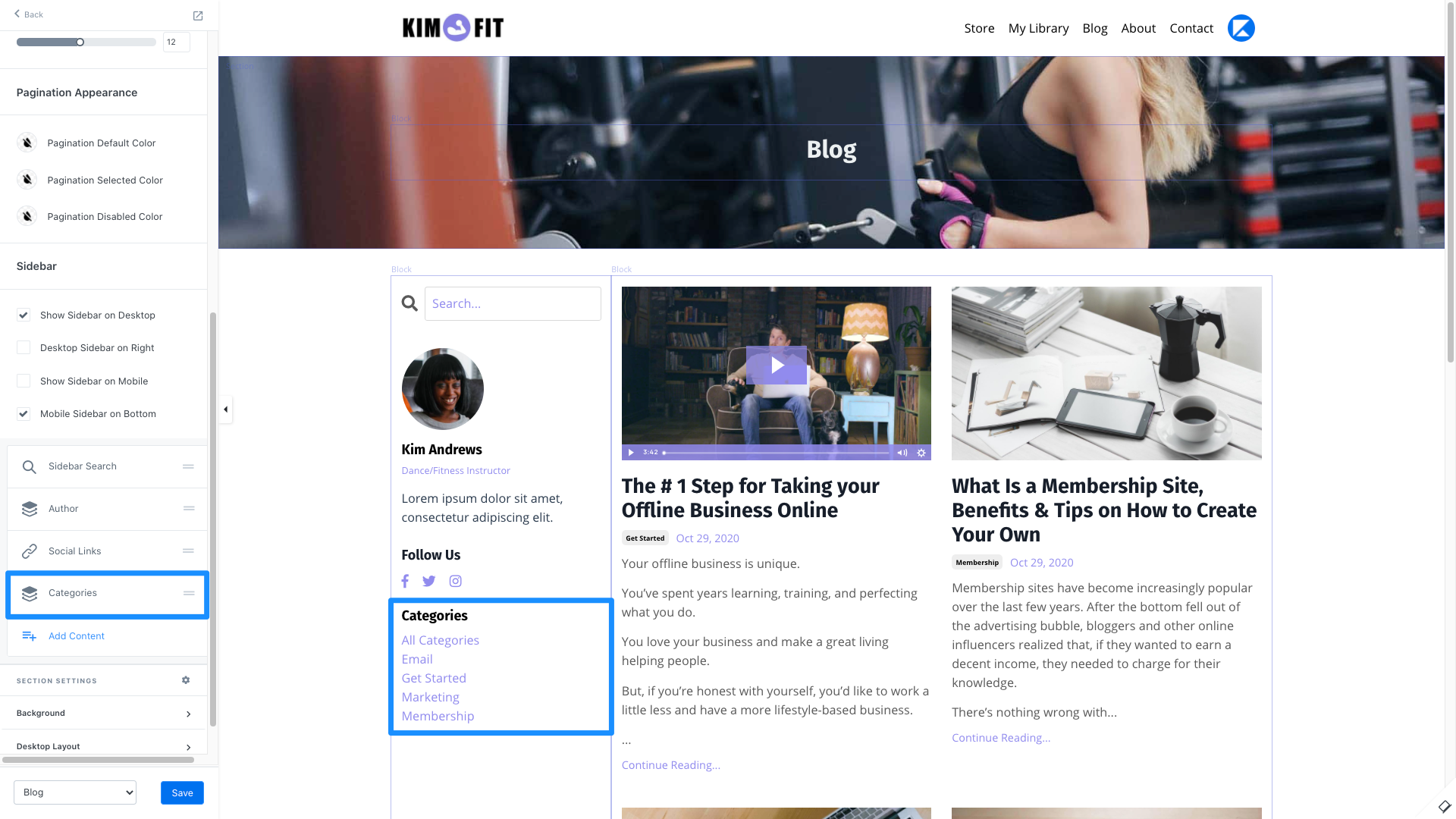
Custom Block
Create custom blocks in your blog sidebar to include images, a Call to Action (CTA), and additional text content.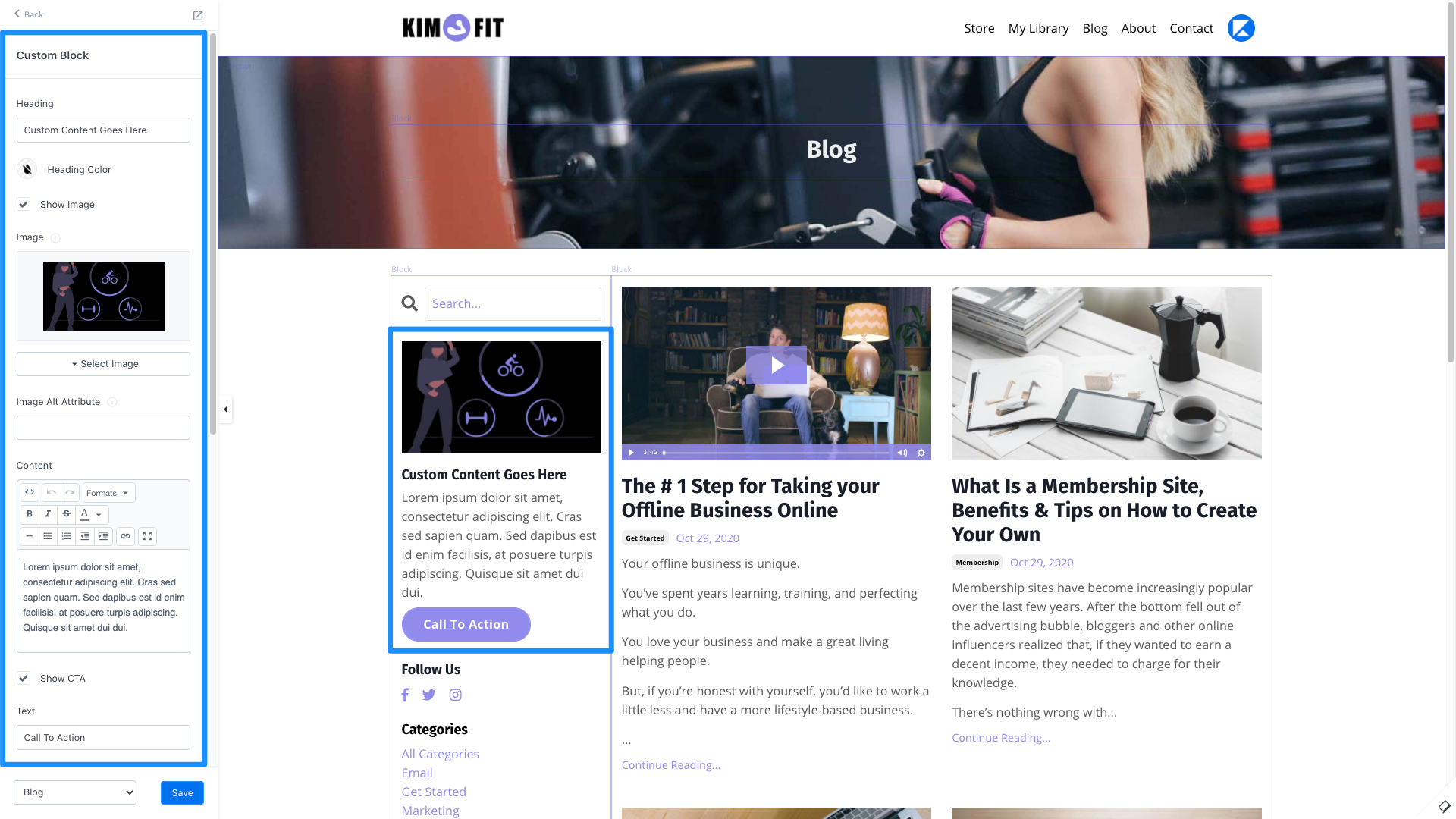
Image
Add an image to your sidebar to enhance the visual experience of your blog homepage and act as an optional button by configuring the Image Action.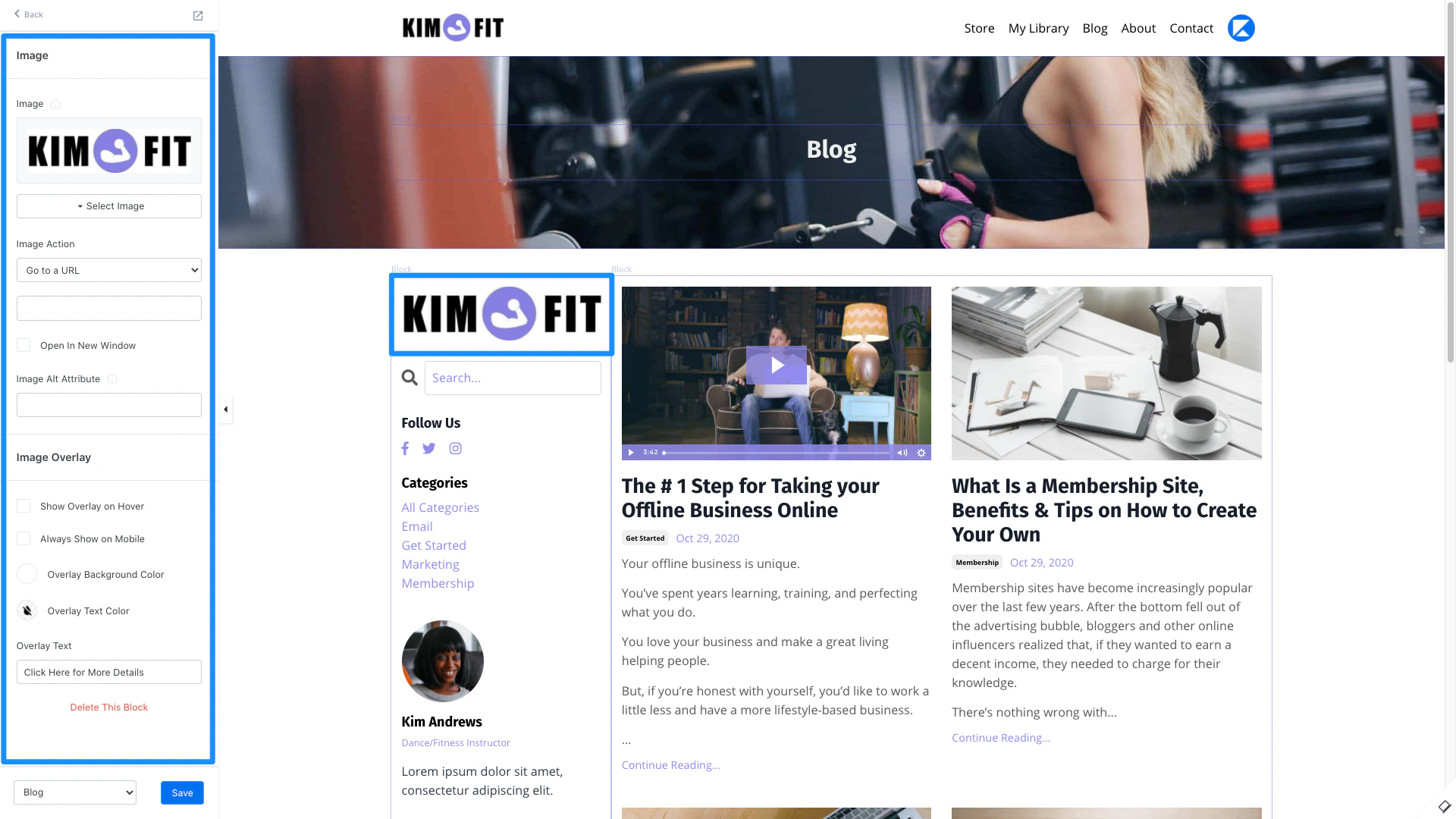
Recent Posts
List your most recent posts for your blog visitors to easily access.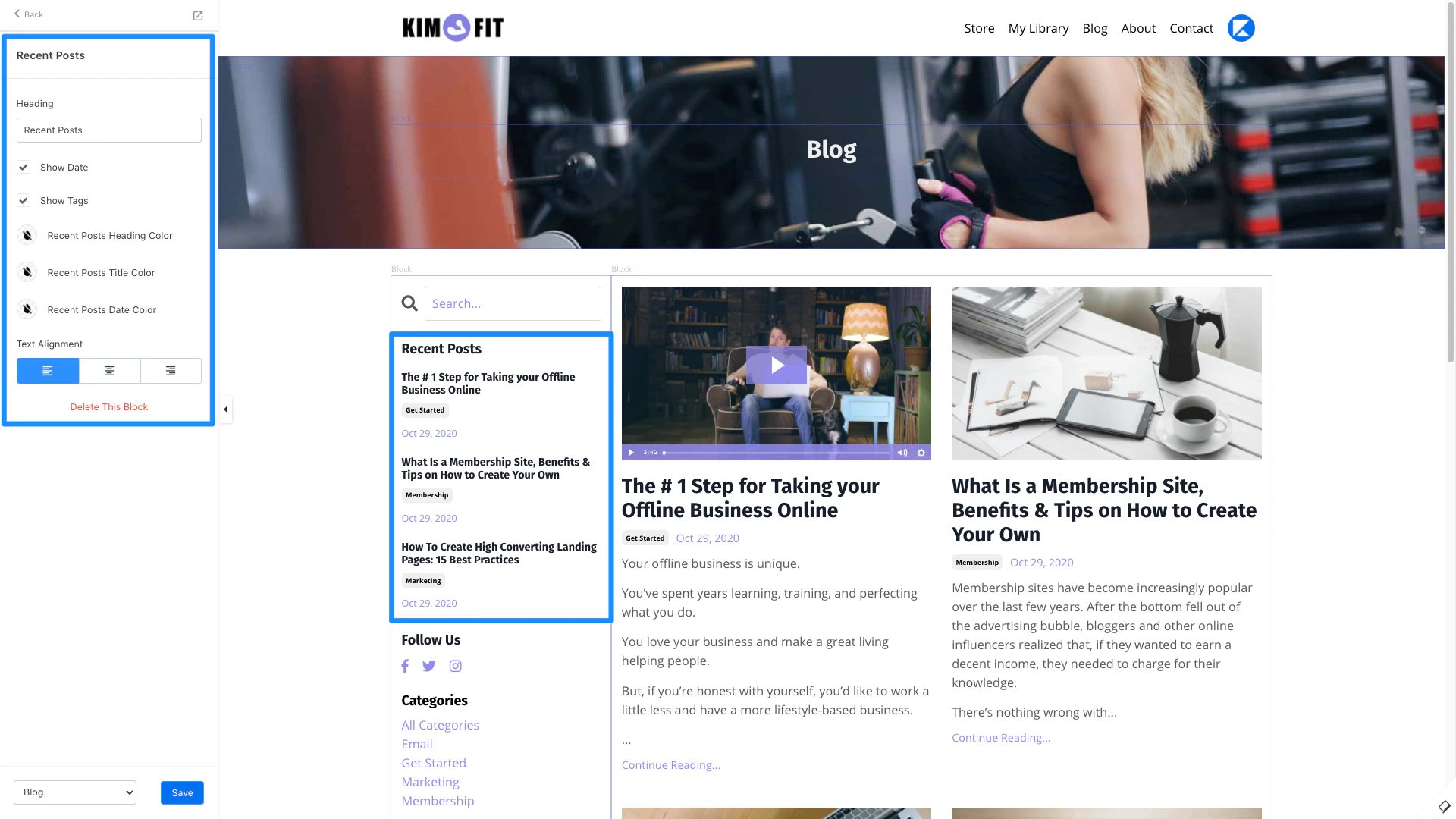
Sidebar Search
Add a search bar to the homepage of your blog for your visitors to easily search your blog posts.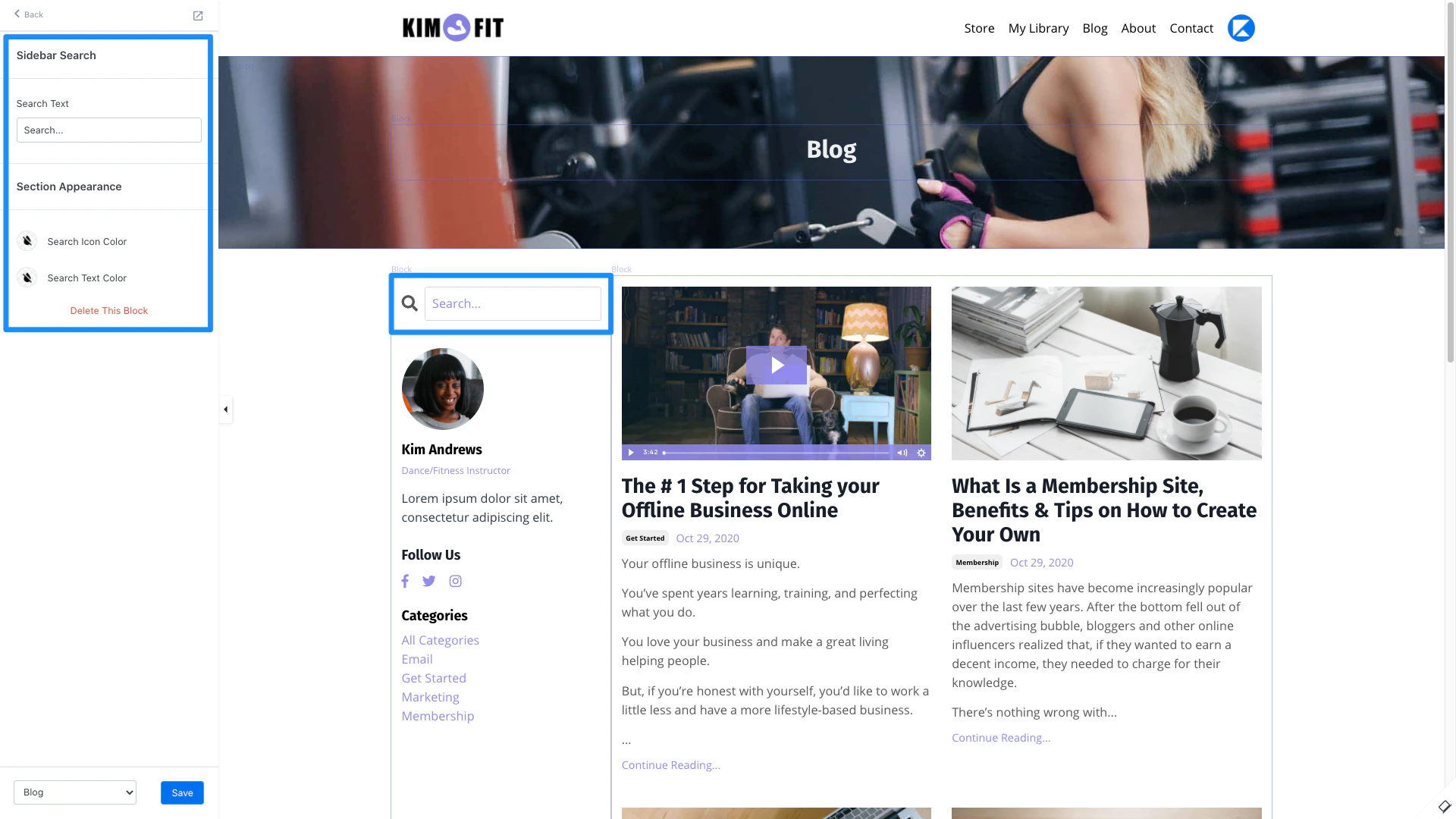
Social Links
Include Social Links to connect your blog visitors to your social networking pages. Simply copy and paste your social networking page URL to its corresponding text box in the Sidebar Editor.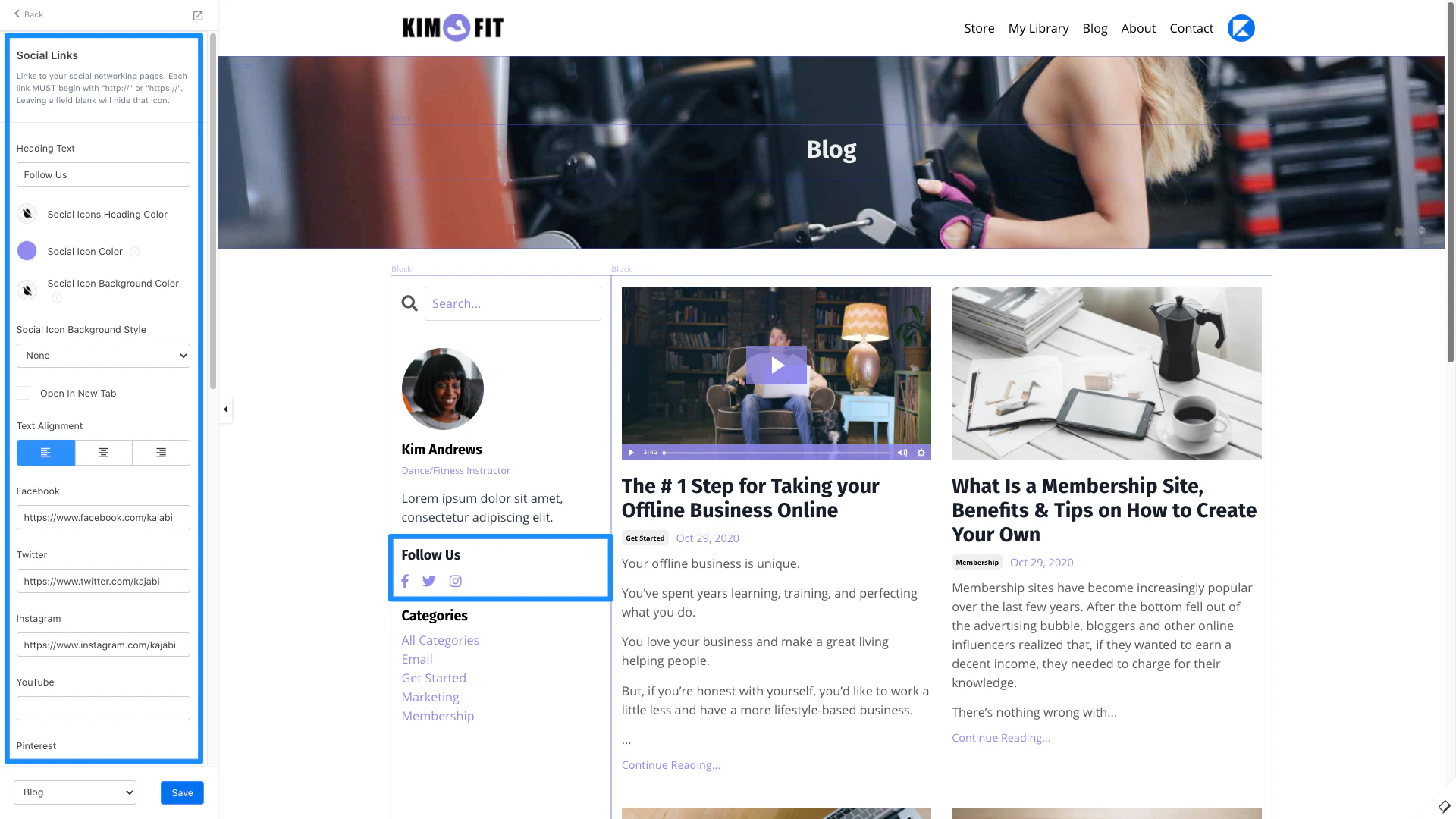
Rearrange sidebar blocks
- In the sidebar editor, click Blog Listings.
- Navigate to the Sidebar section.
- Hover your mouse over the
=and drag the sidebar blocks to the desired location. - Click Save to keep the changes:
Sidebar containers
Separate your sidebar by putting it in a Container. In the Sidebar container settings, you can change the Container Background, Border, Border Width, Border Radius, and Box shadow.