

Kajabi’s Affiliates commission workflow gives you transparency and control over affiliate earnings. This page covers what each commission status means, how statuses flow and can be updated, how refunds are handled, and how to execute manual payouts.
Note: The Affiliates feature is only available with Growth and Pro Plans. See kajabi.com/pricing for more details.

Commission statuses

Every affiliate commission displays a clear Status indicator so you can instantly see where it stands in the payout process:
  • Pending - The commission is recorded but not yet eligible for payout according to your delay schedule.
  • Due - The commission has met the payout delay requirements and is now payable.
  • Paid - The commission has been paid out to your affiliate.
  • Canceled - The commission was canceled and will not be paid out.
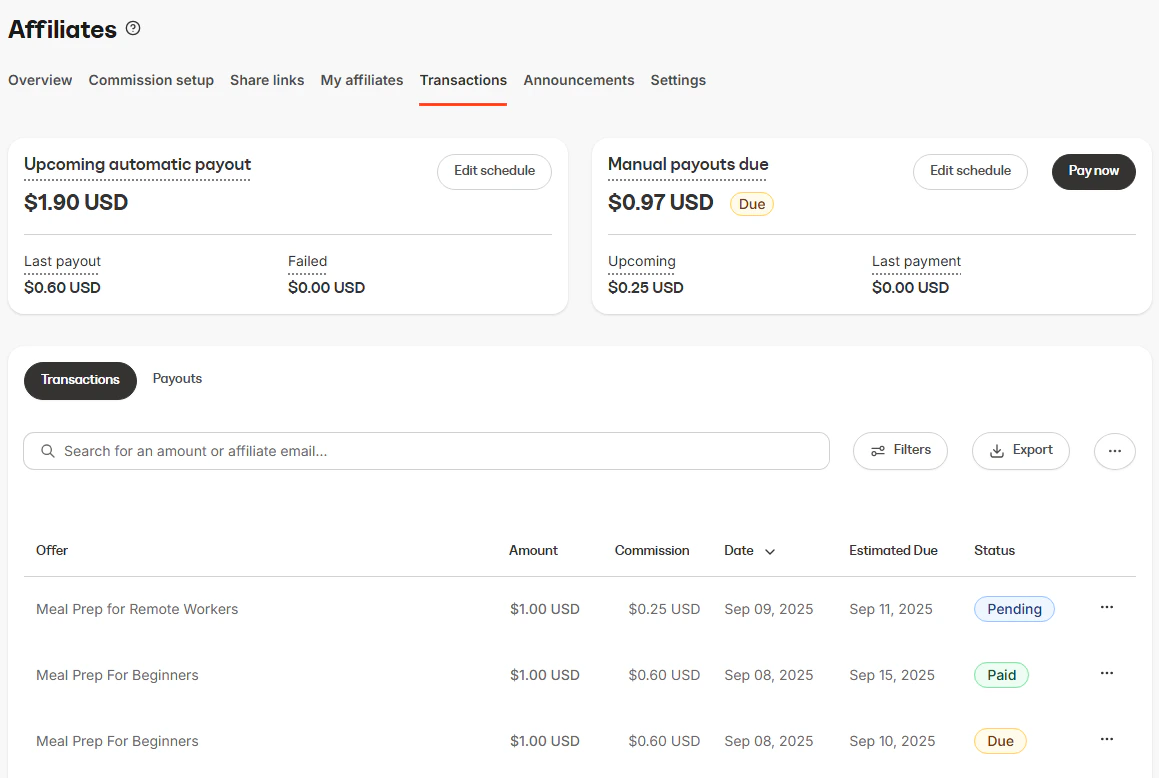
Commission status indicators Before you can begin this process and onboard to the flow, you’ll need to configure your payout settings.

Finalized statuses

Once a commission is Paid or Canceled, it’s finalized and cannot be changed anymore.

Payouts

When commissions become Due, they are eligible to be paid either manually or automatically.
  1. Navigate to the Payouts Due cards on your Affiliate Transaction page.
  2. Determine your preferred Payout Method, Manual or Automatic.
  3. Set up a Payout Schedule to keep transactions organized and set reminders to pay commissions.
  4. Once your Affiliates generate sales and their associated transactions are Due according to your Payout Schedule, they’re ready to be paid out. Learn more about Managing Affiliate Payouts and Commissions.
Tip: You can also manually mark individual Pending or Due commissions as Paid by clicking their status badge and selecting Paid. That action creates a corresponding Payout record. Check out PayPal’s Guide to learn more about Mass Payment.

FAQs

Can I change a Paid commission back to Due?

No. Once a commission is marked Paid, it’s finalized and cannot be changed.

What happens if I refund after payout?

The commission stays Paid and is tagged as Refunded, so you can see it was returned after payment.

How do I see which commissions are flagged as Refunded?

Look for the Refunded badge next to the status indicator in your Affiliate Commission list, or apply the Refunded filter to locate them more easily.

If I reassign the commission of a subscription to a different affiliate, will it reassign all subsequent payments?

Yes. The transaction you reassigned and the subsequent subscription payments will all be credited towards the newly selected affiliate user.