

Create a Podcast in Kajabi
- Open the Products tab from the Dashboard
- Select Podcast
- Click Get Started
- Make sure Podcast is selected as the Product type, and click Get Started again
Import an existing Podcast
If you already have a published Podcast, importing is a quick way to bring your content onto Kajabi.Note:
To import your Podcast to Kajabi, you must have an RSS feed link provided by a distributor such as Libsyn.
- Select Import a podcast and click Continue
- Follow the prompt by pasting your RSS feed link and click Continue
- Confirm your podcast details are correct and click Save and Finish
- Kajabi will then import and organize your Podcast
Create a Podcast from scratch
- Select Create a new podcast, and click Continue
- Enter your Title and Host information, and a Description
- Choose if you would like to make your podcast Public or Private:
- Public Podcasts are accessible to everyone
- Private Podcasts will be private to only those who have purchased or been granted an Offer connected to your podcast product
- Next, select a Language and Category for your podcast
- Then choose if you want your podcast to display in episodic or serial order:
- Episodic will order your podcast episodes starting with the most recent episode at the top of the list
- Serial will order your podcast episodes from oldest to newest, organized by season
- Click Continue
- Finally, customize your podcast’s appearance by selecting a Primary and Accent color and uploading a thumbnail image
- Click Save and Finish to create your podcast
Preview the Podcast page
Your Podcast page will automatically generate with a URL in the format of: https://domain.com/podcasts/your-podcast-name. Preview your Podcast page and your page URL by clicking the Preview icon at the top right of the Podcast Editor: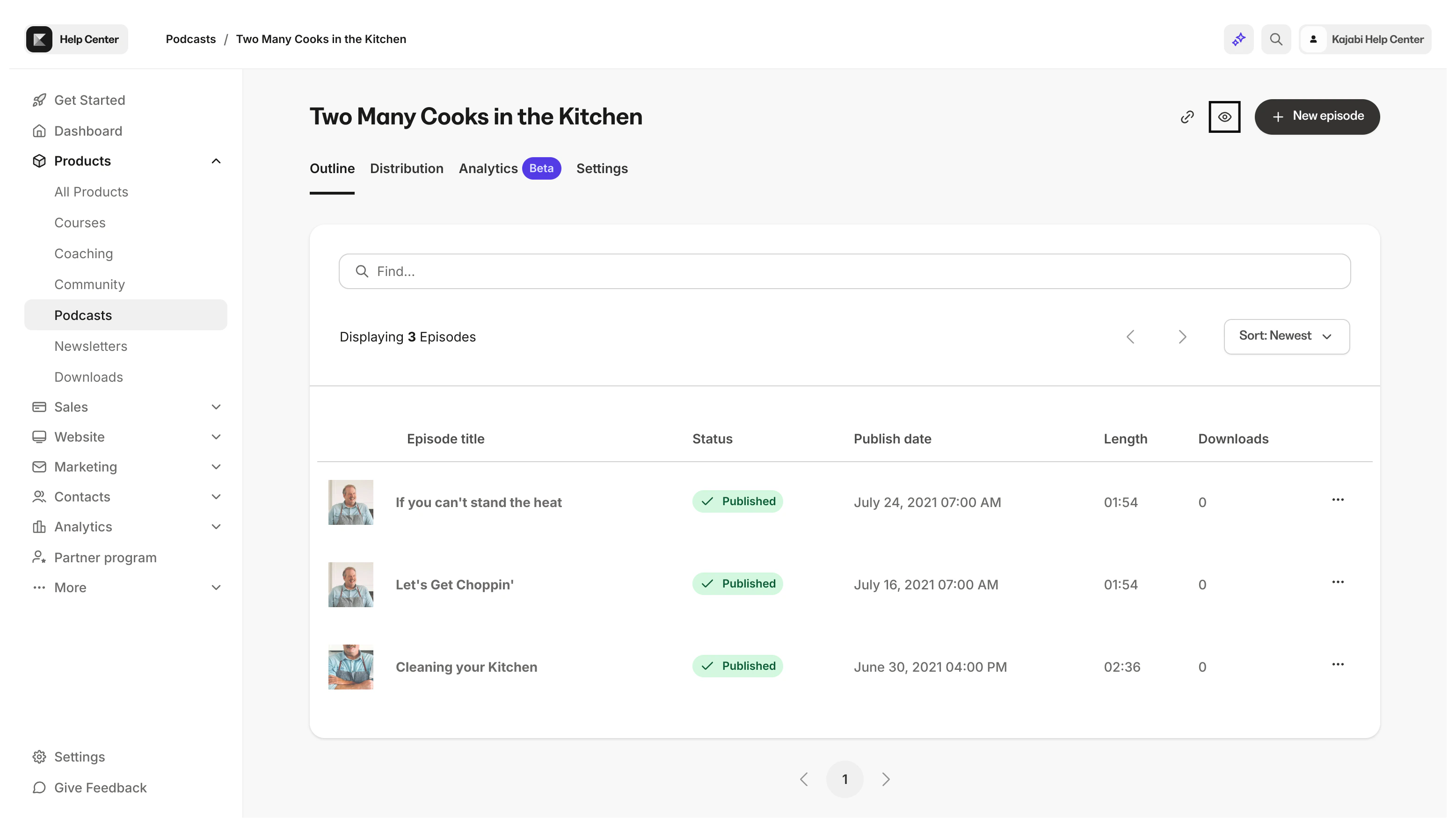
Edit Podcast details
- Click the Settings tab in the top menu of your Podcast page.
- Title
- Host
- Owner Email
- Copyright
- Language
- Description
- Thumbnail Image
- Select if the Podcast contains explicit content
- Disable episodes from being downloaded
Podcast categories
In the podcast categories section, select up to three categories that best fit the description of your Podcast content. Selecting multiple categories will help with discoverability.Page customization
In the Page customization section, you can select Primary and Accent colors to customize the look of your Podcast page to better match your branding. Primary Color applies to the audio player and page buttons. Accent Color applies to the header background:Create an episode
- Click New Episode in the upper right of your podcast page
- Next, follow the prompt:
- Give your episode a Title
- Select the episode Type (Episode, Bonus, or Trailer)
- Optionally add the episode to a season or create a new season
- Add a description of the episode for the Show notes
- Upload your Audio file
- Finally, indicate if your Episode contains explicit content
- Click Add episode
Publish an episode
- Click the episode title to open it for editing
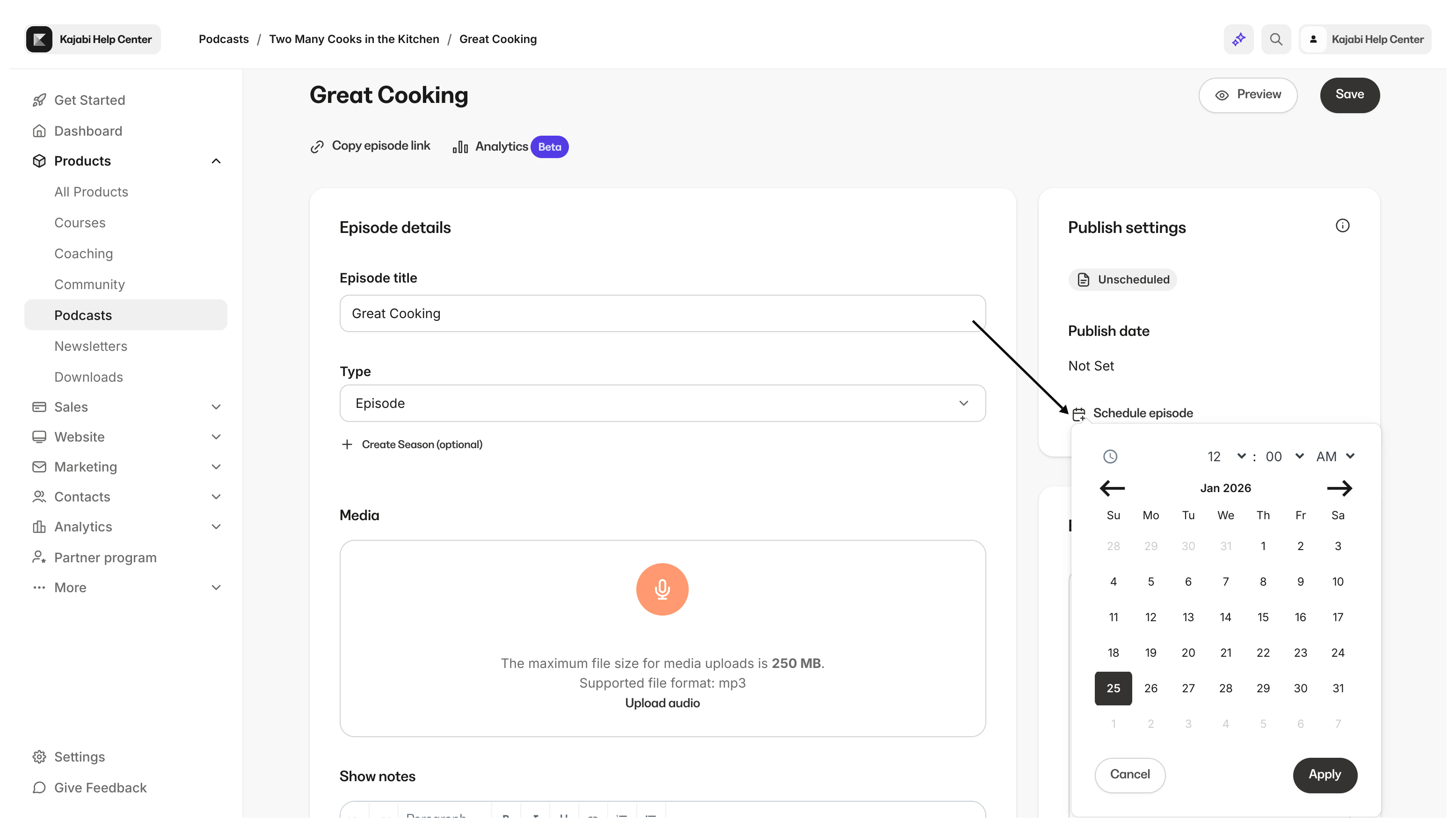
- Locate the Publish settings on the right side of the editor
- Click Schedule episode to select a publication date and time
View analytics
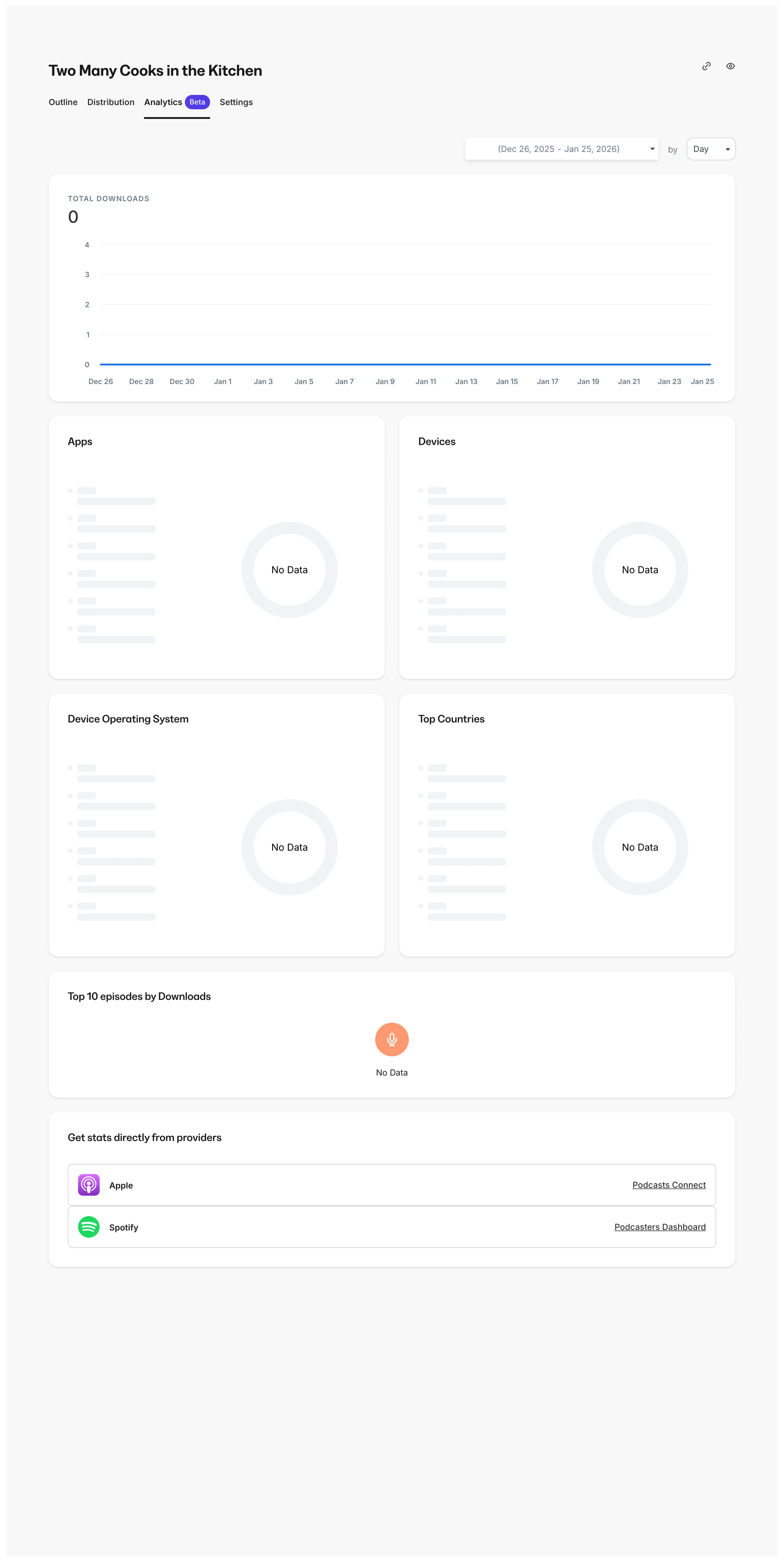
To view your Podcast analytics:- Click the Analytics tab from the top menu of your Podcast page
- Total Downloads
- The Apps being used to stream your Podcast episodes
- The Devices used to stream your episodes
- Which Device Operating Systems are being used
- Top Countries for your Downloads
- The Top Ten episodes by Downloads
Distribution
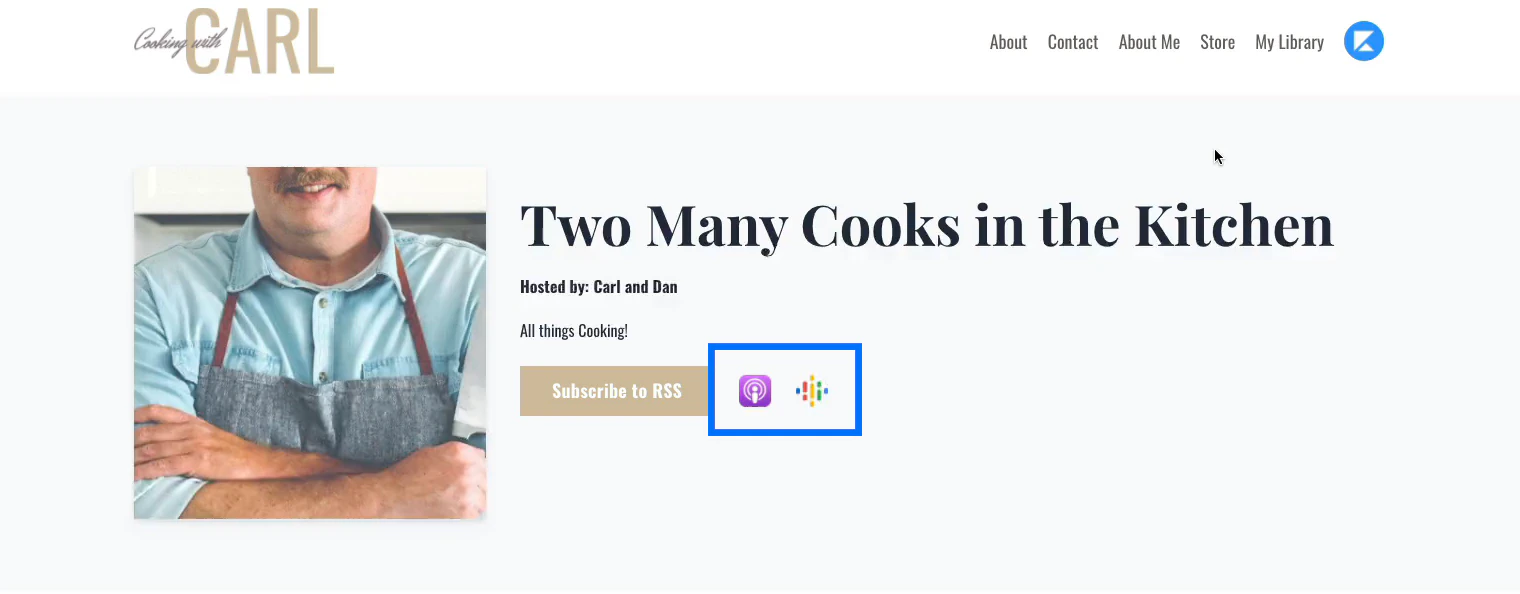
Once you have published your first Podcast episode, you can set up the distribution of your Podcast to different directories.- Click Distribution in the top menu of the Podcasts page
Note:
The process of updating your Podcasts in a distribution location is the responsibility of each third-party platform. Therefore, your Podcasts will be made available according to the standards set by the third-party platform used and can take a few hours to populate.
Note:
Deleting a Podcast from your Kajabi account may not automatically delete it from third-party platforms where you’ve distributed it. Learn more about removing a Podcast from third-party platforms.
Offers
For your private Podcasts to be purchased or granted, they must first be connected to an Offer.Connect a Podcast to an Offer
- Open the Sales tab from the Dashboard
- Select the Offers tab
- Click +New Offer
- Select the Title, the Podcast you would like to include in this Offer, the Payment type, and the Price of the Offer
- Click Create