

Note:
Creating time slots with a Form requires Advanced Automations only available with the Growth and Pro Plans. Check out kajabi.com/pricing for more details.
Create Events
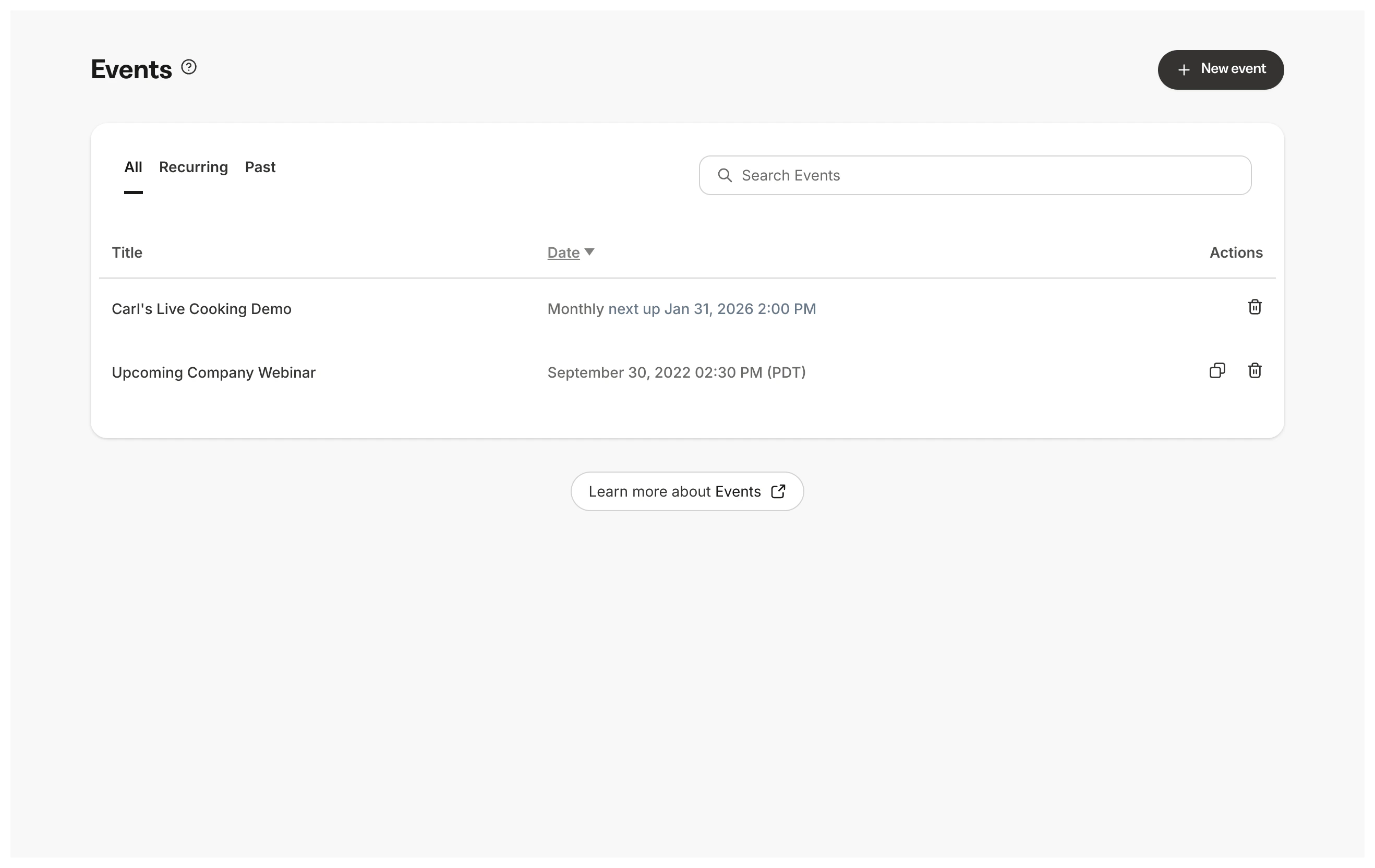
Offer multiple time slots to contacts by creating Events for each time slot. The number of time slots should correspond with the number of Events. The corresponding Events will be the time slots you offer with any surrounding emails you may wish to send for contacts registering to the Event.Create an Event
- Open the Marketing tab from the Dashboard
- Click Events
- Navigate to the top-right corner and click + New Event
- Title the Event to easily identify it as a time slot
- Specify the time slot to offer
- Select the time zone
- Click Save
Add a Form field
After you have created Events for each time slot, create a Form for contacts to select their preferred time slot. In the Form, create a Radio Button Field to list every time slot (Event) available. With Radio Buttons, contacts can select an open time slot to register to.Add Radio Buttons to a Form
- Open the Marketing tab from the Dashboard
- Select Forms
- Create a Form or edit an existing one
- Click + Add Form Field
- Click Create A New Field
- Enter the Title of the Event
- Select Radio Buttons in the Type field dropdown
- In the Choices field, enter each time slot corresponding with the Events (e.g., 9:30AM, 10:00AM)
- Select Make this field required to ensure that contacts select a time slot
- Click Save to keep the changes
Create Automations
Now that you have set up the essentials for time slots, connect the Form to each time slot with Automations. Create Automations for each time slot and Radio Button created in the previous steps.Create an Automation
- Click + Add Automation
- The When field will be pre-filled
- In the Then field, select Register to an event and select a time slot
- Click Add Condition
- Open the dropdown menu and scroll down to Custom Field Filters
- Select the name of the Radio Button Field
- Enter the time slot exactly as entered in the Radio Button Choice
- Click Apply
- Click Save to keep the changes