Overview
Custom navigation menus help guide your site visitors to explore different areas of your site. You can create multiple menus for different purposes and assign them to specific pages.Add a navigation menu
- Open the Website tab from your Dashboard
- Click the Navigation tab
- Navigate to the top-right corner of the page and click + New Navigation Menu
- Enter your navigation menu Name to easily identify when assigning the navigation menu on your site. Your navigation menu name is only visible internally and will not be displayed to your site visitors and customers
- Click Save Menu to create
Add links to existing navigation menus
Before adding a link to a navigation menu, copy the URL or take note of the name of your course product lesson, product module, or static page that you wish to add to your navigation menu.Add a link
- Select the menu in which you would like to add a link, then click Add
- Select your desired link type:
- Add Product - Add a link to a Module or Lesson
- Add Page - Add a link to any of your landing pages on Kajabi
- Add Link - Add a link to a site outside of Kajabi
Note:
Navigation link names have a maximum length of 50 characters. If you add a custom URL link, the URL must begin with
http://, https://, or /.Edit navigation menus
You can edit your navigation menu link names, change the URLs, edit visibility settings, or delete links.Edit a navigation link
- Click the ✐ icon on the link you would like to edit. You can change the Title, the Path/URL, the Visibility Settings, or Delete the Link
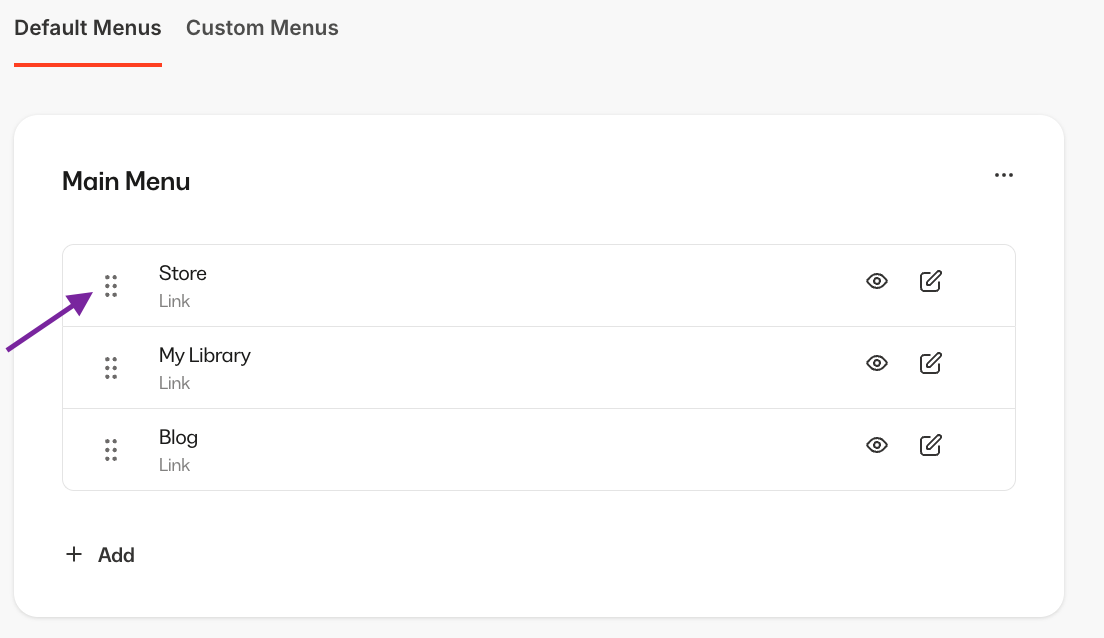
Rearrange links in a navigation menu
- Hover over the dotted icon for the menu link you wish to move
- Click and drag the link to your desired location