

Overview
After customizing your navigation menus and links, you can assign them to various pages of your site. By default, the Main Menu and Footer link lists are applied to every page until you assign a different link list.- Website and landing pages
- Product pages
- Checkout pages
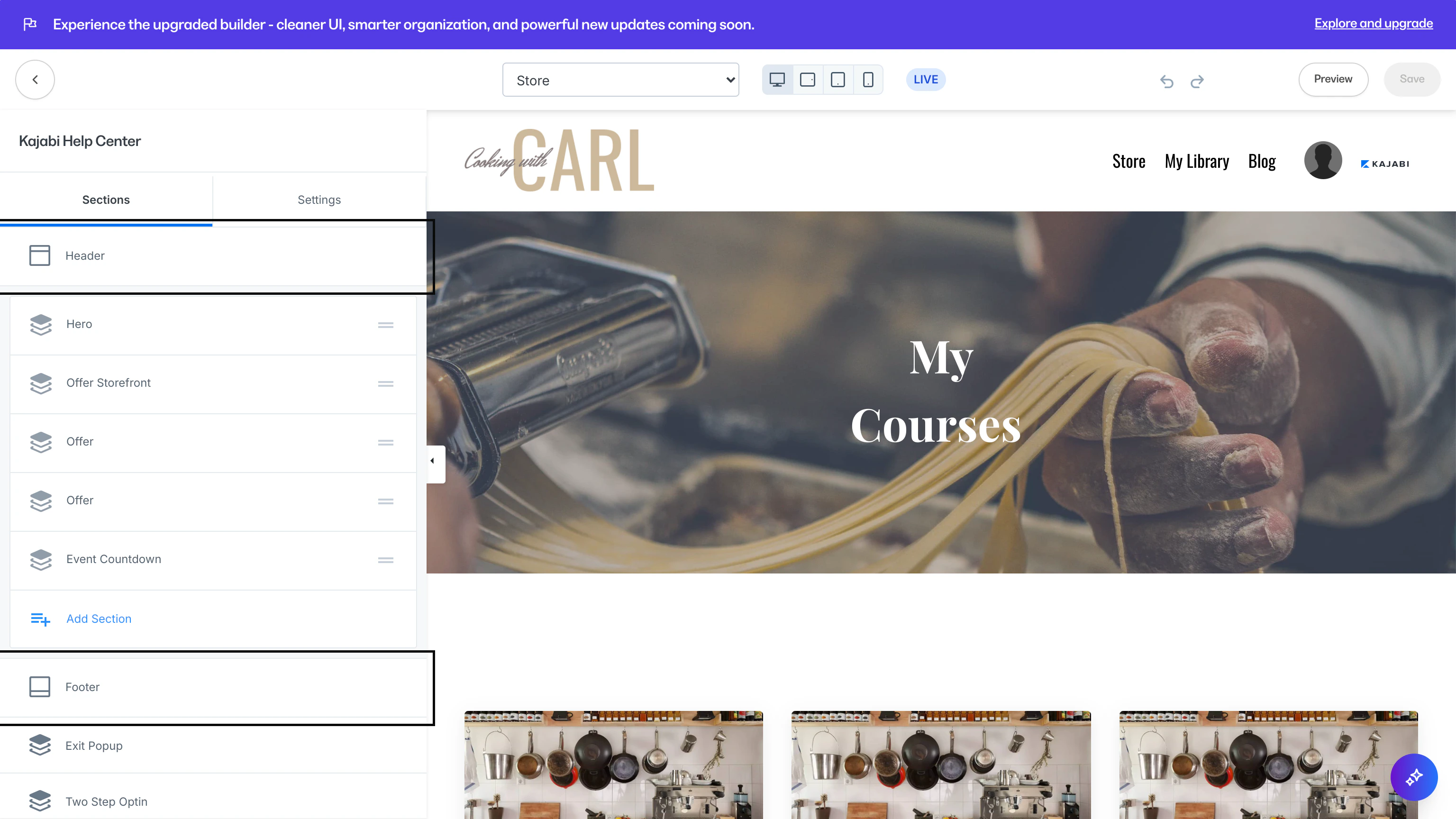
Website and landing pages
Add menus to your header and footer in your website, landing, and funnel pages with the Menu Block:- Open the Website tab from the Dashboard
- Click Pages
- Locate the Page you wish to customize
- Click the page title or the color palette icon to Customize
- Open the Header or Footer section of the Editor
- Select the Menu block or click Add Content to add the block
- Select your desired navigation menu from the dropdown
- Click Save to keep your changes
Note: If you would like to change the color of your navigation menu, you may do so by editing the Header Text Color option inside the Header section.
Checkout pages
Add a menu to the footer of your checkout page:- Open the Product tab from your Dashboard
- Select the Sales tab
- Click Offers
- Select the offer you wish to edit
- Click Edit Checkout
- Open the Additional settings section in the Editor
- Navigate to Footer and select your desired menu from the Select navbar dropdown
- Click Save to keep your changes
Course pages
Add a menu to the header or footer of your course pages:- Open the Products tab from your Dashboard
- Select Courses
- Select the course you wish to customize
- Click the Customize tab
- Hover over the Template Preview and click Customize
- Open the Header or Footer section in the Editor
- Navigate to the Menu section
- Select your desired navigation menu from the Menu dropdown
- Click Save to keep your changes