

Overview
If a customer received an error message when attempting to use a coupon on your checkout page, refer to this guide for more information and troubleshooting solutions.Coupon error messages
A message box will appear if an error occurs when a customer attempts to complete a purchase while using a coupon on your checkout page. Your customer will not be able to use the coupon and complete the purchase until the error is resolved. Example:
Common coupon errors
The following is a list of common coupon errors that may be causing the issue.Wrong currency
This error message will appear if the coupon and offer have been set up for different currencies. For example, if you have an offer set up for CAD currency and the coupon is $100 off USD currency, it will not work.Edit Offer pricing
- Open the Sales tab from your Dashboard.
- Select Offers.
- Select the Offer you would like to edit or create a new one.
- In the Offer Editor, click the Pricing tab.
- Scroll down to the Price Details section and use the Currency dropdown menu to choose your Currency.
- Click Save to apply your changes.
Create a new coupon
- Open the Sales tab from your Dashboard.
- Choose Coupons.
- Click + New Coupon.
- Select Single Coupon Code or Bulk Codes.
- Enter your Coupon Code.
- Choose Amount Off under Discount Type.
- In the Amount Off menu, use the Currency Type dropdown menu to select your currency.
- Press Continue to save your Coupon.
100% off an amount
A 100% off coupon will not work if the “Amount Off” option was selected during the Coupon Creation process instead of “Percentage Off”. Amount off coupons require a monetary payment, they cannot be completely free. Only “Percentage Off” coupons can make an offer completely free. A new coupon will need to be created using “Percentage Off” if a 100% discount is the intended outcome.Previously deleted coupon
If a coupon was previously deleted from your Kajabi site it will no longer be valid for use. This will cause the coupon error message to show upon checkout. A new coupon will need to be created.Expired coupon
If the coupon’s expiration date has passed, the coupon can no longer be used. A coupon’s expiration date can be set during coupon creation in the Duration section of the coupon creator: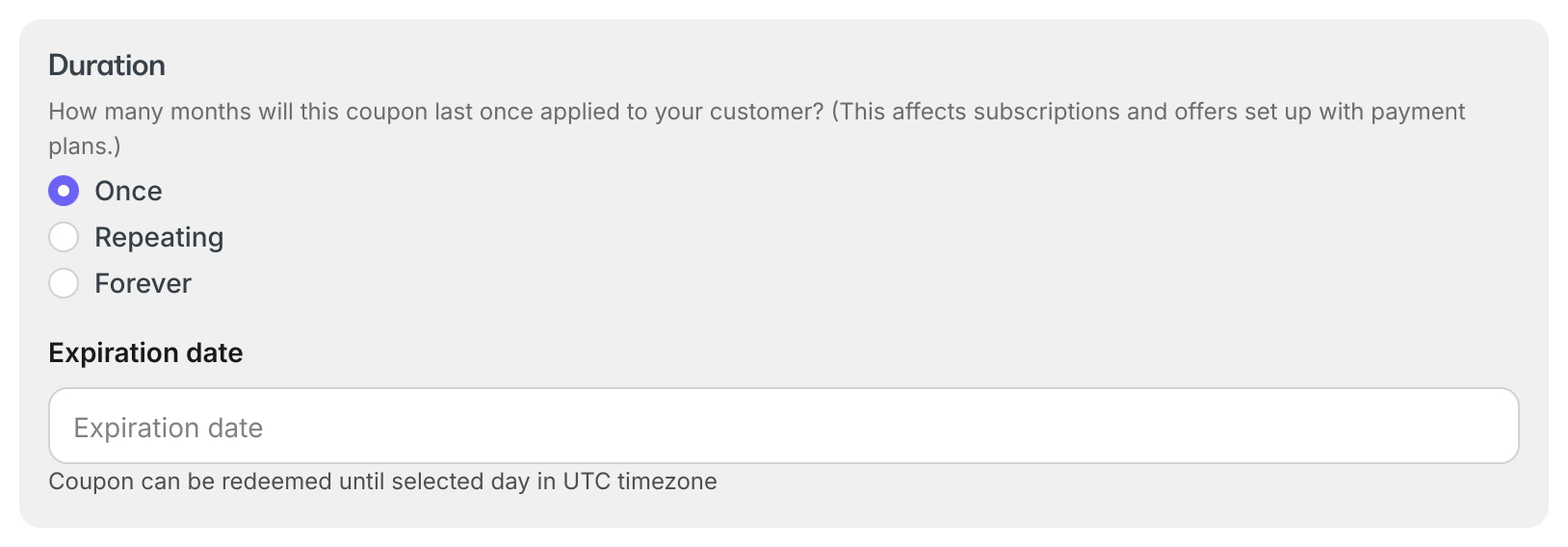
Wrong Offer attached to coupon
A coupon will only work with the Offer that has been attached to it. If the coupon code is entered on the wrong offer checkout page, the coupon will not work and the error message will show.Add an Offer to a coupon
- Open the Sales tab from the Dashboard.
- Select Coupons.
- Select the coupon you wish to edit or create a new one.
- Navigate to the Included Offers section and click + Add Offer.
- Choose the Offer you want to include, then click Done to save your changes.