

Unlimited Download Products
Create as many Download Products as your business needs. With Downloads, you can add 1, 20, or even more — all while counting as just a single Product. For example, if you create 5 Download Products, each with multiple files, they will only take up one Product slot in your Kajabi Plan. If your Growth Plan includes 50 Products and you’ve already used 45, adding a Download Product will only increase your total to 46, leaving you with 4 more slots for Courses, Coaching, Podcasts, or another product.Customer experience
When your customers purchase your Download Products, they can access them from their Member Library. Learn more about what happens after a customer purchases your Offer. Your customers can access all of the downloadable content that you have included within their purchased product: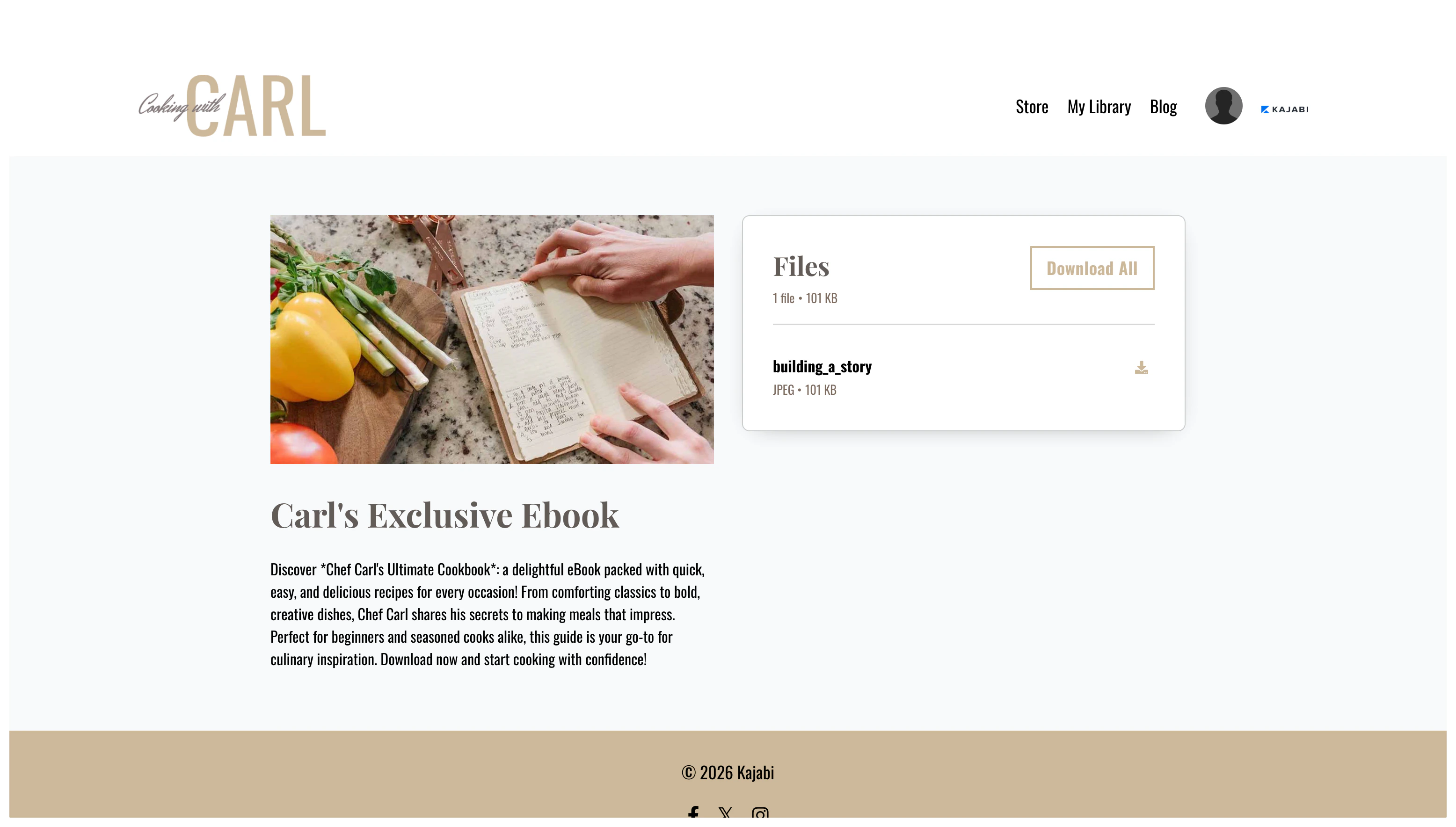
Create Downloads
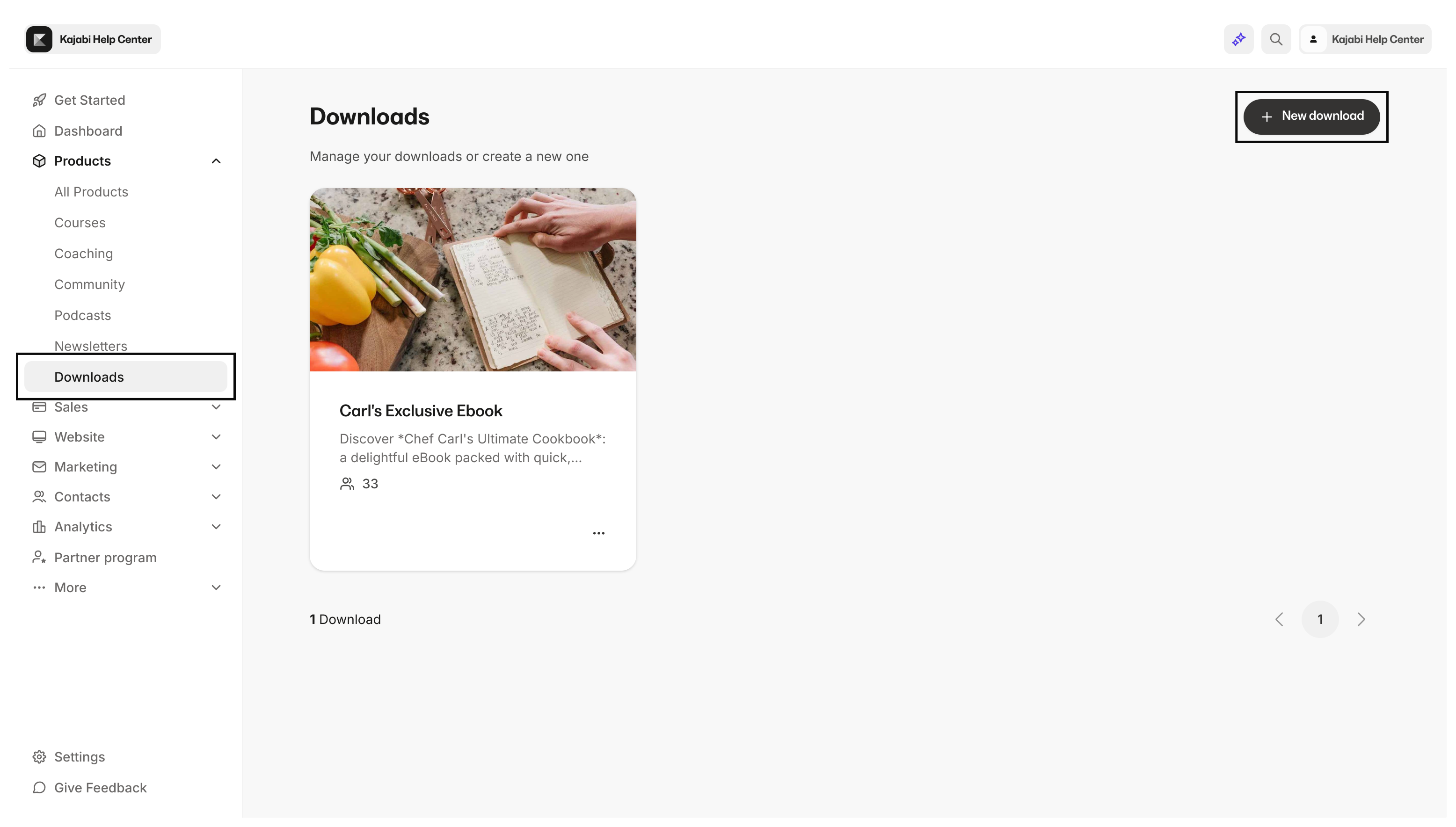
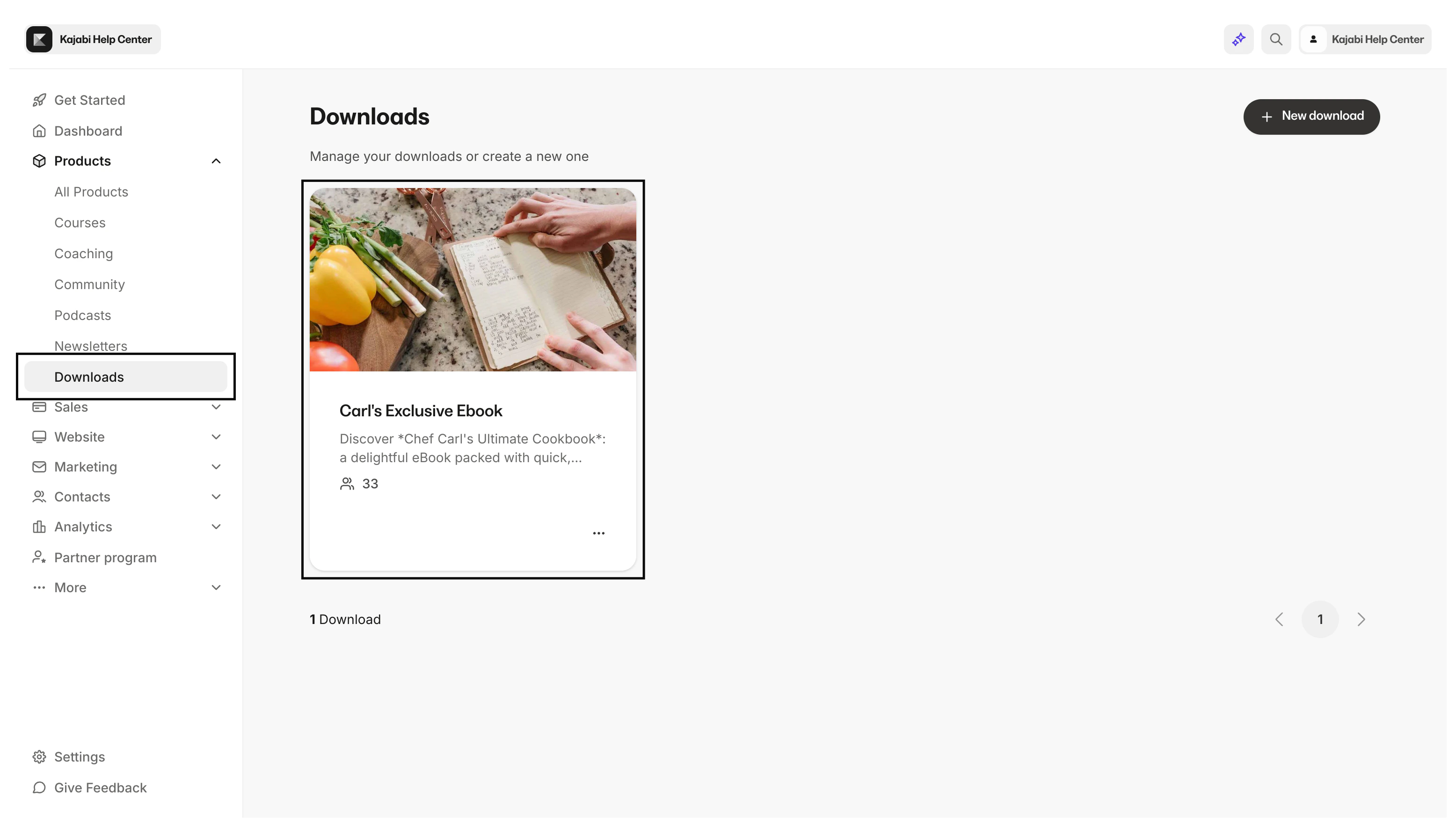
- Open the Products tab from your Dashboard.
- Click Downloads.
- Select Get started or + New download.
- Follow the on-screen instructions to create your Download Product:
- Enter your Download details:
- Title
- Description
- Thumbnail image (displayed in your customer’s Library)
- Upload your files by clicking Choose files. Learn more about compatible file types.
- Price your download by creating a new Offer or click Skip for now. Learn more about Offers.
Note:
You can add more files after creating your Downloads Product.
Update files in Downloads
Add, remove, and update the title of your downloadable files by accessing the Files tab within your Downloads Product page.Add more files to a Downloads Product
- Open the Products tab from your Dashboard.
- Click Downloads.
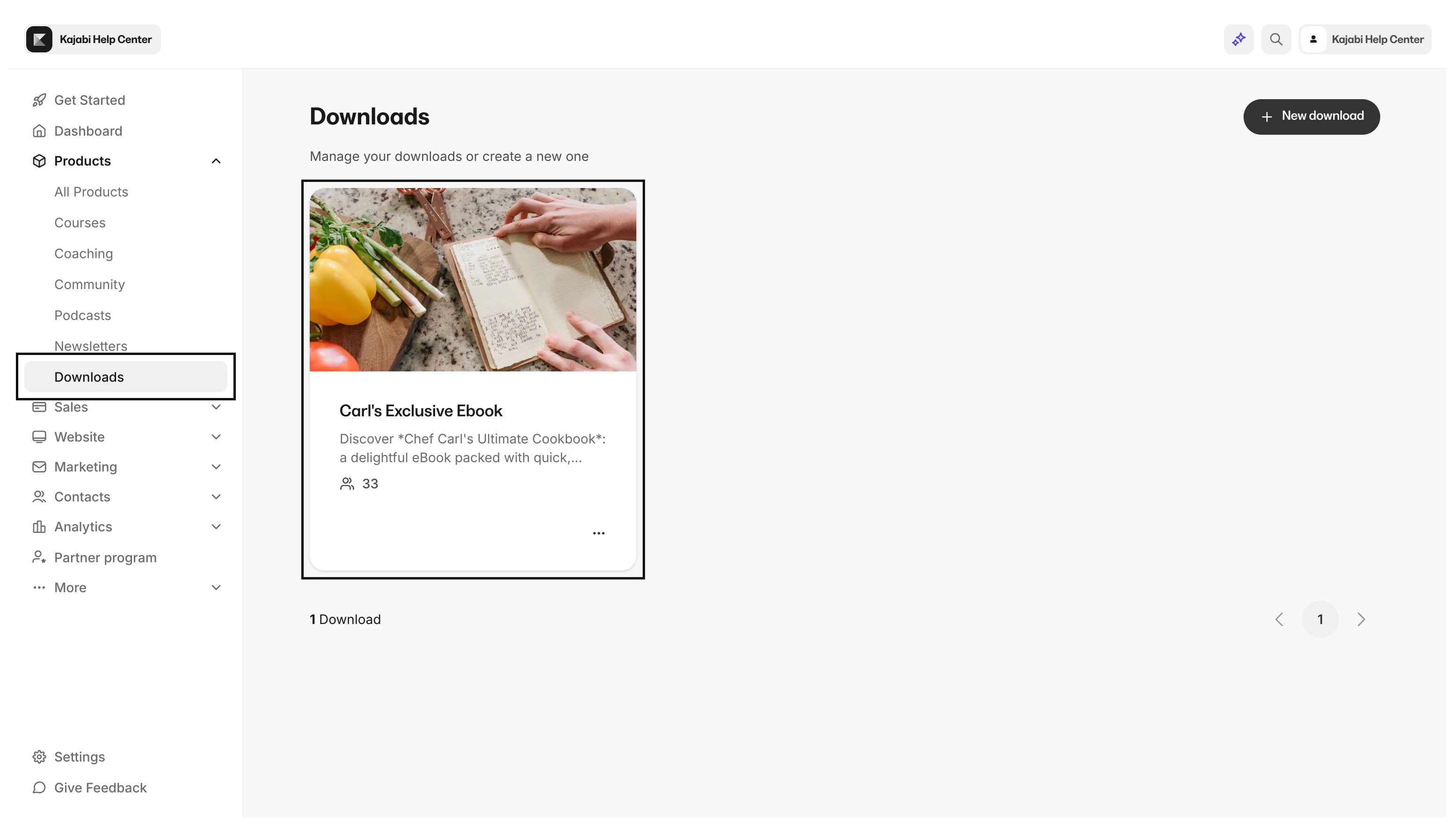
- Select the Downloads Product that you wish to update:
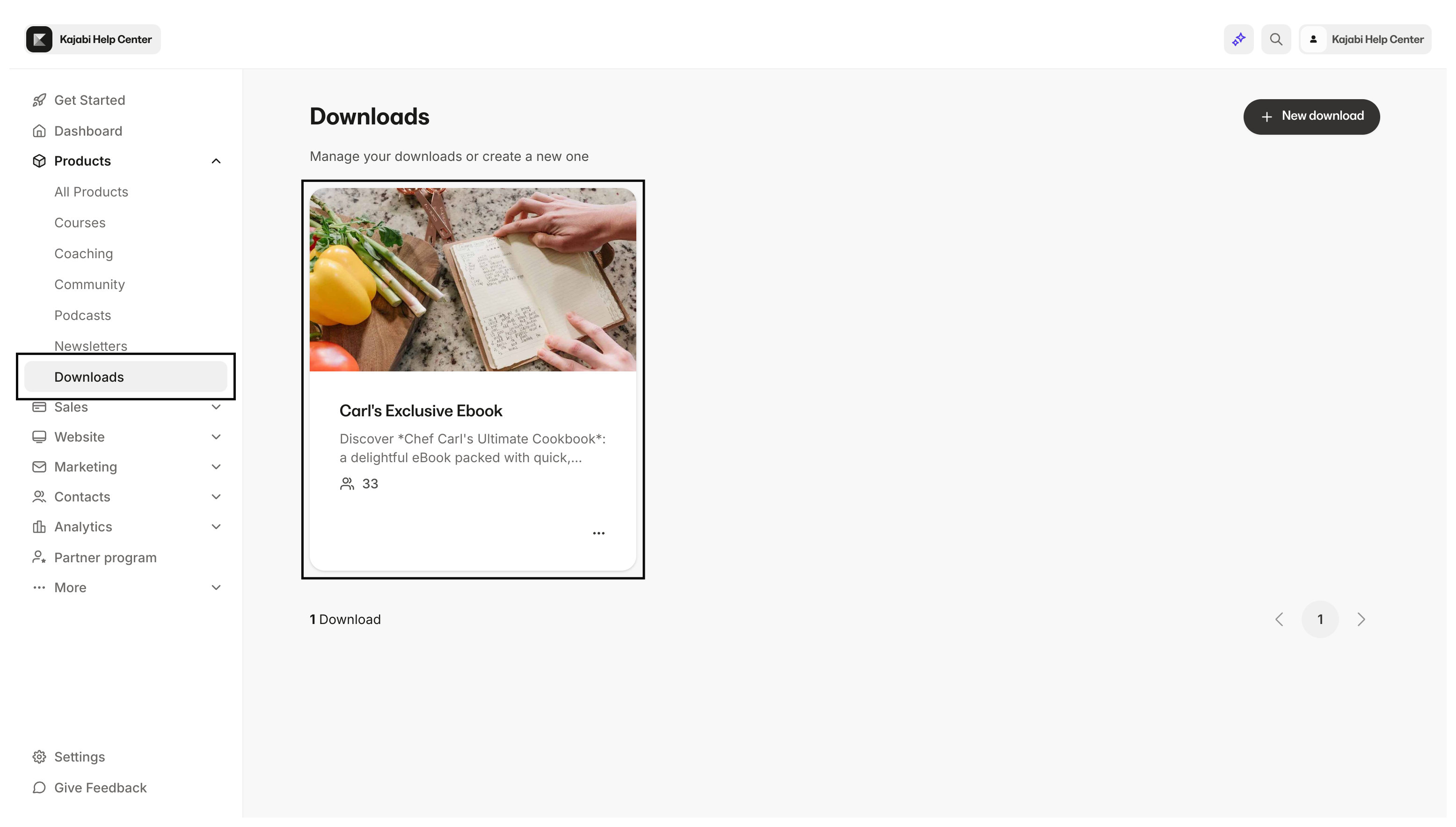
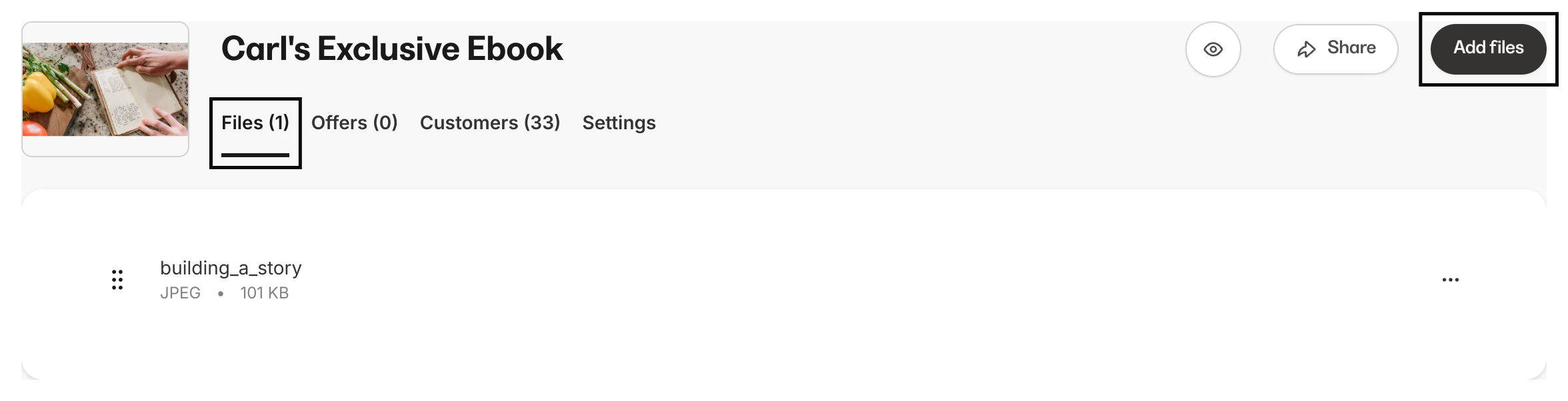
- Open the Files tab.
- Select Add files:
Remove files from a Downloads Product
- Open the Products tab from your Dashboard.
- Click Downloads.
- Select the Downloads Product that you wish to update:
- Open the Files tab.
- Locate the file you wish to delete.
- Open the More actions menu
…. - Select Delete.
- Confirm your desire to delete.
Note:
If you accidentally remove a file from your Downloads Product, you can re-upload the file by following the steps to add more files to your Product.
Edit a file title
- Open the Products tab from your Dashboard.
- Click Downloads.
- Select the Downloads Product that you wish to update:
- Open the Files tab.
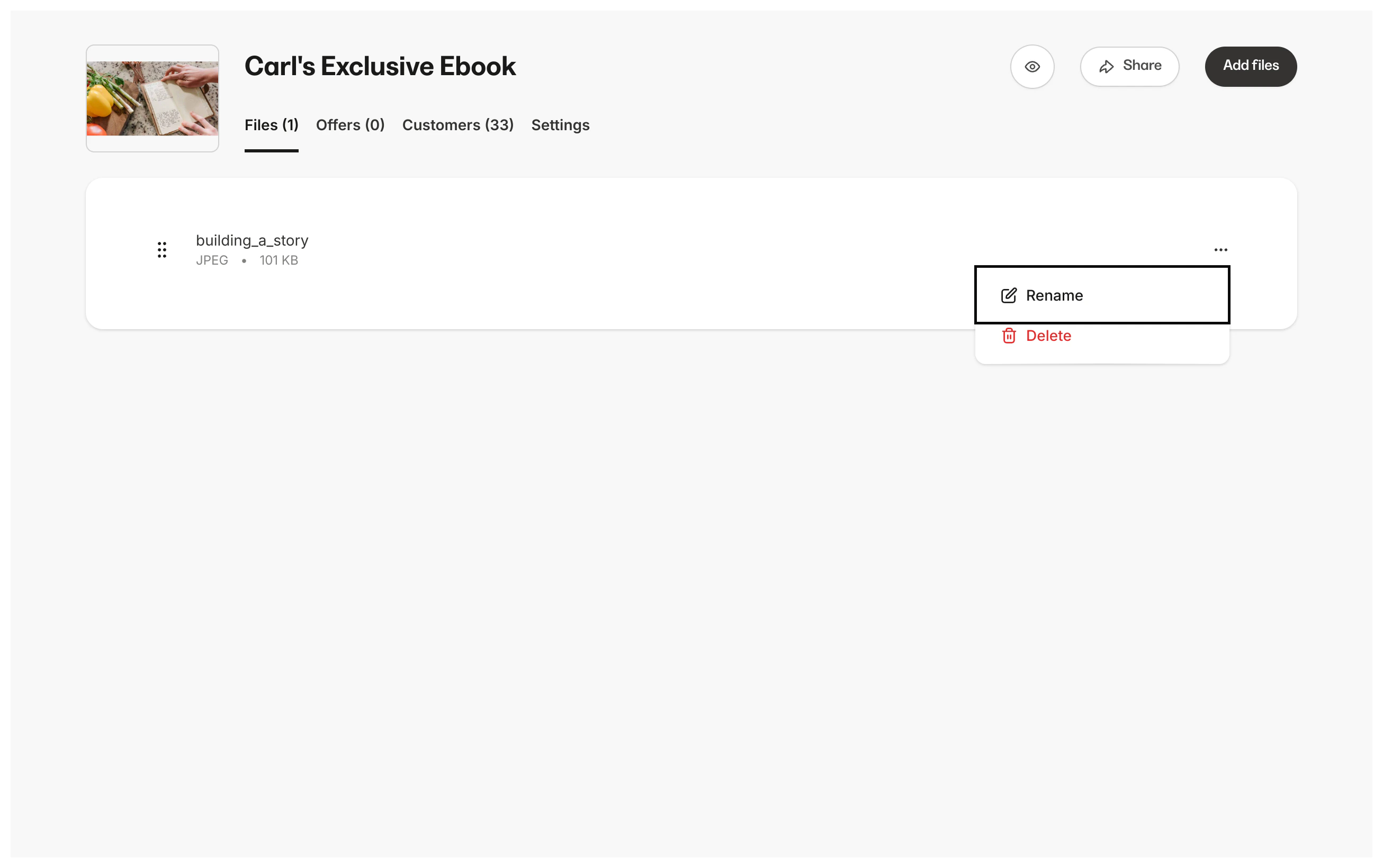
- Locate the file you wish to update.
- Open the More actions menu
…. - Select Edit file:
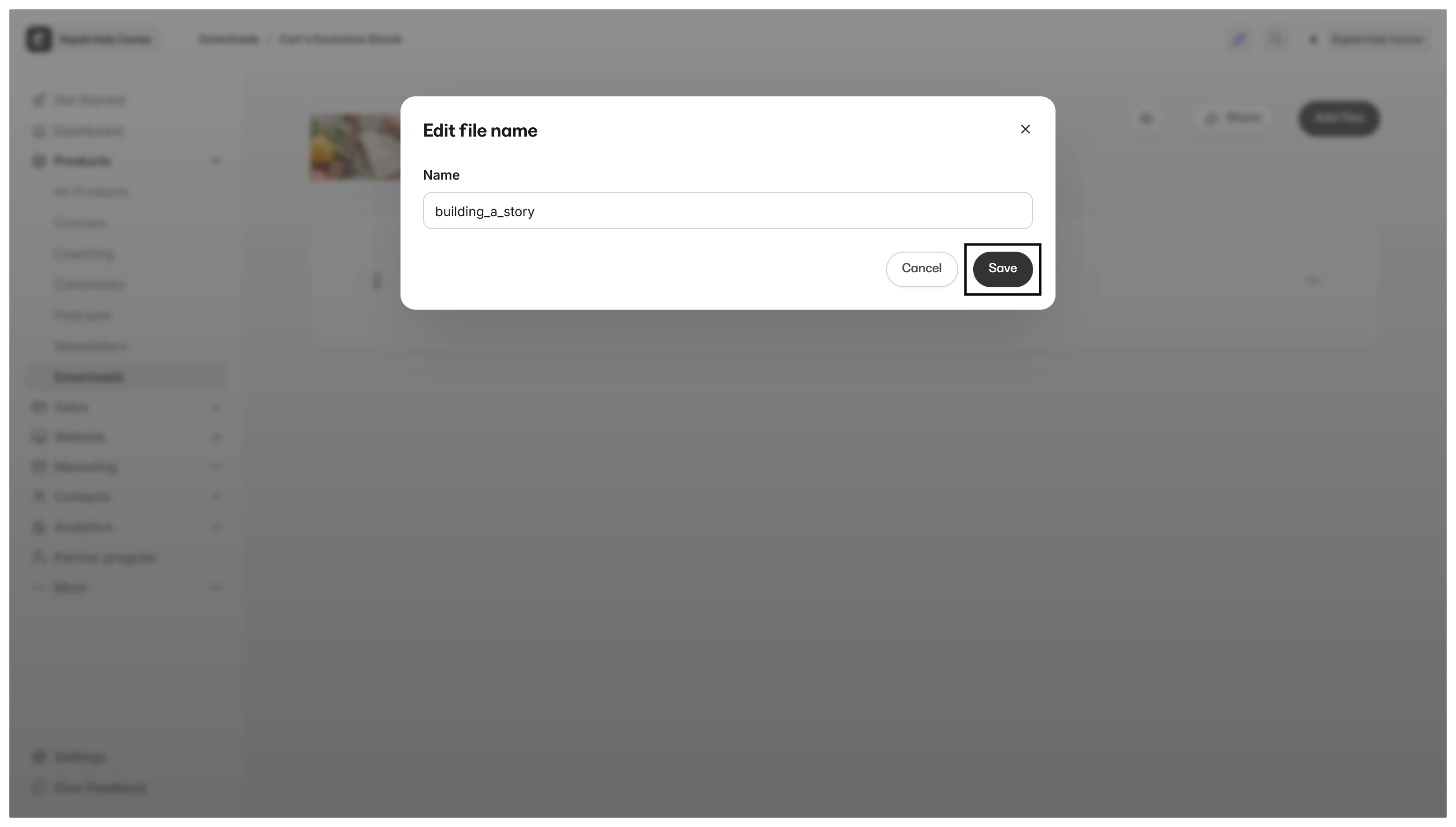
- Enter your file name.
- Click Save to keep and apply your changes:
Customize Downloads appearance
Your Download Product displays the colors and font styles set by the Style Guide for your Website Template.Access the Style Guide
- Open the Website tab from your Dashboard.
- Click Design.
- Click Customize:
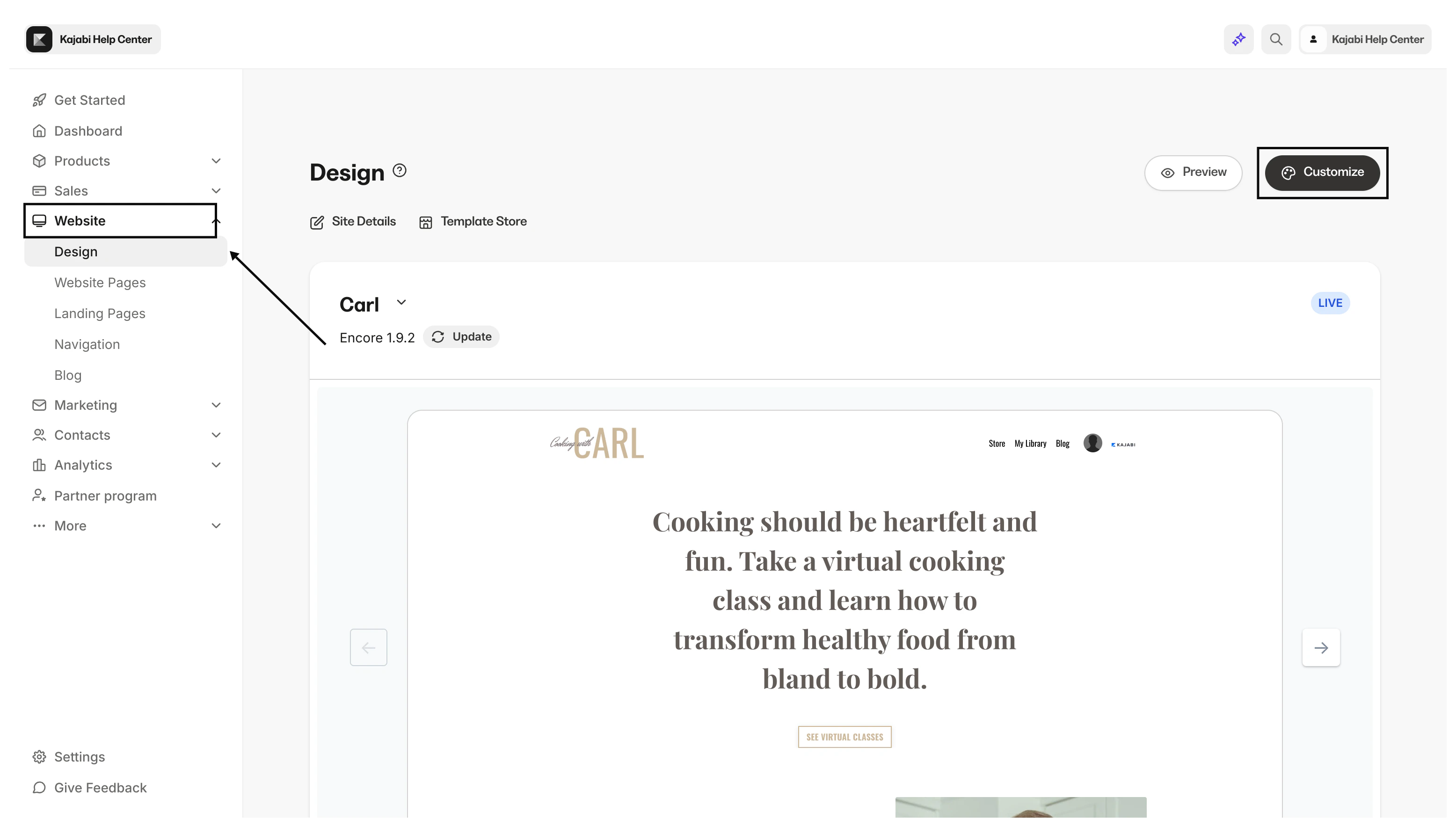
- In your Website Template Builder, click Settings.
- Select Style Guide:
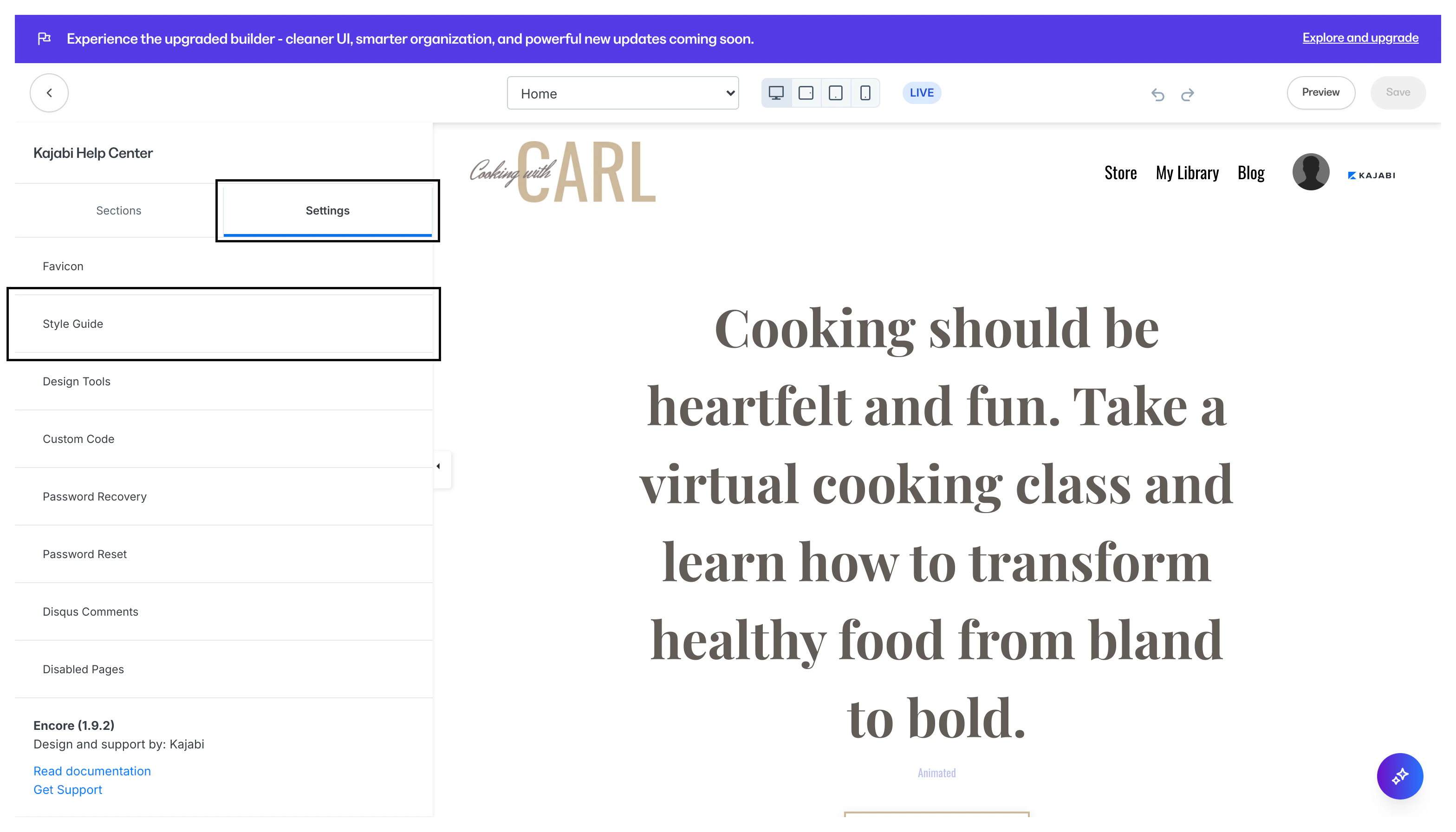
Note:
Updating the colors in the Style Guide settings of your Website Template will display your colors in all of your website pages and all pages that use your Website Template.
Customize colors and fonts
With the Website Template Style Guide, you can customize the appearance of your Downloads Product page by selecting the colors and fonts that best fit your brand and style. Adjust the following Website Style Guide settings to display in your Downloads Product and across your Website Pages:Page background color
Change the color displayed in the background of your Downloads Product page. For example, the yellow background in the image below: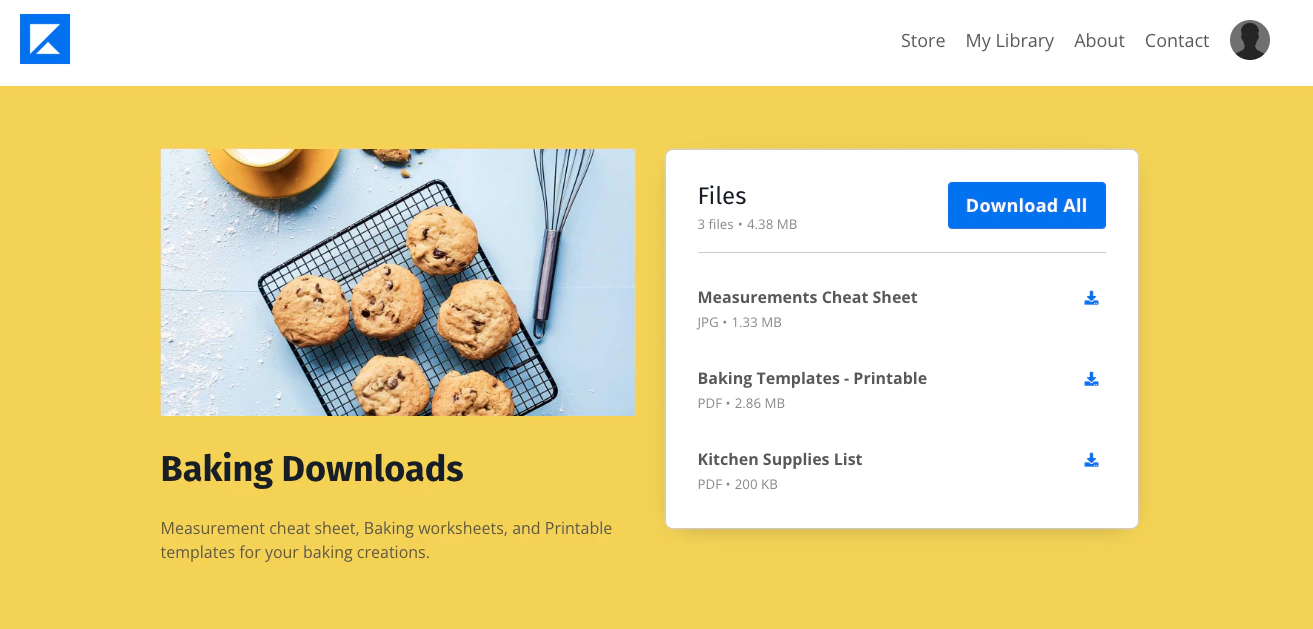
Primary color
Change the color displayed for the download icons next to each file: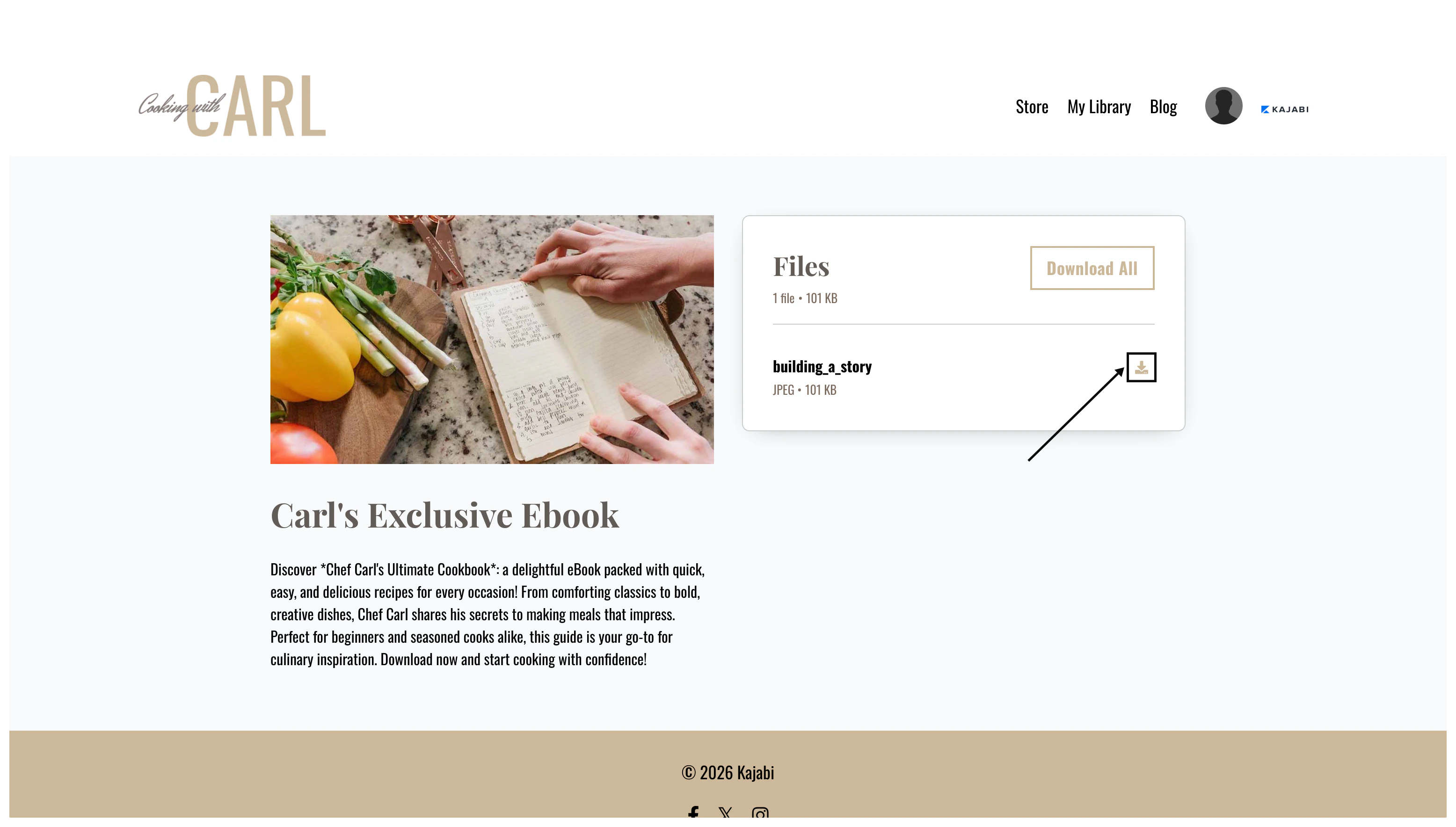
Font colors
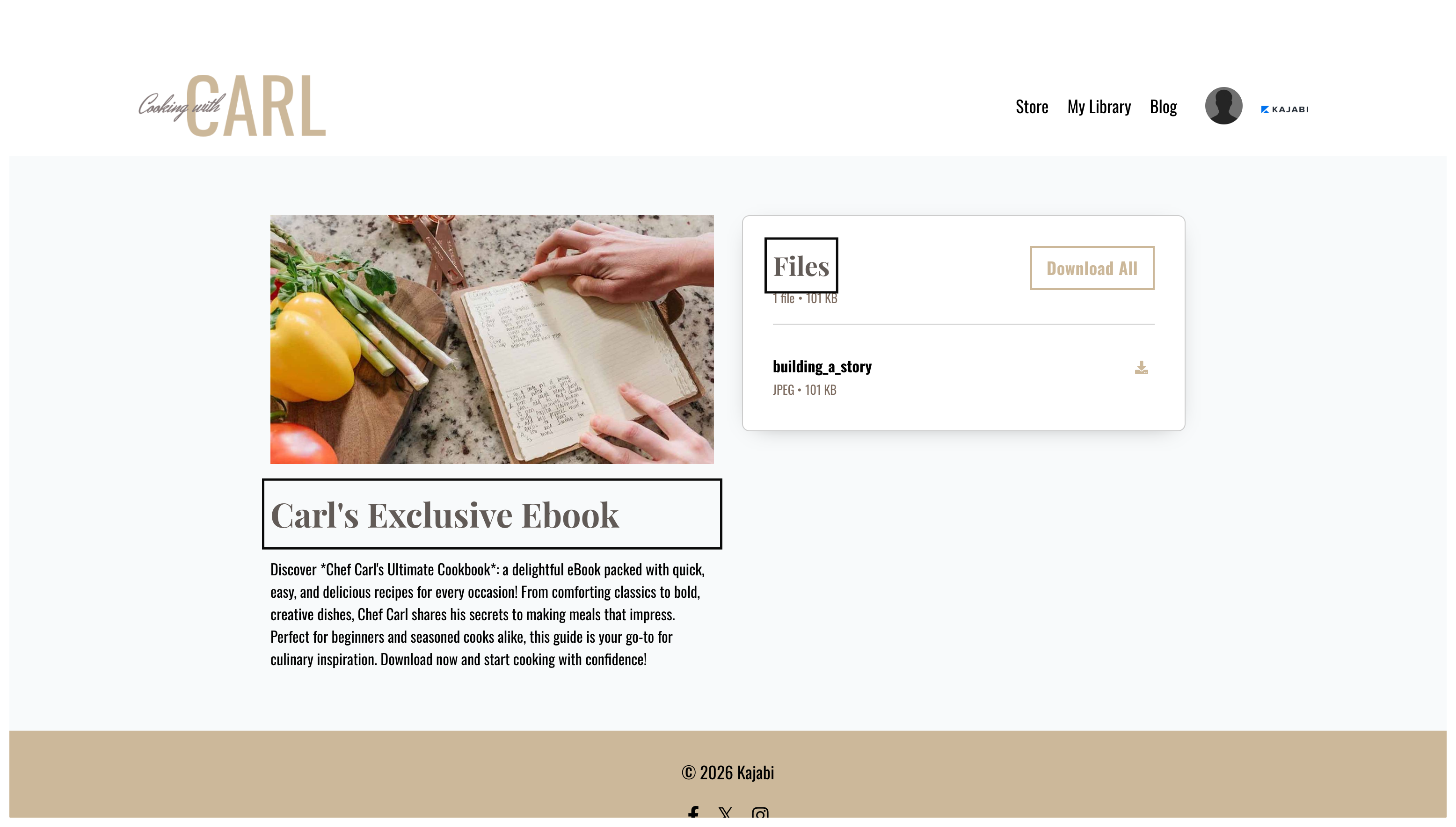
Heading Font Color - Change the color displayed for the title of your Downloads Product and the “Files” text: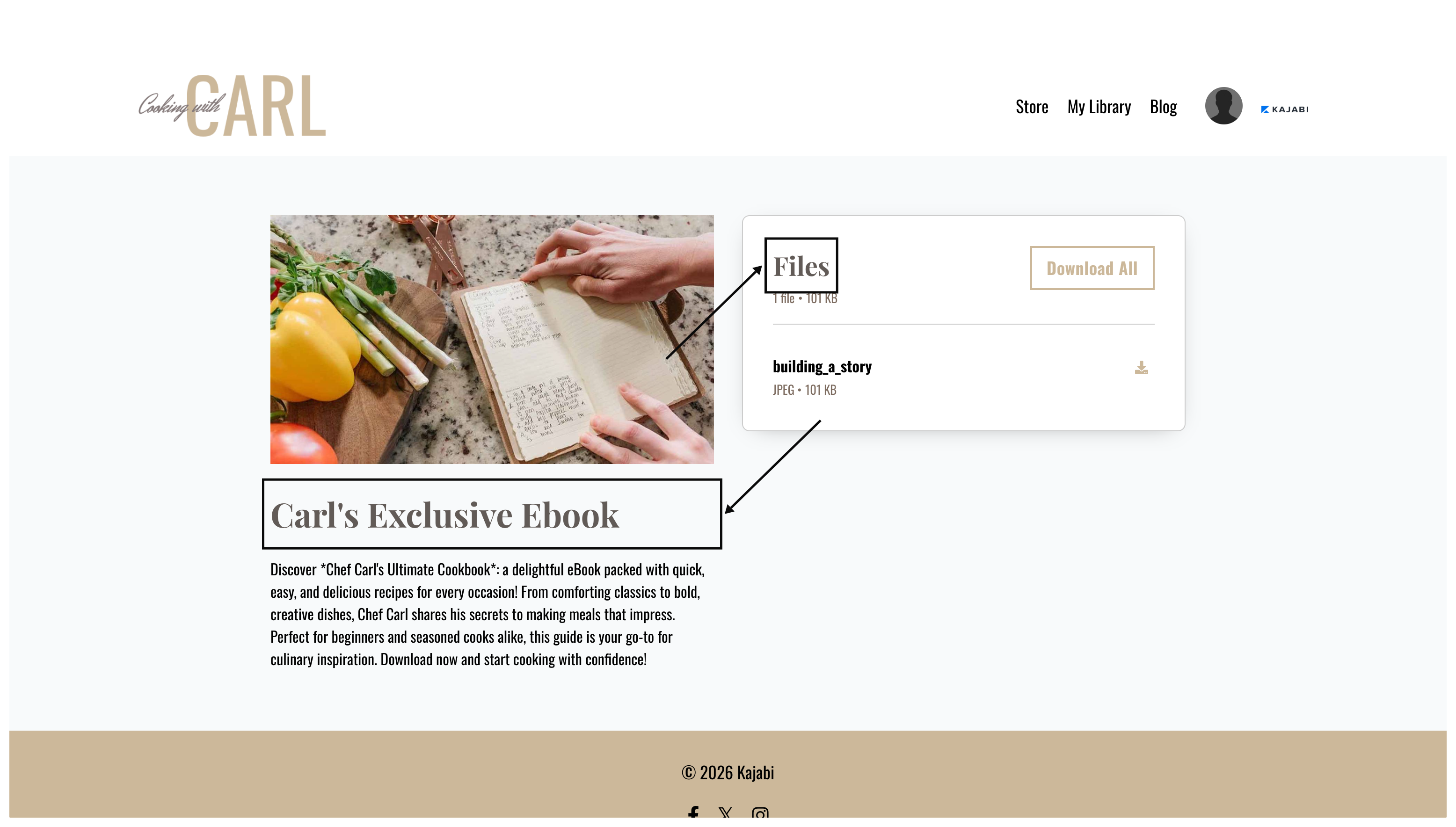
Buttons
Button Background Color - Change the color displayed for your Download All button: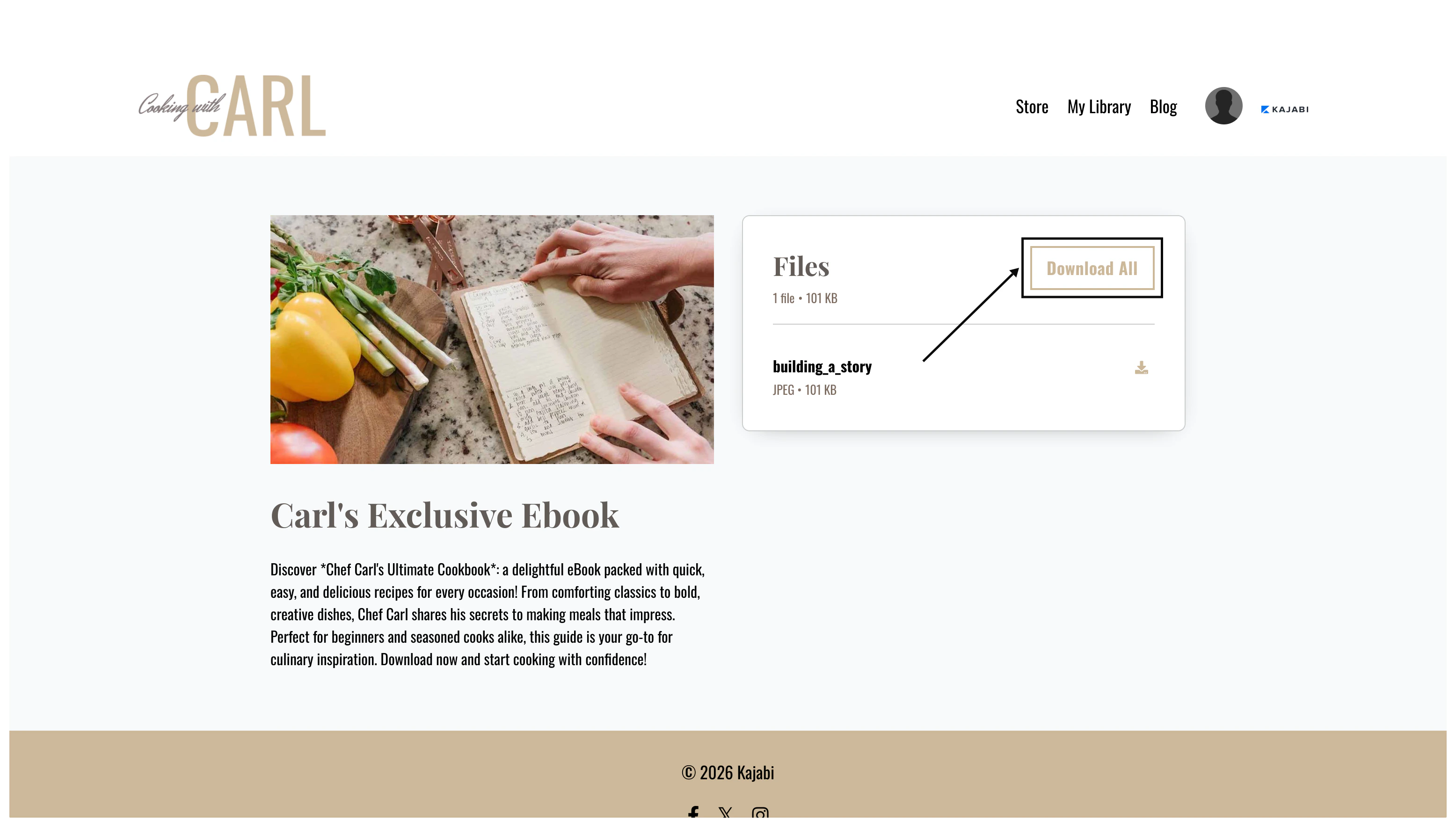
Fonts
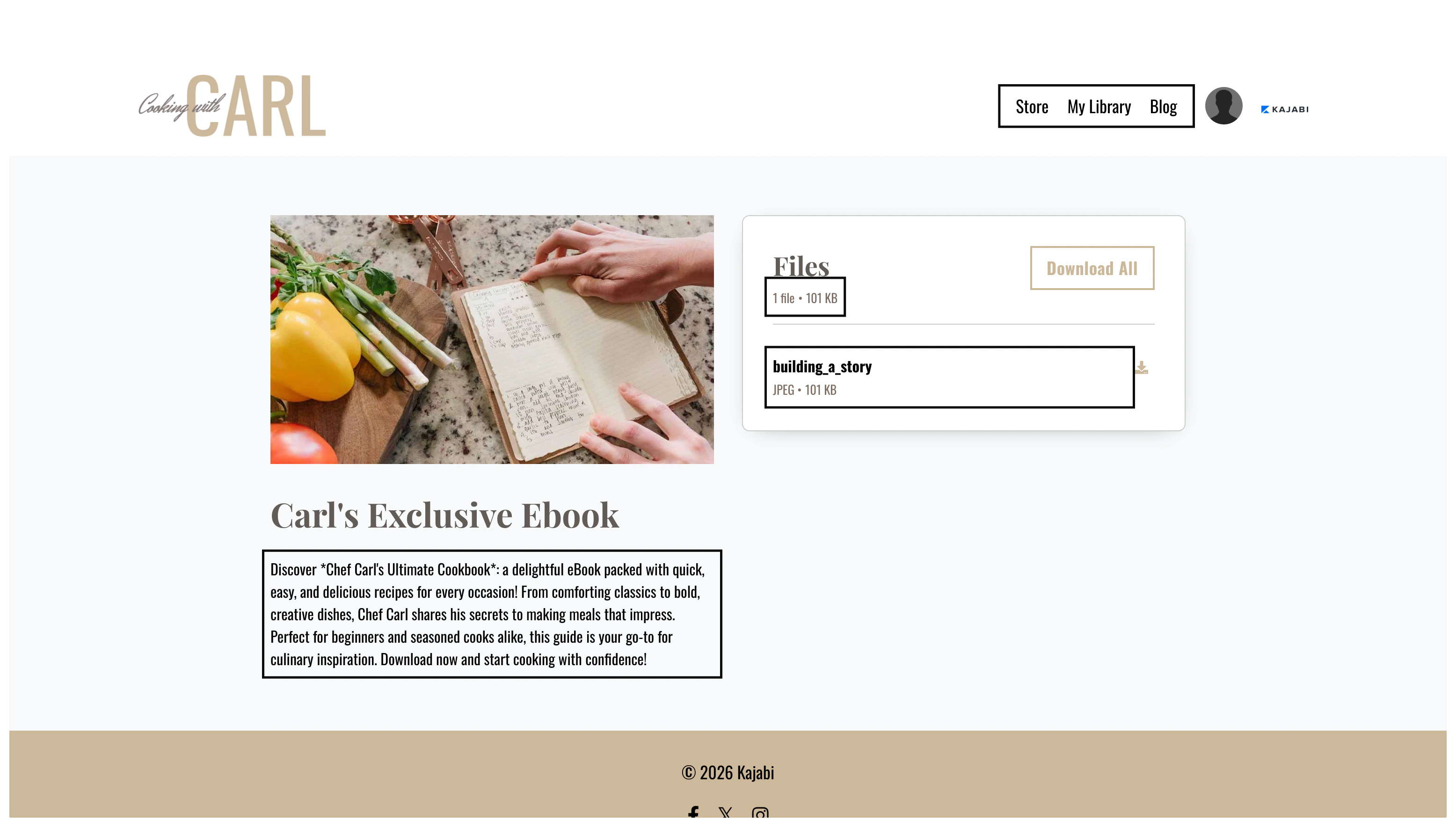
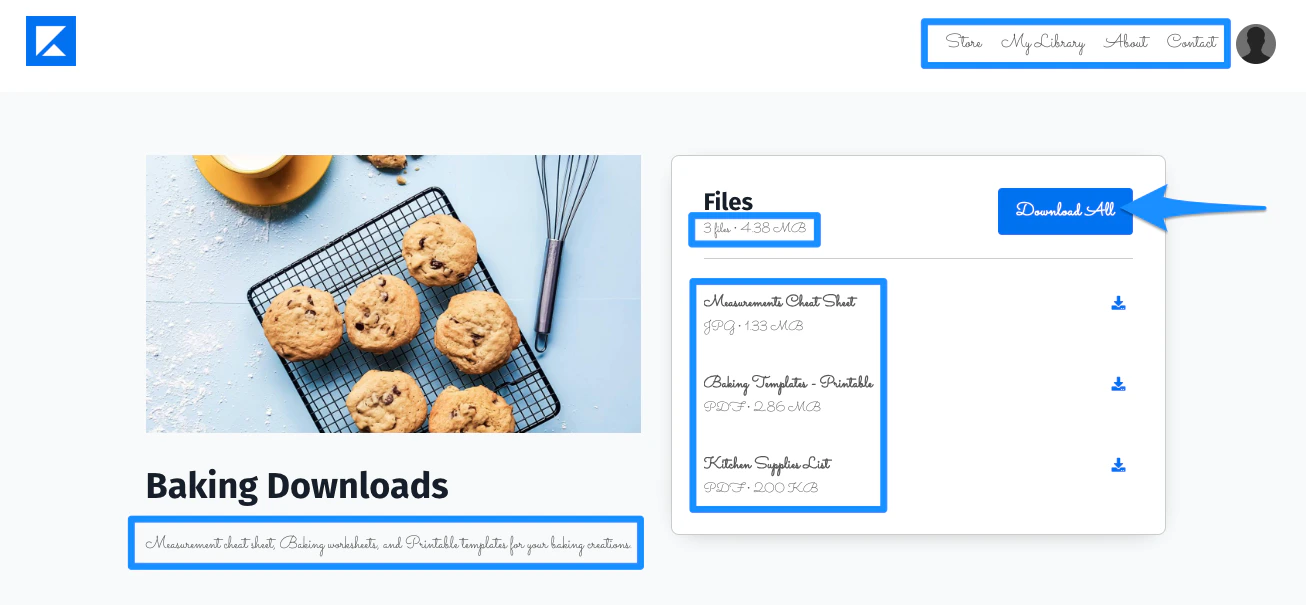
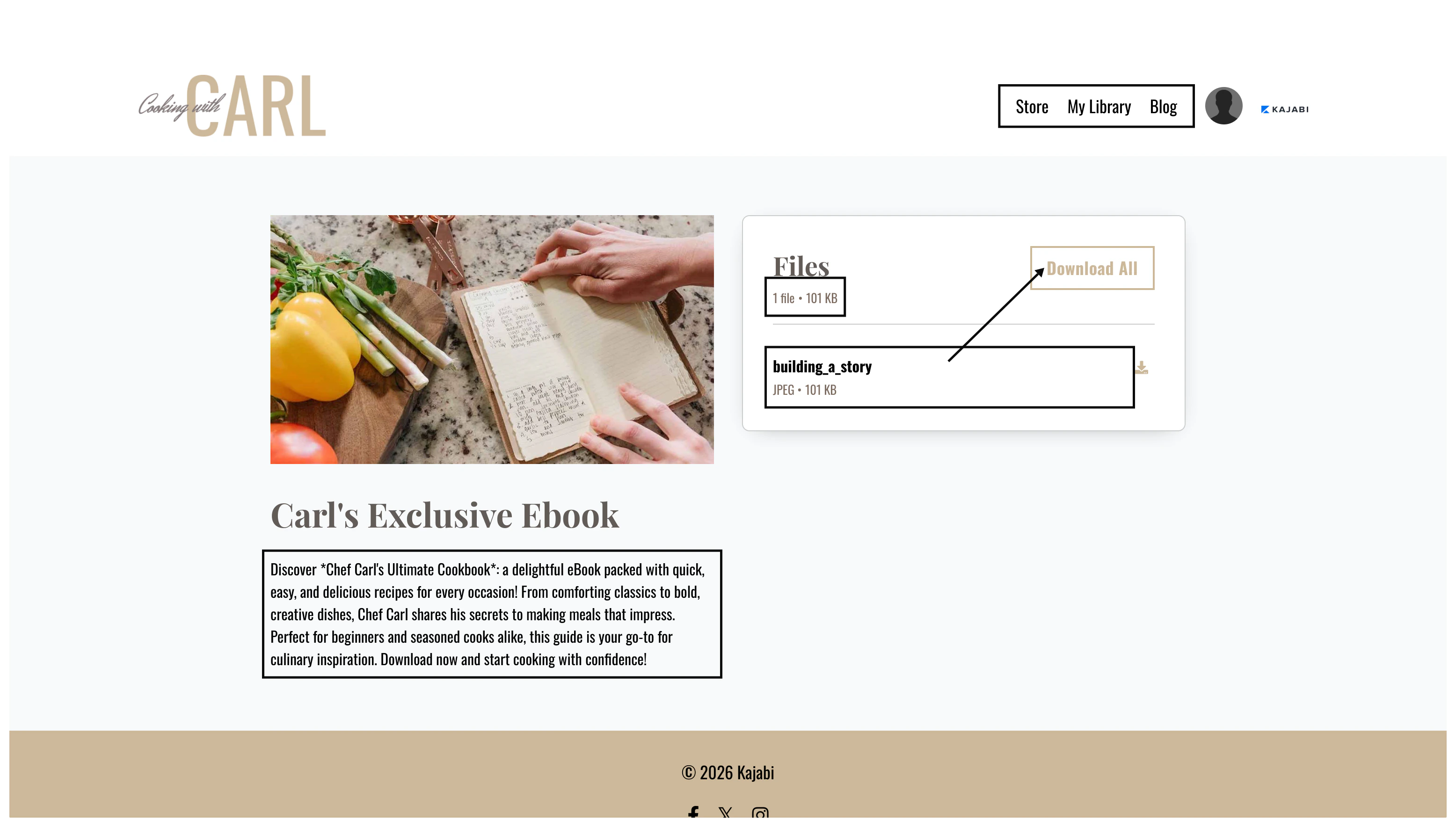
Body Font - Change the font family style for all of the body text displayed:- Downloads Product description
- Downloadable file names
- Downloadable file information (e.g., file type, file size)
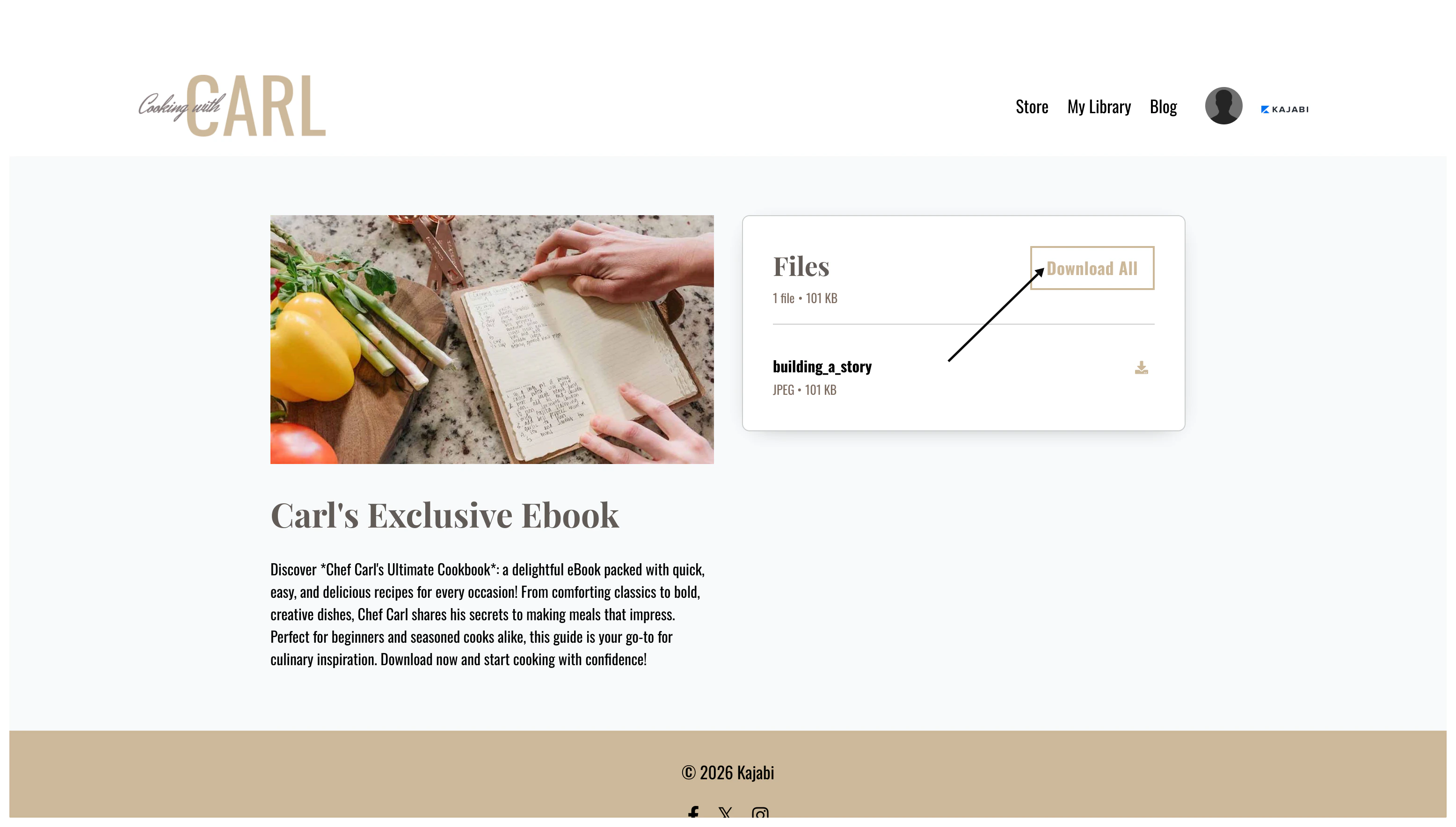
- “Download All” text
- Page header menu
- Downloads Product description
- Downloadable file names
- Downloadable file information (e.g., file type, file size)
- “Download All” text
- Page header menu
Note:
Font sizes cannot be changed as they are optimized for viewing on desktop and mobile devices.