

Note:
If your mobile device is using a developer, beta, or otherwise early-access operating system version such as those available through Android Beta or Apple’s iOS Public Beta, you may encounter errors when using the Kajabi App. These alternative versions are often unfinished or used as testing grounds for platform-specific bugs that can affect third-party applications.
Resolve an unresponsive app or unexpected quitting
If the Kajabi Mobile App is unresponsive or quitting unexpectedly, you may need to update the app to the latest version, force close the app, or restart your device.iOS devices (iPhone)
Update the app
If you haven’t updated the Kajabi Mobile App in a while, your app may not operate as expected. Follow Kajabi’s guide on how to manually update the Kajabi Mobile App on your iOS device. If you need further assistance, refer to Apple’s guide for updating your Apple apps.Force close the app to reset and clear its memory
If your Kajabi Mobile App is updated to the latest version and continues to remain unresponsive, the app may be stuck or overloaded. See Apple’s guide for force closing apps to force close the app to reset and clear its memory.Restart the iOS device
Follow Apple’s guide on how to restart your iPhone.Log in using a mobile web browser
Logging in to a customer account using a device’s mobile web browser will help determine if the issue is specific to the Kajabi Mobile App or if there is an issue with the customer account. If you are able to log in using the device’s mobile web browser but are still experiencing mobile app issues, contact our support team.Android devices (Galaxy, Pixel, etc.)
Update the app
First, check that the Kajabi App is up to date with the latest version in the Google Play app:- Open the Google Play app
- Click the three horizontal lines at the top of the screen
- Select My apps & games
- Choose to Update all, or go through each app and update only the ones needed
Force stop the app to reset and clear its memory
If your Kajabi Mobile App is updated to the latest version and continues to remain unresponsive, the app may be stuck or overloaded. Force stop the app to reset and clear its memory:- Open Android Settings
- Scroll down and open Apps or Application Manager
- Locate Kajabi in the list of apps
- Select Kajabi
- Click Force Stop
Restart the Android device
Since restarting an Android device varies by device, research the specific Android device online or contact the device’s manufacturer for further instructions on how to restart the device.Log in using a mobile web browser
Logging in to a customer account using a device’s mobile web browser will help determine if the issue is specific to the Kajabi Mobile App or if there is an issue with the customer account. If you are able to log in using the device’s mobile web browser but are still experiencing mobile app issues, contact our support team.Locate a missing confirmation email
After a customer’s email address has been entered in the Kajabi Mobile App, they will be prompted to open their device’s email app to confirm the email address. In order for the Kajabi Mobile App to connect to the customer’s email address, the link must be clicked on the device with the Kajabi Mobile App installed. Example confirmation email: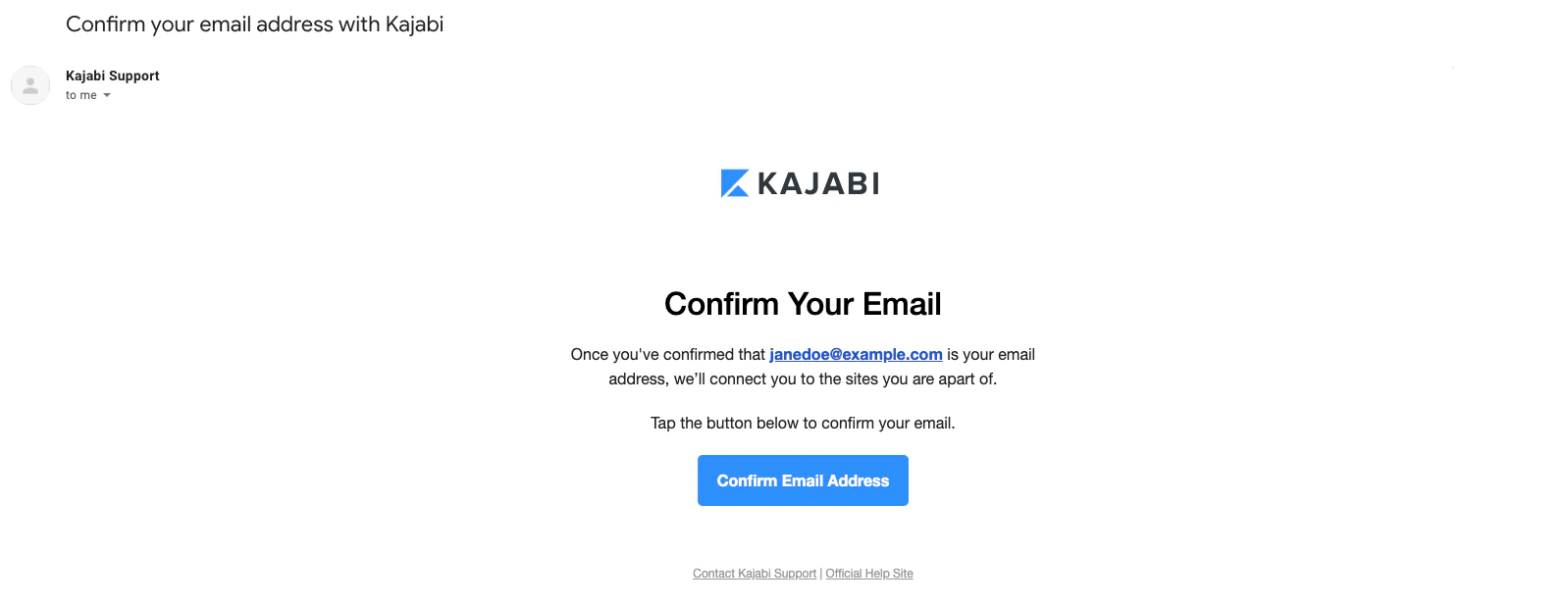
Note:
The confirmation link is a single-use link and will expire after the first click. Forward the email before clicking Confirm Email Address to ensure that the link does not expire.
Check spam or junk mail folders
Sometimes the confirmation email sent by Kajabi can end up in spam or junk mail folders. Be sure to double check spam or junk mail folders to ensure the confirmation email has not been overlooked. If you are still unable to locate the confirmation email in spam or junk mail folders, contact our support team for further assistance.Note:
Be sure to check the email inbox frequently to avoid the 2-hour link expiration. If the link expires before confirmation, reinstall the app to re-enter the email address and receive a link.
Resolve an expired confirmation link

The link has exceeded the 2-hour expiration time
If the link has passed its expiration time, uninstall and reinstall the app to enter the email address again. Then, return to the email inbox to open the confirmation link.The link has already been clicked
The confirmation link is a single-use link. If you are receiving this message within the 2-hour time frame, the link may have already been clicked. Return to the email inbox and delete the confirmation email. This will help avoid any confusion when receiving a confirmation email. After removing previous confirmation emails, uninstall and reinstall the Kajabi Mobile App to re-enter the email address. A link will then be sent. Proceed to confirm the email address from the device used to install the Kajabi Mobile App.Resolve repeated email confirmation prompts
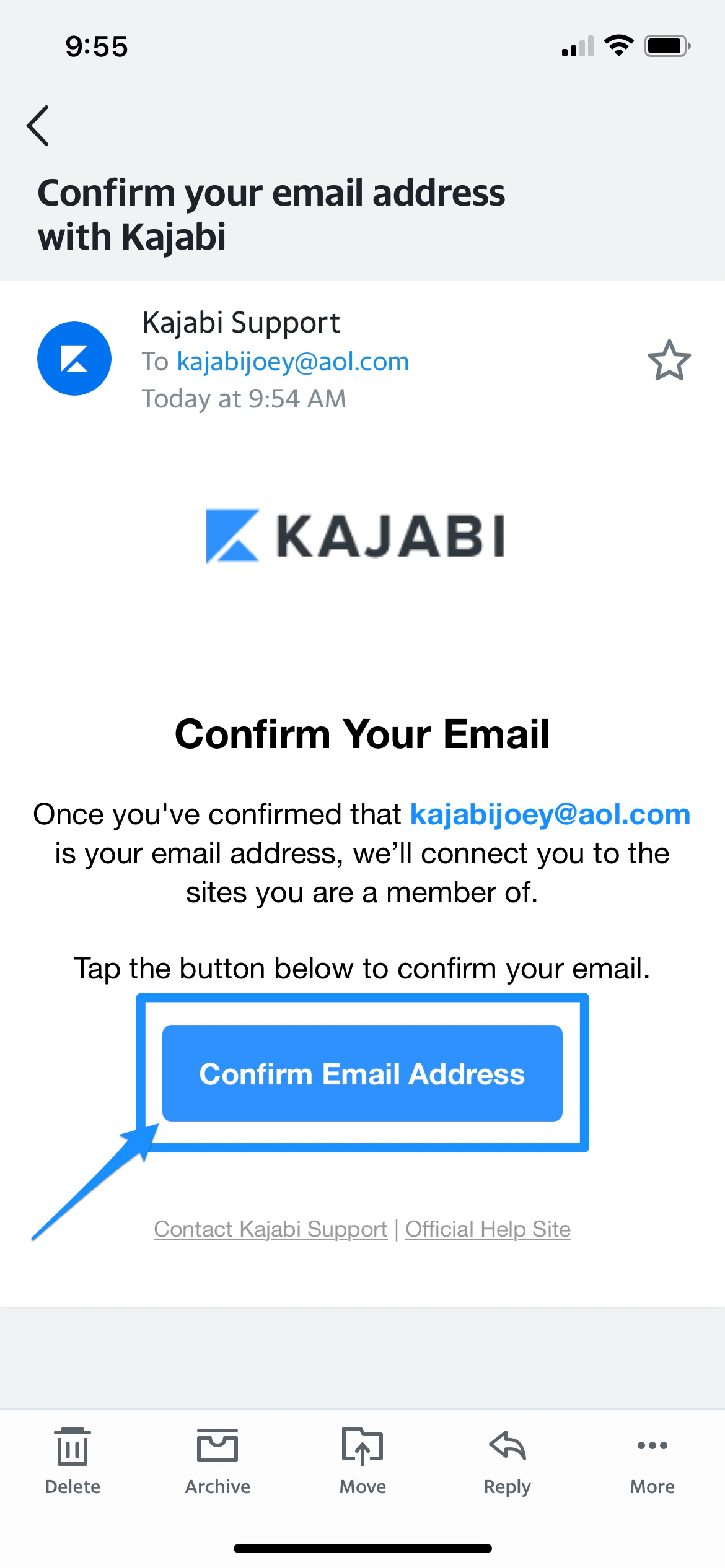
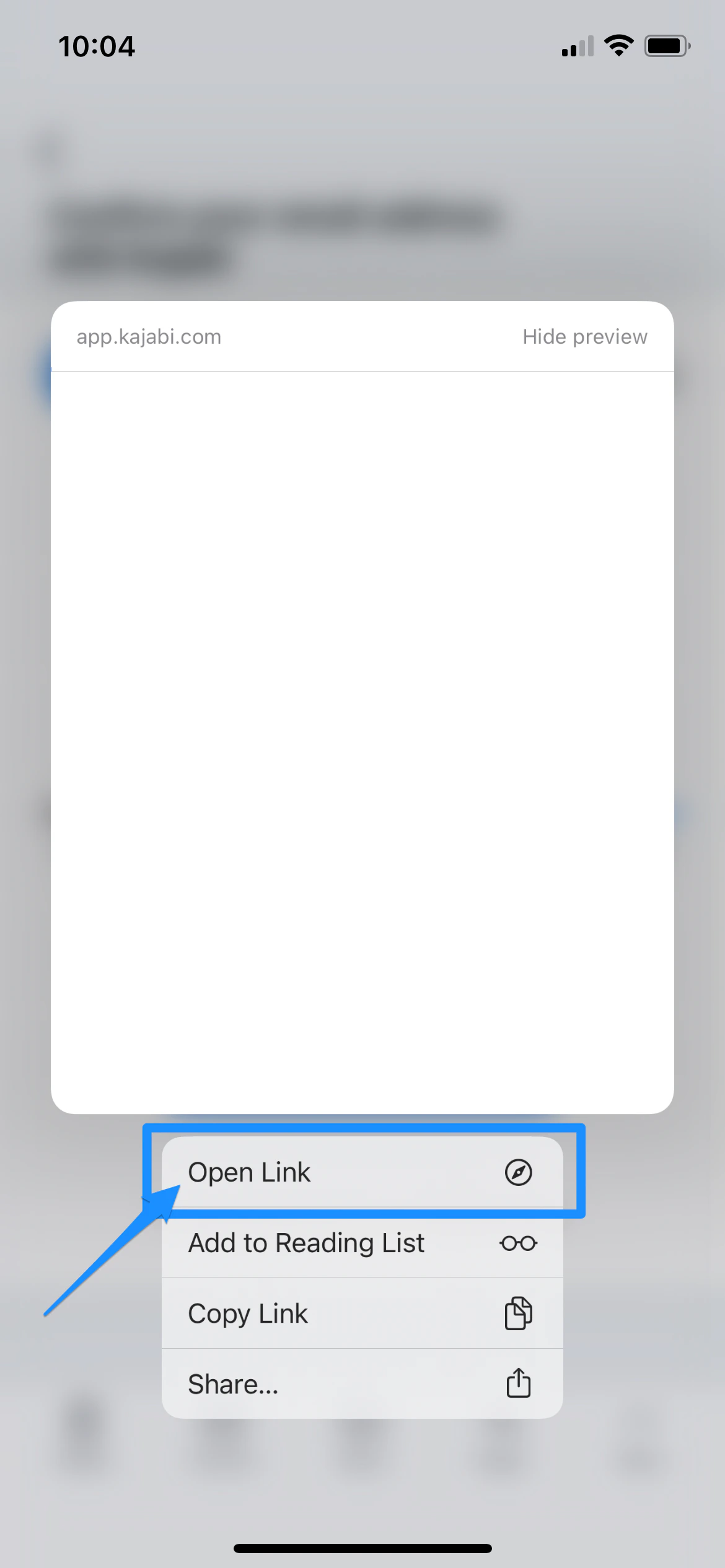
If you have clicked the Confirm Email Address button on a mobile device and are redirected back to the Kajabi Mobile App and asked to confirm the email address again, follow these steps:- Press and hold the Confirm Email Address button (1-2 seconds) in the email app until the option appears to open the link in a browser
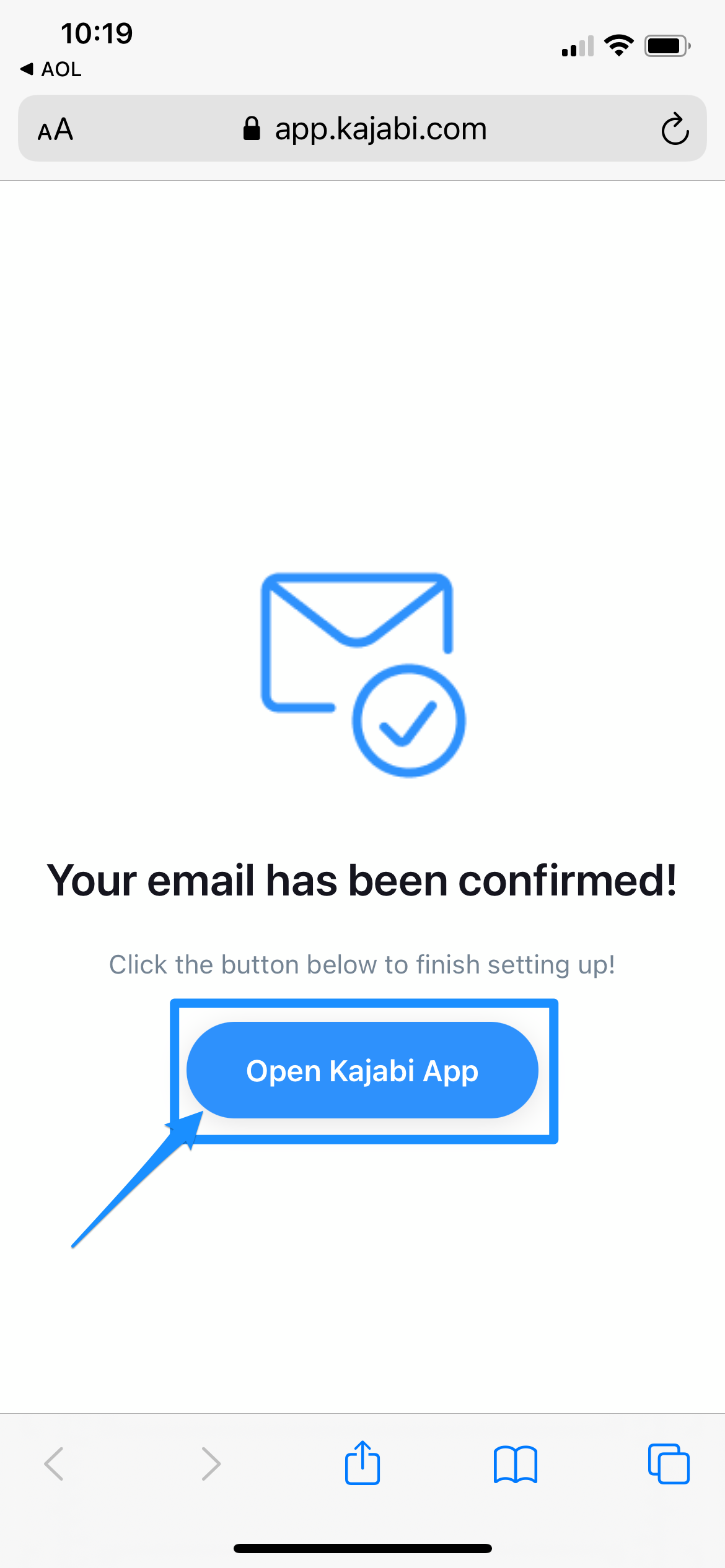
- Open the link in the browser and click Open Kajabi App:
Help customers use the mobile app
In order to assist your customers, it is important to understand how your customers log in to the Kajabi Mobile App. Start by reviewing Kajabi’s guide on downloading and logging in to the Kajabi Mobile App.If a customer is unable to log in to the Kajabi Mobile App
Since the Kajabi Mobile App is designed for customer use only, it is important to verify the email address entered into the Kajabi Mobile App matches an email address associated with a valid customer account. As an Admin, you can assist your customer by confirming they are using a valid customer email address. Start by asking your customer to confirm the email address they are using to log in to the Kajabi Mobile App. Then:- Navigate to the Contacts tab from your Dashboard
- Locate the email address your customer provided you in your list
- Ensure there is a checkmark icon attached to their avatar:
If a customer is able to log in but has no digital Products
Has your customer successfully logged into the Kajabi Mobile App, but there are no digital Products? As an Admin, you can confirm the Products that your customer should have access to in your Contacts Profile. Start by asking your customer to confirm the email address they are using to log in to the Kajabi Mobile App. Then:- Navigate to the Contacts tab from your Dashboard
- Locate the email address your customer provided you in your list
- Click on the customer’s name
- Select the Products tab
- View the Products your customer should have access to:
Note:
If you are an Admin of your Kajabi site and you are looking to test the Kajabi Mobile App with your Products, follow our guide on preview Products on the Mobile App.