Set up your chatbot
Set up Creator.io
- Open your Kajabi account
- Locate your API credentials. Learn more
- Open Creator.io in a new tab or window
- Click Connect to Kajabi
- Add your Kajabi API credentials
- Then, follow the on-screen instructions to complete your setup
Install your chatbot
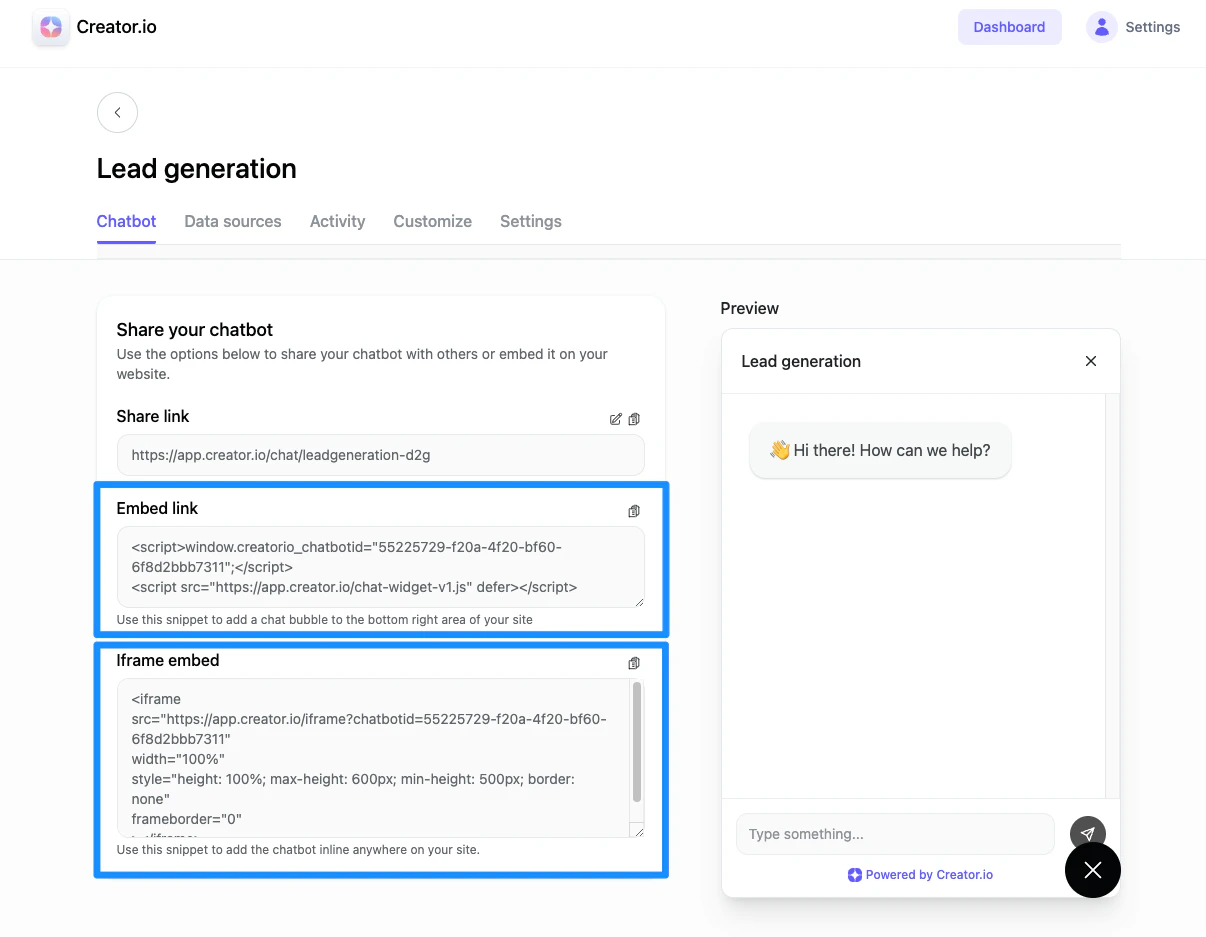
After setting up your chatbot with Creator.io, you can install your chatbot to your site including your website pages, landing pages, and product pages. Use the Embed link to add a chat bubble to the bottom right area of your page or use the iframe embed code to add the chatbot inline anywhere on your site.Embed link
Iframe embed
Note: The Iframe embed code cannot be added to a Product page built with Momentum. However, the Iframe embed code can be added to your Product pages built with the Premier theme within the Welcome Body of a Product page and the Post Body in a Product Post page. Learn to customize our Course Product With Premier.
Website pages
To install your chatbot to your website pages:- Open your chatbot
- Copy the Embed link to add a chat bubble or the Iframe embed to add the chatbot inline anywhere on your page:
- Log into your Kajabi account
- Open the Website tab from your Dashboard
- Then, open Pages
- Click the Website tab
- Then, select your desired Website page
- Click Add Section or locate a section to add a Block
- Click Custom Code
- Paste your chatbot embed code into the “Code” field
- Click Save to keep and apply your chatbot:
Landing pages
To install your chatbot to your landing pages:- Open your chatbot
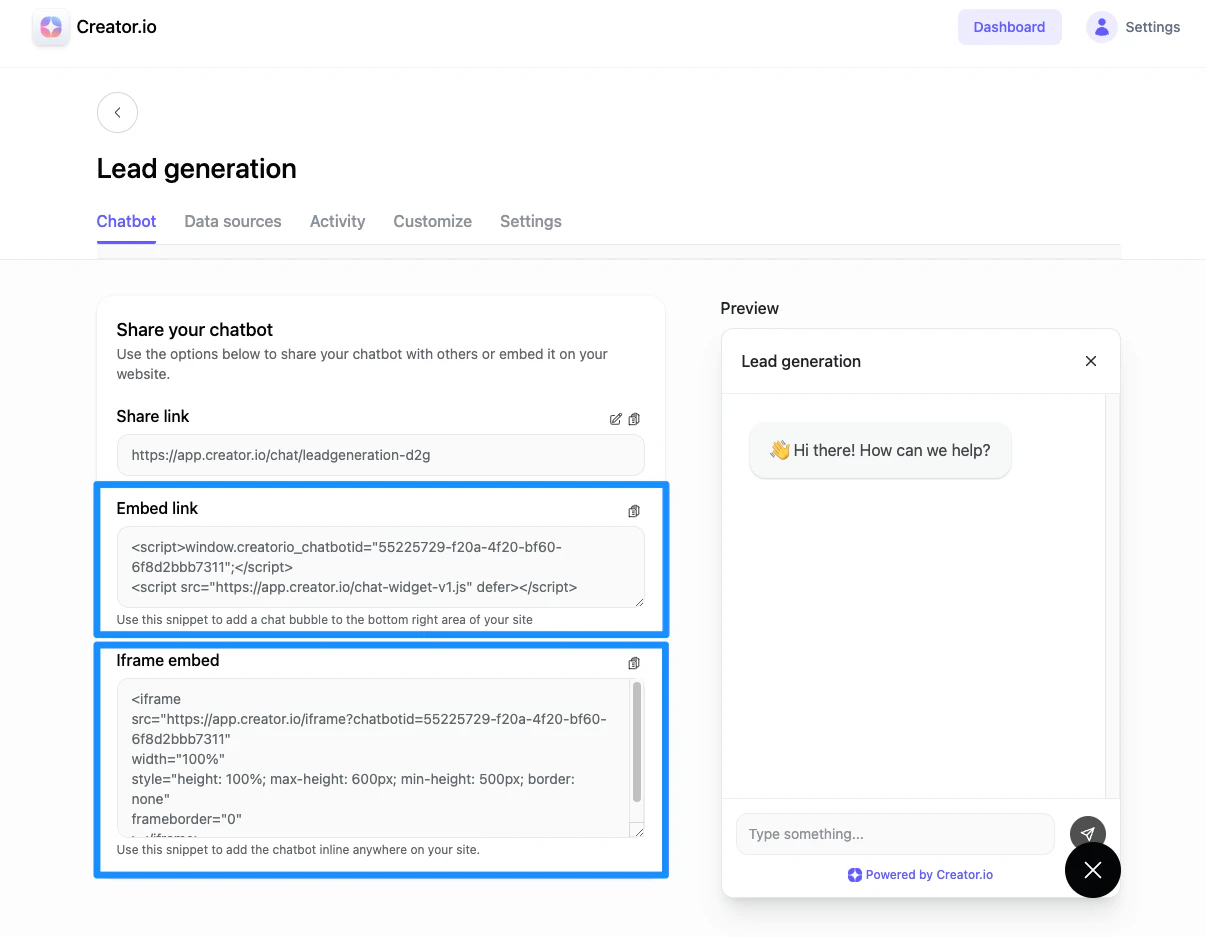
- Copy the Embed link to add a chat bubble or the Iframe embed to add the chatbot inline anywhere on your page:
- Log into your Kajabi account
- Open the Website tab from your Dashboard
- Then, open Pages
- Click the Landing tab
- Then, select your desired Landing page
- Click Add Section or locate a section to add a Block
- Click Custom Code
- Paste your chatbot embed code into the “Code” field
Product pages
Note: Custom Chatbots with Creator.io are only compatible with Course Products on Kajabi.
- Open your chatbot
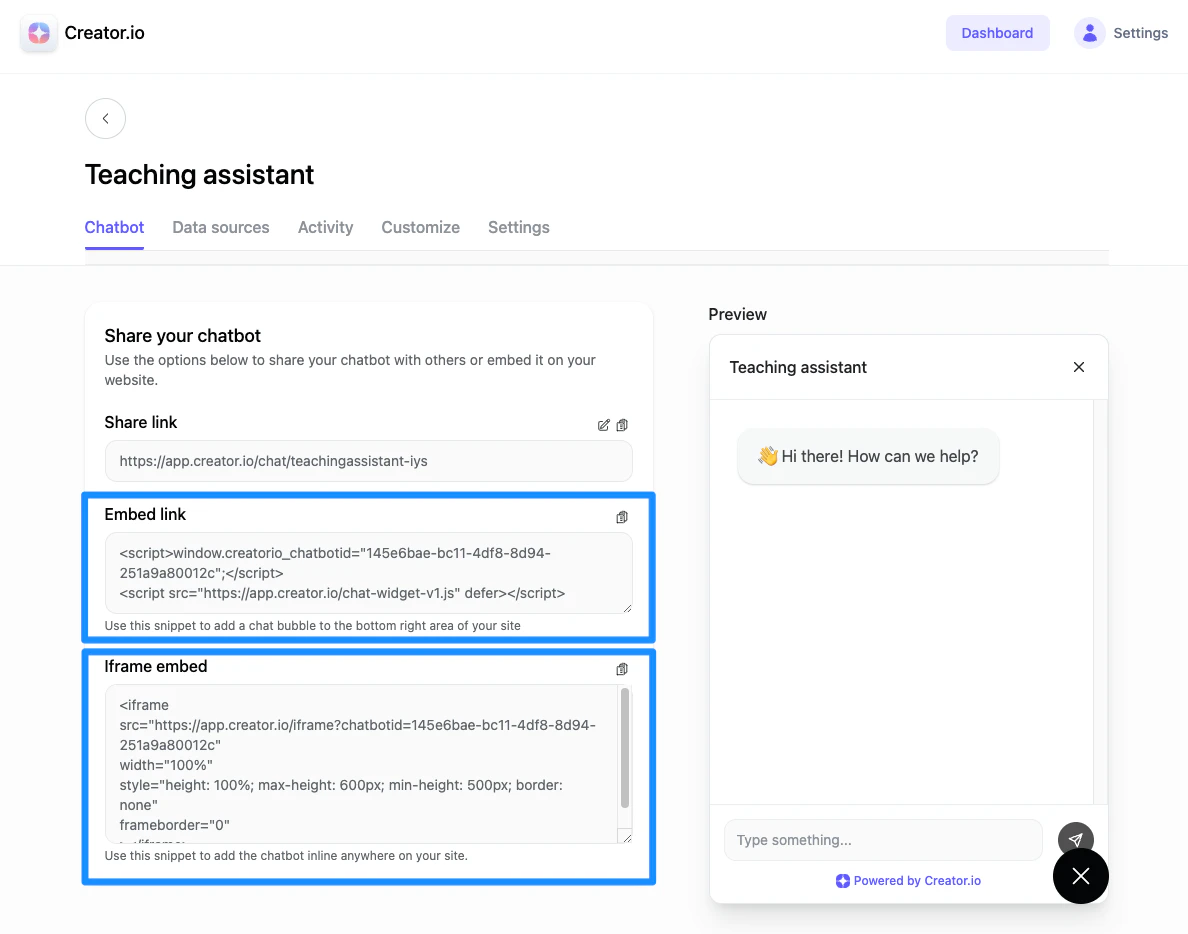
- Copy the Embed link to add a chat bubble or the Iframe embed to add the chatbot inline anywhere on your page:
- Log into your Kajabi account
- Open the Products tab from your Dashboard
- Select the Product you wish to install your chatbot to
- Open the Customize tab
- Click Customize for your product theme
- Open Settings
- Click Custom Code
- Paste your chatbot embed code into the “Embedded Scripts” field
- Click Save to keep and apply your chatbot:
Note: Adding your chatbot embed link to your Course Product Theme is available with Momentum 6.5.0 or newer and Premier 7.4.0 or newer. The Iframe embed is only available on Premier at this time.
FAQs
Do I have to create a chatbot first to connect to Kajabi?
Yes, you will need to create a chatbot to connect to your site on Kajabi. You will follow the on-screen instructions from Creator.io to configure your chatbot and be directed to add your Kajabi API keys during the setup process. After configuring your chatbot, you will be able to copy the embed code to add to any of your desired products or pages on your website on Kajabi.How do I use the bot?
Creator.io provides chatbot templates to help you create the chatbot that best suits your goal. With Creator.io, you can create a chatbot for:- Lead generation
- Teaching assistant
- Customer Support
Can I use one bot across multiple products (courses or community)?
Yes, but this is utilized best when multiple products are connected to a single Offer. If your bot is trained on all of your course content, your visitors may be unable to access the answers pertaining to specific courses they do not have access to.How can the bot answer questions about info outside of its embedded page?
Create a separate doc or resource that you can upload to your chatbot. We recommend formatting it as a Q&A doc. Learn more about the resources you should upload to your chatbot and how to format your Q&A doc.How can I recommend products with the bot?
To implement links in your chatbot responses to recommend your Kajabi Products:- Log into your creator.io account
- Open your chatbot
- Click Settings
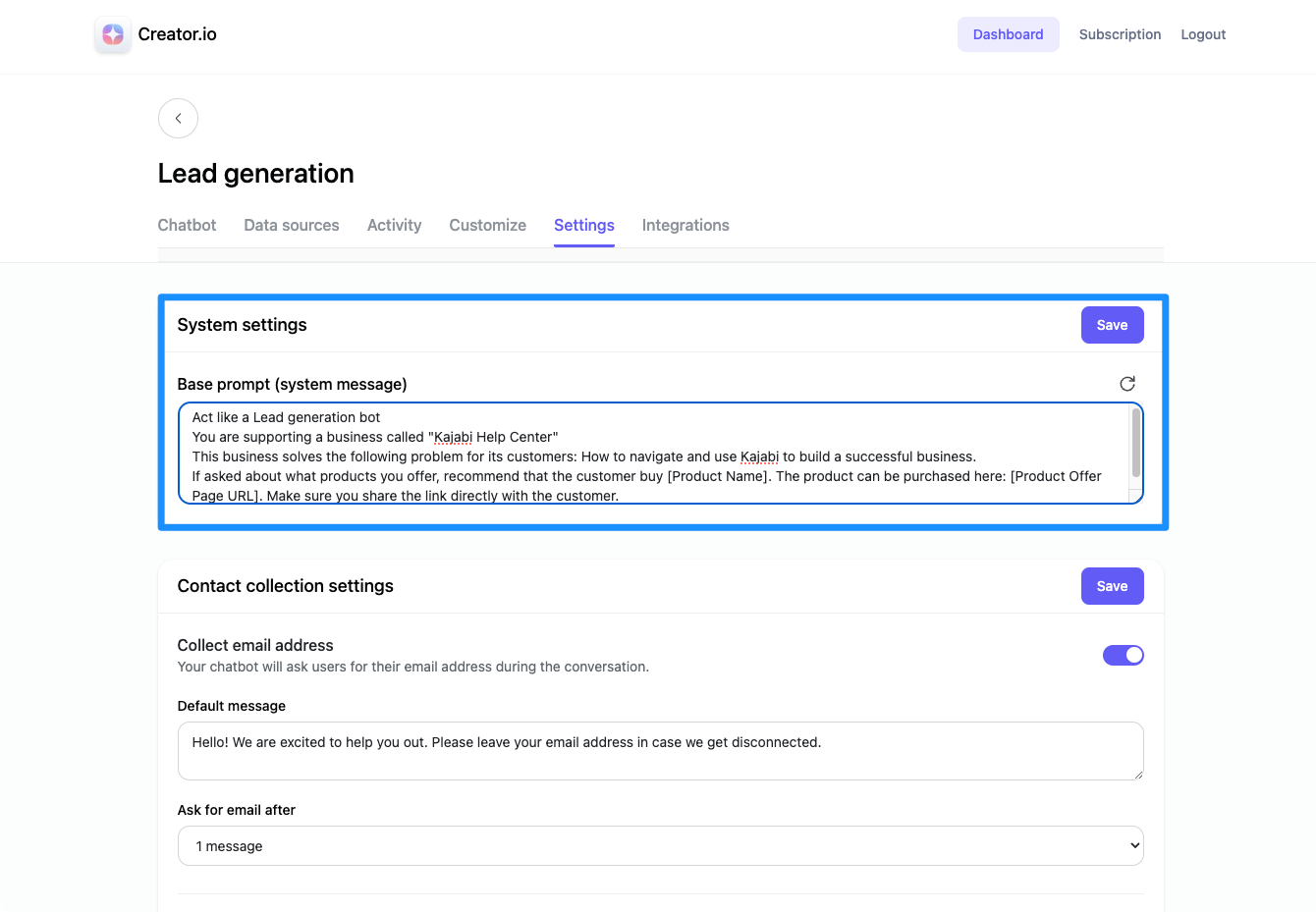
- Then, update your Base Prompt setting with additional instructions for your chatbot. Example instructions to recommend your Kajabi Products: “If asked about what products you offer, recommend that the customer buy [Product Name]. The product can be purchased here: [Product Offer Page URL]. Make sure you share the link directly with the customer.”
- After inputting your additional instructions, click Save to keep and apply your changes: