

Update instructor info in Site Details settings
When you create a Course using the Premier, Creative, or Prosper template and add an Instructor Block to your Product Sidebar, your information is pulled in automatically: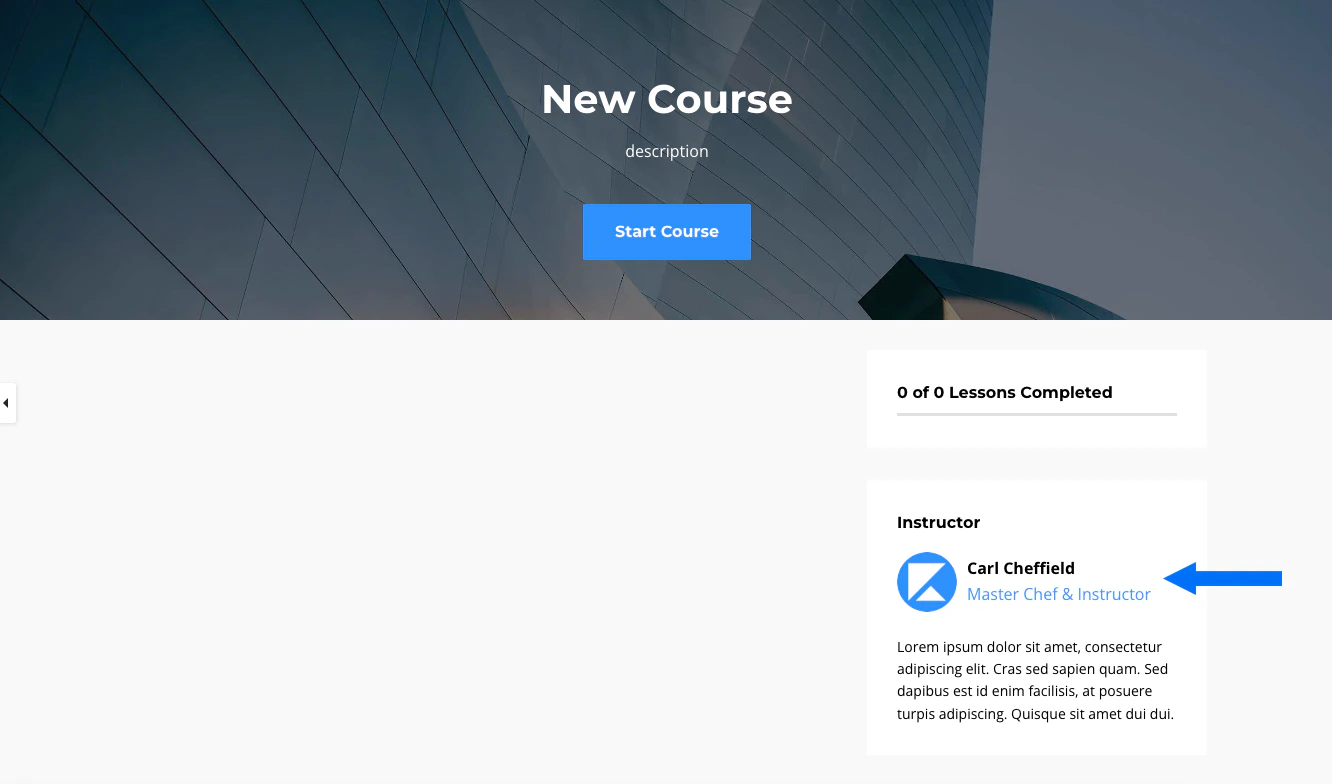
Note:
An Instructor image and name are required when linking the Instructor Block to your site settings. If those values are not completed, the Instructor Block will not display in your preview or for your course members.
- Open the Settings tab from your Dashboard.
- Click Site Details.
- Navigate to the Instructor section.
- Upload an image of the instructor.
- Enter the instructor’s name.
- Include the instructor’s title.
- Add the instructor’s bio.
- Click Save to keep and apply your changes.
Note:
Adding instructor info in Site Details will not retroactively update your info in any pre-existing Courses. If you have already created a Course using a template with a built-in Instructor Block, update your information directly on the Course and Lesson templates.