

Overview
The Managed Sites section gives you a centralized view of all the Kajabi sites you actively manage as a service provider. Whether you support clients with web design, development, marketing, or platform setup, this section helps you stay organized and quickly access your clients’ sites.Access managed sites
- From your Kajabi Dashboard, click your account icon in the top right corner.
- Select Partner Program to open your Kajabi Partner Dashboard.
- Select Sites from the navigation side menu.
- Here, you’ll be defaulted into the Managed Sites tab.
- This is where all sites will be listed where you’ve been added as a Collaborator.
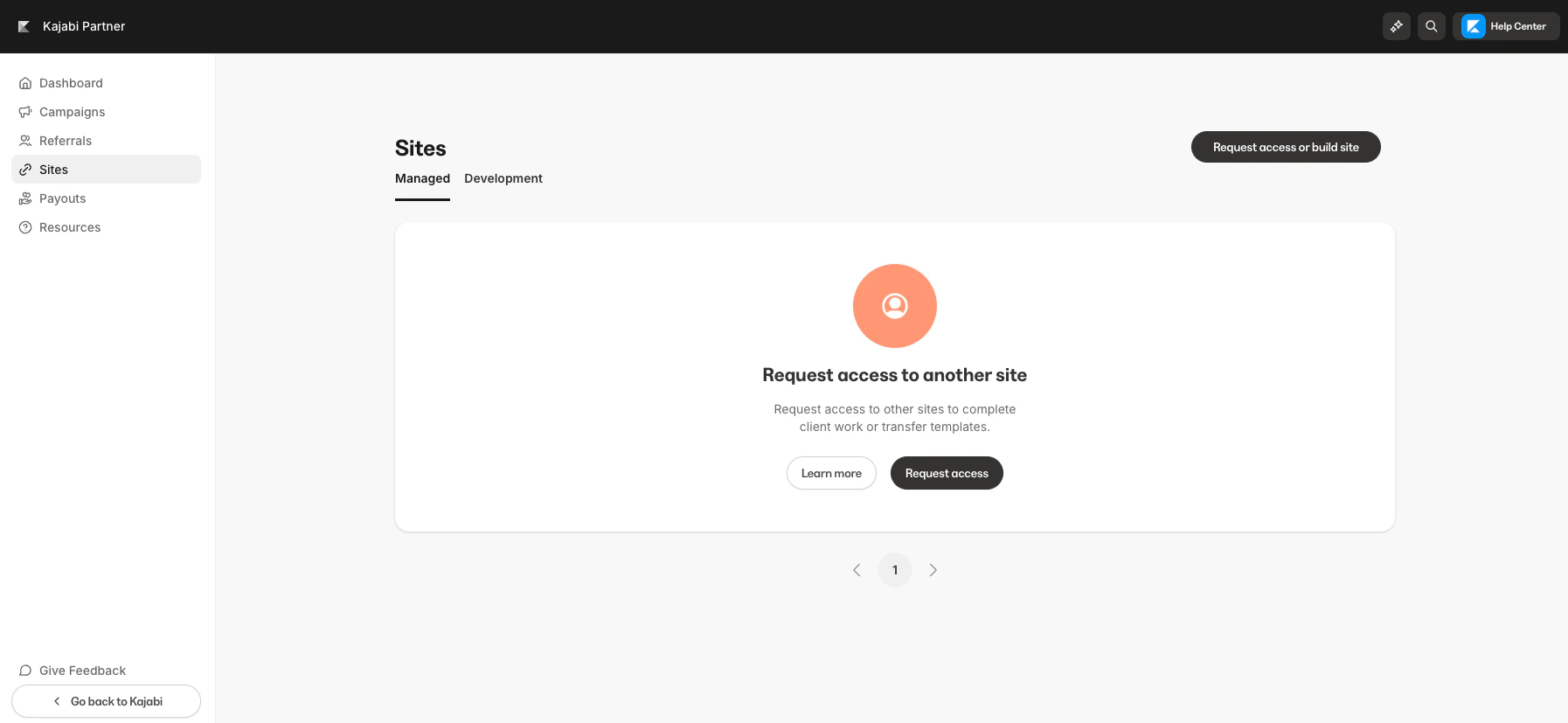
What you’ll find in managed sites
The Managed Sites section is designed to streamline how you view and access client projects within Kajabi. Here’s what you’ll find:- Site Name: The name of each Kajabi site you’re managing.
- Site Owner: The client who owns the site.
- Role: Your assigned role (Collaborator).
- Status:
- Active: 90 days remaining
- Pending
- Deactivated
- Archived
- Log In: Use this button to instantly log into your client’s site.
- Request access or build site: Use this button to request access to a client’s site.
- You can filter your list of client sites via Active, Pending, Deactivated & Archived.