Dashboard
Analytics
When you log into the Creator mobile app, you see an overview of the following analytics to easily track site performance:- Offers sold — The number of Offers sold during your selected time frame
- Net revenue — The total amount of money generated by your business after refunds and discounts have been deducted
- New customers — The number of customers on your site within your selected date range
- Opt-ins — The number of people who opted into receiving communications from you within your filtered time frame
- Total views — The total number of times your site has been viewed within your filtered time frame
- Unique views — The total number of times your site has been viewed by a unique user during your filtered time frame
AI content assistant
Create AI-generated content for your social media posts, emails, sales videos, course outlines, landing pages, and more with the AI content assistant. Learn how to use the AI content assistant To access the AI assistant, tap the icon at the top right of the Dashboard: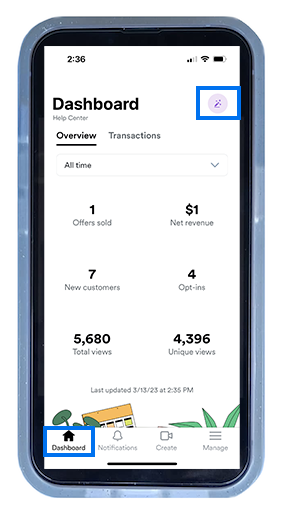
Transactions
View information about your site’s recent transactions by tapping Transactions from the Creator mobile app Dashboard: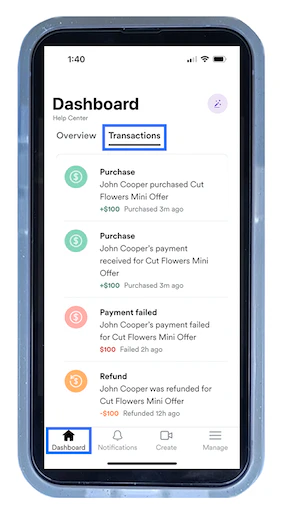
Notifications
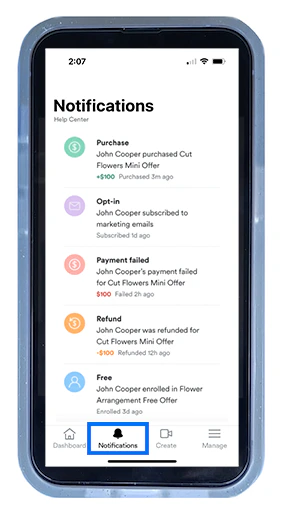
Open Notifications to view your recent notifications. You may be notified of the following actions:- A purchase has been processed
- A payment has been received
- A payment has failed
- A payment has been refunded
- A contact has opted-in (or subscribed) to receive your marketing emails
- A customer has enrolled to your Offer
Create content
Use the Create feature to record or upload a video and add it to a lesson. Create Course material on the go with this mobile experience. Learn how to add a video to a lesson To add your video, open the Create tab: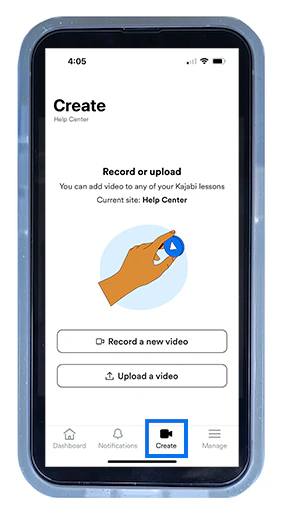
Account management
Open Manage to switch to another website connected to your account (only available if you have more than one website), configure push notifications, manage contacts, view additional analytics, adjust account information, view Kajabi’s Policies, and visit Kajabi University or the Help Center.Push notifications
Control your push notifications (i.e., pop-up banner notifications) by toggling on the actions you want to be notified about and toggling off the notifications you wish to ignore or pause: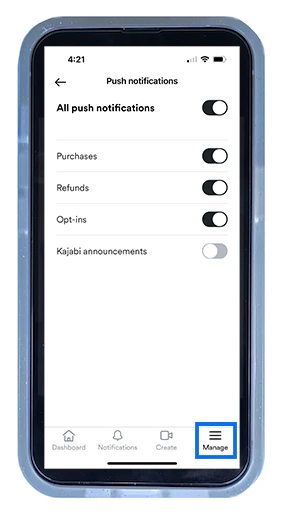
Contacts
Within the Manage tab, you can create, view, and edit a contact’s information. Open Contacts to view, filter, and sort your list. Locate a contact and update their contact information, add notes, create tags, and grant or revoke Offers: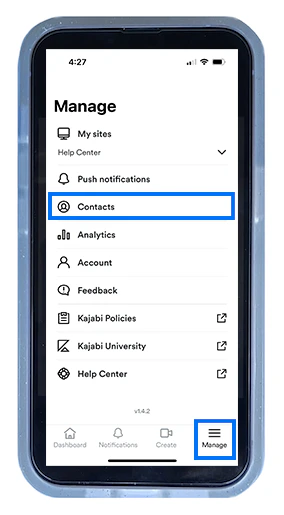
Download the Kajabi Creator app
No matter where you are, you can access your site as long as you have your mobile device. Download the Creator mobile app and build your business from anywhere.