

Overview
Providing templates in the Template Store? These tips help you create templates that stand out, meet approval criteria, and deliver real value to the Heroes who use them.Understand what Heroes look for
Heroes purchasing templates want a simple solution to their tough design challenges. Many know how they want their brands to look but cannot achieve it with their current level of design skills. This is where you come in.Note:
As a template provider, you are responsible for answering customer questions and fixing any bugs that may arise.
Template criteria
When a template is submitted, the Approval team looks for the following requirements:- Template is uploadable
- Documentation link - Include documentation within the template upload if your template needs extra instructions
- Ability for video/audio upload
- Editor buttons - Undo, redo, save, preview
- Global settings
- Image upload
- Video/audio upload
- Section/block reordering and cloning
Update template settings information
- Open the Code Editor for your template type (e.g., Website, Landing, or Product Page). Learn to access the Code Editor.
- Open the Config folder.
- Locate the Theme Name, Author information, Documentation link, and Support URL to update:
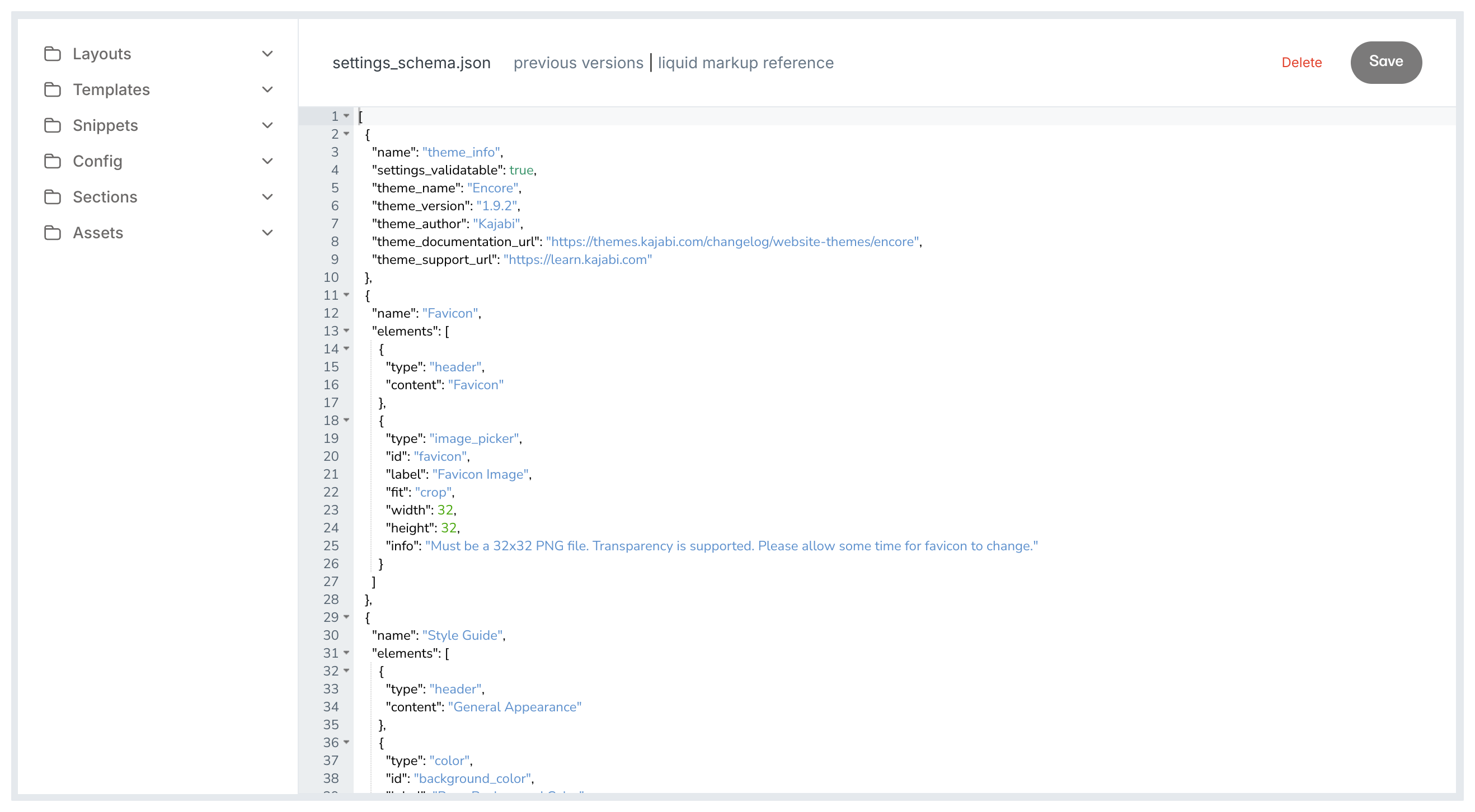
- Click Save to keep and apply your changes.
Note:
Make sure that all images are royalty-free and you have the rights to use them within your template.
Template type requirements
Website
If you are providing a Website template, ensure that your template includes the following:- Ability to add website pages
- Page navigation
- Pages that show as System or Draft/Published
Product
If you are providing a Product template, ensure that your template includes the following:- Page navigation
- Library navigation
- User settings navigation
Third-party theme upgrade via zip
Note:
This feature is currently in beta and is being tested by a select group of Heroes. If you have questions or concerns about this feature, reach out to support@kajabi.com.
- Any custom code installed through the Kajabi Code Editor will not be copied over
- Any custom code installed through the Kajabi Builder will be copied over
- Any settings in .json, such as fonts, style guides, etc. will be copied over
- Any previous changes to sections and blocks will be copied over
- Ensure you upload the same theme file, or your file may be corrupted. For example, upload the same website theme, landing page theme, etc. for updates. Do not mix and match these files.
Note:
If you are currently using the standard theme update process to let customers who purchased your themes update them, you do not need to change your workflow.
Configure your theme file for update from zip
To trigger the Update from Zip feature, use the guidelines below for two key elements stored in the settings_schema.json portion of your theme file. The combination of correct “theme_name” and “theme_version” triggers the update from zip UI for your customers.theme_name
If you want to trigger an upload from zip UI, do not use the following names in your “theme_name” in the settings_schema.json file of the theme. Website:- Encore
- Premier
- Momentum
- Premier
- Lagunita
- Warren
- Taylor
- Mist
- Classic
- Dive
- Derby
- Primo
- Slate
- Next
- Encore
- Premier
theme_version
If you want to trigger an upload from zip UI, use the following naming rules for “theme_version”:- Landing Pages - Text + Your Version Number (do not use version numbers listed below)
- Web - Text + Your Version Number (do not use version numbers listed below)
- Product - Text + Your Version Number (do not use version numbers listed below)
- Encore - “0.4.0”, “0.4.1”, “1.0.0”, “1.0.0-gm”, “1.0.1”, “1.1.0”, “1.1.1”, “1.1.2”,“1.1.3”, “1.2.0”, “1.2.1”,“1.3.0”, “1.3.1”,“1.3.2”,“1.3.3”, “1.4.0”,“1.4.2”, “1.4.3”,“1.0.0-GM”,“1.5.0”,“1.5.1”,“1.5.3”, “1.5.4”, “1.5.5”, “1.5.6”, “1.6.0”, “1.7.0”
- Premier - “6.1.4”, “6.2.0”
- Momentum - “6.1.1”, “6.1.2”, “6.1.3”, “6.1.4”, “6.2.0”, “6.3.0”, “6.4.0”, “6.5.0”, “6.5.1”, “6.5.2”, “6.6.0”, “6.6.1”
- Premier - “7.0.0”, “7.1.0”, “7.2.0”, “7.3.0”, “7.4.0”, “7.4.1”, “7.5.0”
- Premier - “6.1.3”, “6.2.0”
- Encore - “1.2.4”, “2.0.0”, “2.0.1”, “2.0.2”, “2.0.3”, “2.1.0”, “2.3.0”, “2.3.1”, “2.3.2”, “2.3.3”, “2.4.0”, “2.4.2”, “2.4.3”, “2.5.3”, “2.5.5”, “2.6.0”, “2.7.0”
Examples of theme_name and theme_version combinations
Example 1 Web: Triggers Update from Zip- Theme_name: Custom Theme
- Version_number: 2.1.1
- Theme_name: Encore
- Version_number: Custom Name 1.7.0
- Theme_name: Encore
- Version_number: 1.7.0
- Theme_name: Momentum
- Version_number: 1.7.0
User experience and entry points
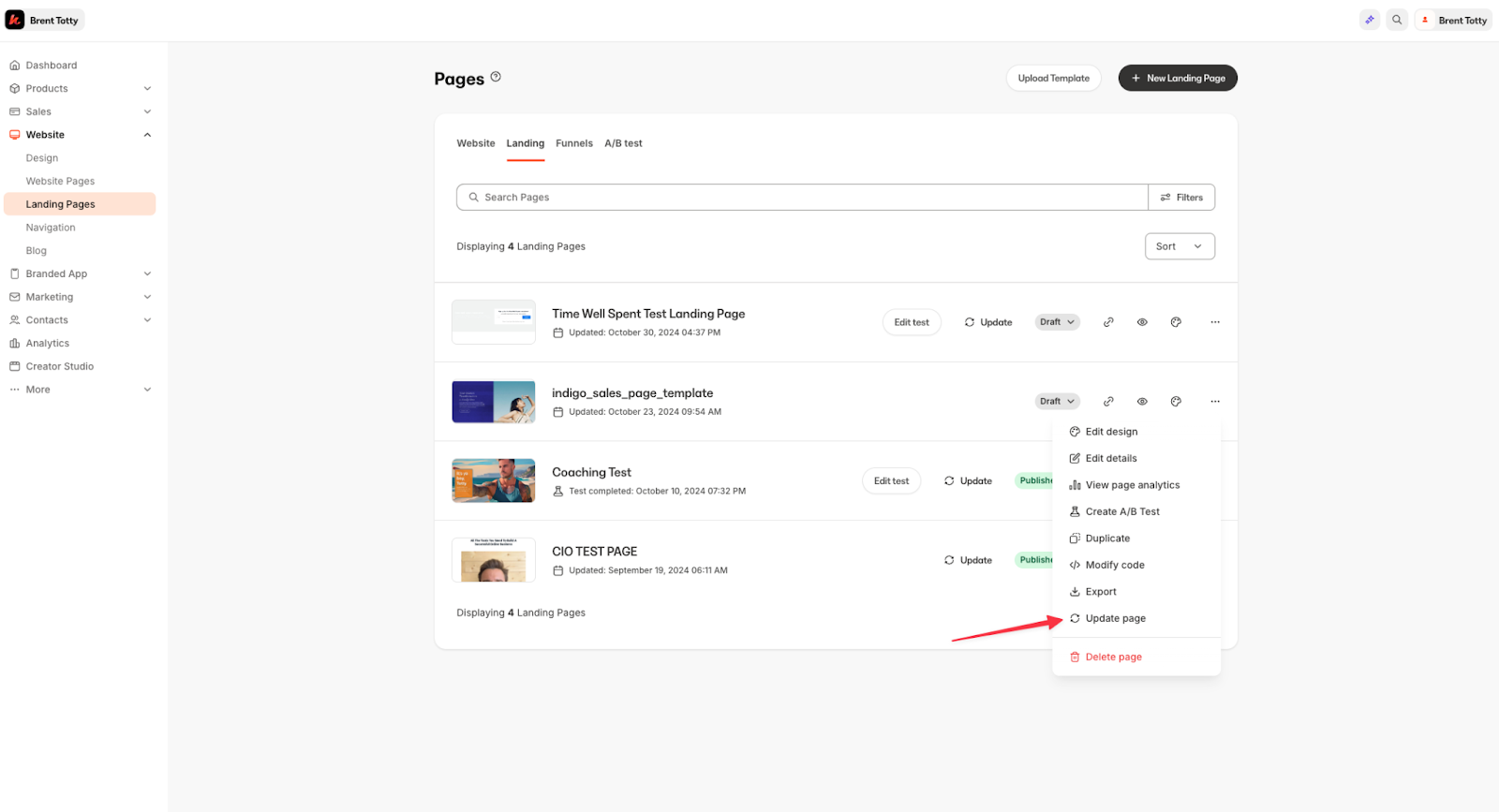
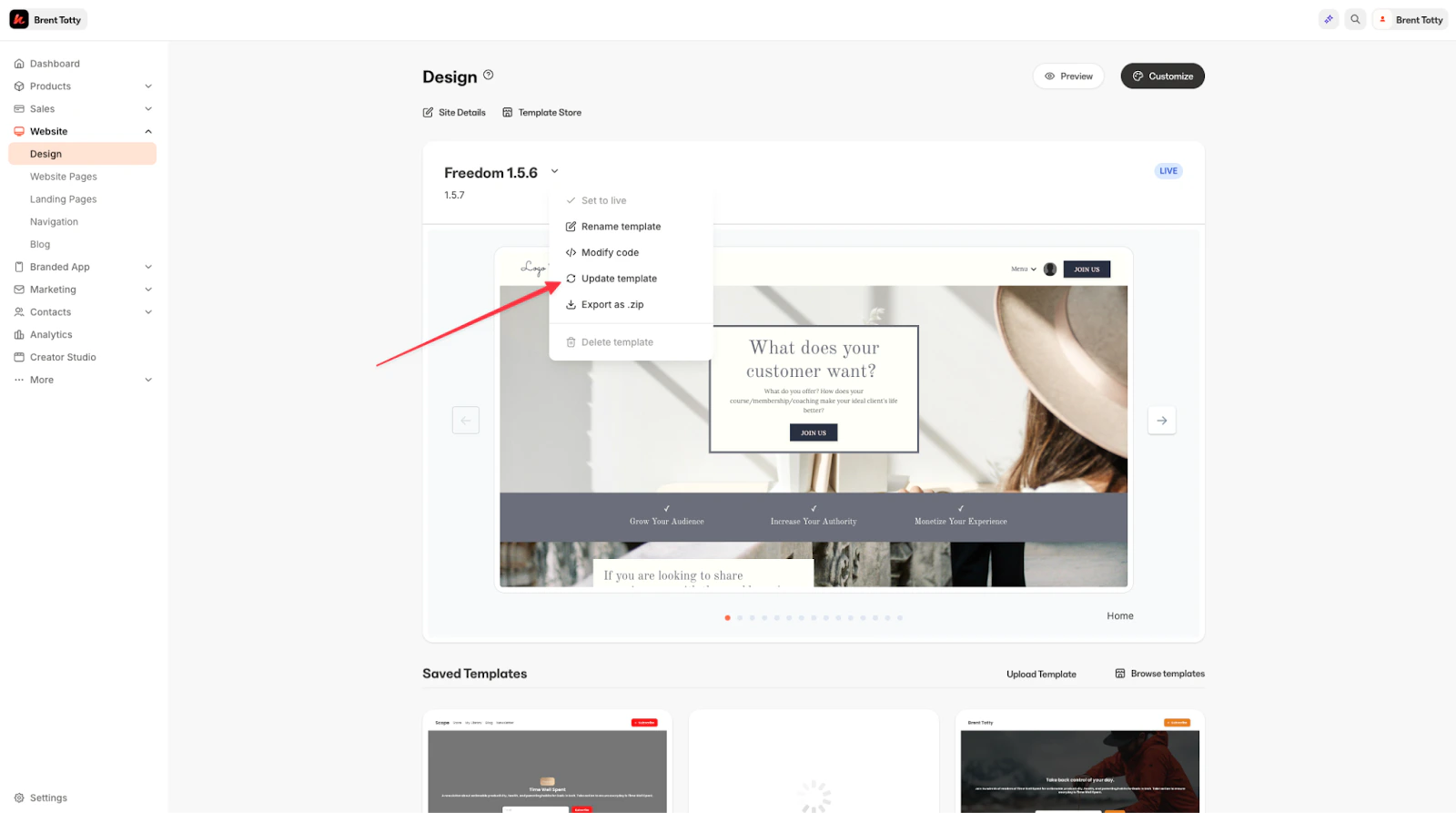
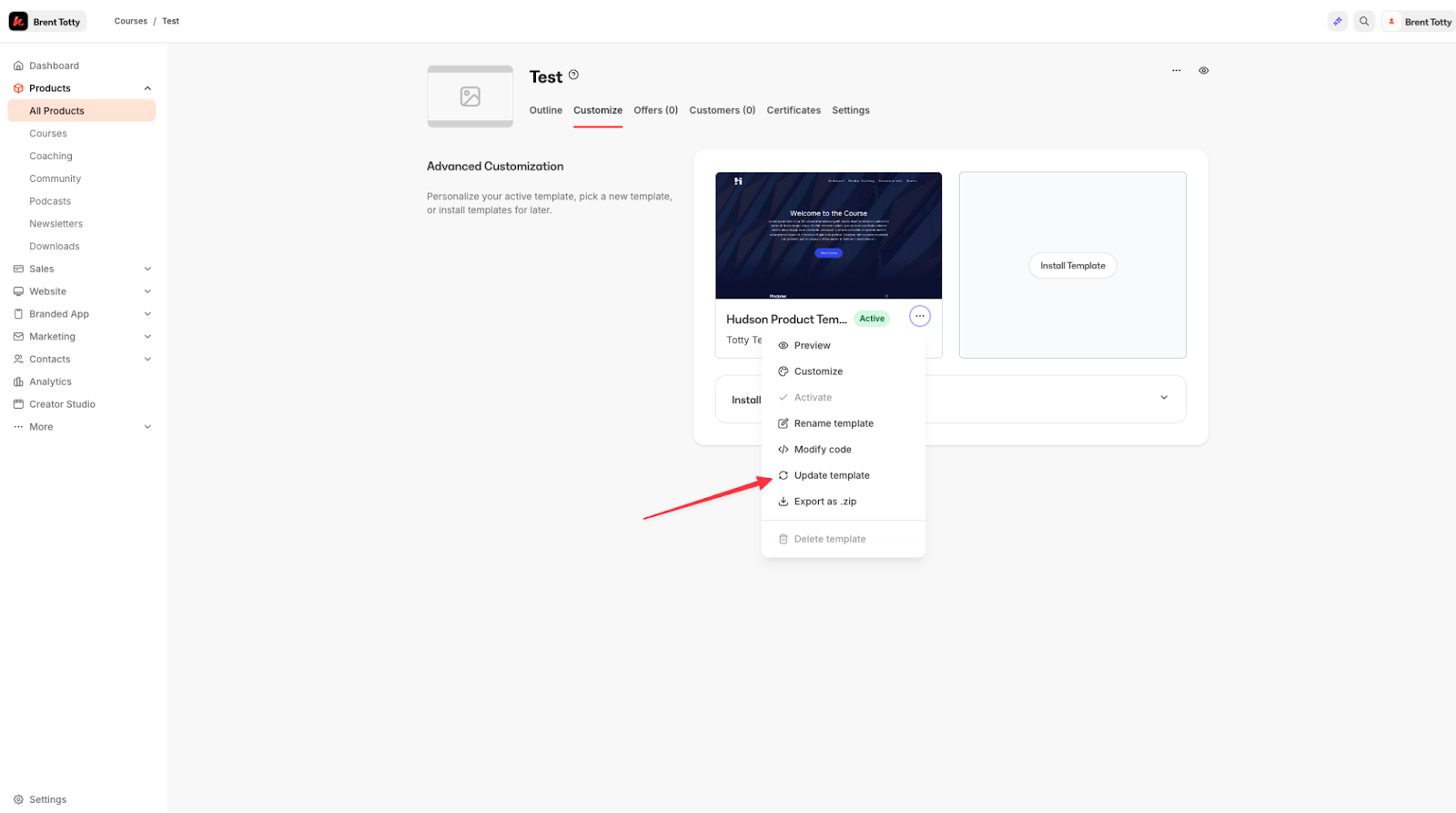
If a theme is named correctly using the above naming rules, the following UI will show: If a theme is not named correctly and includes a Kajabi internal “theme_name” and a recognized “version_number”, the standard upgrade flow will be shown. Using Kajabi internal “theme name” for theme upgrades is not recommended unless you are only selling presets of existing Kajabi themes without any additional code or enhancements.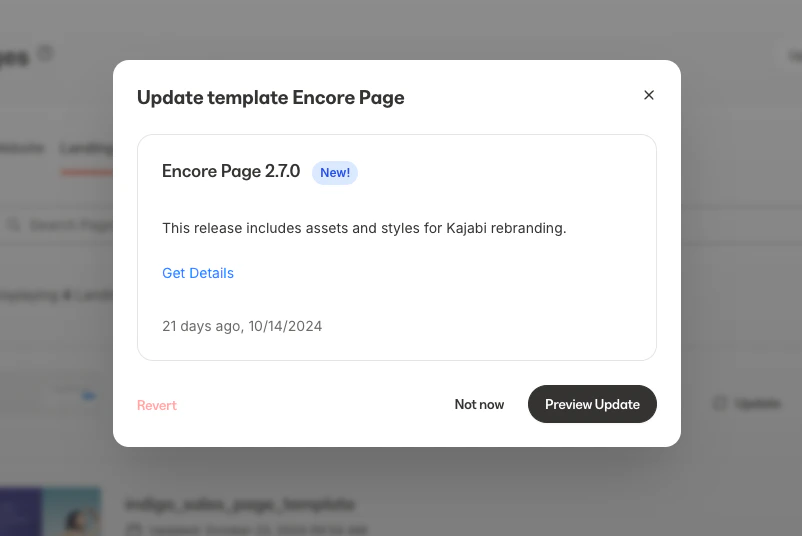
Tips to make templates stand out
Create based on the customer’s aesthetic:- Feminine
- Fitness
- Masculine
- Business
- Real Estate
- Memberships
- Link in bio pages
- Sales pages for specific sales goals/events
- Community pages
- Coming Soon pages
- Media pages